Sales commission agents
Last updated: 7 November 2026 · 3 min read
A commission agent earns a percentage on the sales they bring in, such as a contractor who sends customers to your hardware shop. You add the agent once, pick them on each sale, and BillBook works out what you owe.
Before you start: Turn commission on in Settings > Business Settings > Sale. The steps are in the section Choose the calculation type below. Until you do, the Commission Agent box does not appear on a sale.
Add a commission agent#
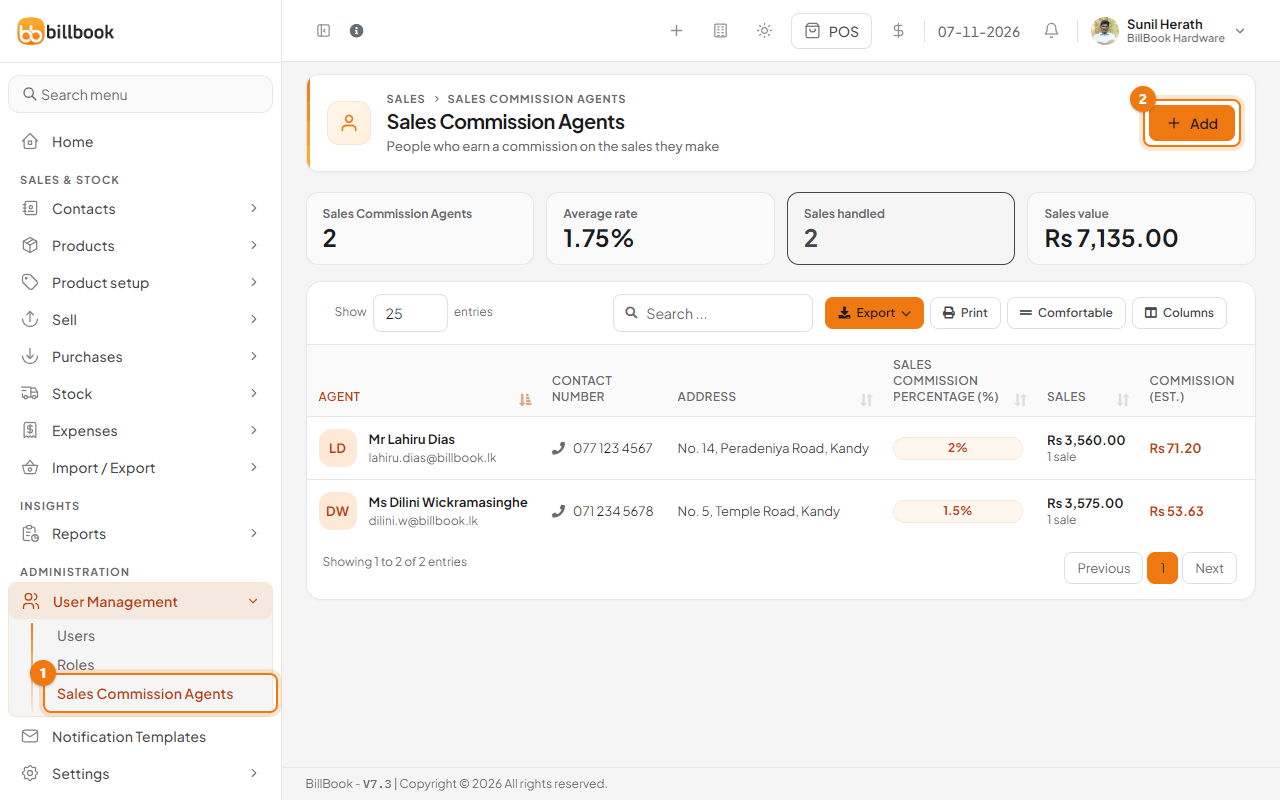
- Go to User Management > Sales Commission Agents (1). The cards at the top show how many agents you have, their average rate, the sales handled and the sales value. The list shows each agent's contact details, Sales Commission Percentage (%), Sales and Commission (Est.).
- Select Add (2).
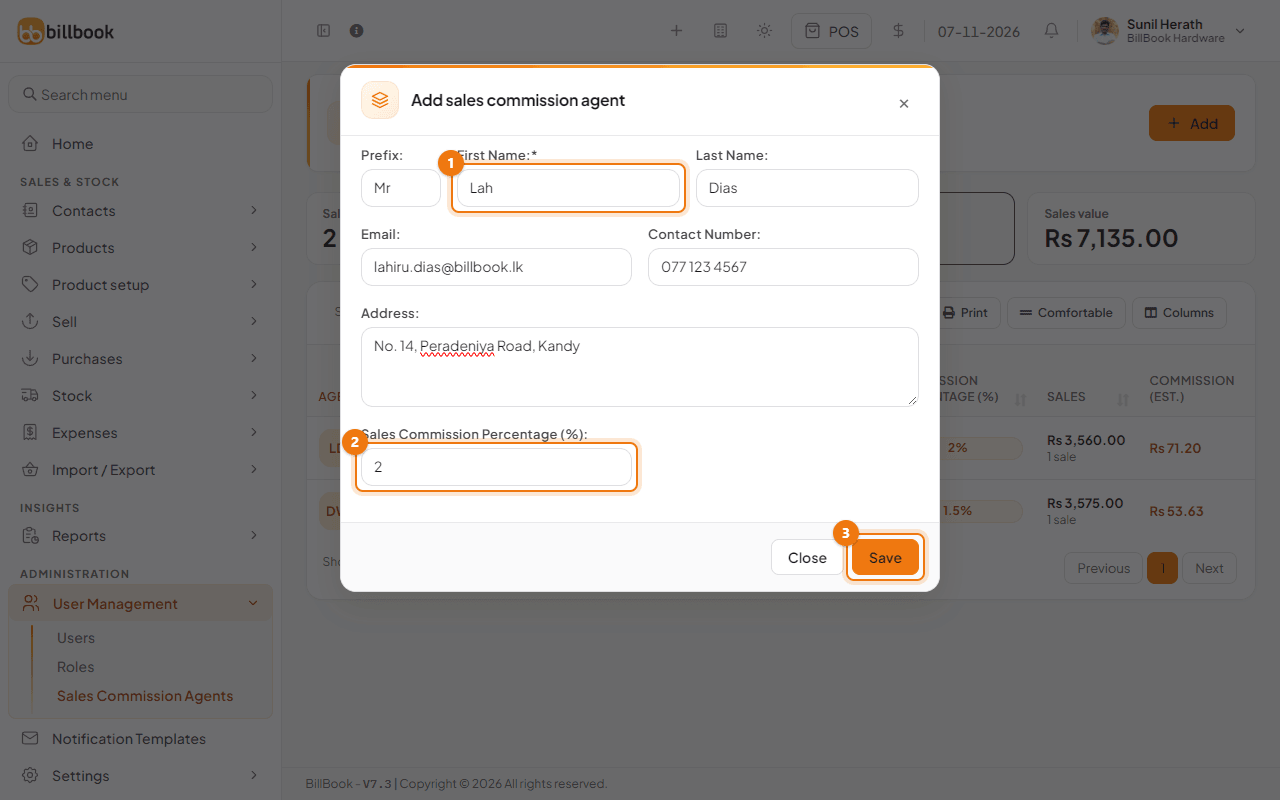
- Enter the First Name (1), for example Lahiru. Prefix, Last Name, Email, Contact Number and Address are optional.
- Enter the Sales Commission Percentage (%) (2).
- Select Save (3). BillBook shows Commission agent added successfully and the agent appears in the list.
To change an agent, select Edit on their row.
Set the commission percentage#
Each agent has their own Sales Commission Percentage (%). For example, Mr Lahiru Dias earns 2% and Ms Dilini Wickramasinghe earns 1.5%. On a sale of Rs. 3,560.00, Mr Lahiru Dias earns Rs. 71.20.
The list shows each agent's Sales and Commission (Est.), so you can check what you owe at any time.
Note: Staff users can also have a commission percentage on their user form. BillBook uses it only when the commission setting is Logged in user or Select from user's list. See Add and manage users.
Choose the calculation type#
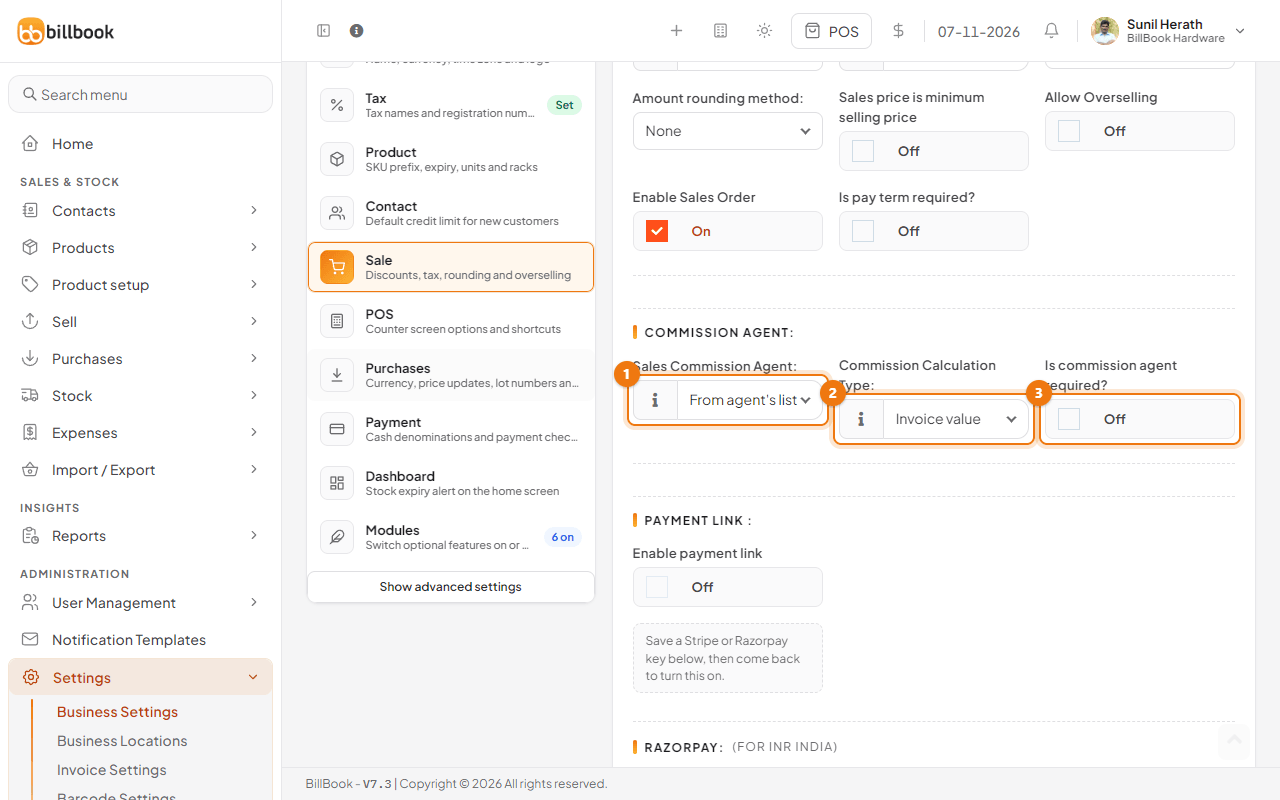
- Go to Settings > Business Settings and open Sale.
- Under Commission Agent, set Sales Commission Agent (1). Choose From agent's list to use the agents on this page. The other choices are Disable, Logged in user and Select from user's list.
- Set Commission Calculation Type (2):
- Invoice value: commission is a percentage of the value of the items sold, less any returns.
- Payment Received: commission is a percentage of the money actually paid in the period.
- Turn on Is commission agent required? (3) if every sale must have an agent.
- Select Update Settings. BillBook shows Settings updated successfully.
Tip: Choose Payment Received if you want to pay commission only after the customer has paid.
Assign agents on a sale#
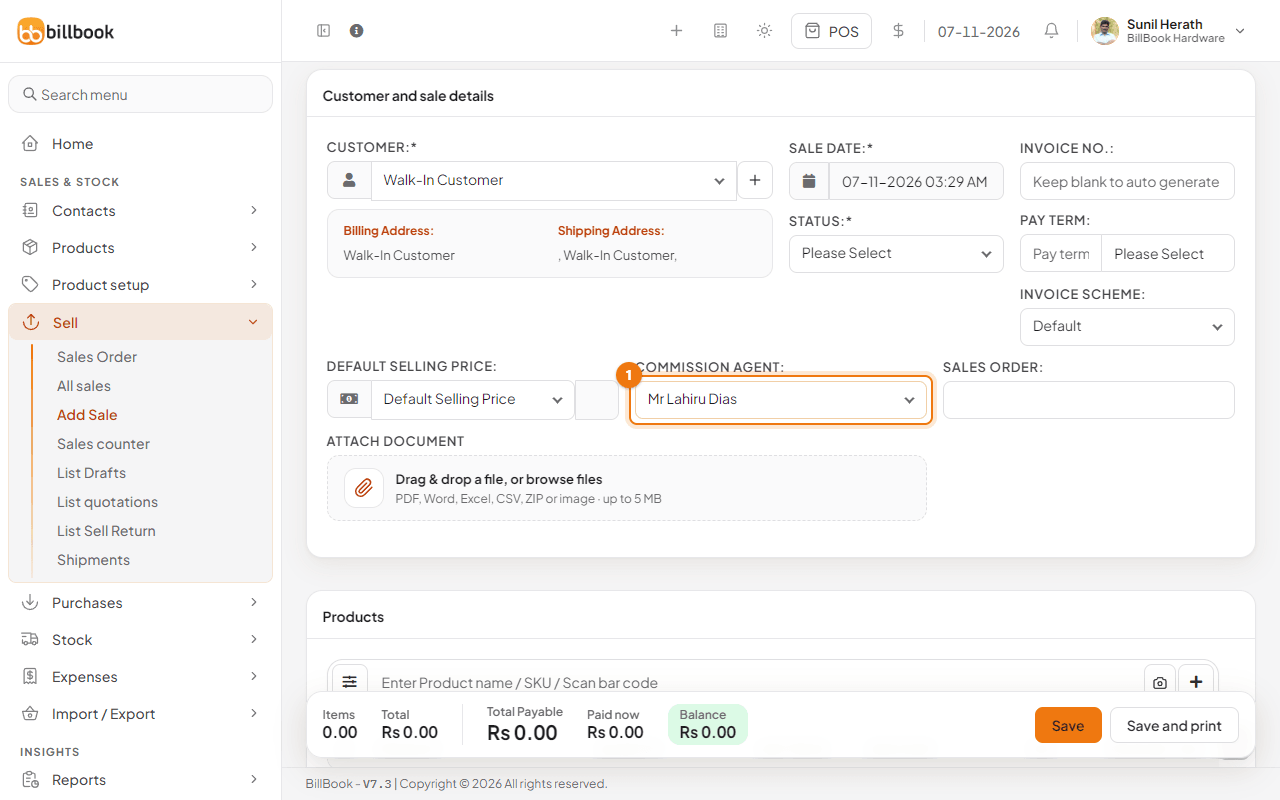
- Go to Sell > Add Sale.
- Open Commission Agent (1) and choose the agent. The box shows None until you pick one.
- Add the items and payment as usual, then select Save.
Commission in the Sales Representative report#
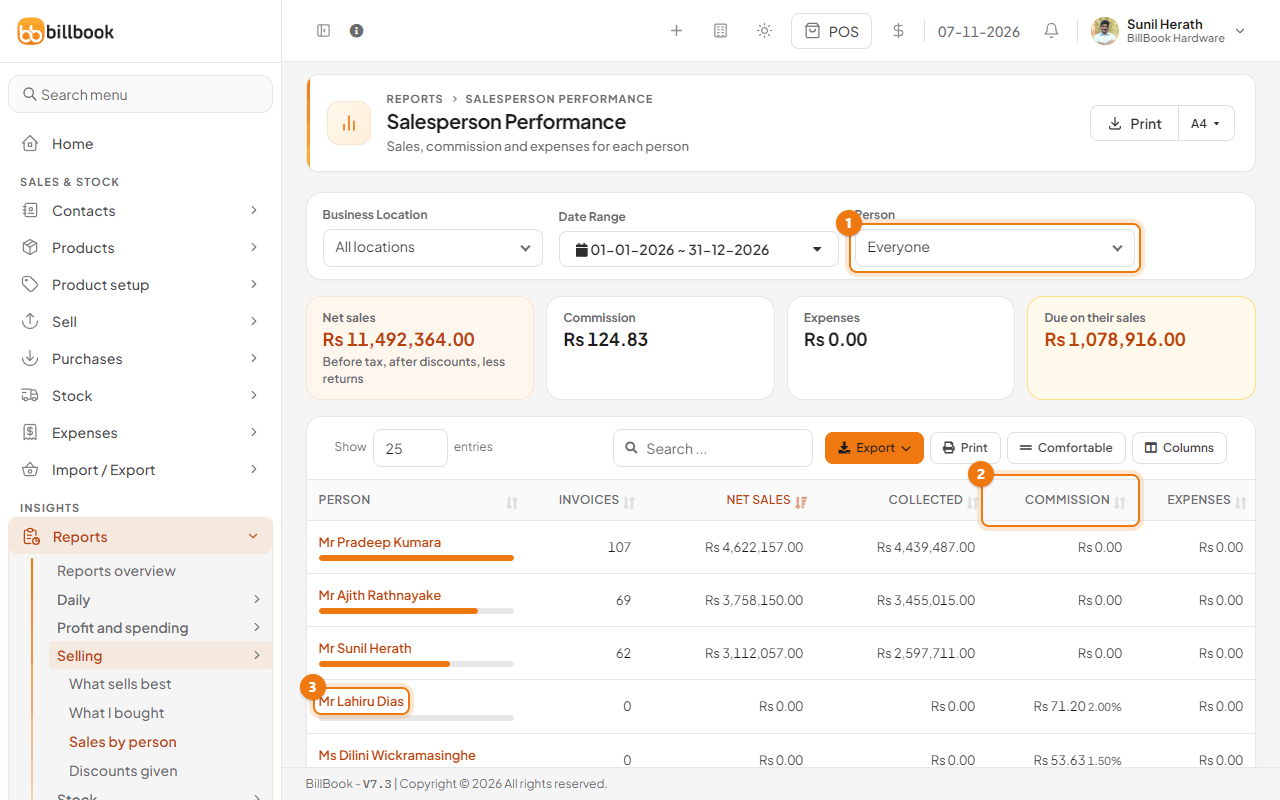
Go to Reports > Selling > Sales by person. The page is called Salesperson Performance. The Commission card at the top and the Commission column (2) show what each person earned in the dates you choose, with the percentage next to it. Each person, such as Mr Lahiru Dias (3), has a row. Use Person (1) to look at one person, and change Date Range or Business Location to narrow the figures. For one person, the tabs Sales Added, Sales With Commission and Expenses list the sales behind the numbers.