
Credit sales and partial payments
Last updated: 7 November 2026 · 4 min read
Contractors and regular customers often take goods now and pay at the end of the month, or pay half now and the rest later. BillBook keeps what they owe against their name so you can collect it later.
Before you start: Credit needs a named customer, not Walk-In Customer. Add the customer under Contacts > Customers first. If you want a limit on how much they can owe, set a Credit Limit on the customer. See Customers and suppliers.
Full credit sale#
Use this when the customer pays nothing today.
- Go to Sell > Sales counter.
- Select the customer box (1) and type the name, phone number or customer ID, for example Rifkhan. Choose Mr Mohamed Rifkhan (CO0003). If the customer already owes you money, the red Customer Due line below the box shows how much.
- Add the items.
- Select Credit Sale (2).
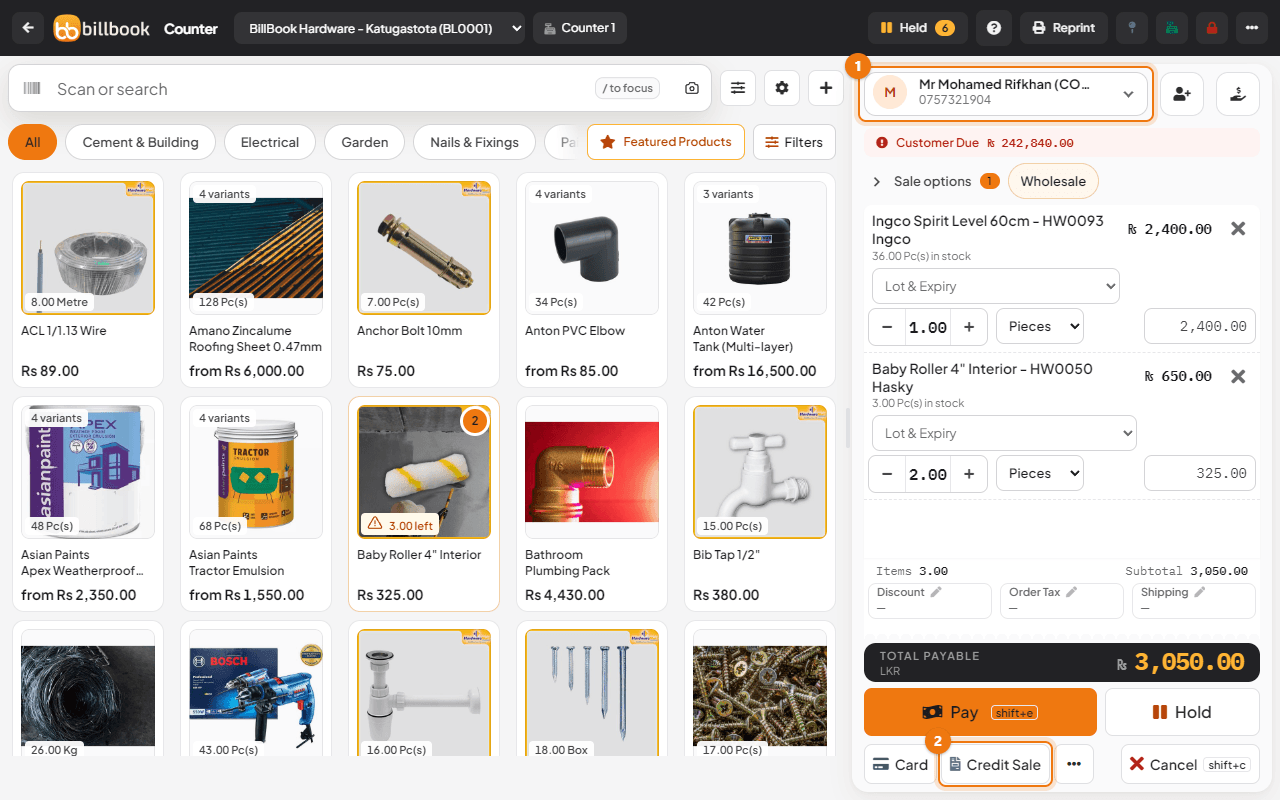
BillBook shows Sale added successfully. The whole total is now owed by the customer. In our example the sale was Rs. 3,050.00.
Note: Prices follow the customer's group. Our contractor customers are in a group with lower prices, so the prices on the sale can differ from the price on the product card. See Customer groups and group pricing.
Credit Sale is switched off while Walk-In Customer is chosen, because nobody can be asked to pay later. Choose or add a named customer first. If the sale is sent anyway, BillBook refuses it with Credit sale needs a named customer. Choose or add the customer first. The same check applies when you edit a POS sale.
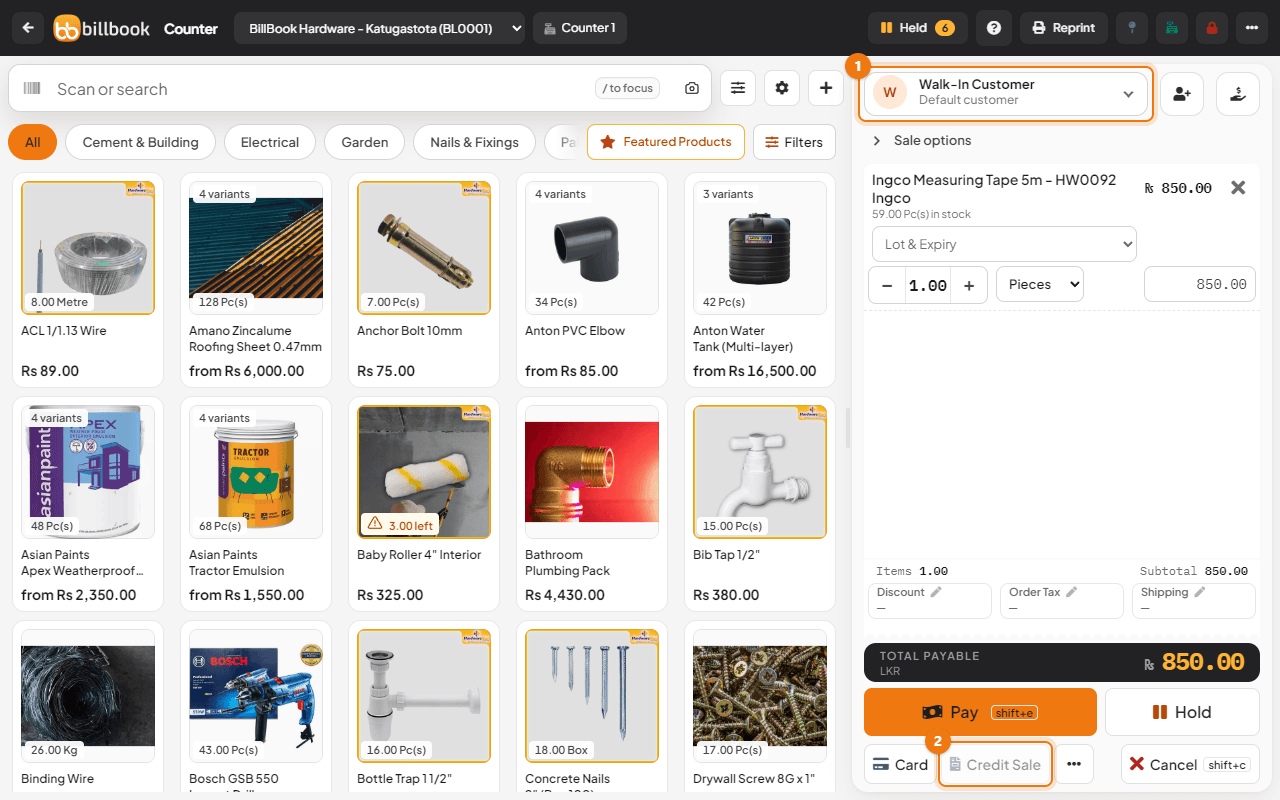
If the Credit Sale button is missing, ask the owner to turn off Disable credit sale button on the POS tab in Settings > Business Settings.
Part paid, part credit#
Use this when the customer pays some money now.
- Choose the customer and add the items as above.
- Select Pay.
- Enter the amount the customer hands over now in Amount (1), for example 1,000.00, and choose the Payment Method.
- Look at Balance (2) on the right. It shows what is still owed, here 2,050.00 on a total of Rs. 3,050.00.
- Select Finalize Payment (3).
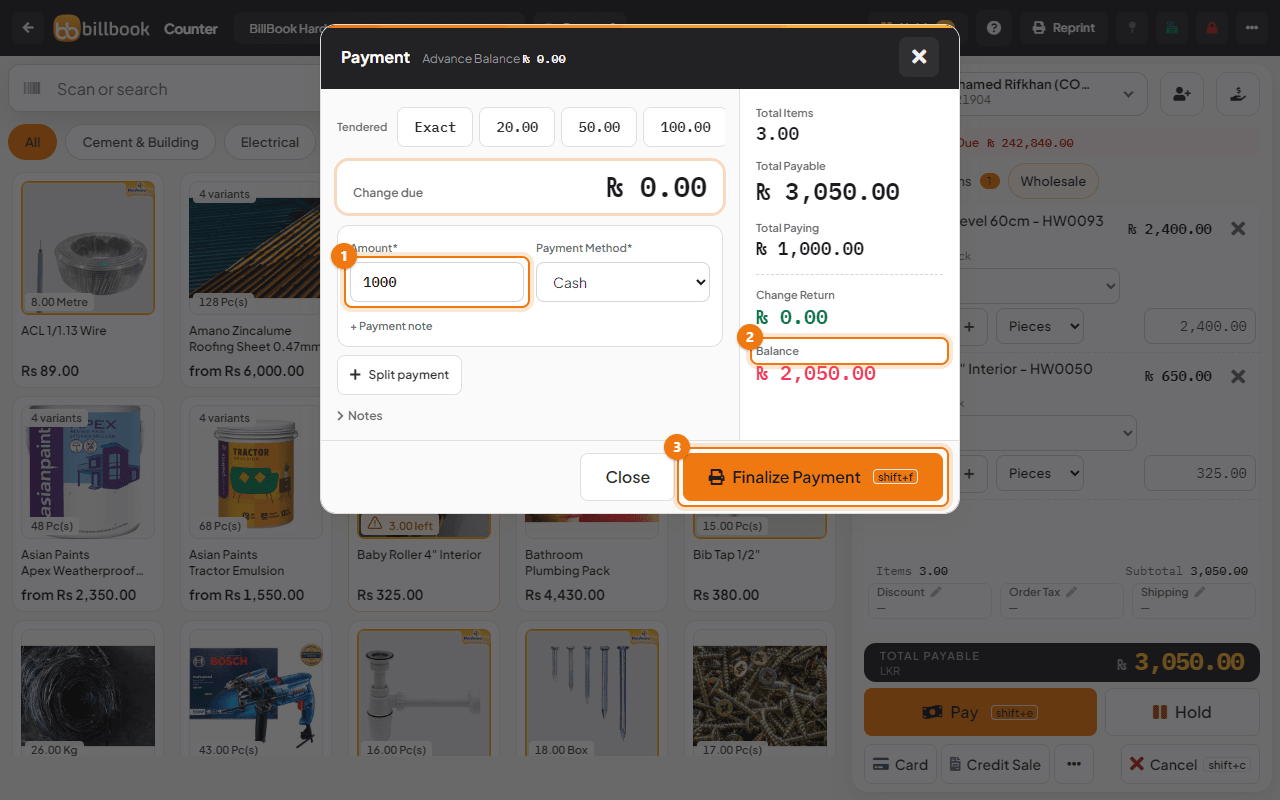
BillBook saves the sale as partly paid and keeps the balance as the customer's due.
Credit limit warnings#
When a customer has a Credit Limit, BillBook checks it each time you sell to them on credit. If the unpaid total would go above the limit, the sale is stopped and a red message appears: Customer Credit Limit Exceeded, followed by the limit. For this picture we set a Credit Limit of Rs. 22,000.00 for Mr Mohamed Rifkhan, who already owed Rs. 21,665.00, so a credit sale of Rs. 3,050.00 was refused.
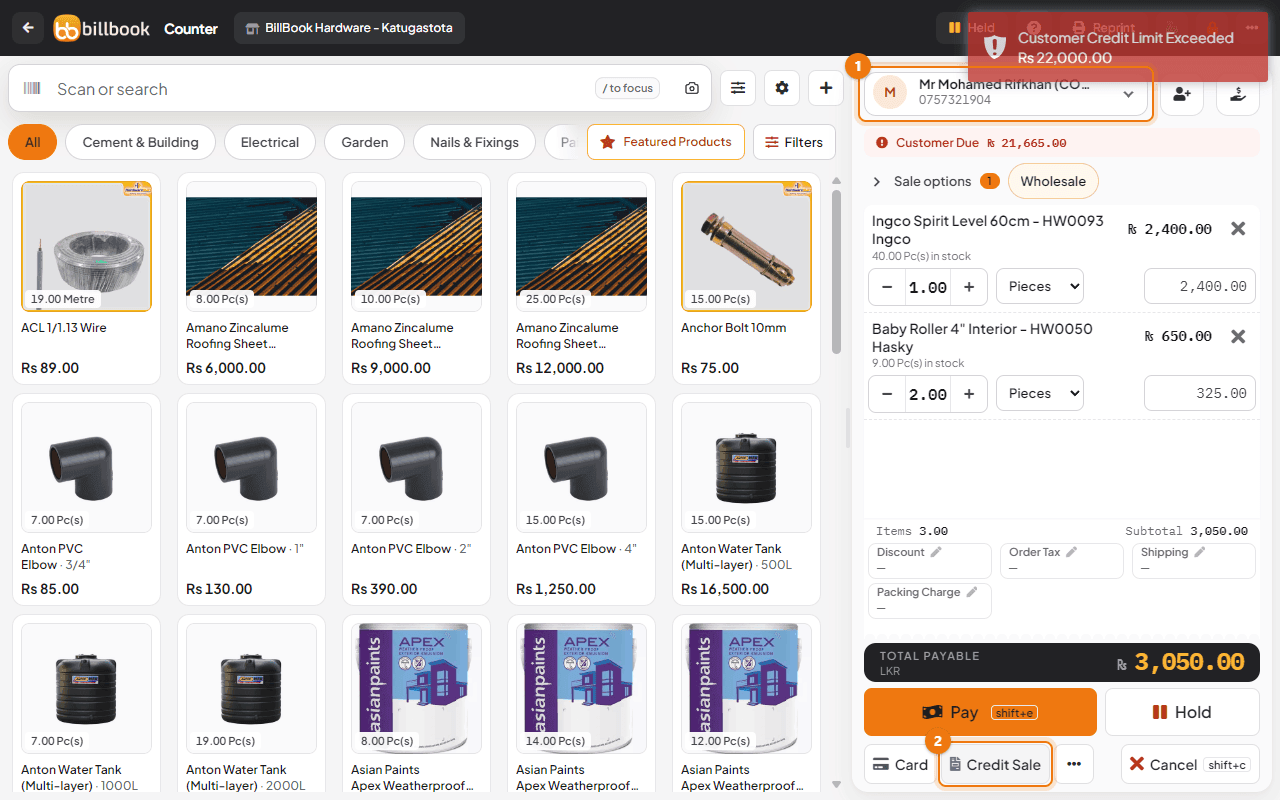
To go ahead, take enough payment now to bring the unpaid part under the limit, collect an earlier balance first, or ask the owner to raise the limit on the customer's Edit screen. A sale that is paid in full is not checked. A sale you only Hold is not counted as owed either, because it is not a sale until you finish it. See Hold, resume and delete held sales.
Tip: The same check runs when you turn a quotation into an invoice. See Drafts, quotations and suspended sales.
Collect the balance later#
When the customer comes to pay, record the payment against their name.
- Go to Contacts > Customers.
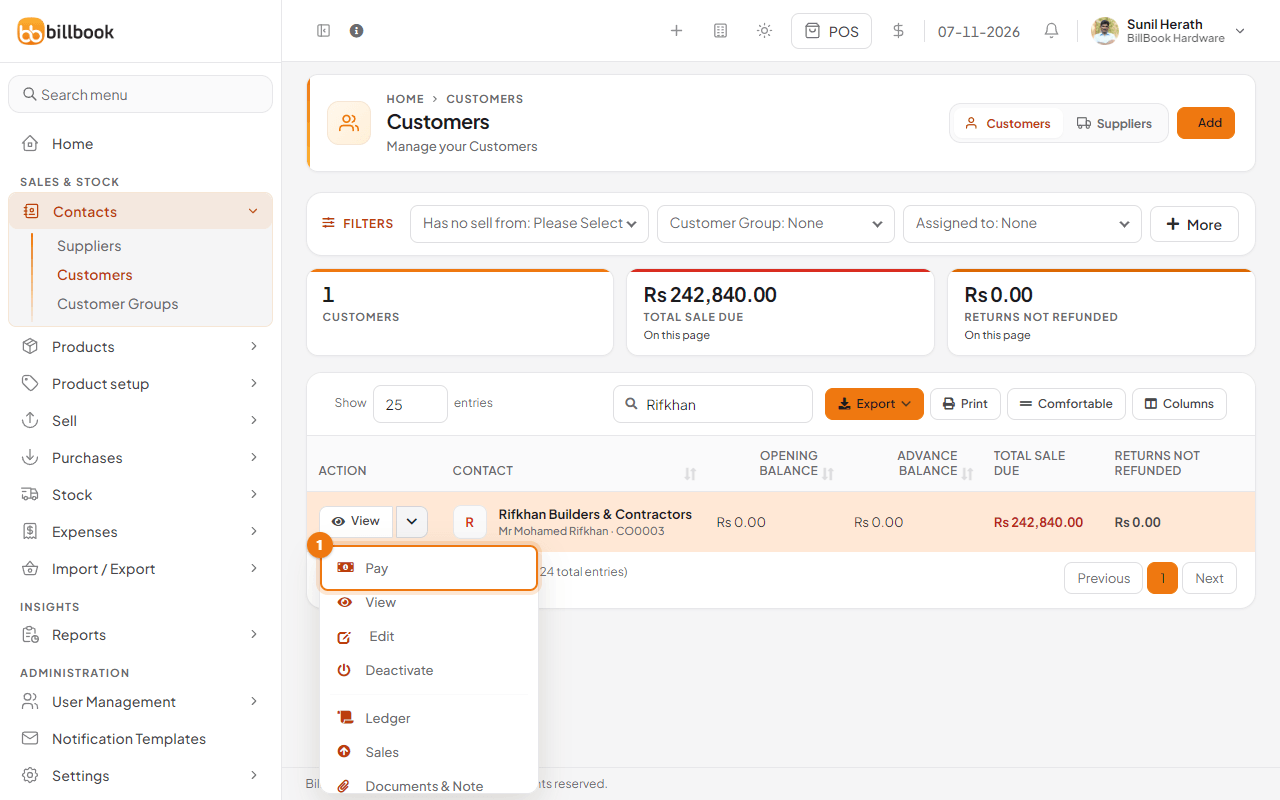
- Find the customer, select the arrow next to View on their row, and select Pay (1).
- The Add payment window shows Total Sale Due. Enter the Amount (1) you received, choose the Payment Method and select Save (2).
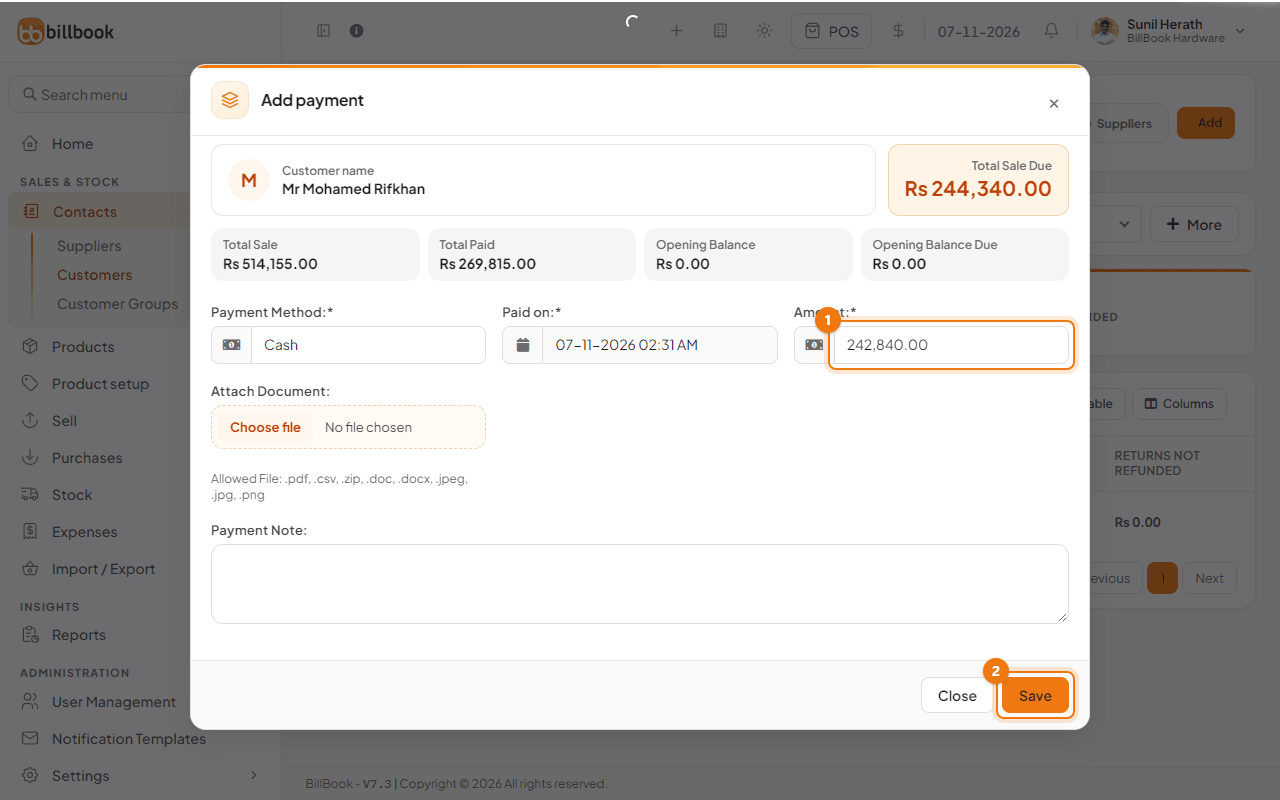
The Amount starts with the customer's full due, including any opening balance, so change it if they are paying only part. For the full steps, see Collect and pay dues.