
Variable products and variation templates
Last updated: 7 November 2026 · 4 min read
Use a variable product when one item comes in several versions, such as a paint in 1L, 4L and 10L tins. You create one product, and each version has its own price, barcode and stock. A variation template saves you from typing the same sizes again for every paint.
Before you start: Set up the Unit, Brand and Category you will need. See Add a product.
Create a variation template#
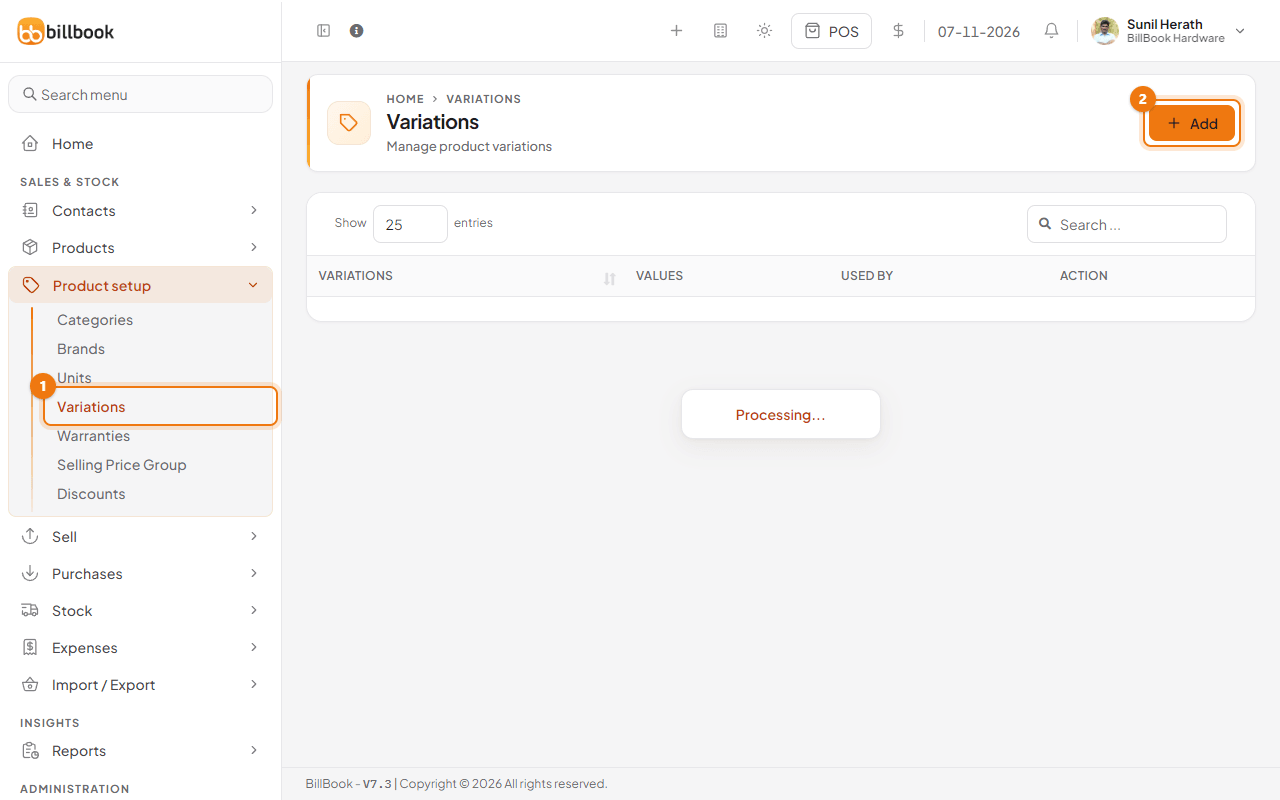
- Go to Product setup > Variations (1). The list shows each template with its values and how many products use it.
- Select Add (2).
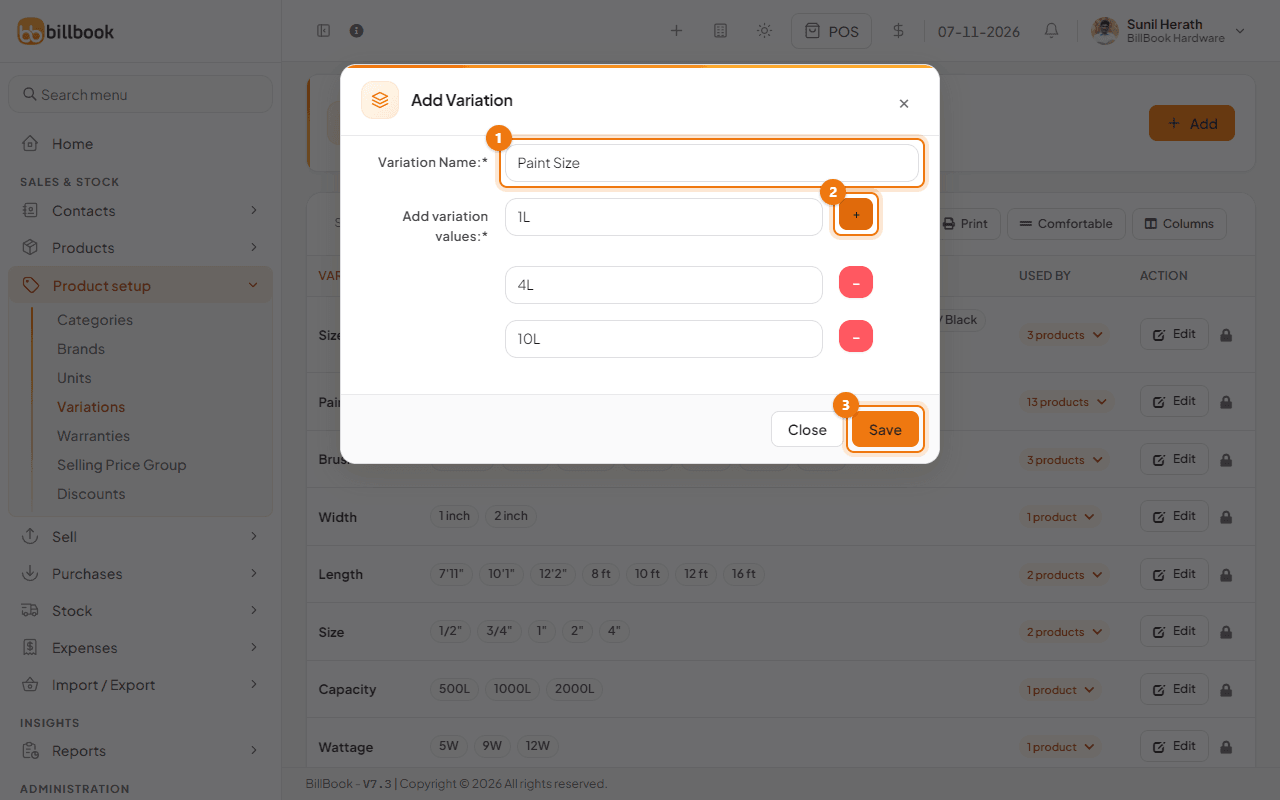
- Enter the Variation Name (1), for example Paint Size.
- Type the first value, for example 1L, in Add variation values. Select the + button (2) for each extra value and type 4L, then 10L.
- Select Save (3).
Note: A template that products already use cannot be deleted. You can still edit it.
Add a variable product#
- Go to Products > Add Product.
- Enter the Product Name, for example Dulux Weathershield Exterior Emulsion - White.
- Under Product Type, choose Variable. An Add Variation section appears below the pricing.
- Choose the Unit, Brand and Category as for any product.
- In Add Variation, choose your template, for example Paint Size, in the Variation box (1).
- Select the Select variation values box (2) and pick each value this product comes in: 1L, then 4L, then 10L. Each value you pick adds a row to the table. To drop a value, remove it from the box. Pick at least one value: if the box is empty, BillBook won't save the product and shows Each variation needs at least one value: pick the values in the box next to the variation before saving.
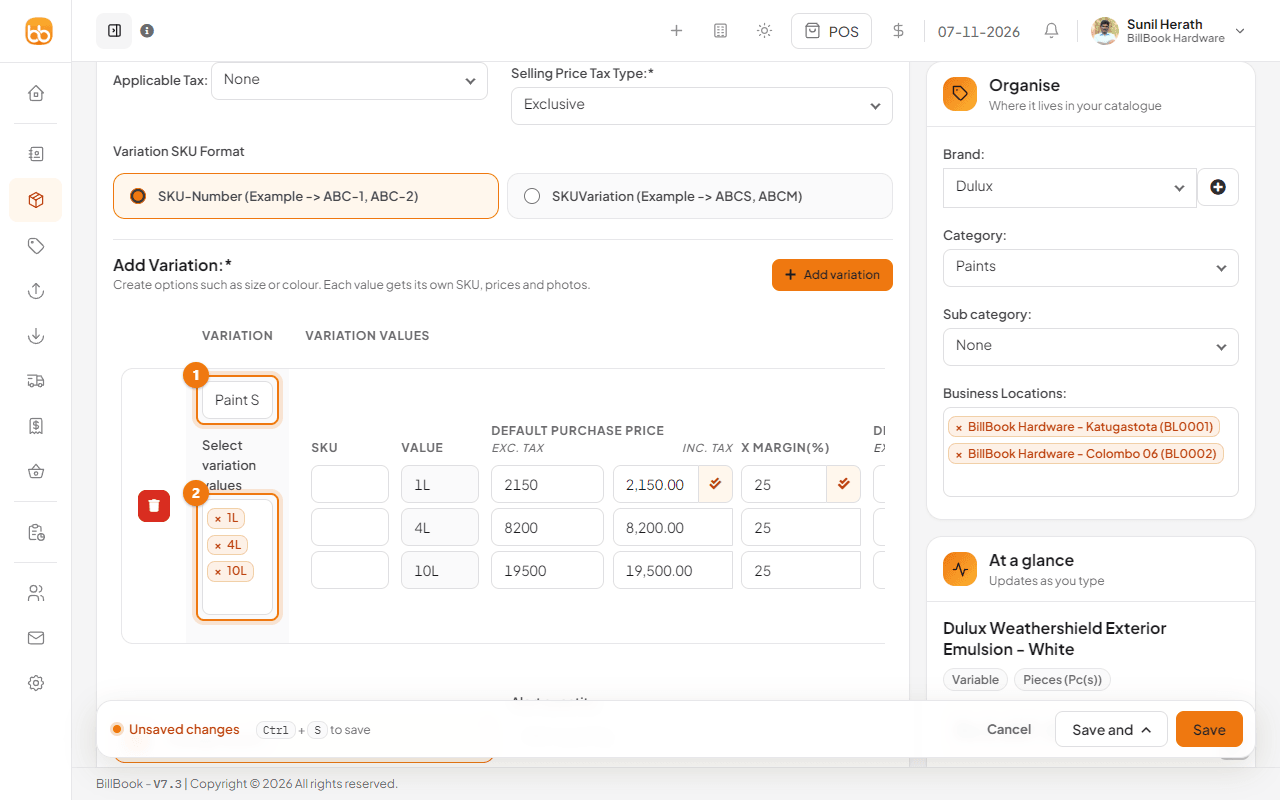
The table is wide. If part of it is hidden, scroll it sideways, or collapse the sidebar with the button at the top left of the page.
Price each variation#
Each row is one version of the product. For every row:
- Leave SKU empty to let BillBook number it, or type your own code.
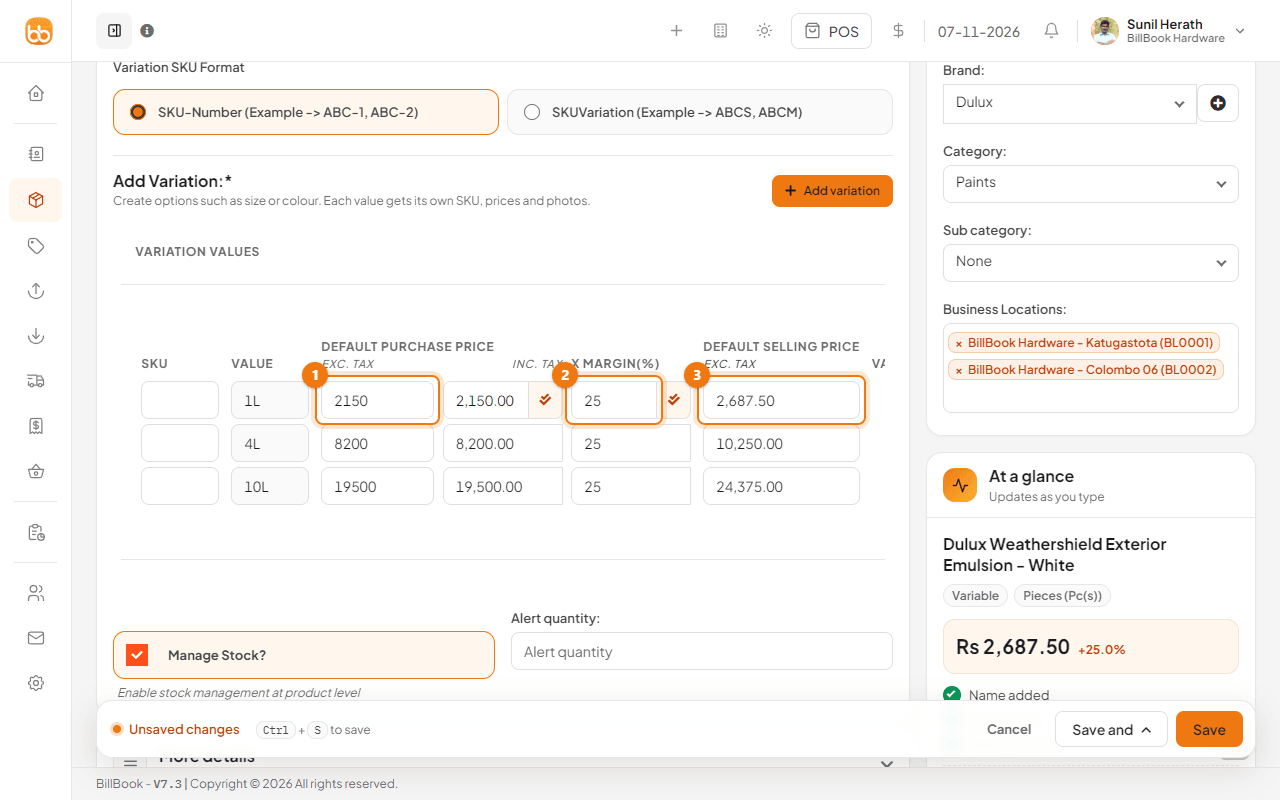
- Enter the Exc. tax price you pay (1) under Default Purchase Price. Inc. tax fills in.
- Check the x Margin(%) (2). The default is 25.
- Check the Default Selling Price (3), or type your own and let the margin follow.
For example: 1L costs Rs. 2,150.00 and sells at Rs. 2,687.50, 4L costs Rs. 8,200.00 and sells at Rs. 10,250.00, and 10L costs Rs. 19,500.00 and sells at Rs. 24,375.00.
Two fields have a small double-tick button (tooltip Apply all): the Inc. tax purchase price and the x Margin(%). Select it on the first row to copy that value to every row, which is handy when all sizes share one margin. The Default Selling Price has no such button. You can also add a photo for each variation at the end of its row.
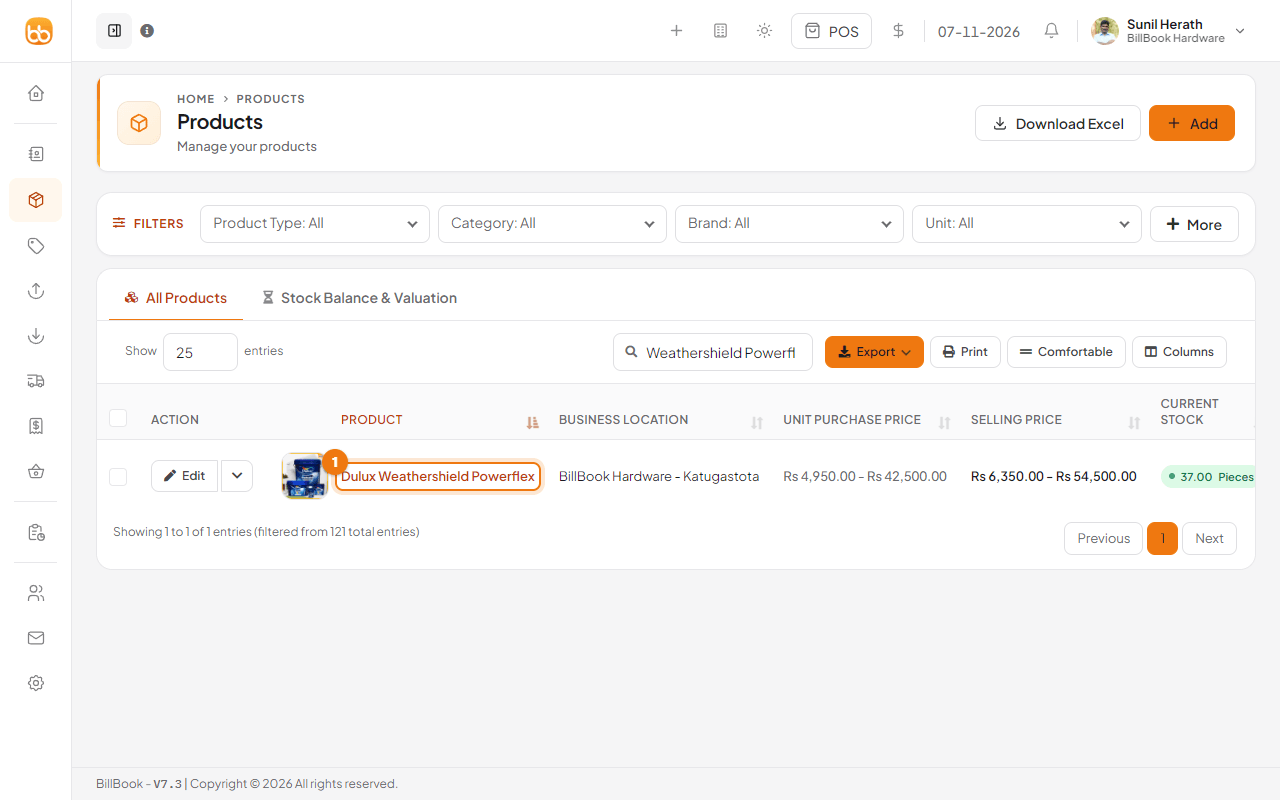
Choose the Business Locations, add the product image, and select Save. The product list shows one row for the product, with the lowest and highest price of its variations.
Sell a variable product at the POS#
On the POS screen a variable product shows as one card, not one card for every size. The card has a chip such as 3 variants, the lowest price and the combined stock. Select the card and a Choose a variant pop-up opens. If the product has two attributes, for example colour and size, you pick the colour first and then the size. With only one attribute you pick from a single list. The chosen variation goes on the bill at its own price, and its own stock goes down.
Two switches in the POS settings (gear) panel let each cashier turn the grouping off (Group variants into one card) or use one flat list instead of two steps (Choose colour first, then size). These are saved on that device. See Sell from the POS screen.
Example: paint by size and colour#
Some products vary in two ways at once, such as paint in different sizes and colours. Create a template whose values combine both, for example Size / Colour with values such as 4L / Brilliant White and 1L / Brilliant White. Then choose that template on the product and price each row. The demo business already has a Size / Colour template you can open to see this.
If a product needs two separate lists, select Add variation (the button at the top right of the Add Variation section) to add a second variation block with its own template and table of rows.