
Advance payments from customers
Last updated: 6 November 2026 · 2 min read
Some customers pay first, for example a deposit for 10 bags of cement before delivery. BillBook keeps that money as an advance balance on the customer, so you can use it when the sale is made.
Before you start: The customer should be in your contact list and have nothing due. If they do owe you, a payment first goes towards what is due.
What an advance balance is#
An advance balance is money you hold for a customer that is not yet tied to any sale. It shows on the customer's page as Advance Balance. Each time you use it on a sale, the balance goes down by the amount used. Suppliers can have an advance balance too, when you pay them before a purchase.
Add an advance#
- Go to Contacts > Customers and open the customer with View. Select Add advance at the top of the page. (You can also open the arrow next to View on the customer's row and select Pay.)
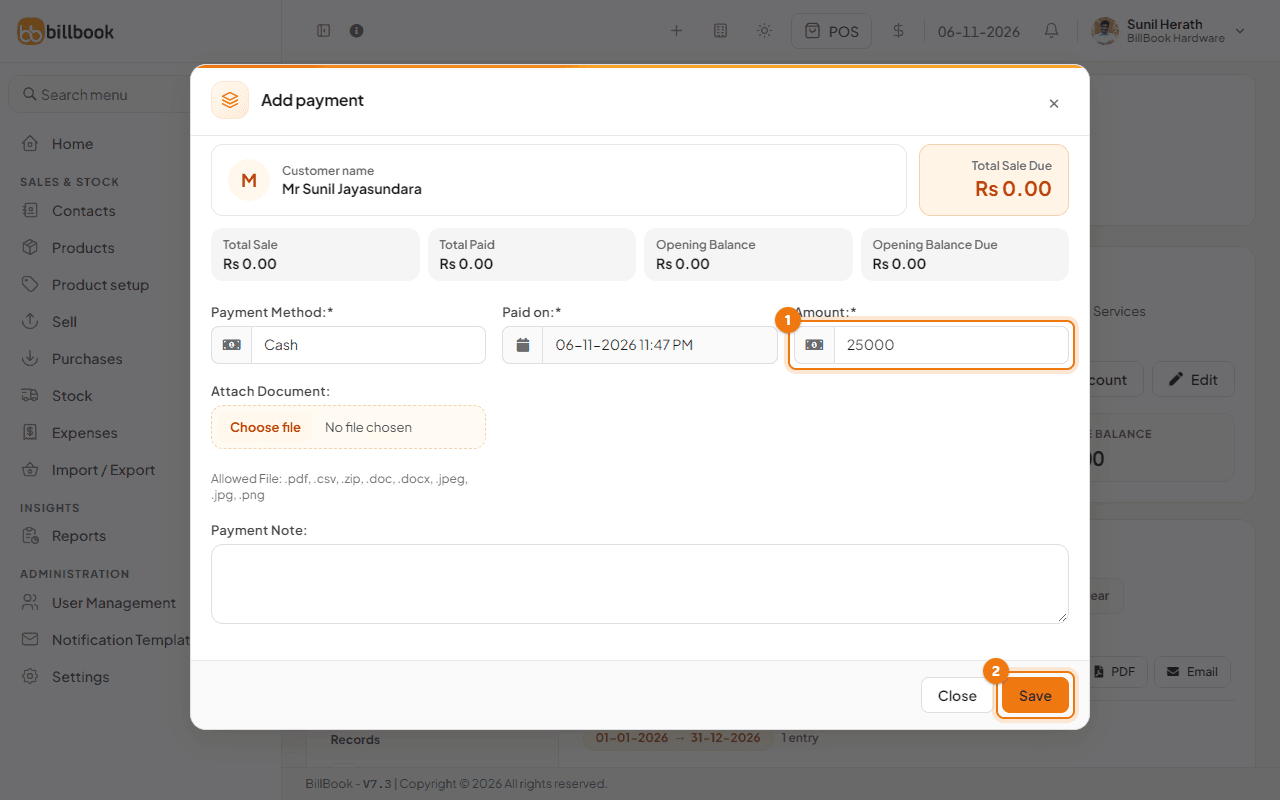
- Choose the Payment Method, for example Cash.
- Enter the Amount (1), for example 25000.
- Select Save (2). BillBook shows Payment added successfully.
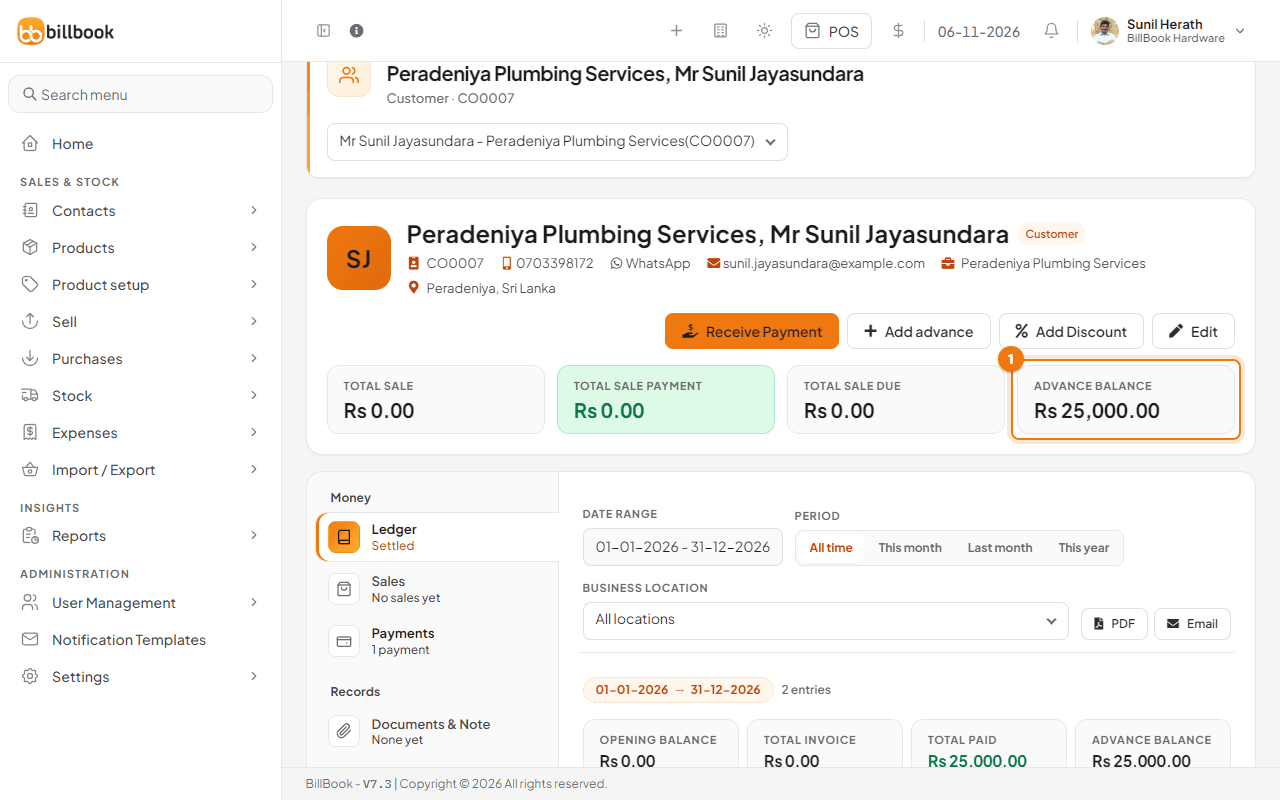
Because the customer owes nothing, the whole amount is kept as an advance. The customer's page shows the Advance Balance card (1) at Rs. 25,000.00.
Use an advance on a sale or purchase#
- Go to Sell > Add Sale and choose the customer. For a supplier, go to Purchases > Add Purchase instead.
- Set Status to Final and add the products, for example 10 bags of INSEE Sanstha Cement 50kg.
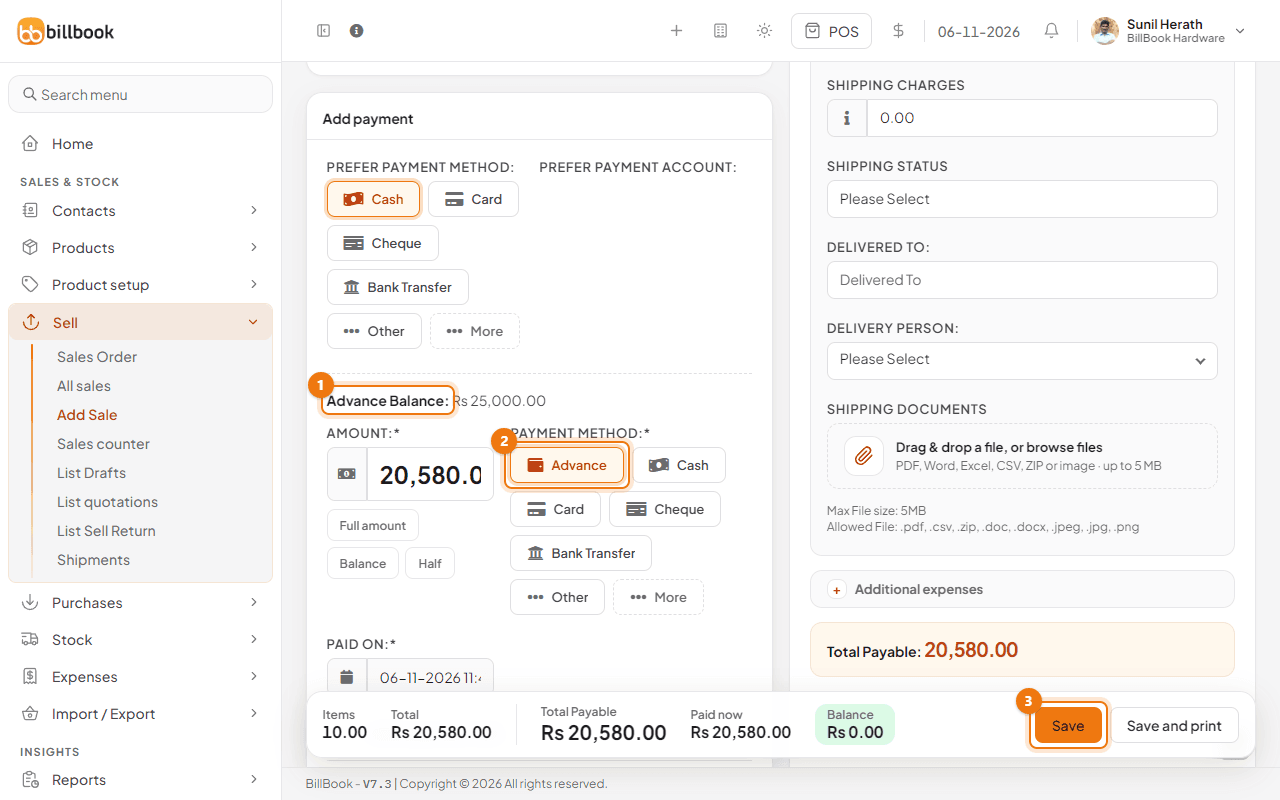
- Scroll to Add payment. Advance Balance (1) shows how much the customer has, for example Rs. 25,000.00.
- Under PAYMENT METHOD, select Advance (2). The amount starts at the full payable total, here 20,580.00.
- Select Save (3) in the bar at the bottom.
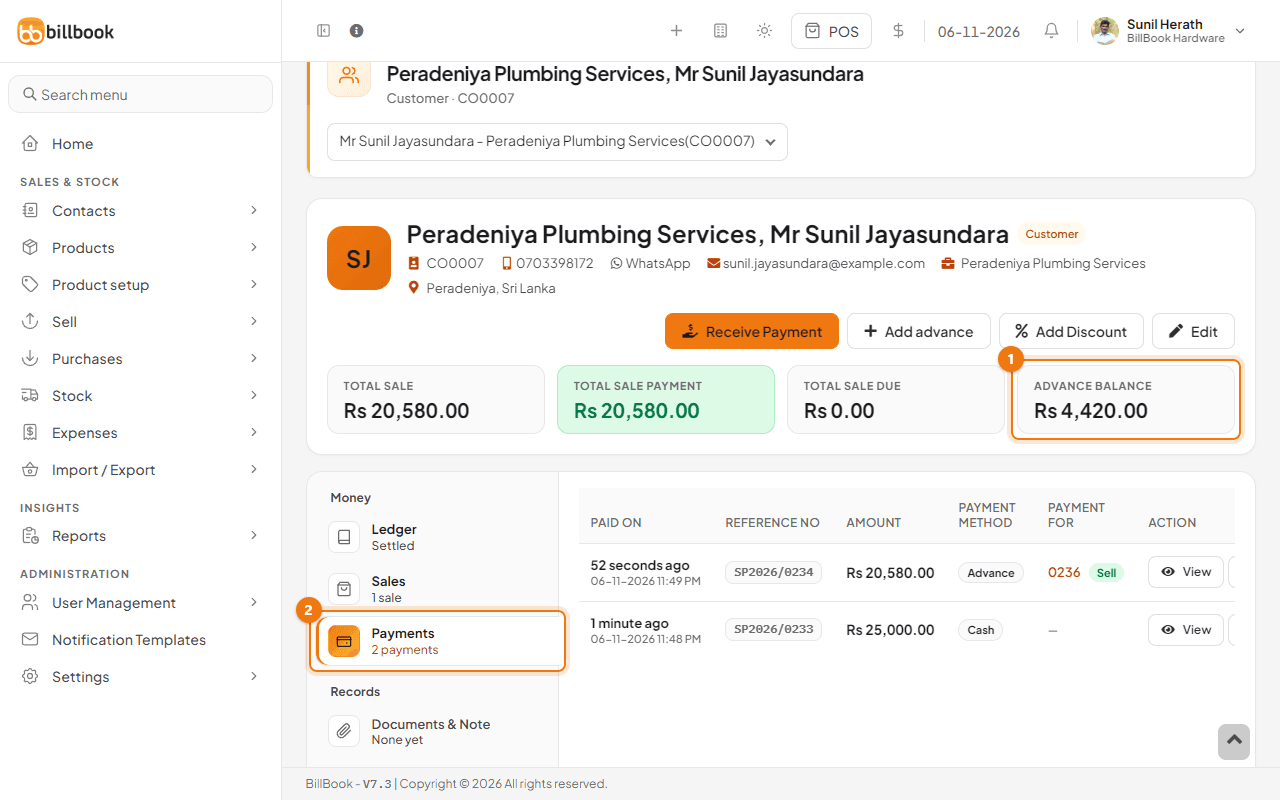
BillBook shows Sale added successfully. The sale of Rs. 20,580.00 is paid by the advance, and the customer's Advance Balance (1) drops to Rs. 4,420.00. Select Payments (2) on the contact page to see the advance payment listed with the sale.
Note: You cannot use more than the balance. If the amount is higher than the advance, BillBook shows Required advance balance not available. Pay the difference with another method.