
WhatsApp and auto-send
Last updated: 7 November 2026 · 3 min read
Auto-send makes BillBook send a message by itself, for example a thank-you to the customer as soon as a sale is saved. You choose it for each message type and for each channel: email, SMS or WhatsApp.
Before you start: Set up the channel you want to use first. Email needs Email (SMTP) setup and SMS needs SMS setup. If these are wrong, messages cannot be sent. Test both before you switch auto-send on.
Auto-send email and SMS on new sales#
- Go to Notification Templates and choose New Sale under Customer Notifications.
- On the Email tab, turn on Auto Send Email (1).
- On the SMS tab, turn on Auto Send SMS (1 in the second picture).
- Select Save (2).
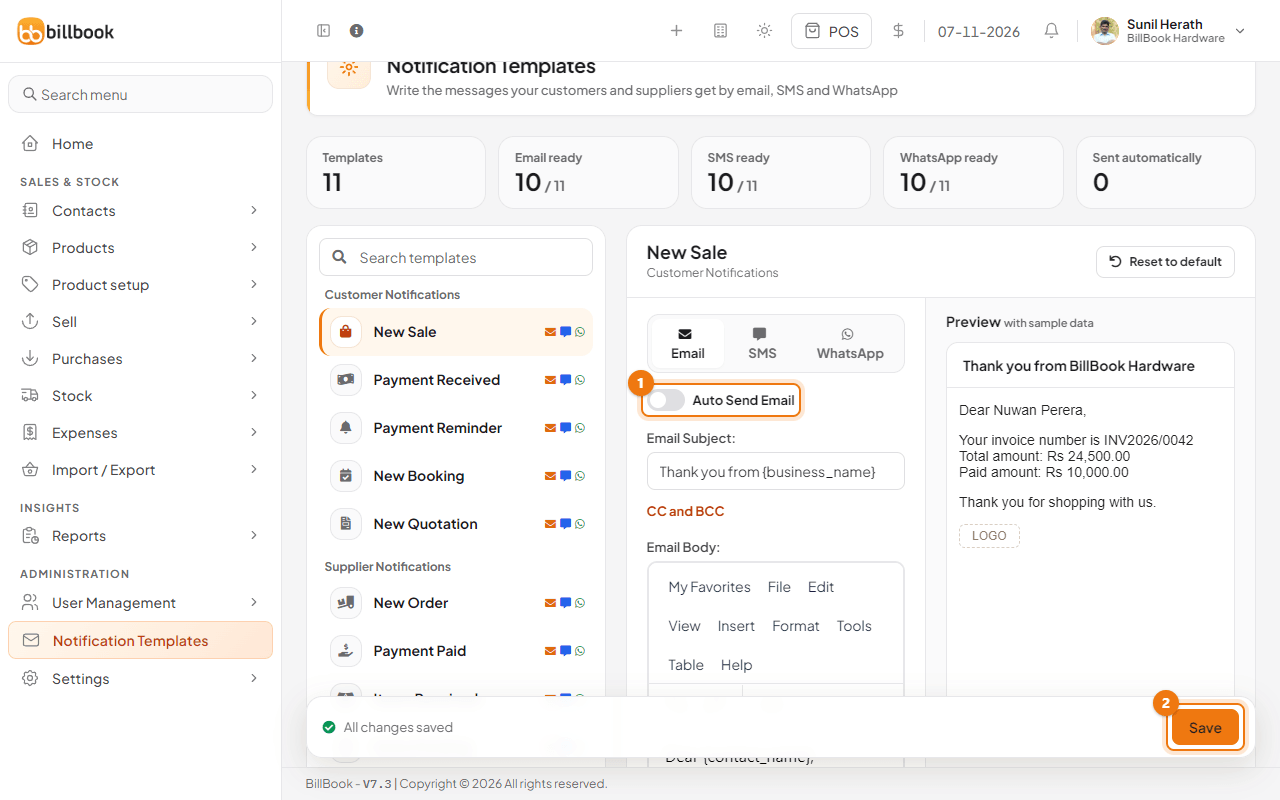
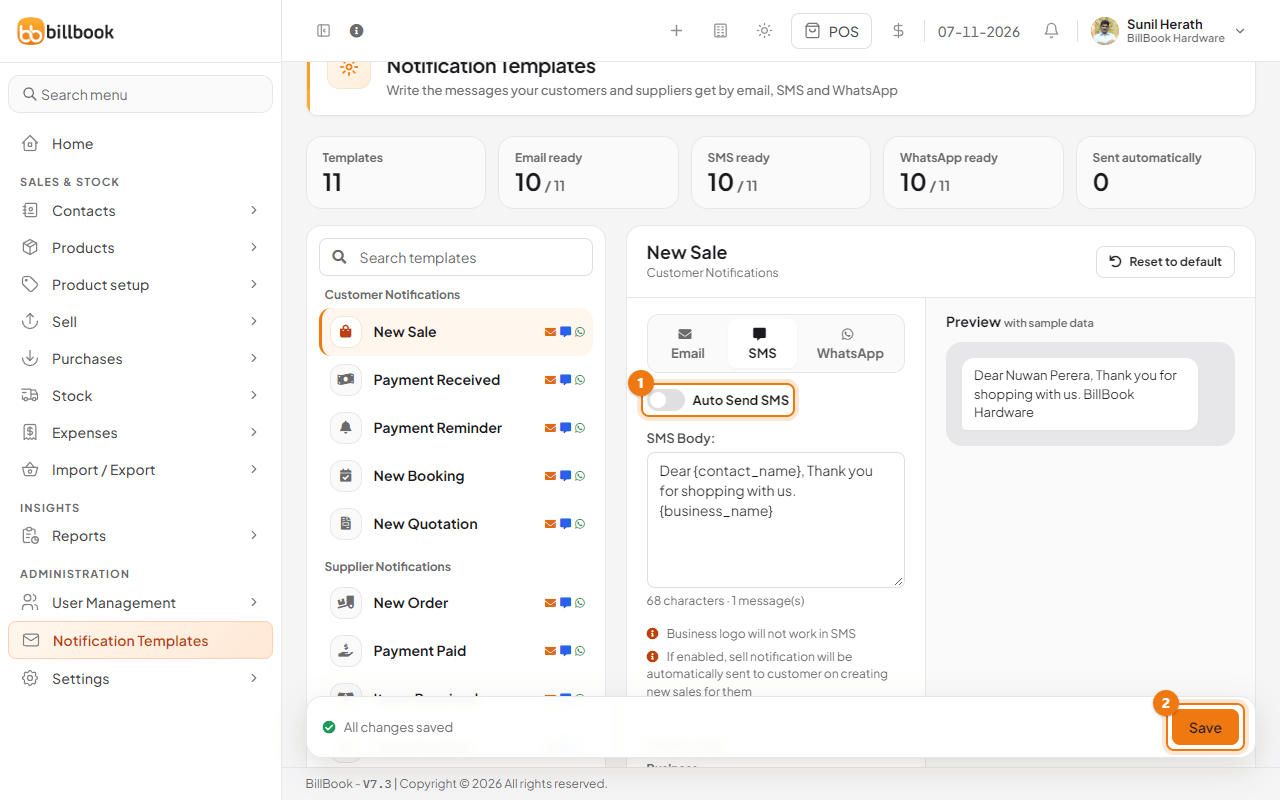
From then on, each new sale sends the customer the New Sale message. An email goes only if the customer has an email address, and an SMS only if the customer has a mobile number.
Only two templates have these switches: New Sale and Payment Reminder. Open Payment Reminder (1) and turn on its switch (2) the same way to send payment reminders automatically.
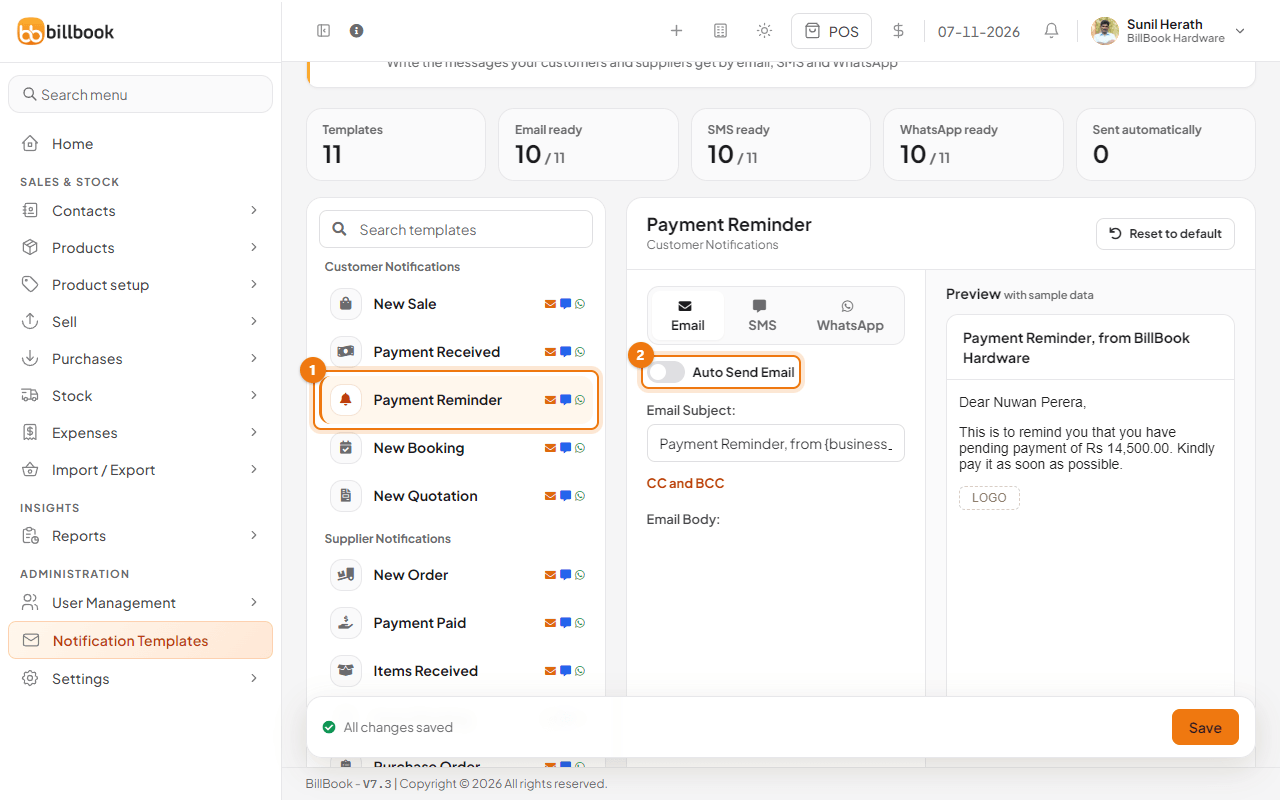
Note: If your email or SMS settings are wrong, sending can fail when a sale is saved. Test your settings first, and turn the switch off while you fix them.
WhatsApp notifications#
BillBook's WhatsApp opens a ready-made chat for you. It does not send the message in the background. After you save a sale, BillBook opens WhatsApp for the customer's mobile number with your message already typed, and you check it and press send in WhatsApp.
- Go to Settings > Business Settings. Select Show advanced settings under the list on the left, then select WhatsApp. The tag next to it reads Manual, or On once a template has WhatsApp auto-send switched on.
- Read the first card on the page. It is headed with the name of the WhatsApp chat feature and lists the steps: turn on auto-send for a template, save a sale, then press send in WhatsApp.
- Select Edit WhatsApp messages (1) to go to the templates and change the wording.
- To see how a chat opens, use Try it. Enter a number with the country code and no plus or spaces, for example 94771234567, and select Open WhatsApp chat (2). This opens a WhatsApp chat with the test message ready. Nothing is sent until you press send in WhatsApp.
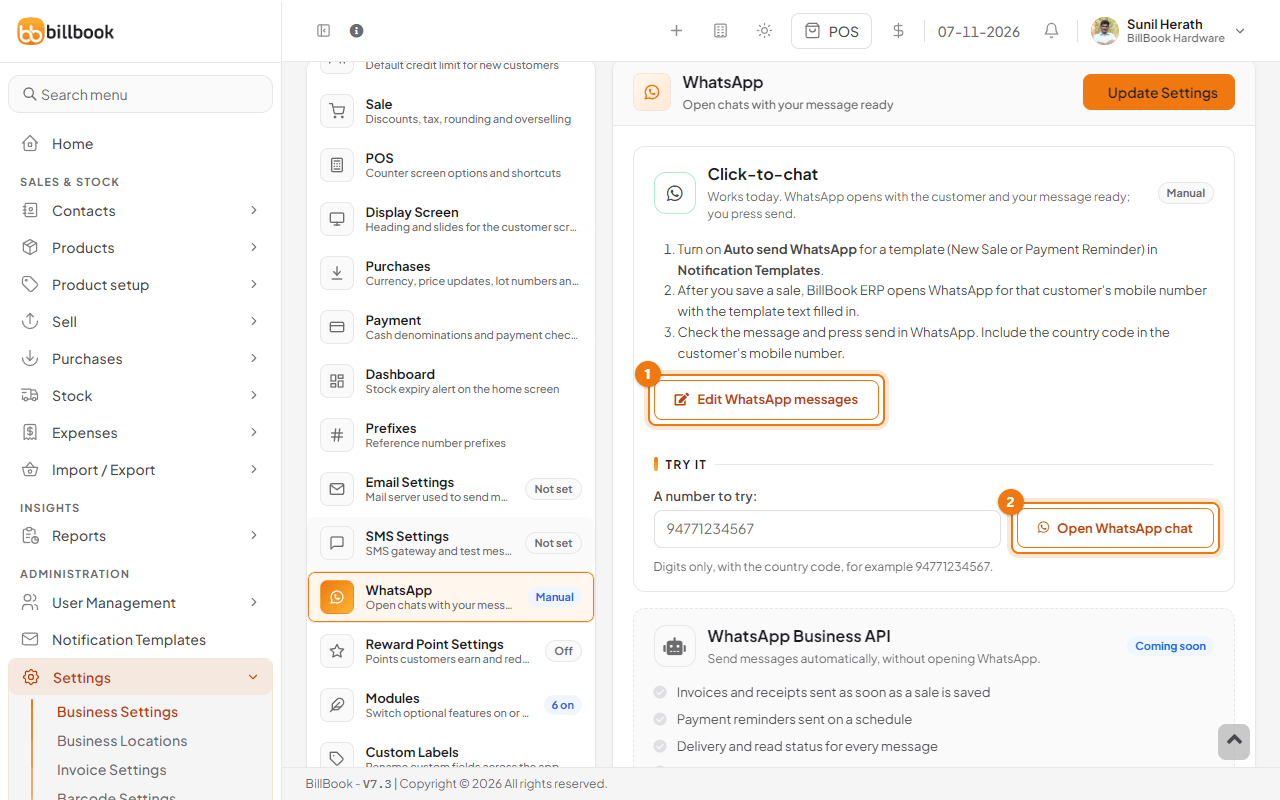
To turn WhatsApp on for new sales:
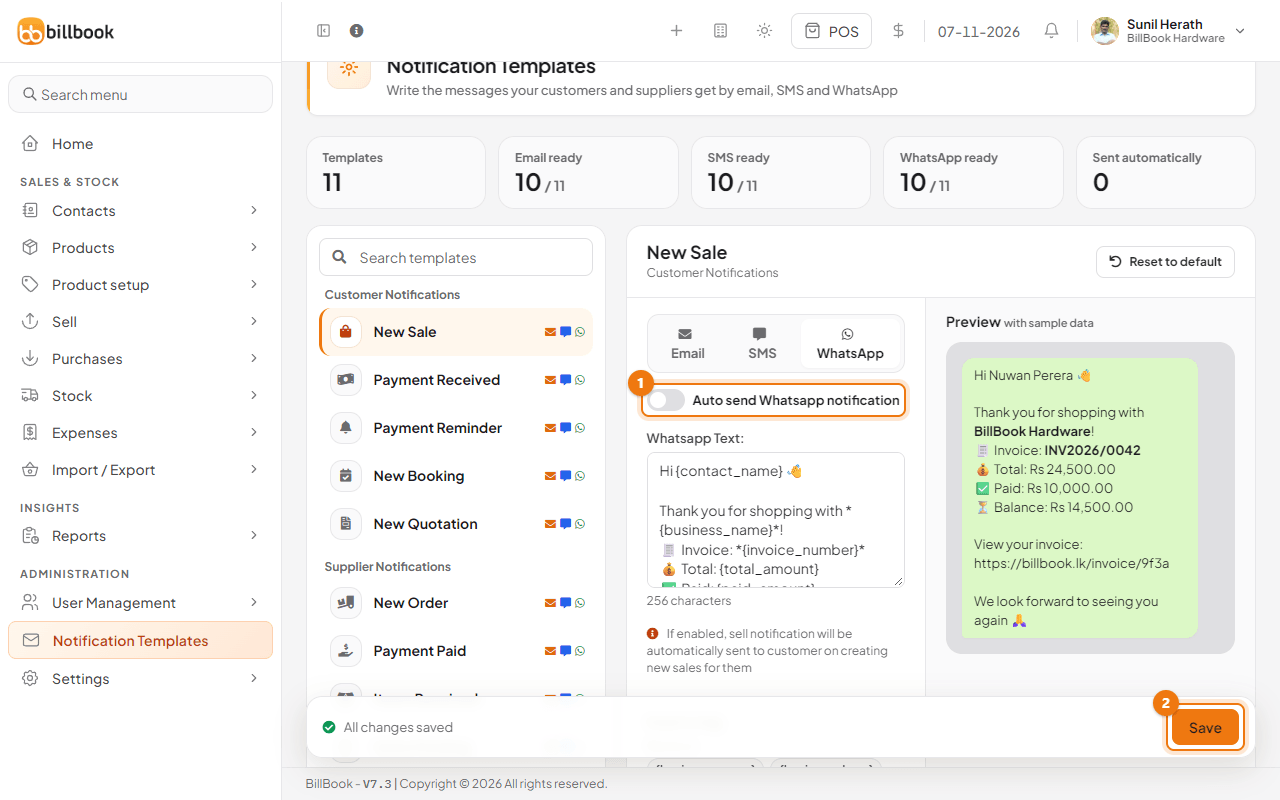
- In Notification Templates, choose New Sale and open the WhatsApp tab.
- Turn on Auto send Whatsapp notification (1).
- Edit the Whatsapp Text if you like, and select Save (2).
Include the country code in the customer's mobile number, or WhatsApp cannot find the chat.
Note: The WhatsApp Business API, which would send messages automatically without opening WhatsApp, is marked Coming soon. Until then, payment reminders on WhatsApp are not sent automatically, so use the chat that BillBook opens for you.
Turn auto-send off#
- Go to Notification Templates and choose the template, for example New Sale.
- Open the Email, SMS or WhatsApp tab and turn its switch off.
- Select Save.
Each channel has its own switch, so turning one off does not affect the others. You can still send a message by hand from a sale's row menu. See Notification templates.