
Tax reports
Last updated: 6 November 2026 · 3 min read
The tax report adds up the tax on your sales, purchases and expenses for the dates you choose, so you know how much VAT you collected, how much you paid and what is left to pay. Use it when you prepare a tax return.
Before you start: The report only shows tax that is set on your products, sales and purchases. Set up your tax rates first under Settings > Tax Rates.
Tax report#
- Go to Reports > Profit and spending > Tax (VAT and SSCL). The page is called VAT / Tax Report.
- Select the Date Range button (1) and choose the period you file for, for example This Month or Last financial year. You can also choose a Business Location, or pick one Contact to see the tax on a single customer or supplier.
- Tick Compare with previous period (2) to see how each figure changed from the period just before.
- Read the four cards. Tax collected is the tax on sales, less returns. Tax paid on purchases counts purchases once they are received, less returns. Tax paid on expenses is less any refunds. Net tax (3) is tax collected minus the tax you paid, and the card tells you whether it is To pay or To claim back.
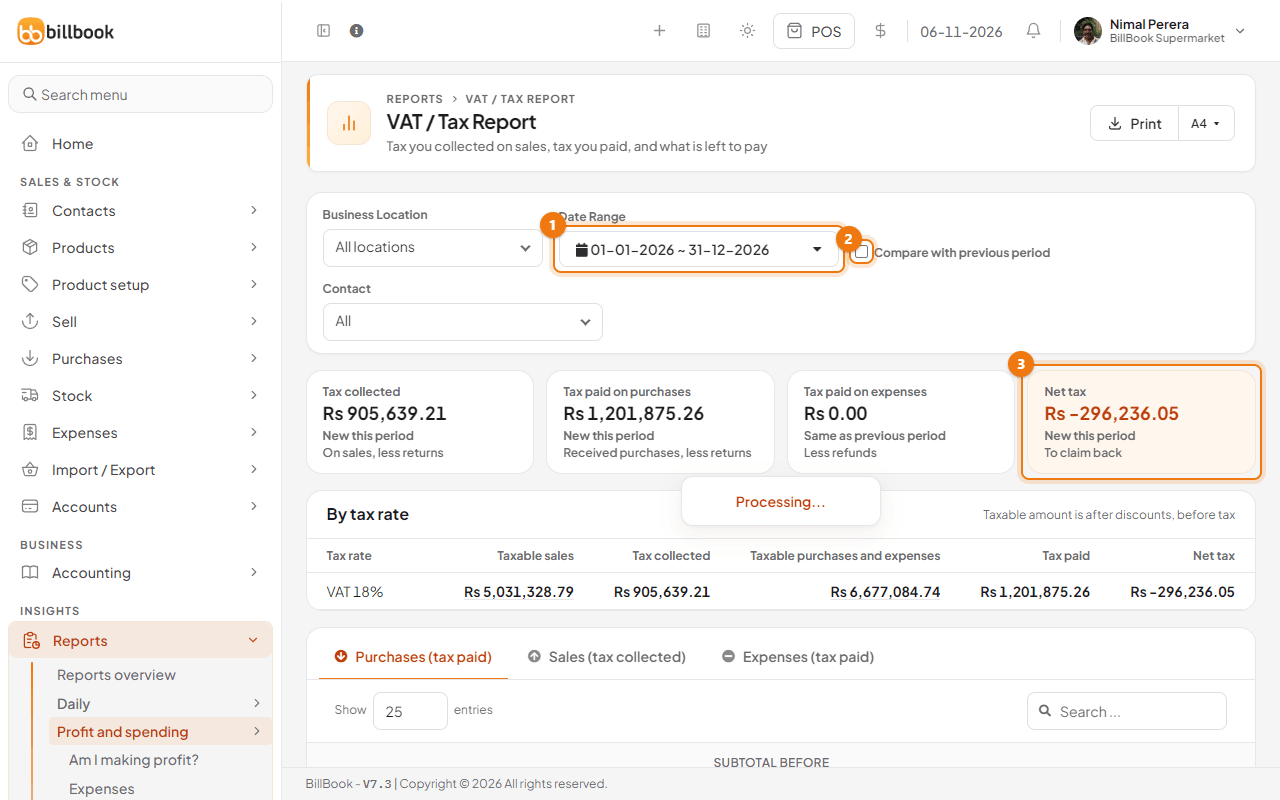
- Check the By tax rate table. It has one row for each tax rate, such as VAT 18%, with the taxable sales, tax collected, taxable purchases and expenses, tax paid and net tax. Taxable amounts are after discounts and before tax.
See the invoices behind the numbers#
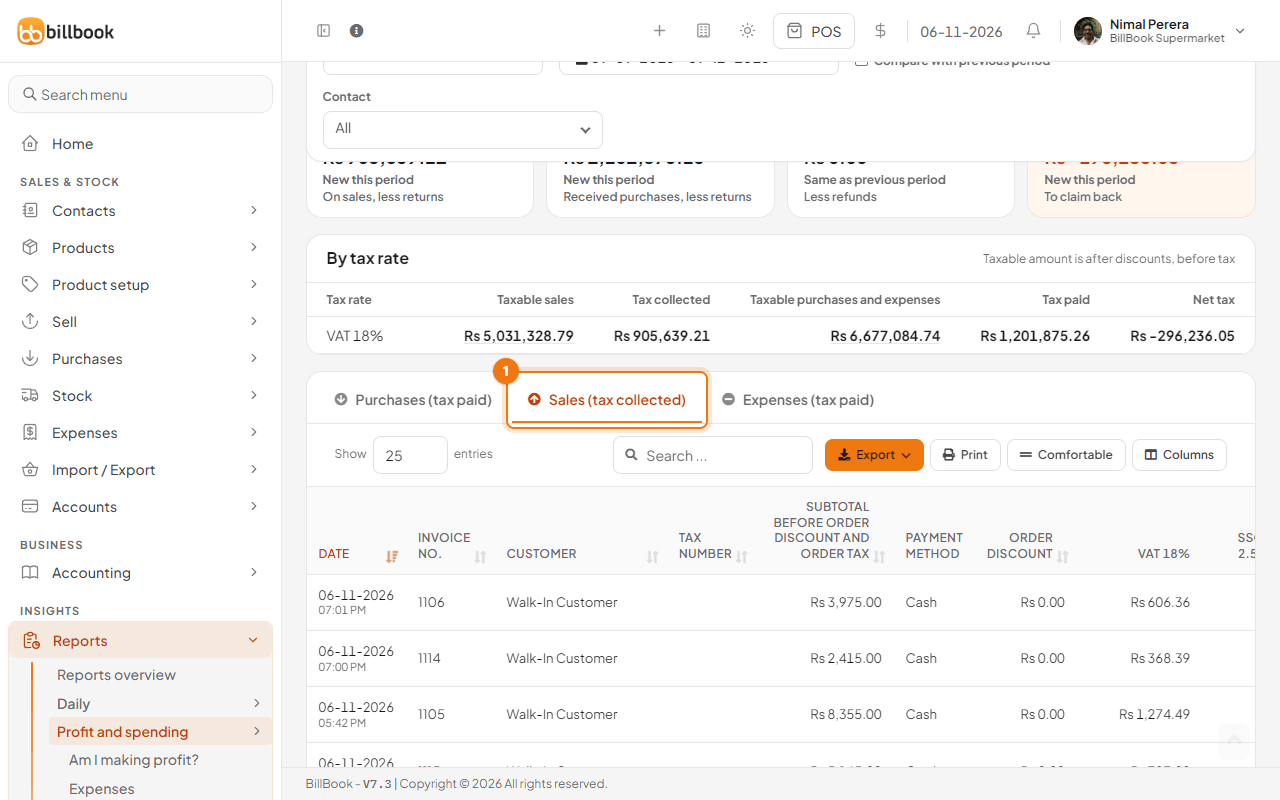
Under the cards, three tabs list every document that makes up the totals.
- Select Purchases (tax paid), Sales (tax collected) (1) or Expenses (tax paid).
- Read the date, invoice or reference number, contact, tax number and the subtotal. Each tax rate has its own column, and the last row gives the total.
- Use Export or Print on the table toolbar to give the list to your accountant. The Export button on the filter bar saves the whole report, including the comparison, as CSV, Excel or PDF.
Note: Returns and refunds give tax back, so a sell return lowers Tax collected and an expense refund lowers Tax paid on expenses.
SSCL#
SSCL (Social Security Contribution Levy) is a levy on your own turnover, not a tax you add to each sale. When your business is marked as SSCL registered, the tax report shows an SSCL (Social Security Contribution Levy) section (1) between the cards and the tax rate table. It lists the Liable turnover (sales without VAT, less returns), the Rate and the SSCL payable (2). It is kept apart from VAT and is not part of Net tax.
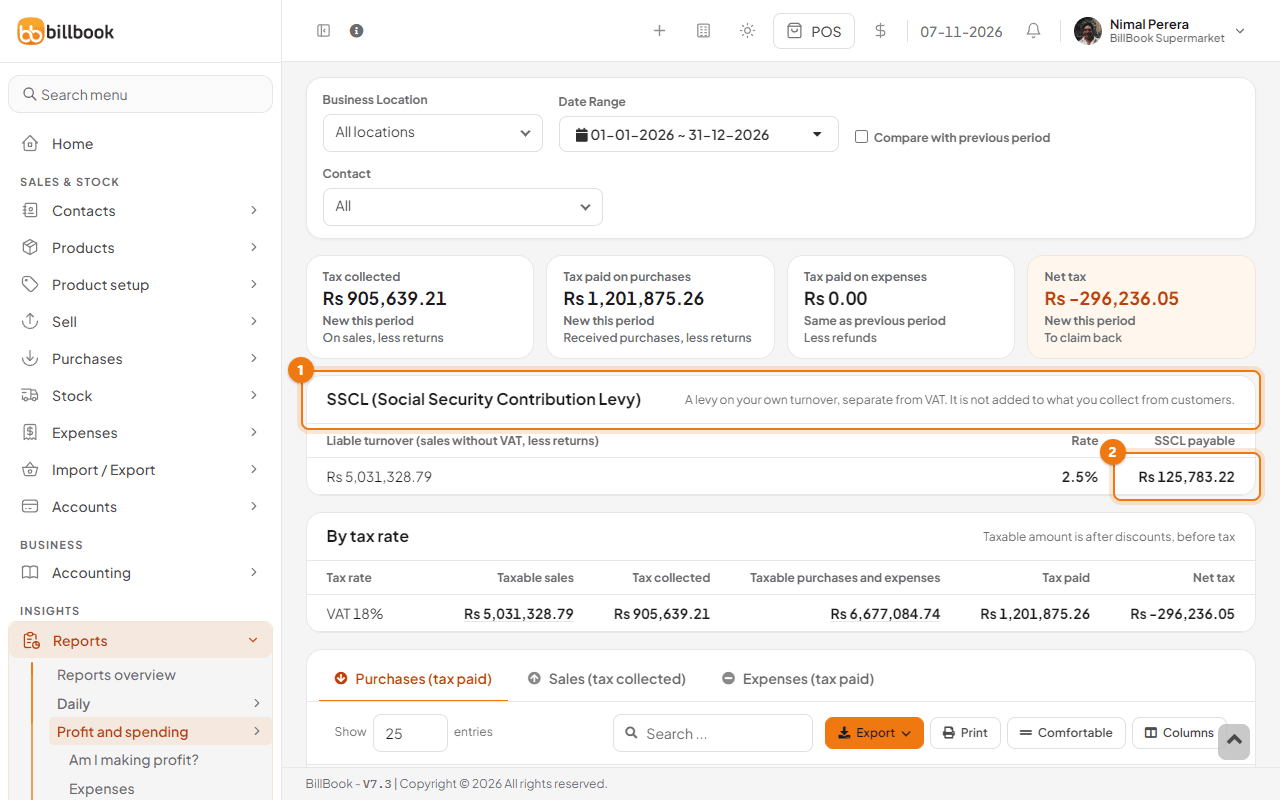
To switch it on, tick SSCL registered under Settings > Business Settings > Tax. This also adds an SSCL 2.5% tax rate you can edit under Settings > Tax Rates. The section is hidden while you filter by a single Contact.
606 and 607 reports#
Report 606 (purchases) and Report 607 (sales) are filing formats for the Dominican Republic (DGII). They only appear under Profit and spending for a business in that country. A Sri Lankan business will not see them.