
Kitchen order tickets (KOT) and token numbers
Last updated: 7 November 2026 · 6 min read
A kitchen order ticket (KOT) is the slip the cooks work from: the table, the dishes, the add-ons and your notes, with no prices. A token is the order number you call out when the food is ready. BillBook prints both from the POS, so a waiter can send a dine-in order to the kitchen first and take the payment later.
Before you start: Switch on Kitchen (For restaurants) or Tables in Settings > Business Settings > Modules, and set up your printing as described in Print invoice, KOT and token on 80 mm and 58 mm printers. To use Send to kitchen and Reprint KOT you also need the Send to kitchen / reprint KOT permission. The Admin role has it, and so does the Cashier role that a new business starts with.
Send an order to the kitchen#
- Select POS at the top of the screen (or Sell > Sales counter) and add the dishes. For a dish with variants, such as a kottu, choose the variant first. Then choose the add-ons in the window that opens (see Modifiers (add-ons)).
- For a note to the cook, select the dish's name in the bill and type it in Description, for example
No onions, allergy. Then select Done. - Open Sale options and choose the Table (1).
- Select Send to kitchen (2) at the top of the POS.
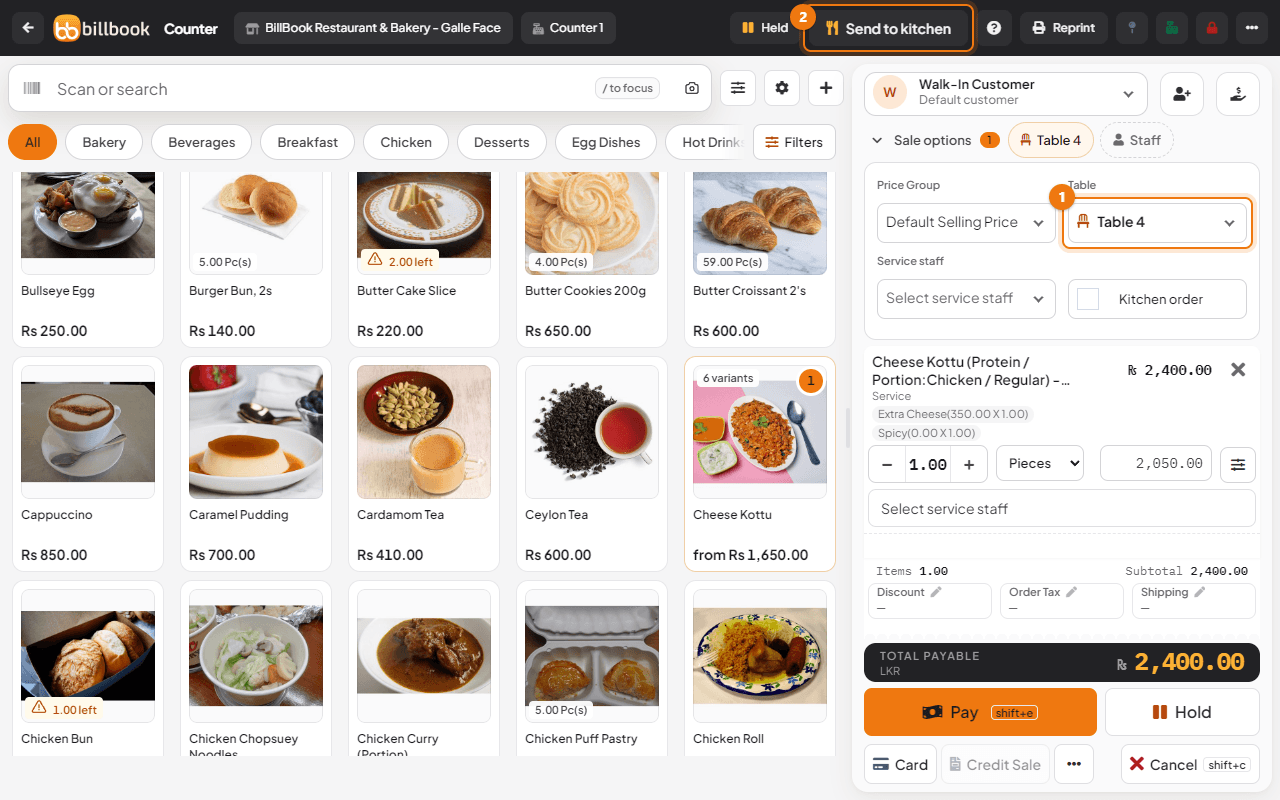
BillBook holds the order (it shows Sale held) and prints one KOT for each kitchen station that has something to cook. The bill clears so you can take the next order, and the held order waits under Held until the customer pays. The first KOT of an order is just KOT. It shows the table, the token, the dishes in large letters, the add-ons under each dish (+ Extra Cheese, Spicy), your note between stars (** No onions, allergy **) and the words No prices - kitchen copy.
If you select Send to kitchen again and nothing is new, BillBook says Nothing new to send to the kitchen and prints nothing, so a double press never makes a double KOT.
Note: If the order is sent but the slips cannot be printed, BillBook warns you: Order sent to kitchen but the slips could not be printed. Use Reprint KOT.
Add to an order: ADD-ON and VOID tickets#
Dine-in guests often order more. Open the order again and send only what changed.
- Select Held, then Resume on the order.
- Add the new dishes, or change or remove a line.
- Select Send to kitchen again.
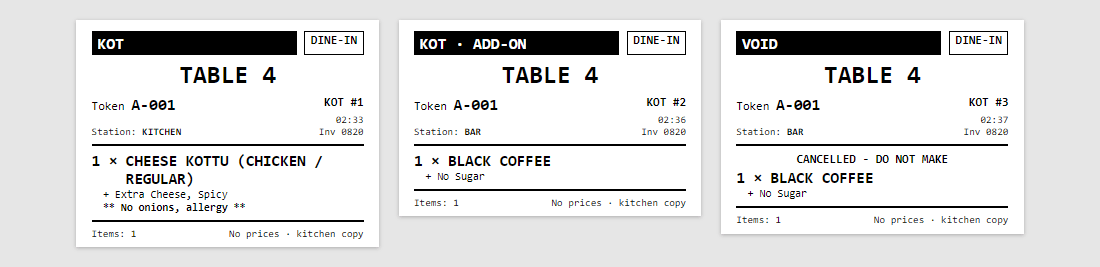
BillBook compares the bill with what the kitchen already has and prints only the difference:
- KOT · ADD-ON lists only the new dishes or the extra quantity.
- VOID lists a dish you removed or reduced, with the words CANCELLED - DO NOT MAKE, so the cook stops making it.
Each ticket carries a running number for the order, such as KOT #1, KOT #2 and KOT #3, and the name of its station (Station: BAR). Dishes go to the station of their category. See Kitchen stations.
You can also send a held order from Sell > All sales: open the arrow next to View on its row and choose Send to kitchen.
Token numbers and letters#
Every order gets a token number the first time it is sent to the kitchen or paid, for example A-001. The same token stays on every KOT, on the token slip and on the invoice.
- The number starts again at 1 each day at each location.
- The letter shows the kind of order. A is Dine in (the order has a table) and B is Takeaway (no table). If you use types of service, each type can have its own letter.
- You choose the letters under Token letters on the location's settings page. See Print invoice, KOT and token on 80 mm and 58 mm printers.
- Tick or untick Give every order a token number on the same page to switch tokens on or off.
The token slip says YOUR ORDER NUMBER with the token in very large print, so the customer can read it from the counter. Call that number when the order is ready.
What prints when the sale is paid#
When the customer pays and you select Finalize Payment, BillBook prints, in this order:
- the invoice, if the location prints invoices automatically;
- a KOT for each station, with the dishes that were not sent yet (dishes already sent are not printed again, so a paid order that was sent earlier prints only an ADD-ON KOT for the late additions);
- the token slip.
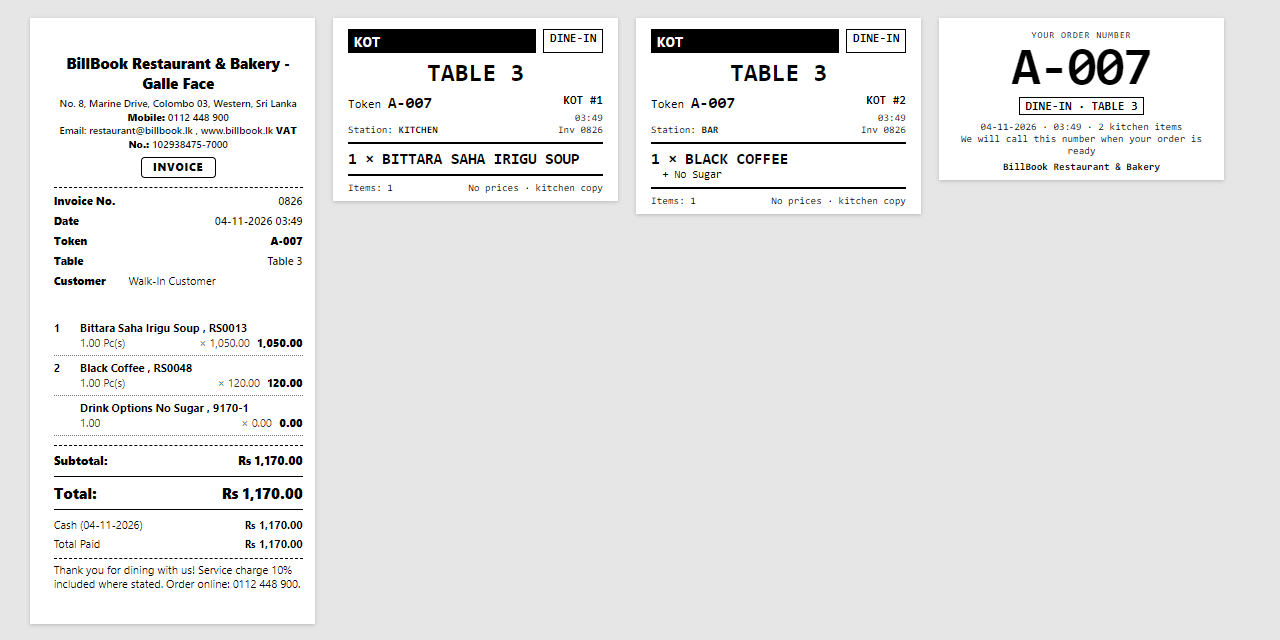
The location settings decide whether the KOT and the token print at this point (Print the KOT when the sale is finalized and Print the token when the sale is finalized). The token slip prints once for an order, the first time it is finalized.
Reprint a KOT#
Use this when a ticket is lost or the printer ran out of paper.
- Go to Sell > All sales, open the arrow next to View on the order's row and select Reprint KOT (1).
- If the order has more than one KOT, choose the one you want from Which KOT do you want to print again? (1). The list shows each KOT with its station and type, for example #3 Bar (VOID).
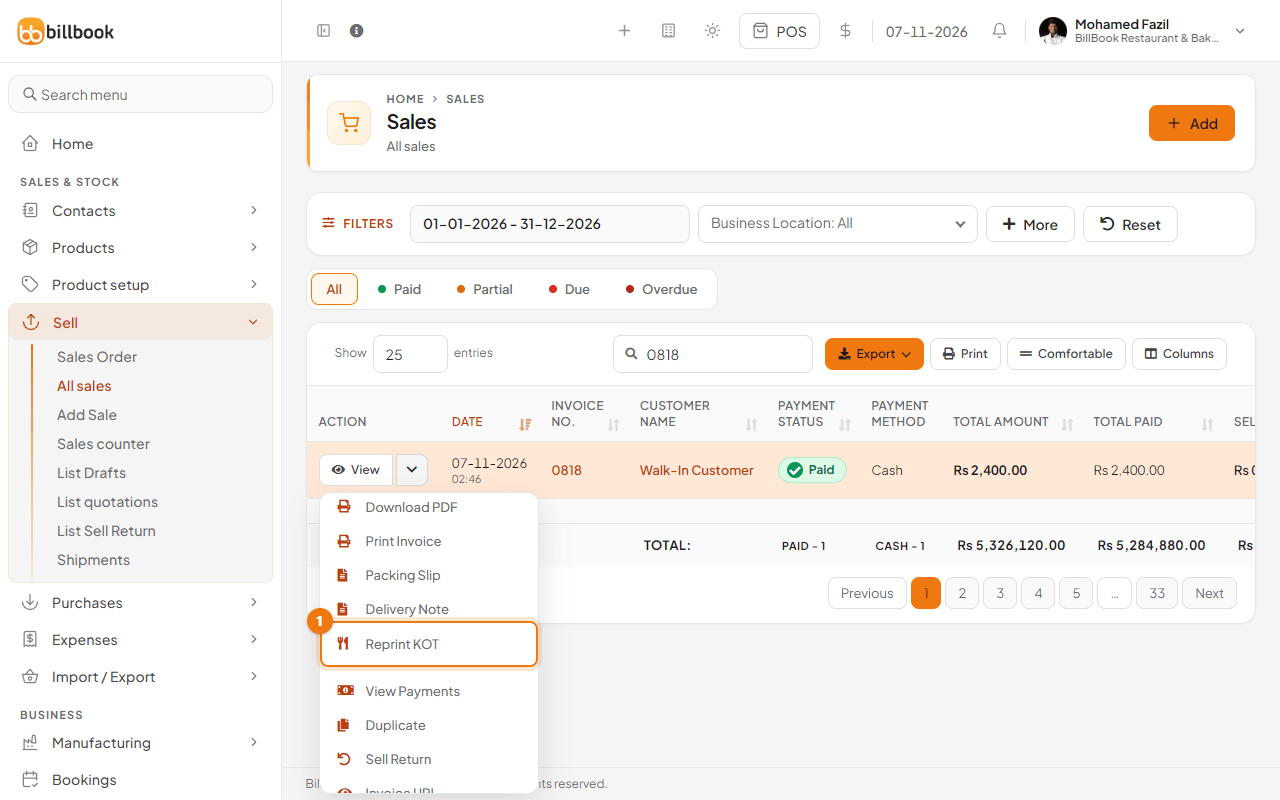
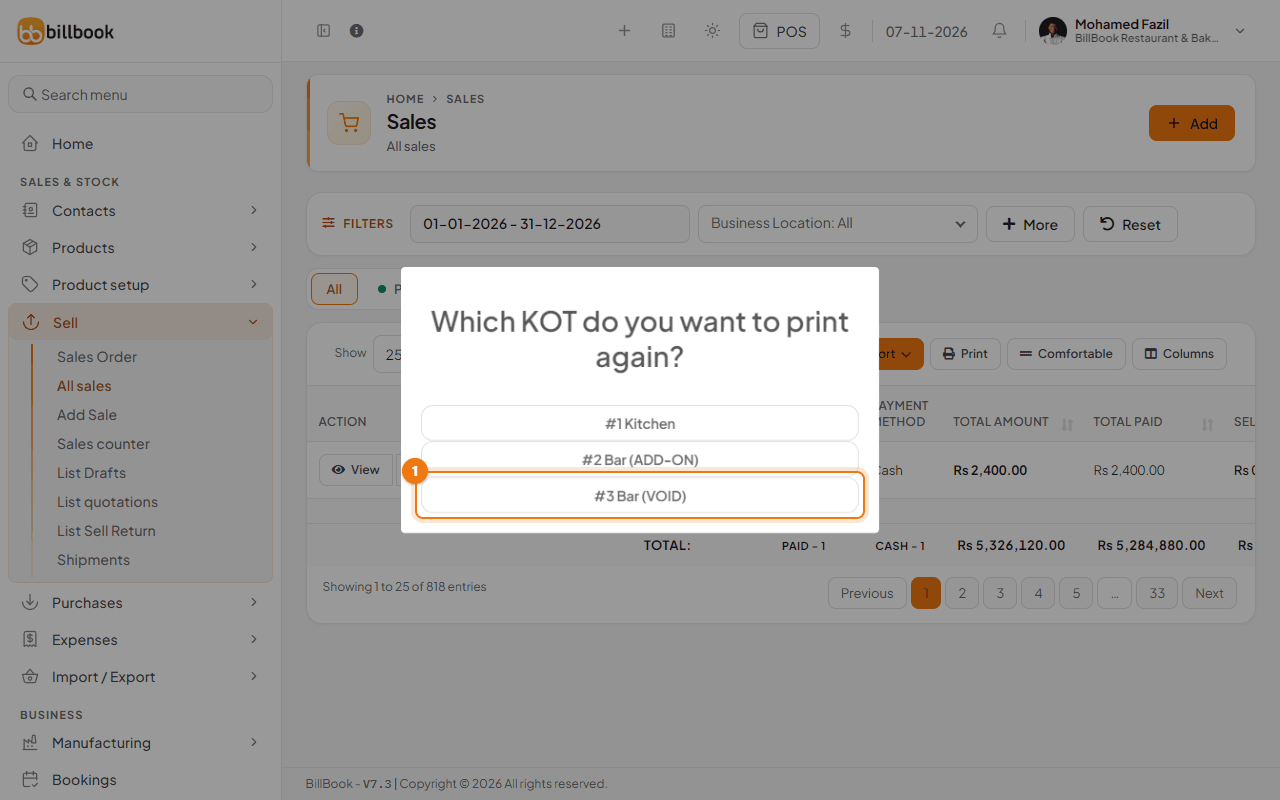
The cook can also select Reprint KOT on the order's card on the Kitchen screen (see Kitchen screen). A reprint prints the same ticket again and does not change what the kitchen has received. A user who may see only their own sales can reprint the KOTs of their own sales only.
Note: The Reprint button at the top of the POS prints the last invoice only. It does not print the KOT or the token again.
Sales that do not print a KOT#
A KOT and a token are printed for sales made on the POS screen. They are not printed for:
- a quotation that you turn into an invoice;
- sales that arrive through the API, for example from a mobile app or another system;
- direct sales made on Sell > Add Sale instead of the POS;
- an old paid sale that never had a KOT and is only edited again.
To get a KOT for one of these, make the order on the POS screen.