
Stock adjustments and write-offs
Last updated: 7 November 2026 · 3 min read
Use a stock adjustment when your shelf and BillBook no longer match: a paint tin split in transit, a batch that expired, stock lost to fire or theft. The adjustment takes the quantity off your stock and records what it cost you.
Before you start: Stock Adjustment must be switched on in Settings > Business Settings > Modules.
Add an adjustment#
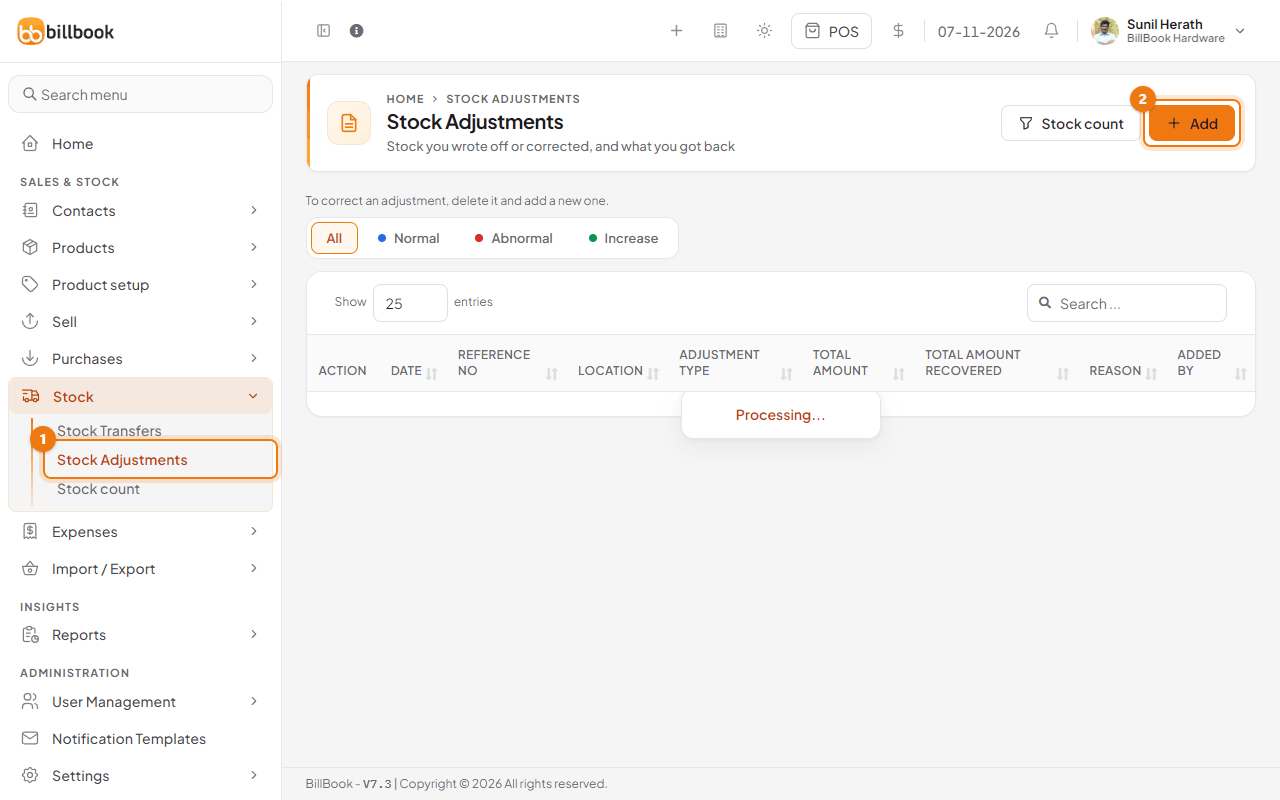
- Go to Stock > Stock Adjustments (1) and select Add (2). The list shows your earlier adjustments and the Abnormal, Normal and Increase tabs.
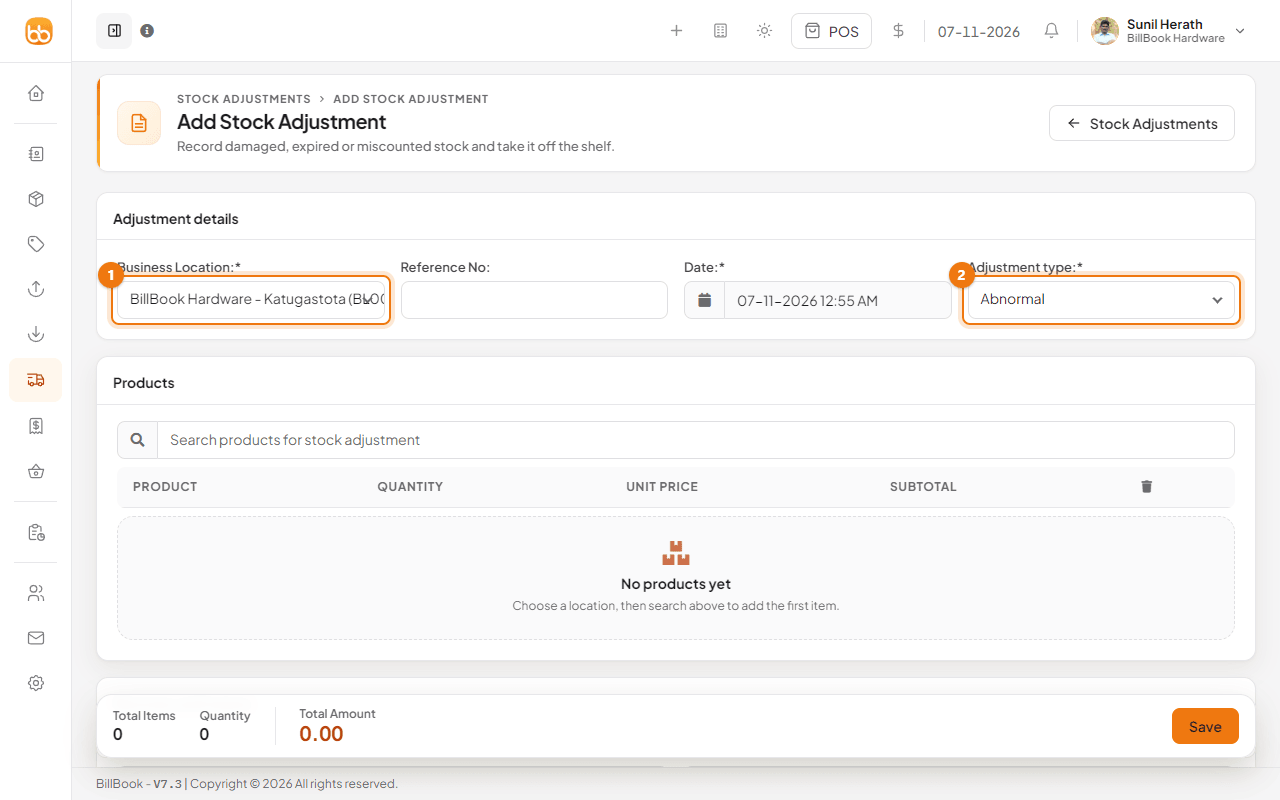
- Choose the Business Location (1) where the stock is.
- Leave Reference No empty to let BillBook number it (for example SA2026/0005). Check the Date.
- Choose the Adjustment type (2). The next section explains the three types.
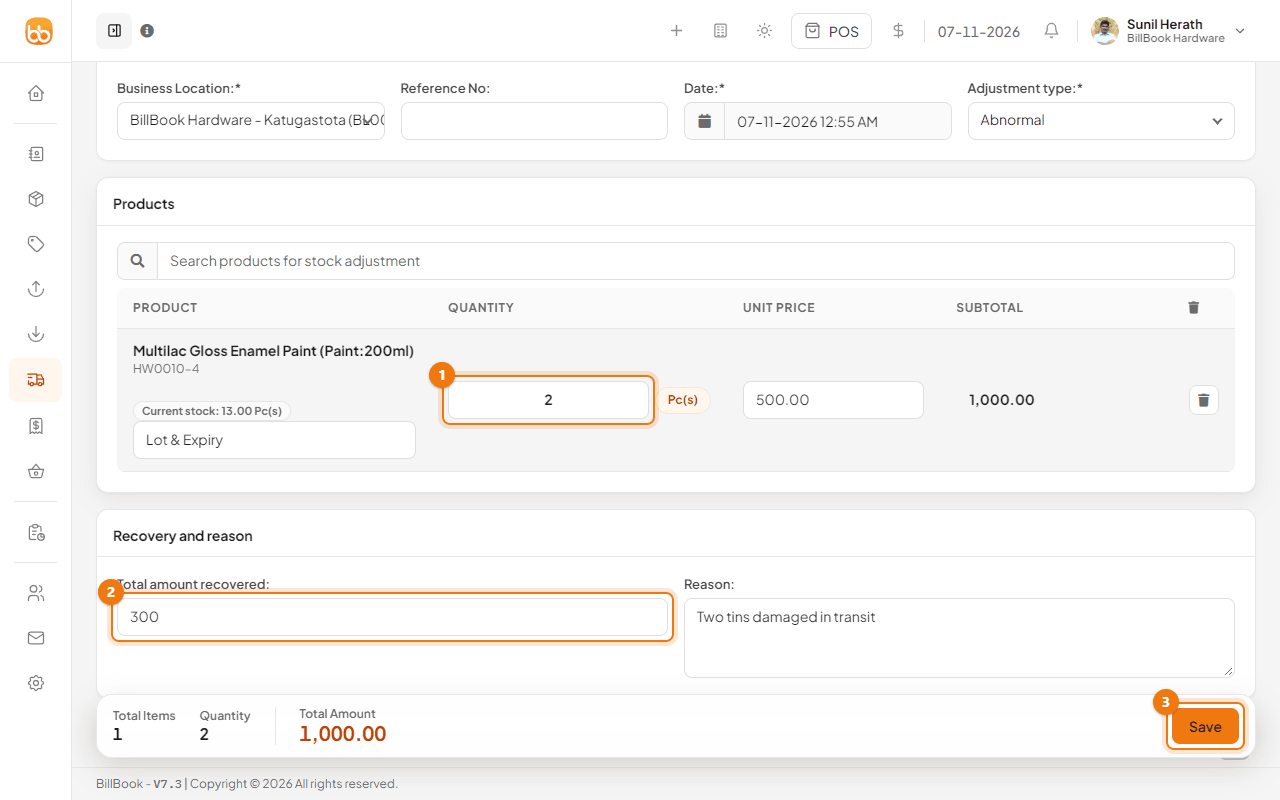
- Search for the product under Products and select it. Enter the Quantity (1) to take off. The row shows the Current stock and the Unit Price BillBook uses to value the loss, and the Total Amount at the bottom updates. If you track lots, use Lot & Expiry to pick the batch.
- Select Save (3).
BillBook shows Stock adjustment added successfully and the quantity comes off the location's stock straight away.
Normal or abnormal loss#
The Adjustment type tells your reports what kind of change it was.
- Normal: everyday reasons such as leakage or damage in the shop.
- Abnormal: unusual events such as fire or an accident.
- Increase (add stock: found goods or a count surplus): stock you found, so the quantity goes up instead of down.
Use the tabs on the Stock Adjustments list to filter by type. The type shows as a coloured badge on each row (2).
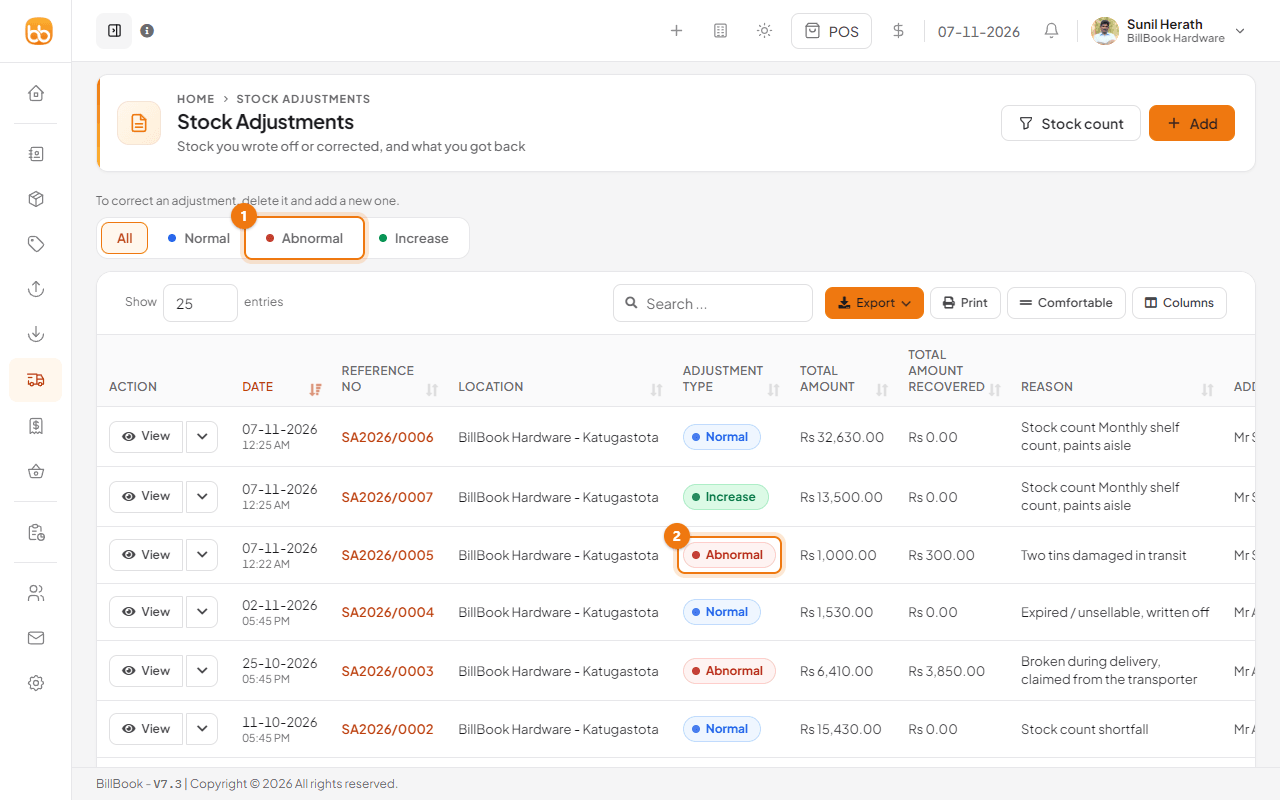
The Increase tab lists the adjustments that add stock. To check the whole shelf instead of one item, use the Stock count button at the top of the list. See Stock count. An adjustment cannot be edited: to correct one, delete it and add a new one. Under Reports, the stock reports show stock written off, stock added and the amount recovered.
Remove expired stock#
If you track expiry dates, you can write off a whole expired batch in one step, without filling in the form.
- Go to Reports > Stock > Stock on hand and select the Stock Expiry Report tab.
- On the row of the expired batch, select the arrow next to Change expiry date and choose Remove from stock (1).
- BillBook asks Are you sure ? and explains that the batch is written off as a stock adjustment at its cost. Select OK.
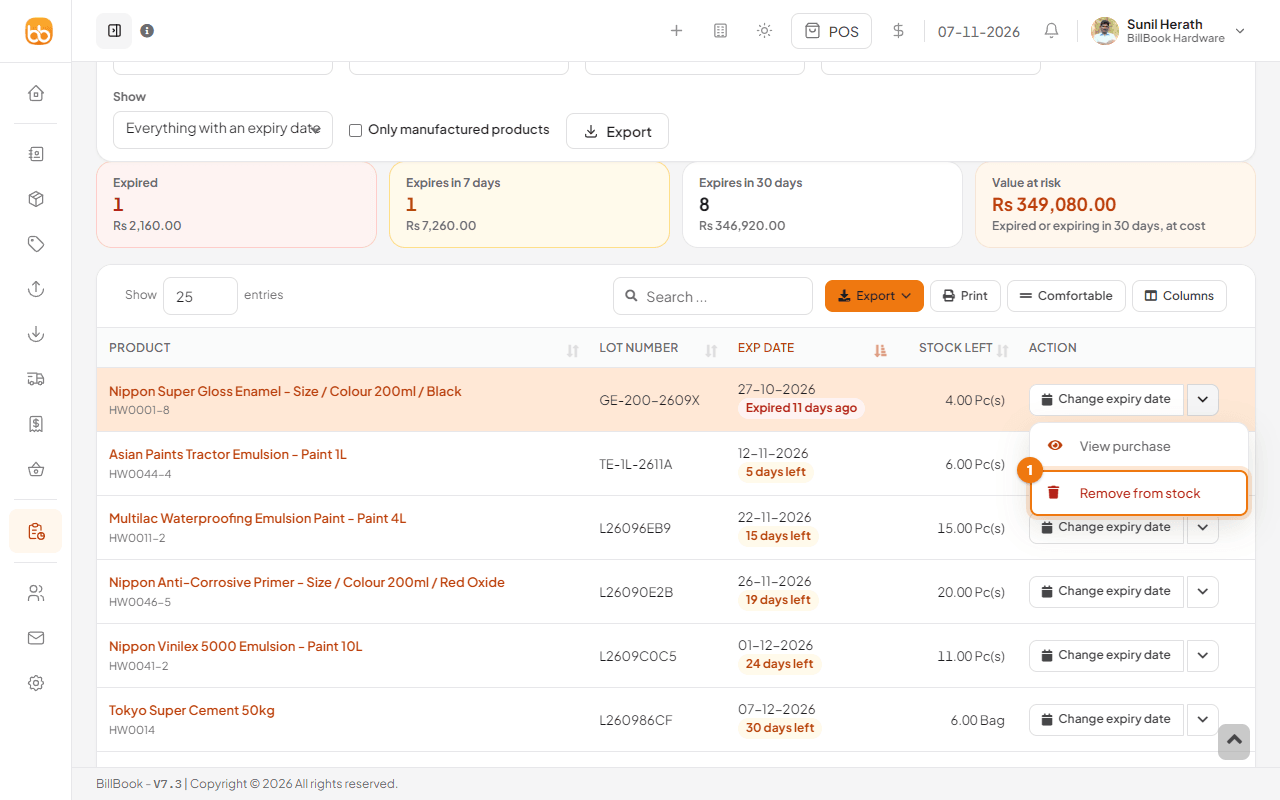
BillBook shows Stock removed successfully. A new Normal adjustment for that batch appears on the Stock Adjustments list.
Note: You can only remove stock this way when Enable Product Expiry is on. See Track expiry and lot numbers.
Recovered amount#
Sometimes you get some money back for the lost stock, for example from an insurance claim or from selling the damaged tins as scrap.
- On the adjustment form, under Recovery and reason, enter the money you got back in Total amount recovered (2).
- Write what happened in Reason, for example 2 paint tins damaged in transit.
- Select Save.
The list shows the Total Amount written off (Rs. 1,000.00 for the two tins) next to the amount recovered (Rs. 300.00). Reports show the amount recovered next to the stock written off.