Print invoice, KOT and token on 80 mm and 58 mm printers
Last updated: 4 November 2026 · 6 min read
A restaurant counter usually prints three slips from one order: the customer's invoice, a kitchen order ticket (KOT) and a token with the order number. This page shows how to print them on an 80 mm or 58 mm thermal printer, and how to make a printer with a cutter cut between the slips.
Before you start: Install your thermal printer and print a test page from the computer. Turn on Kitchen (For restaurants) or Tables in Settings > Business Settings > Modules, because the Restaurant slips settings only show then. For the ordinary receipt printer steps see Thermal receipt printer.
How the slips are printed#
Each location chooses how it prints with Receipt Printer Type:
- Browser Based Printing opens your browser's print window. Every slip is its own page.
- Use Configured Receipt Printer sends the slips to a printer you added in BillBook, through the BillBook print server.
Choose the type on the location's settings page.
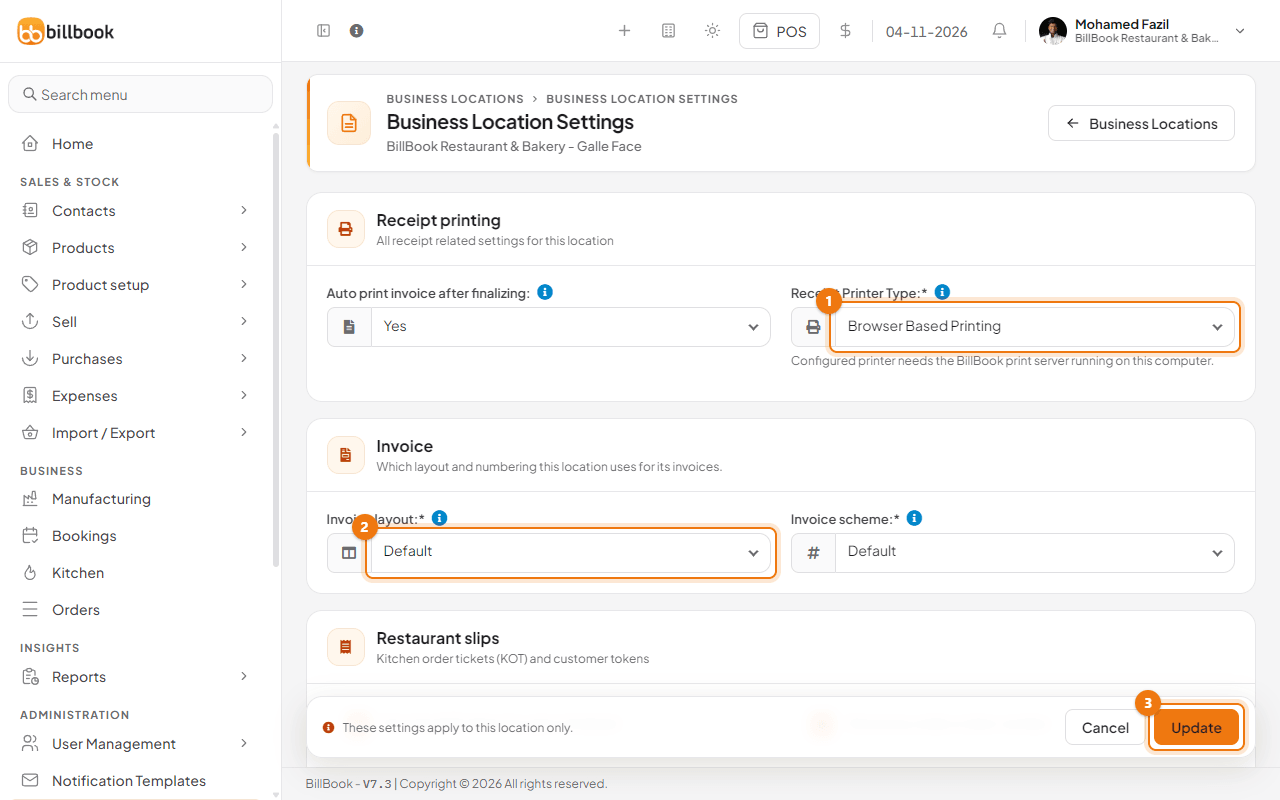
- Go to Settings > Business Locations, open the arrow next to Edit on the location's row and choose Settings.
- Choose Receipt Printer Type (1) and Invoice layout (2).
- Select Update (3).
Browser printing and the cut after each page#
With Browser Based Printing, BillBook puts the invoice, each KOT and the token in one print window, each on its own page. Your browser cannot send a cut command, so the cutting is done by the printer driver.
- When the print window opens, choose your thermal printer.
- Open the printer's preferences, the driver settings of your Windows printer, and turn on the option that cuts after each page. Its name depends on the maker, for example Cut at end of page or Auto cut: each page.
- Print. The printer cuts after the invoice, after each KOT and after the token.
Without that driver option the printer feeds all the pages as one long strip and you cut it by hand.
BillBook picks the paper width for the browser slips like this:
- Invoice layout Slim gives 80 mm and Slim 2 gives 58 mm. See Invoice layouts.
- With any other layout, such as Classic for an A4 invoice, the KOT and token slips use the paper width of the default KOT printer (see below), or 80 mm if there is none. The invoice keeps its own A4 page.
Print-server printing with auto-cut#
With Use Configured Receipt Printer, BillBook does not use the browser print window. It sends the job to the BillBook print server, a small program that must be running on the shop computer, and the print server drives the printer. This cannot be shown on screen here, so test it once with a real order.
BillBook sends the invoice as an ordinary receipt job, then one job for the KOTs and the token. If the printer has a cutter and Cut the paper after each slip is ticked on it, the job tells the printer to make a partial cut after every slip, and after each copy when you print more than one copy. The KOTs go to the printer of each station, then the token. The lines of each slip are wrapped to the paper: 48 characters on 80 mm paper and 32 characters on 58 mm paper.
If no print server is running, the POS tells you to start it or to switch the location to browser printing.
Set up the printer#
Add the printer first, as described in Thermal receipt printer. Then set the slips settings on it.
- Go to Settings > Receipt Printers and select Edit on the printer, or Add for a new one.
- Scroll to the Slips card (select Slips to open it if it is folded) and choose the Paper width (1): 80 mm or 58 mm.
- Enter Copies per slip (2), from 1 to 3. With 2, each slip prints twice, one after another.
- Tick Cut the paper after each slip (3) if the printer has an automatic cutter. Leave it unticked if it has none.
- Select Update.
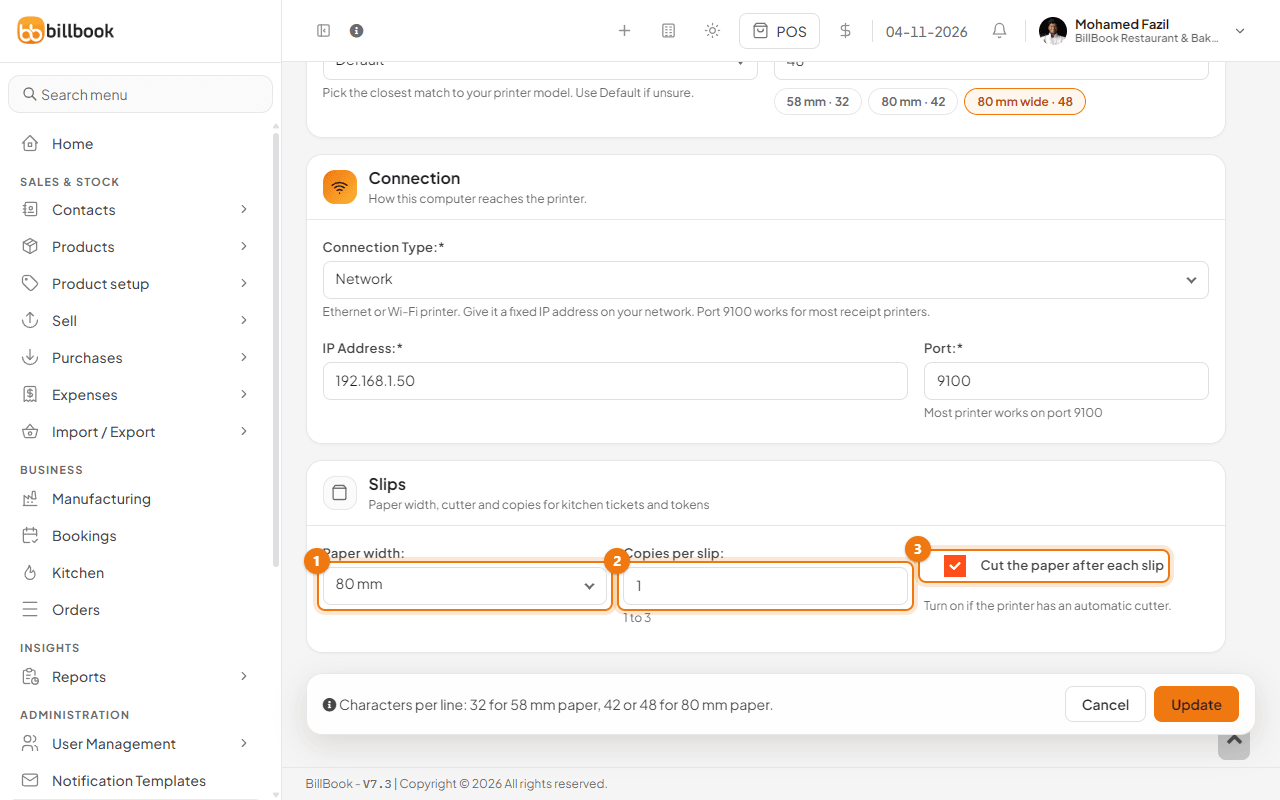
Also set Characters per line at the top of the form: 58 mm · 32 for 58 mm paper, and 80 mm · 42 or 80 mm wide · 48 for 80 mm paper.
Note: Copies per slip and Cut the paper after each slip apply to the KOT and token slips sent through the print server. The invoice receipt is sent as before. With browser printing, only the paper width of the printer is used, and only when the layout is not Slim or Slim 2.
Choose which slips print at a location#
The Restaurant slips card on the location's settings page decides what prints when a sale is paid.
- Tick Print the KOT when the sale is finalized (1).
- Tick Give every order a token number (2), and Print the token when the sale is finalized (3) if you want the token slip on paper.
- Choose the Default KOT printer (4). It is used when a kitchen station has no printer of its own. See Kitchen stations.
- Select Update.
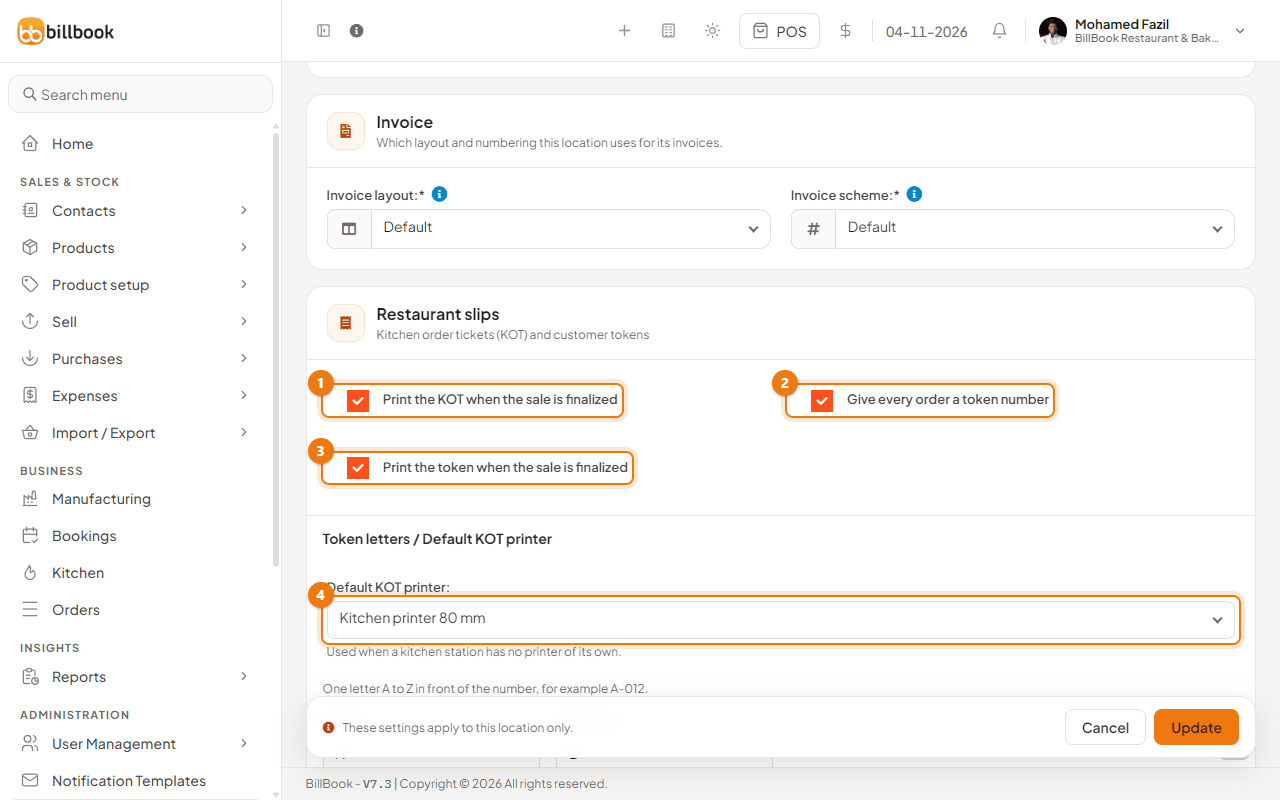
Scroll down to Token letters to change the letter in front of the token: Dine in (1) is A and Takeaway (2) is B by default. Each letter is one letter from A to Z. If you use types of service, each type has its own box.
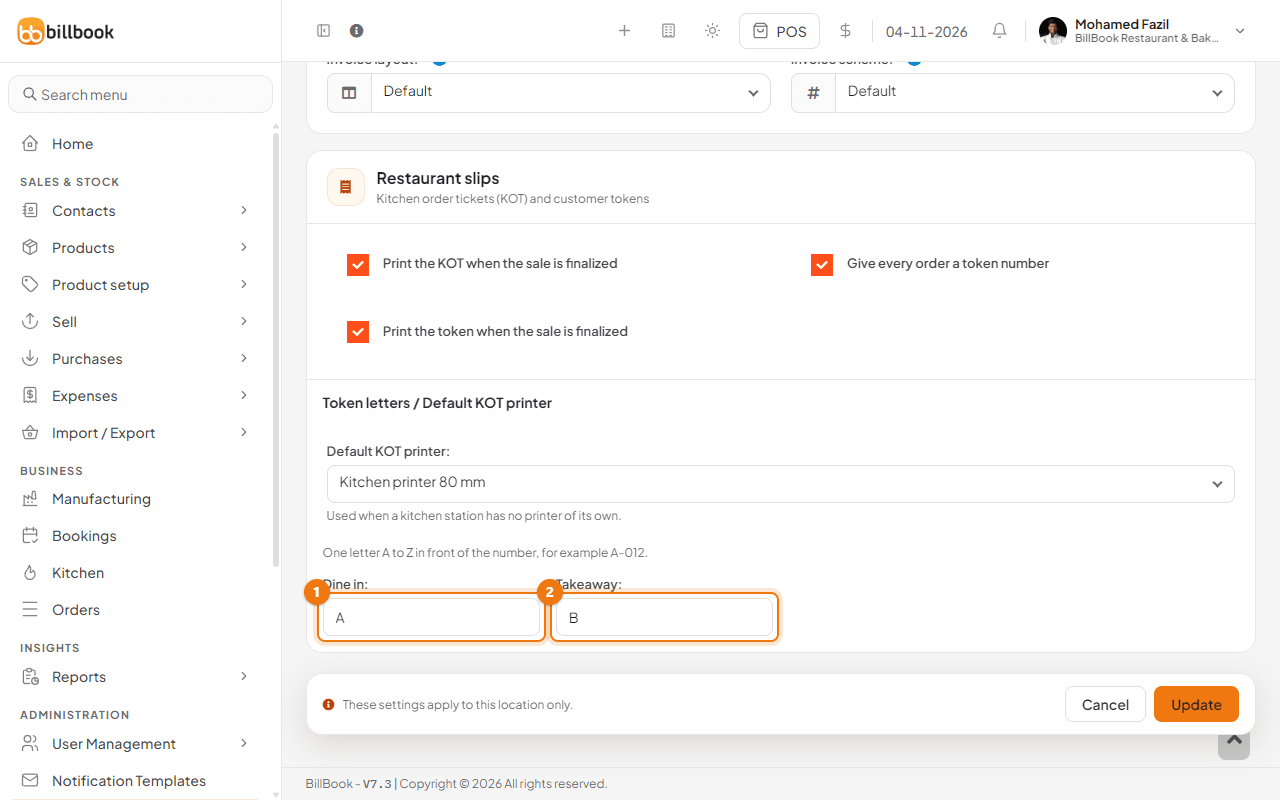
Sending an order to the kitchen from the POS always prints the KOT, whatever these ticks say. They only decide what prints at payment. See Kitchen order tickets (KOT) and token numbers.
80 mm and 58 mm slips#
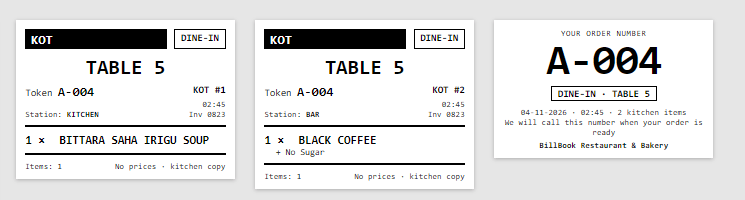
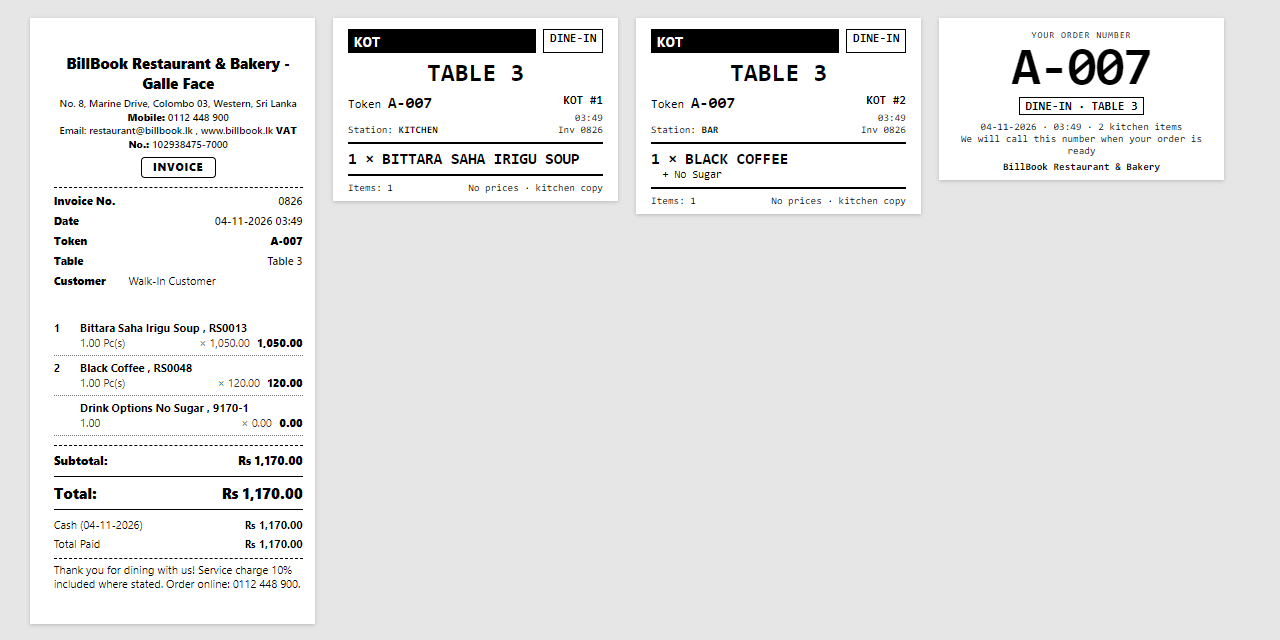
On 80 mm paper the printable width is 72 mm. On 58 mm paper it is 48 mm. The slips use one simple black-and-white print with large letters, so they can be read from half a metre away. A KOT never shows prices. The invoice with the token, the KOT for each station and the token slip look like this on 80 mm paper:
The same KOTs and token on 58 mm paper are narrower: