
Sell returns
Last updated: 4 November 2026 · 3 min read
A customer brings back four bulbs from an order of twenty. A sell return records exactly what came back, adds it to your stock and works out how much you owe the customer.
Before you start: You need permission to add sell returns. A return is always made against an existing sale, so you need the invoice number from the receipt.
Return by invoice number#
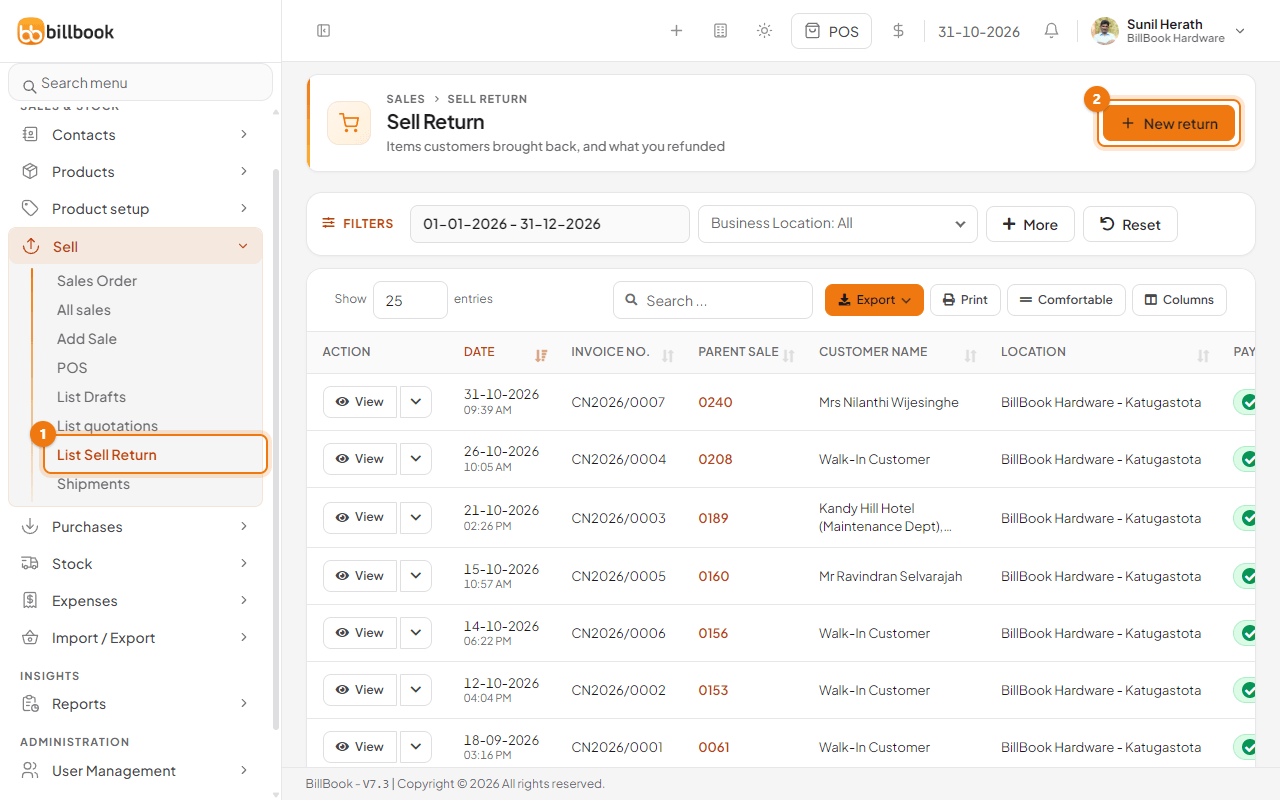
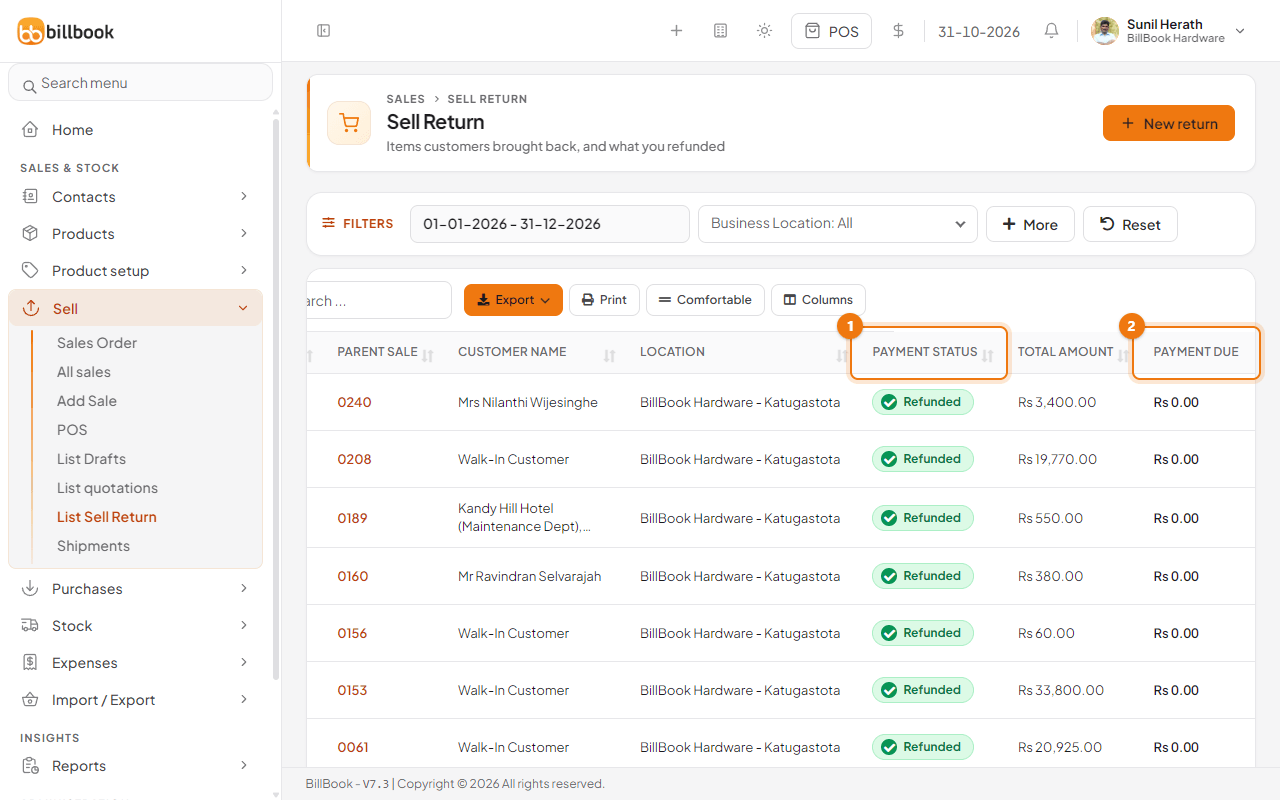
- Go to Sell > List Sell Return (1). Earlier returns are listed with their Parent Sale number.
- Select New return (2).
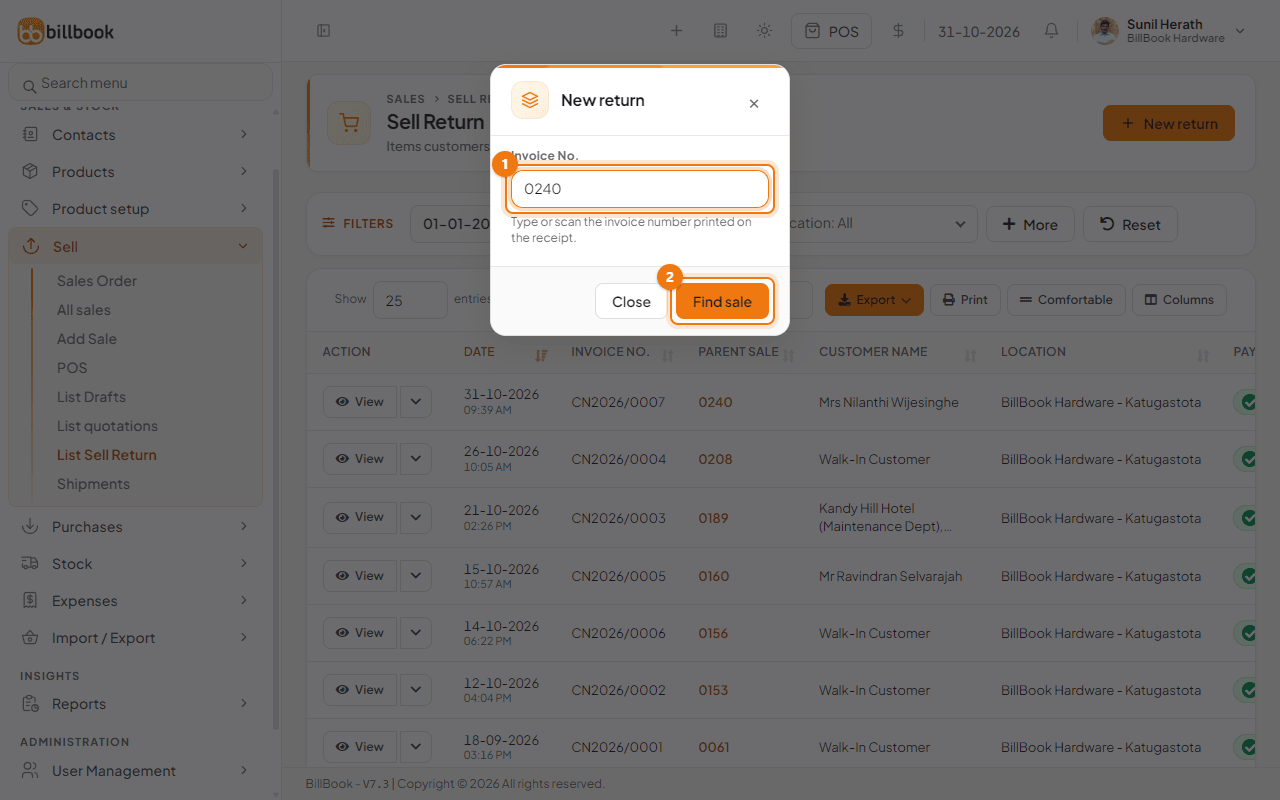
- In the New return window, type the Invoice No. (1) printed on the receipt, for example 0240. You can also scan the barcode on the receipt.
- Select Find sale (2).
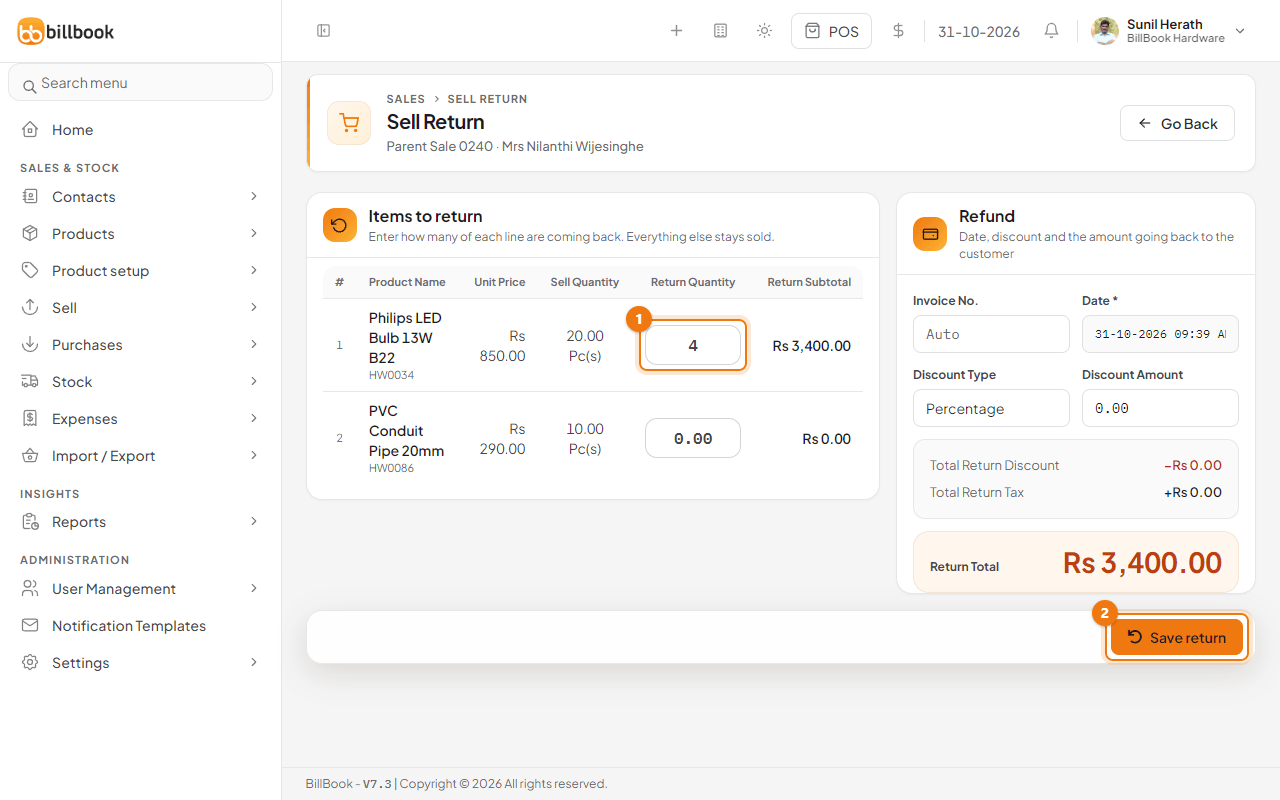
The Sell Return page opens, headed Parent Sale 0240 with the customer's name. You can also start a return from the sale itself. In Sell > All sales, open the arrow next to View on the row and select Sell Return.
Return part of a sale#
- Under Items to return, each line shows the Unit Price and the Sell Quantity that was sold.
- Type the Return Quantity (1) for each item that came back, for example 4 of Philips LED Bulb 13W B22. Leave 0.00 for items the customer keeps. You cannot return more than was sold.
- The Return Subtotal and the Return Total at the bottom right update as you type.
- Under Refund, leave Invoice No. empty to let BillBook number the return, for example CN2026/0007. Change the Date if you took the goods back on another day.
- If you give the customer less than the full price back, choose a Discount Type and enter a Discount Amount.
- Select Save return (2).
BillBook shows Success and adds the return to Sell > List Sell Return. Select Save return only once, because the form stays open after you save.
Note: A sale that has a return cannot be edited any more. Open its return and edit that instead. A sale that is on hold cannot be returned either, because nothing has been sold yet. BillBook shows This sale is held, so there is nothing to return. Finish or delete the held sale instead. See Hold, resume and delete held sales.
Refund the customer#
A new return shows Refund due in the Payment Status column until you record the refund.
- Go to Sell > List Sell Return.
- On the return's row, open the arrow next to View and select Add payment.
- Choose the Payment Method, for example Cash. The Amount (1) is filled in with the amount still to refund. If the customer has an advance balance with you, it shows above the form.
- Select Save (2).
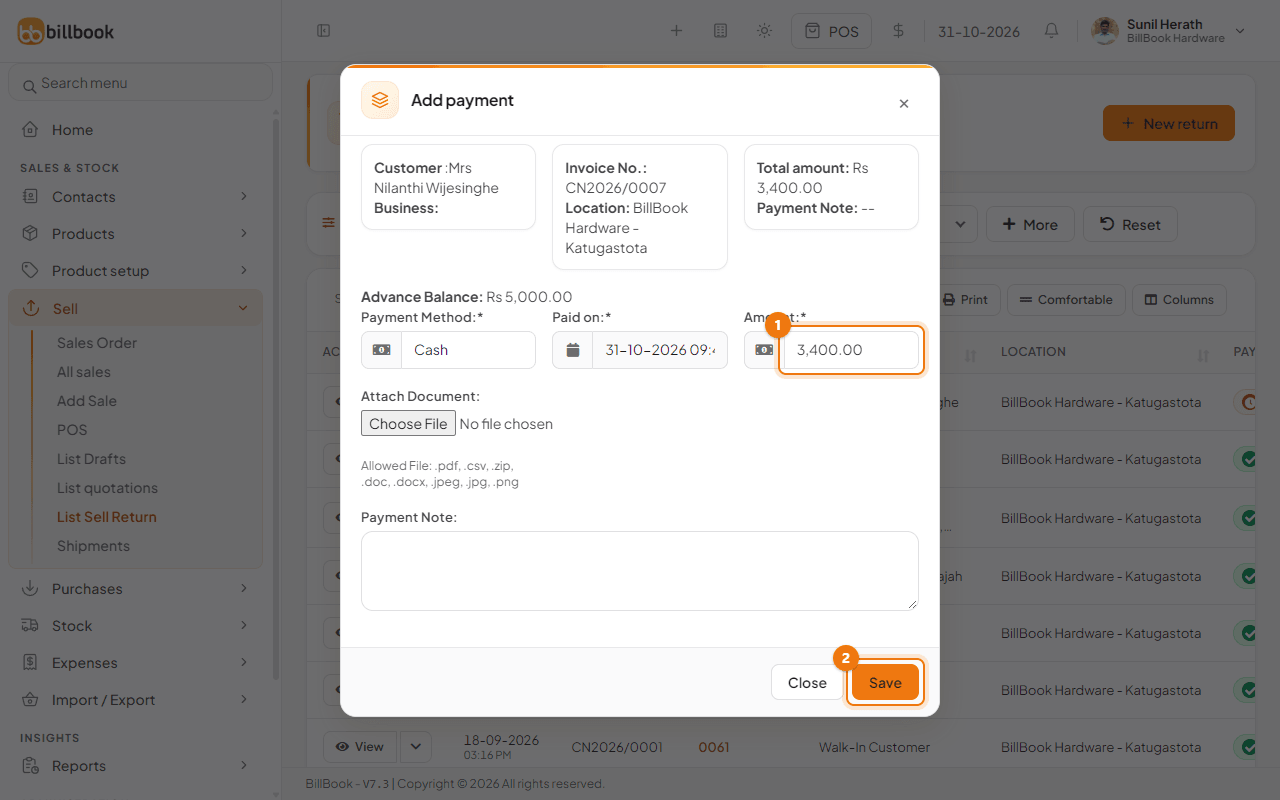
The return changes to Refunded. To refund in two lots, enter a smaller amount first. The status shows Partly refunded and the rest stays as Payment Due. View Payments in the same menu lists every refund paid.
Effect on stock#
When you save the return, the returned quantity is added back to stock at the sale's location. In the demo, Philips LED Bulb 13W B22 had 10 in stock before the return of 4 and 14 after it. Stock goes up by the return quantity whether or not you have refunded the customer yet.
Check the returned goods before you save. Damaged items should not go back on your shelf. If they are damaged, record them as a write-off under Stock afterwards. See Stock adjustments and write-offs.