Purchase requisitions
Last updated: 7 November 2026 · 3 min read
A purchase requisition is an internal request: "we are running low on this, please order more". A shop assistant or storekeeper can raise it, and the person who buys then turns it into a purchase order. It does not add stock and does not go to a supplier.
Before you start: Turn on purchase requisitions (see below) and set an Alert Quantity on the products you want to watch. Only products at or below their alert quantity are offered on a requisition.
Turn on requisitions#
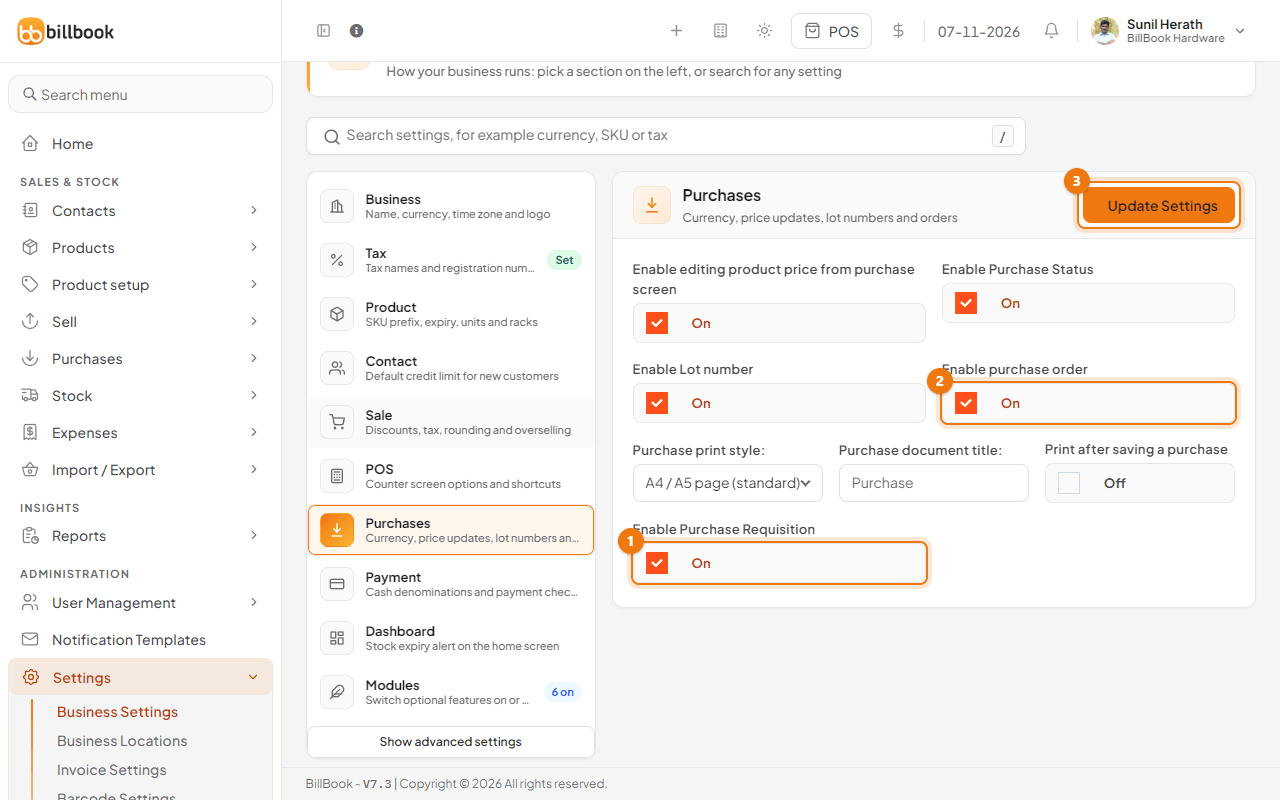
- Go to Settings > Business Settings and open Purchases.
- Turn on Enable Purchase Requisition (1). Turn on Enable purchase order (2) as well, because you need it to order from a requisition.
- Select Update Settings (3).
Purchase Requisition and Purchase Order now appear under Purchases in the sidebar.
Create a requisition#
- Go to Purchases > Purchase Requisition and select Add.
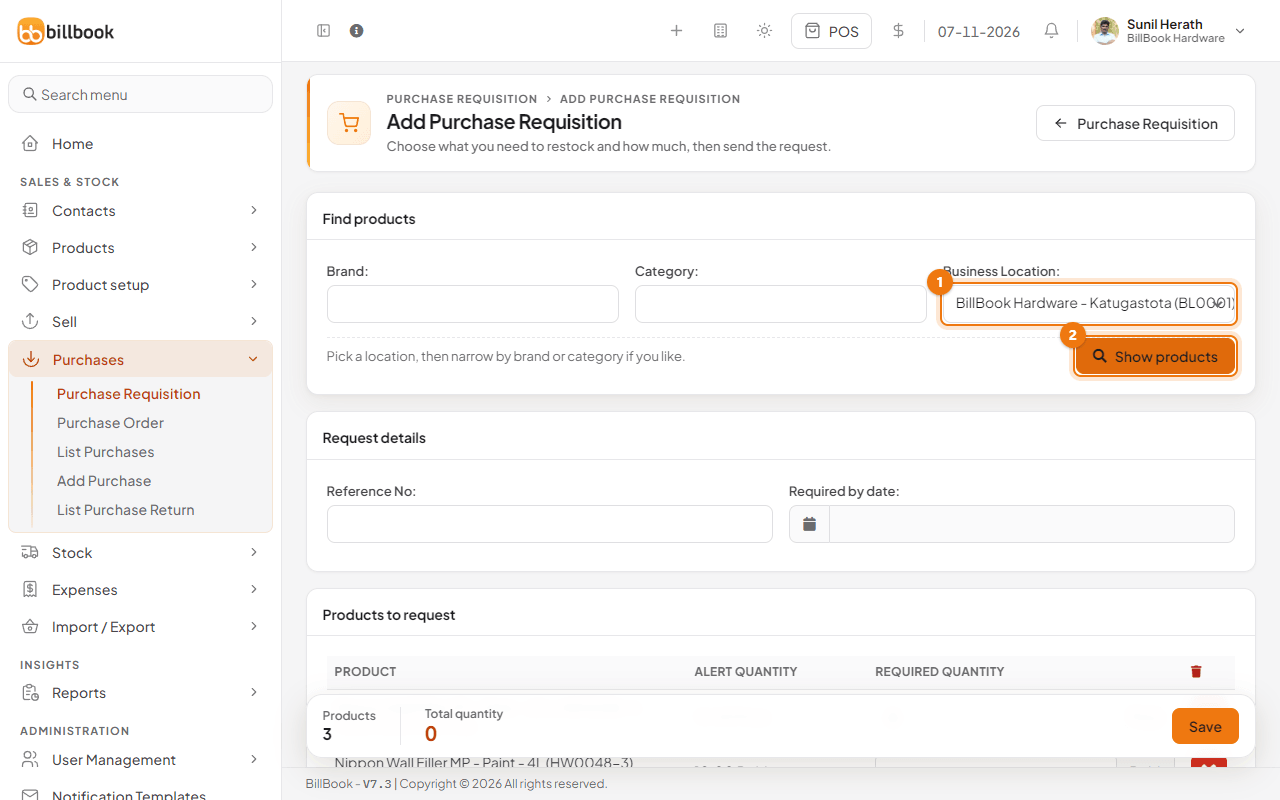
- Choose the Business Location (1). You can narrow the products by Brand or Category first if you like.
- Select Show products (2). BillBook lists the products at that location whose stock is at or below the alert quantity, with their Alert Quantity and current stock.
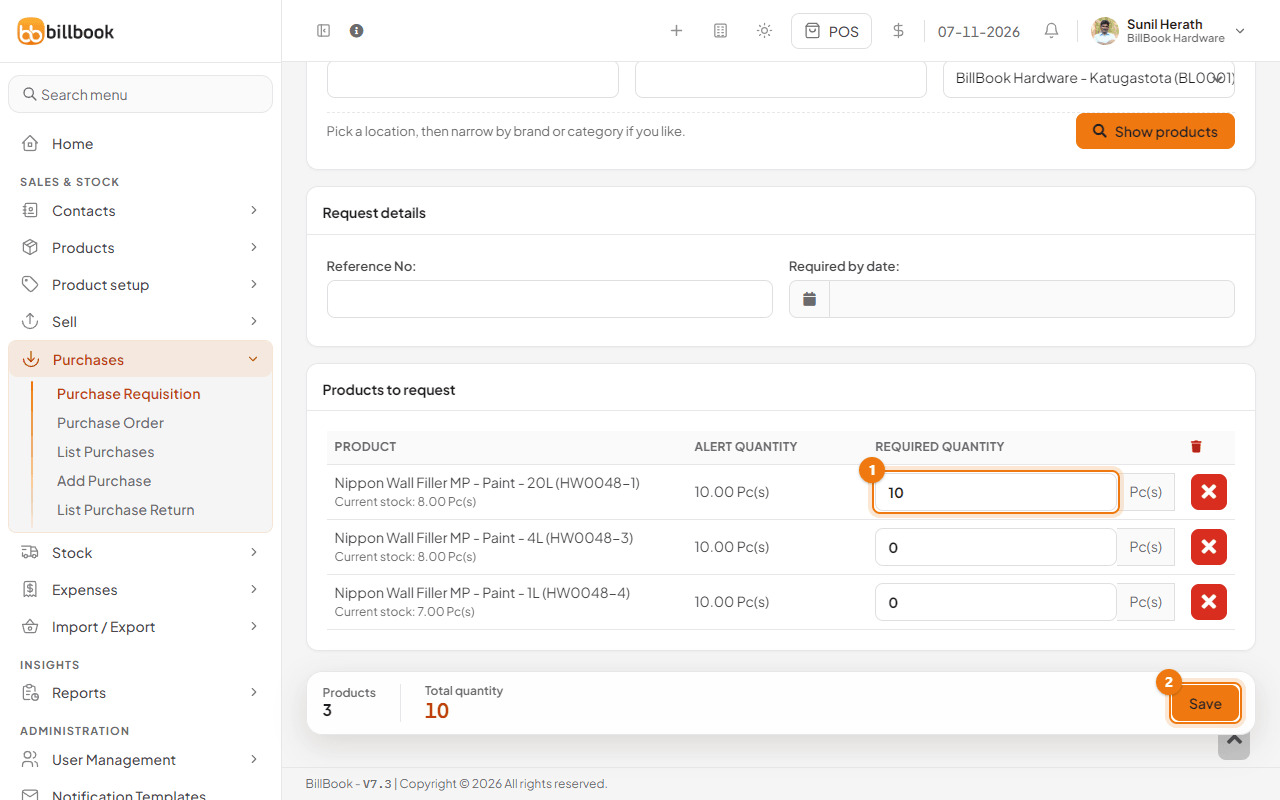
- Enter the Required Quantity (1) for each product you want. Remove a line you do not need with the red cross.
- Choose a Required by date if you need the goods by a certain day.
- Select Save (2).
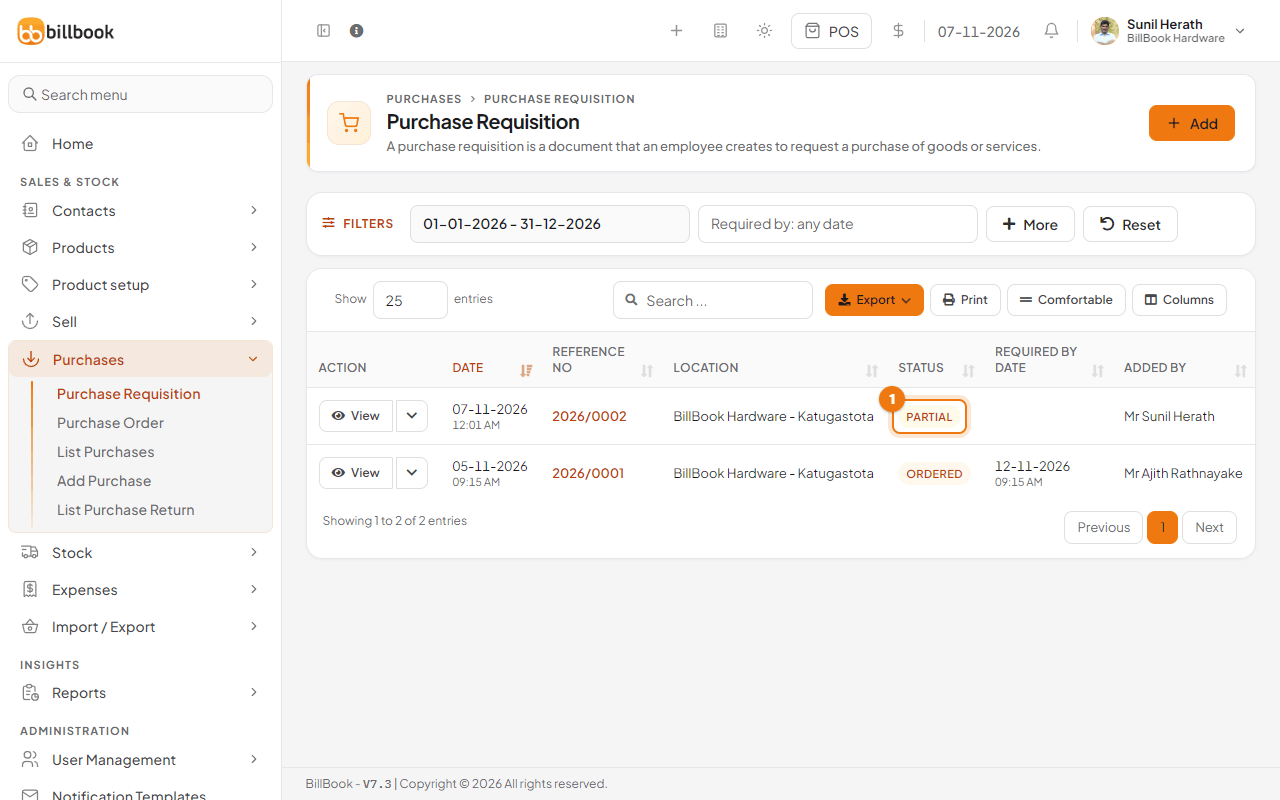
The requisition appears in the list with the status Ordered. BillBook gives it its own number, for example 2026/0002. You can edit a requisition only while it is still Ordered.
Convert to a purchase order#
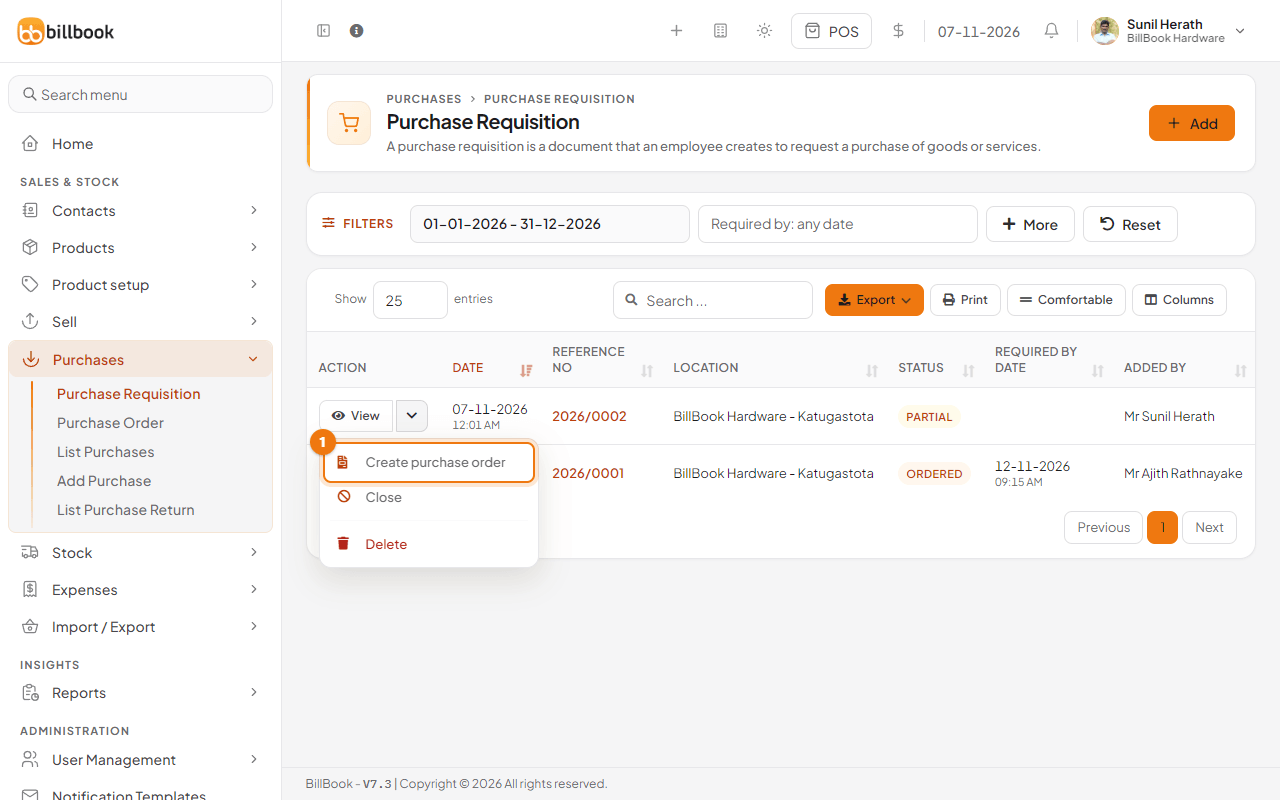
- On Purchases > Purchase Requisition, select the arrow next to View on the requisition's row.
- Select Create purchase order (1).
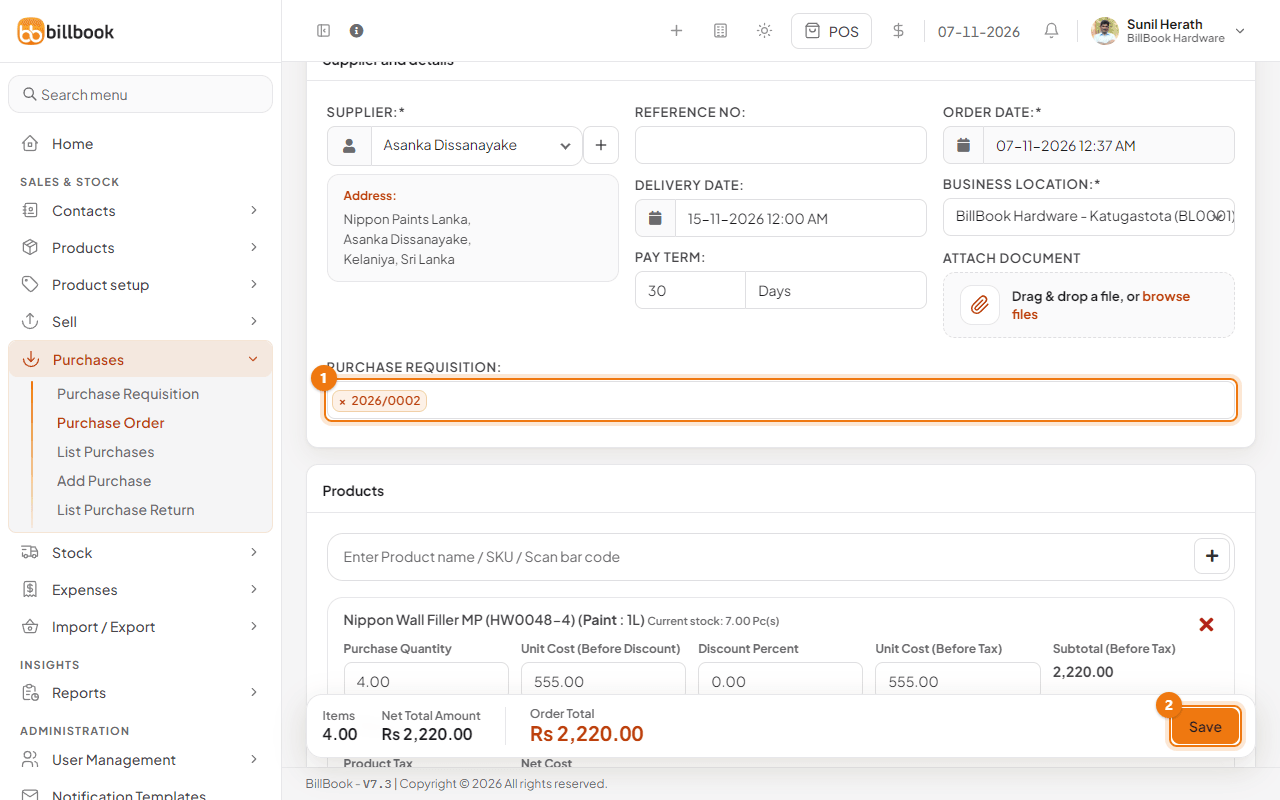
- The Add Purchase Order screen opens with the requisition in the Purchase Requisition field (1) and its products already added.
- Choose the Supplier and, if you want, a Delivery Date. Check the quantities and unit costs.
- Select Save (2). See Purchase orders for the rest of the order.
You can pick more than one requisition in the Purchase Requisition field to order them together.
Partial purchases#
If you order less than the requisition asked for, for example 6 of 10 tins, BillBook changes the requisition's status to Partial (1) and keeps the quantity still to be ordered. A Partial requisition can be turned into another purchase order for the rest. Once everything is covered, the requisition is Completed.
Select Close in the row menu if you no longer need what is left.