
Documents and notes
Last updated: 7 November 2026 · 3 min read
Keep paperwork next to the person or sale it belongs to: a signed credit agreement on a customer, a delivery note on an invoice. Everyone who opens that record can find it, instead of searching through WhatsApp and email.
Before you start: The Documents & Note tab is on the page of a customer, a supplier and a user. For a sale, use Attach Document on the sale form. You need permission to view the record, and permission to add and edit notes on it.
Add a note#
- Go to Contacts > Customers, select the customer's name, and open the Documents & Note tab. It sits under Records on the left of the customer page and shows None yet until you add a note. You can also open the arrow next to View on the customer's row and select Documents & Note.
- Select Add.
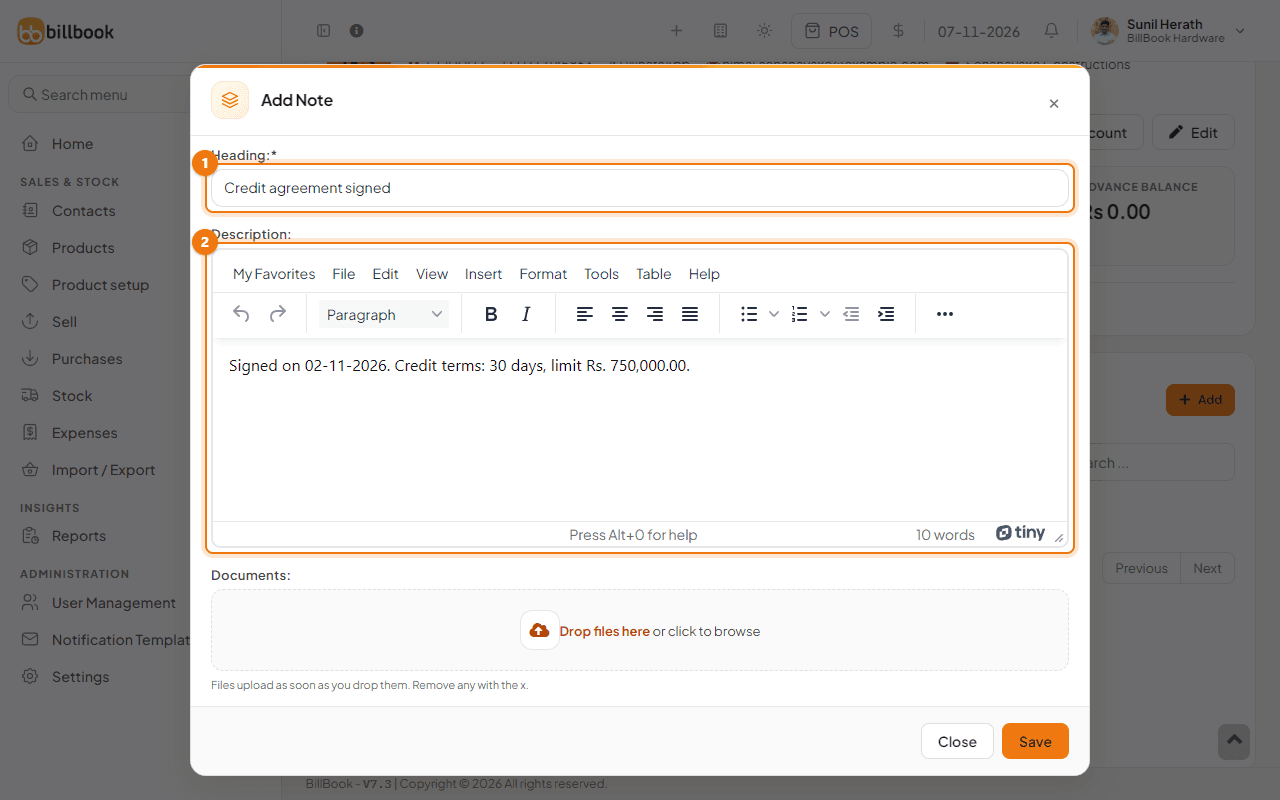
- Type a Heading (1), for example Credit agreement signed. It is required.
- Write the details in Description (2), for example the date and the credit terms.
Attach a file to a record#
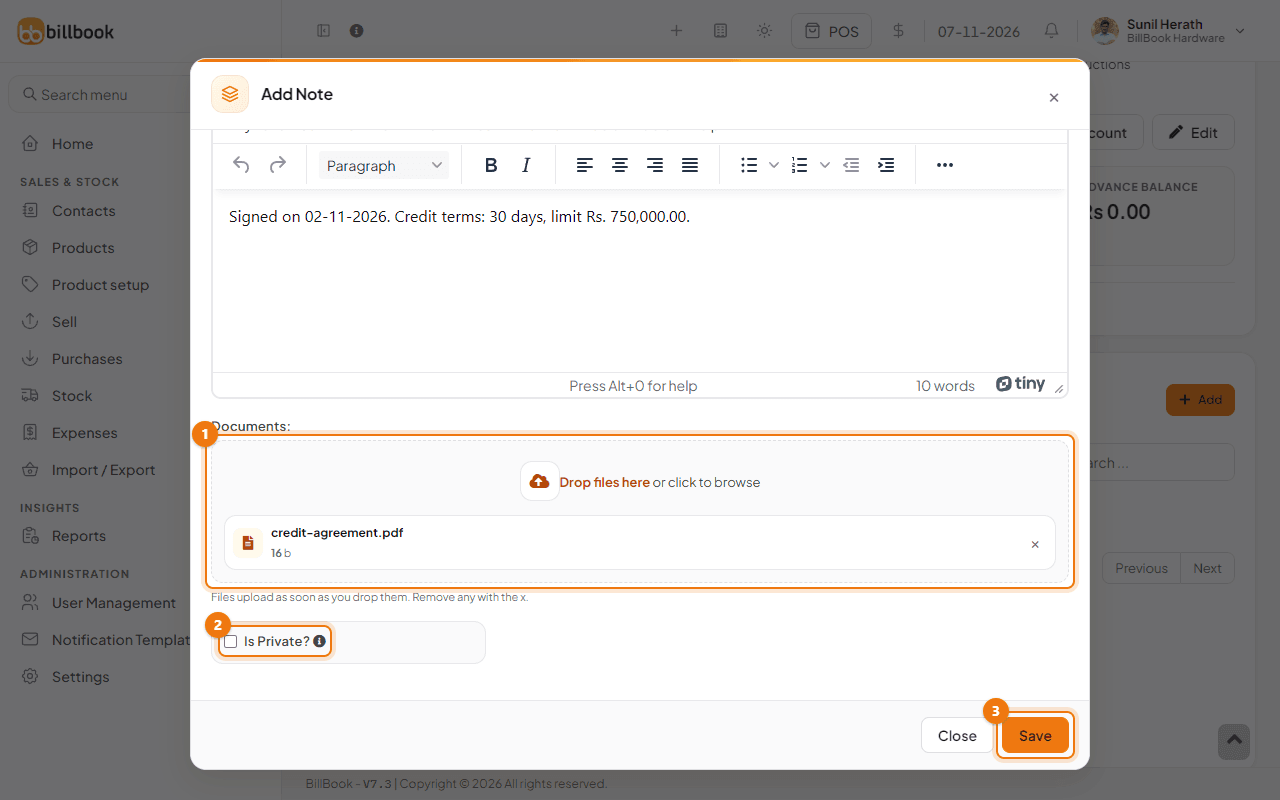
- In the same Add Note form, scroll down to Documents (1). Drop a file on the box, or select it to browse. The file uploads at once and its name and size appear in the box. Select the x next to a file to remove it before you save.
- Select Save (3).
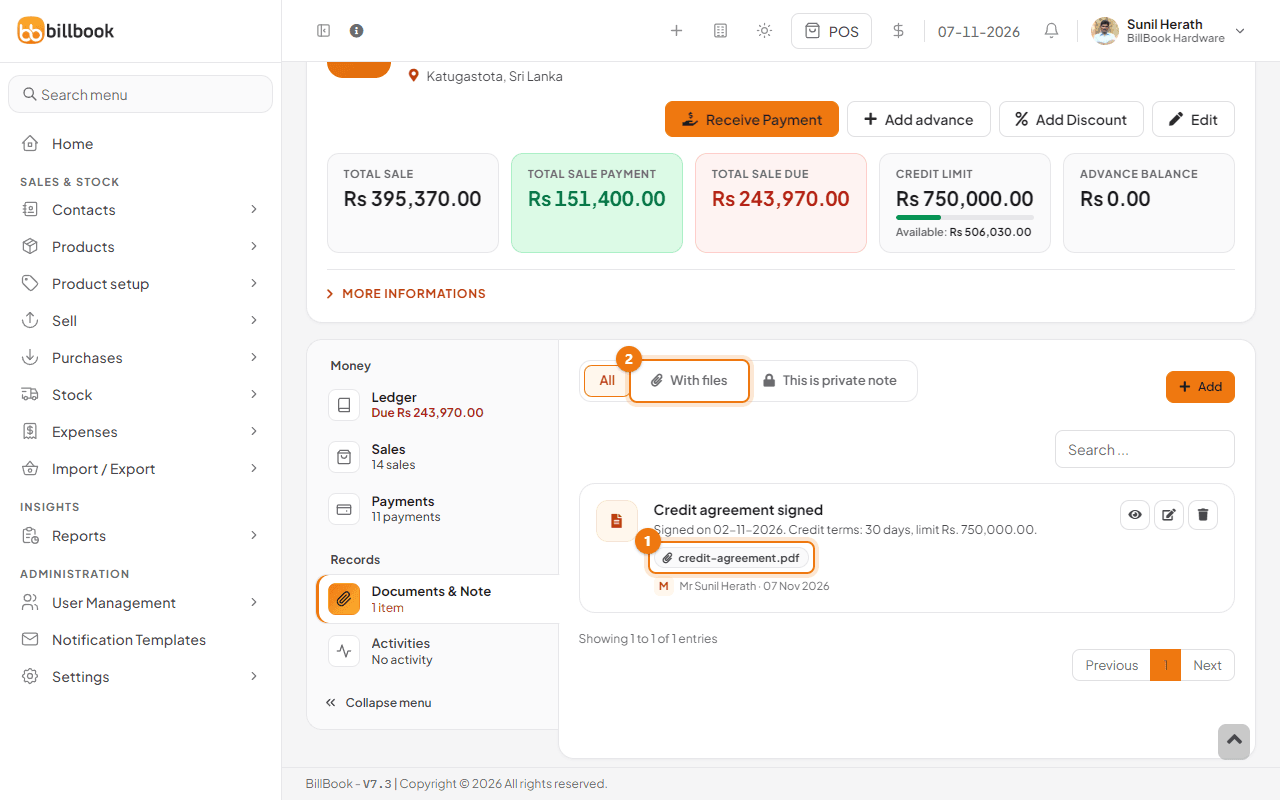
The note appears in the list with its description, its files and the name of the person who added it. Use the With files filter (2) to show only notes that have a file, and select the file name (1) to open it. Use the eye to open a note, the pencil to edit it and the bin to delete it.
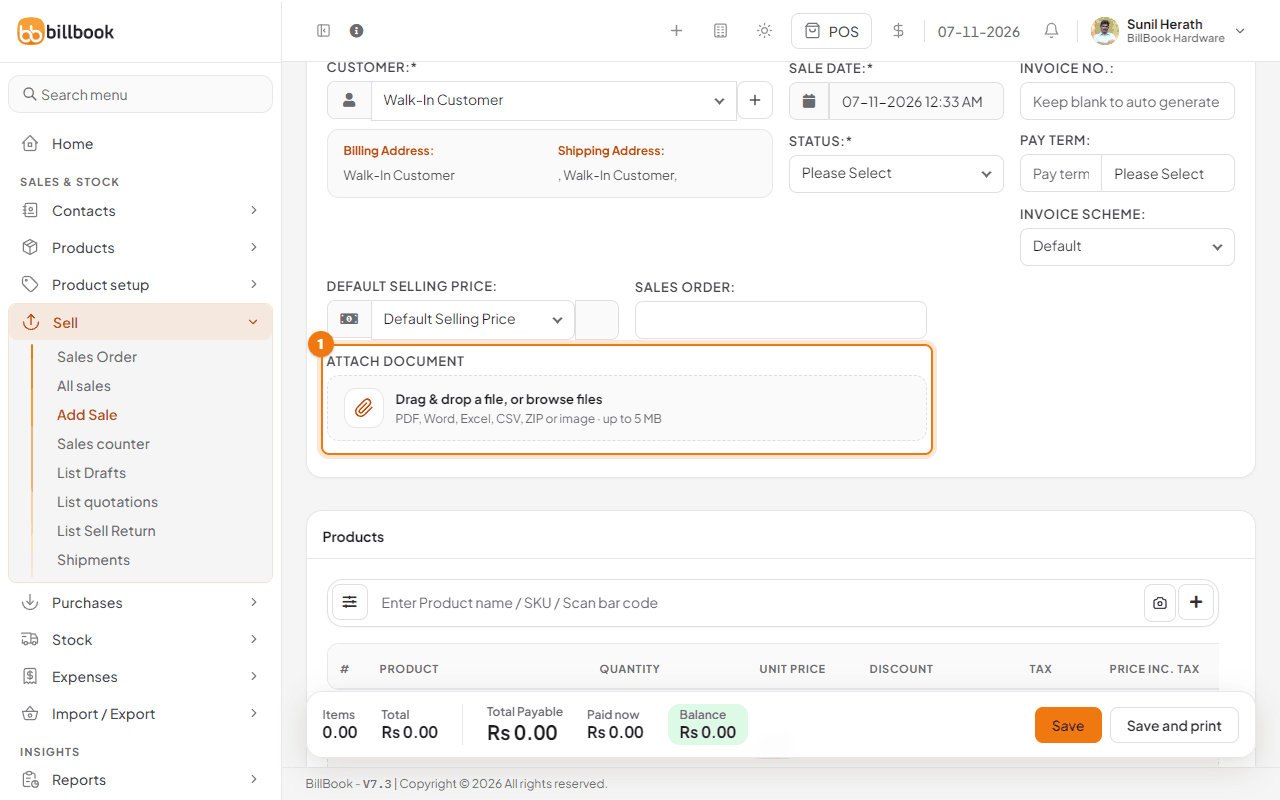
On a sale, open Sell > Add Sale (or edit a sale) and use Attach Document (1) on the form. Drag a file in or browse for it. You can attach a PDF, Word, Excel, CSV, ZIP or image file of up to 5 MB.
Tip: A scanned PDF or a photo of the signed page is enough. Keep file names clear, because the file name is what you see in the list.
Who can see it#
A note is visible to everyone who can open that customer, supplier or user, unless you mark it private.
- Tick Is Private? in the Add Note form to keep the note and its files visible only to you. Other people, including the owner, do not see it in their list.
- Use the This is private note filter to show only your private notes.
Editing and deleting notes follows the permissions on the record, so a cashier who can only view a customer cannot change its notes. See Roles and permissions.