
Tax rates and group taxes
Last updated: 7 November 2026 · 3 min read
A tax rate is one tax, for example VAT 18%. A group tax charges several rates together, for example VAT plus SSCL, as a single choice on a product or a sale. Set up your rates once here and pick them from a list afterwards.
Before you start: You need permission to open Settings and to view or create tax rates. Your tax registration numbers go in Settings > Business Settings > Tax, not here. See Business settings explained.
Add a tax rate#
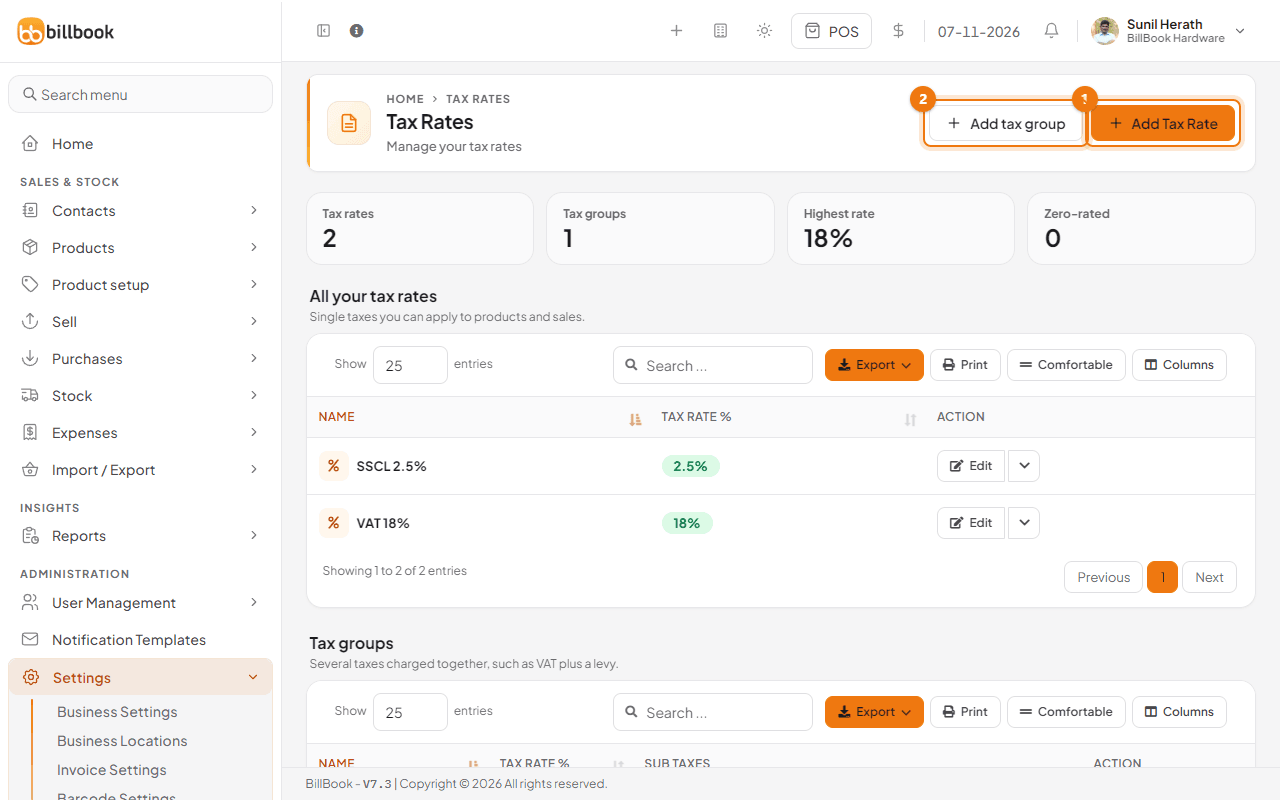
- Go to Settings > Tax Rates. The cards at the top count your Tax rates and Tax groups and show your Highest rate. Your single taxes are under All your tax rates and your groups below them under Tax groups.
- Select Add Tax Rate (1).
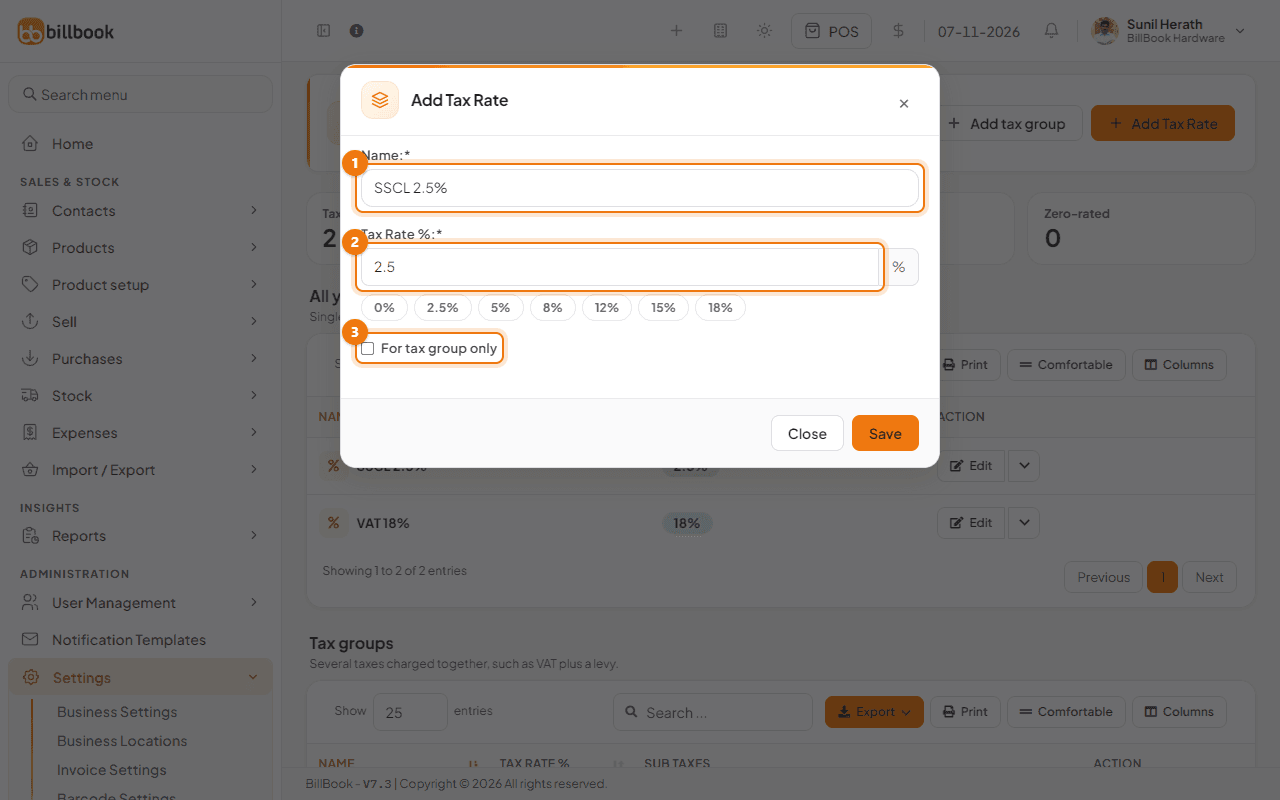
- Enter a Name (1) that includes the rate, for example SSCL 2.5%, so it is easy to pick later.
- Enter the Tax Rate % (2), for example 2.5. Quick buttons below the box (0%, 2.5%, 5% and so on up to 18%) offer common rates.
- Tick For tax group only (3) if this rate should only be used inside a group and never on its own. Then select Save.
The new rate appears in the list. To change a rate later, select Edit on its row.
Combine rates into a group tax#
Use a group when two taxes are charged together on the same goods.
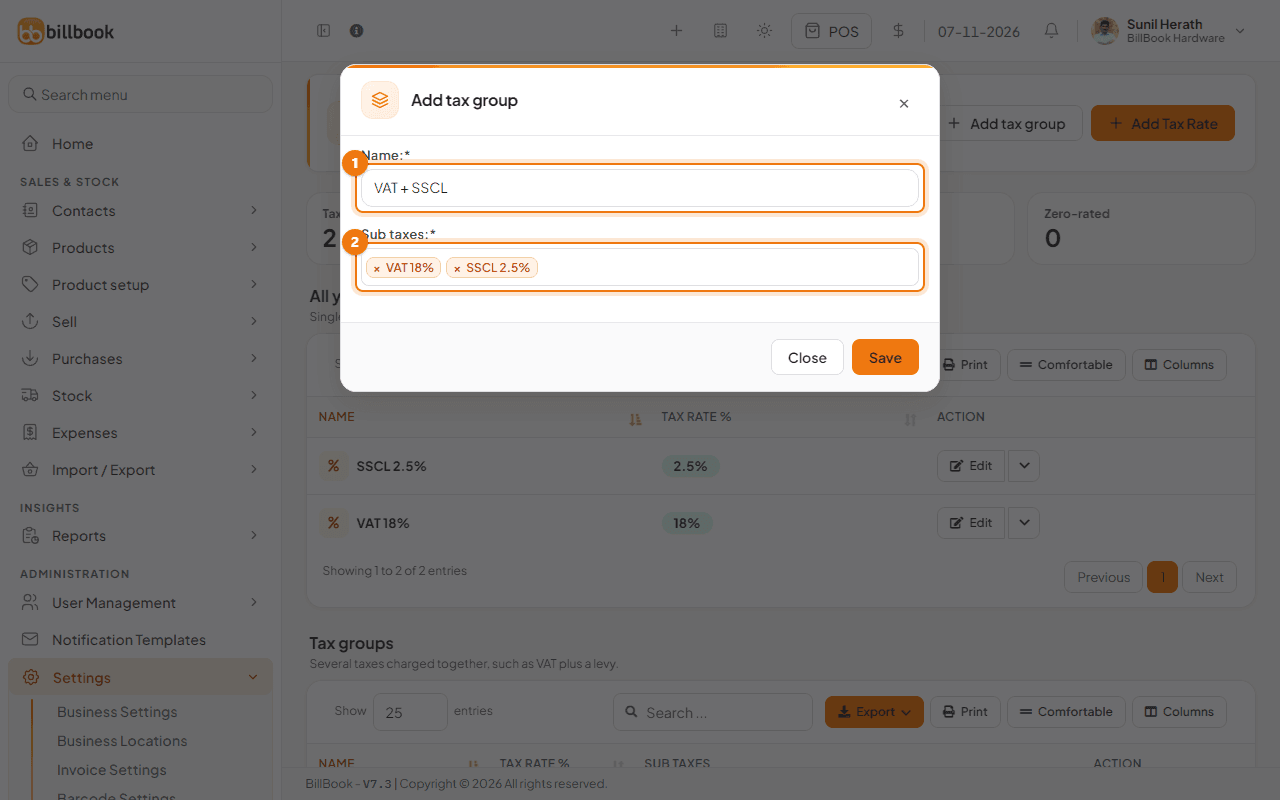
- On the Tax Rates page select Add tax group (2).
- Enter the group Name (1), for example VAT + SSCL.
- Choose the Sub taxes (2), for example VAT 18% and SSCL 2.5%, then select Save.
The group appears under Tax groups with its combined rate (here 20.5%) and the sub taxes it contains (1).
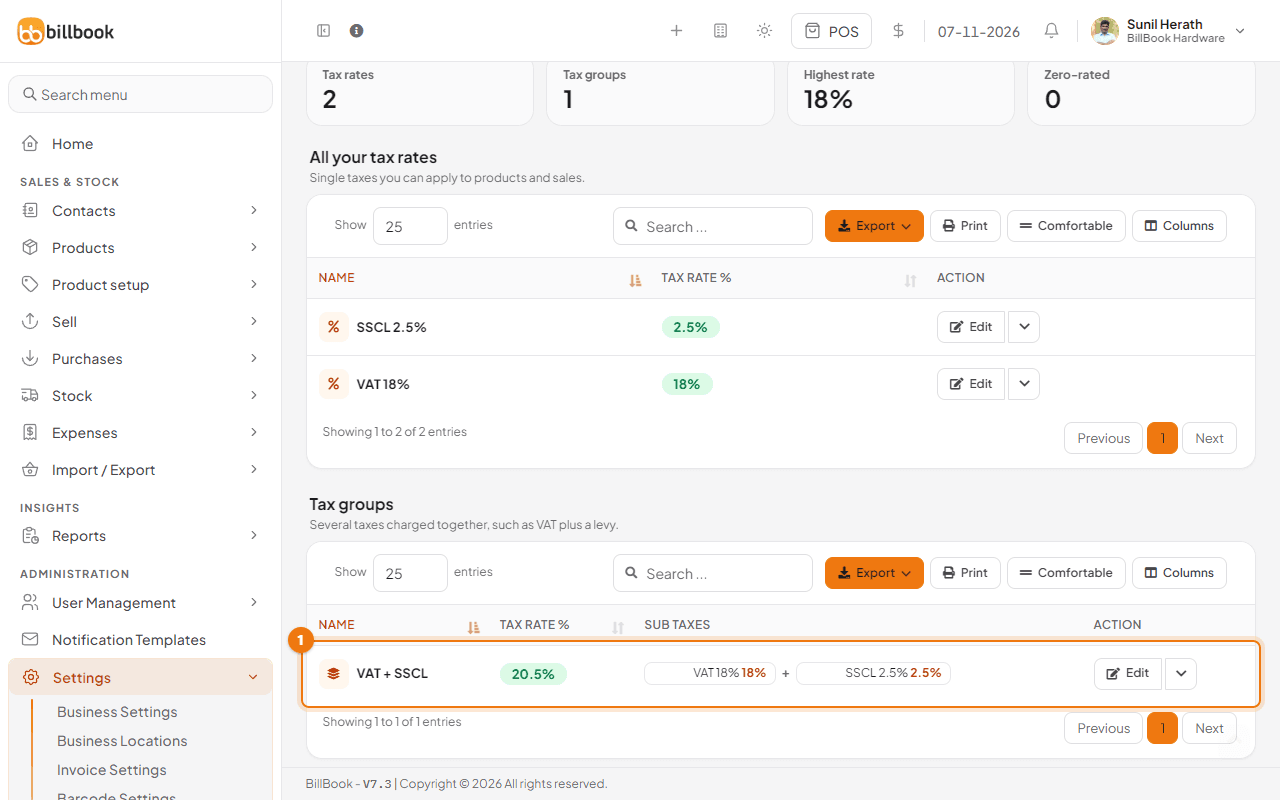
Note: BillBook adds the rates of the sub taxes together, so VAT + SSCL is 18% + 2.5% = 20.5%.
Inline tax on products#
Inline tax means the tax set on each product is added on the line of a sale or purchase. One setting switches it on or off for the whole business.
- Go to Settings > Business Settings and open the Tax tab.
- Under Add tax to sale and purchase lines (VAT), choose On to add the tax set on each product. Choose Off to sell and buy with no tax.
- Select Update Settings.
On the same tab, Default tax for new products is the rate or group a new product starts with, and SSCL registered is for businesses registered for SSCL. You can also set a Default Sale Tax on the Sale tab, which every new sale starts with. See Business settings explained.
Price includes tax#
Each product says whether its selling price already includes tax.
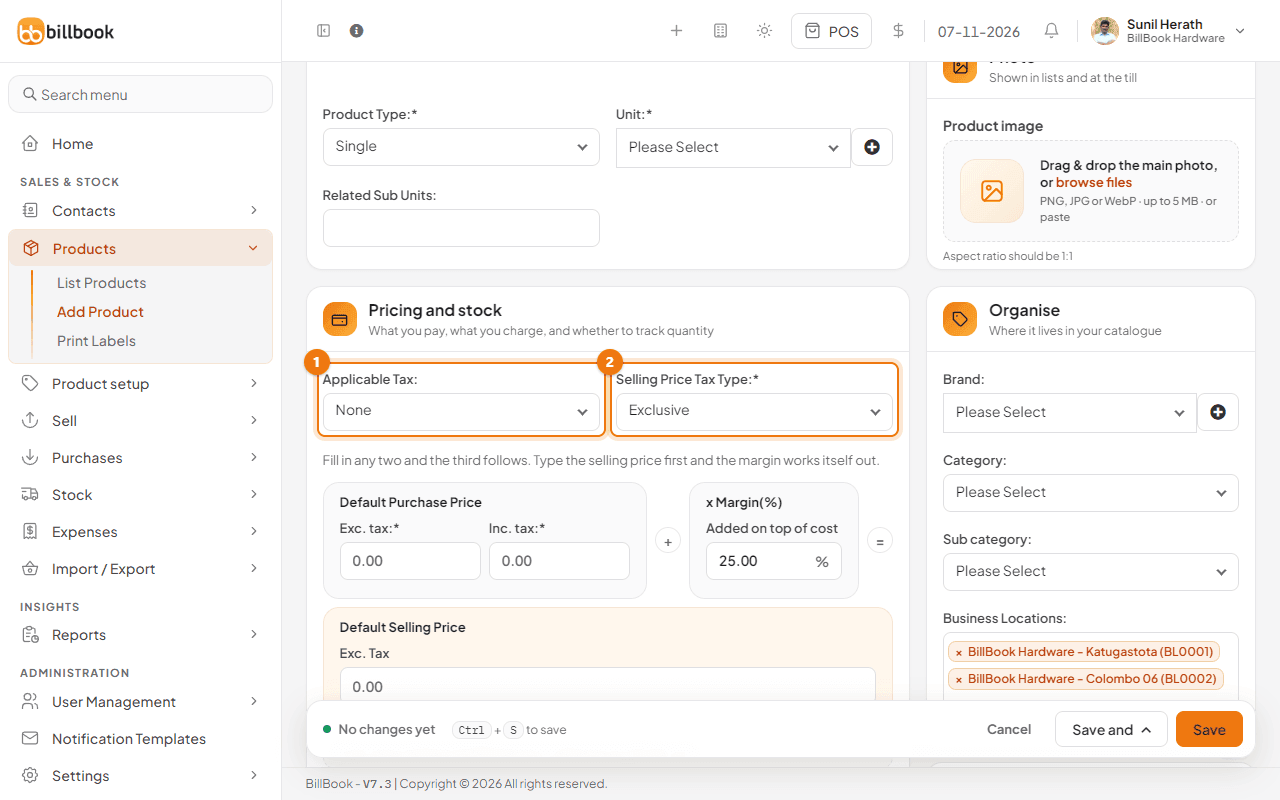
- Go to Products > Add Product, or edit an existing product.
- Under Applicable Tax (1), choose the rate or group, for example VAT + SSCL.
- Under Selling Price Tax Type (2), choose Inclusive if the price on your shelf already includes the tax, or Exclusive if tax is added on top at the till.
See Add a product for the rest of the product form.