Cash register: open and close
Last updated: 7 November 2026 · 5 min read
The cash register is your cash drawer in BillBook. You open it on a counter in the morning with the float, sell all day, and close it at night by counting the cash. BillBook tells you what the drawer should hold, so you see any difference straight away.
Before you start: Selling from the POS needs an open register. If you have none, Sell > Sales counter (or the POS button at the top) shows the counters so you can open one. To learn what a counter is and how to add one, see Cash counters.
Open the register with a float#
- Go to Sell > Sales counter. The page shows each counter as Free or Busy.
- Select a free counter (1), for example Counter 1 at BillBook Hardware - Katugastota (BL0001). Its card gets a tick and the Business Location is filled in for you. If a location has only one counter, BillBook selects it for you.
- Enter the float in Cash in hand (2), for example 10,000.00. Select Count by note if you want to count it by note and coin.
- Select Open Register (3). The POS screen opens.
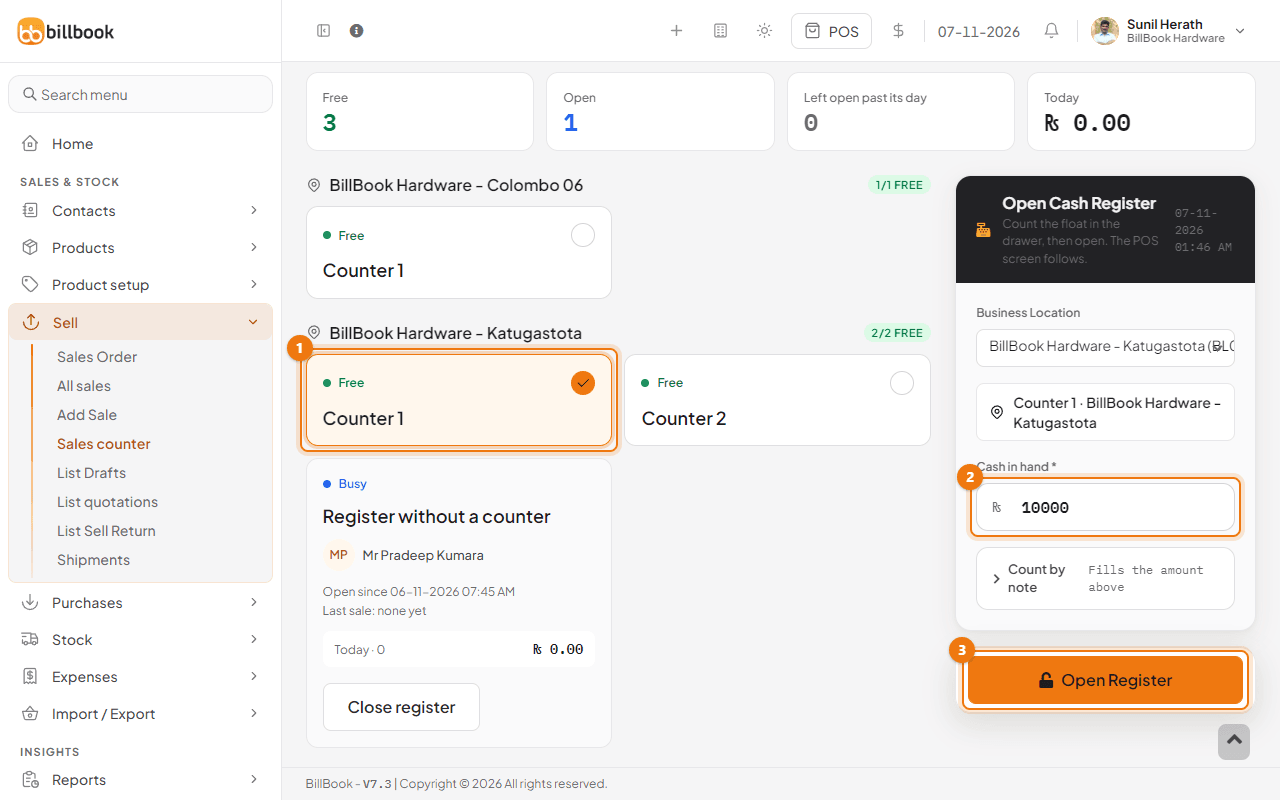
Each register keeps its own float, sales and payments, so the closing count only covers that register. A counter can have only one open register, so you cannot pick a Busy counter.
Register details#
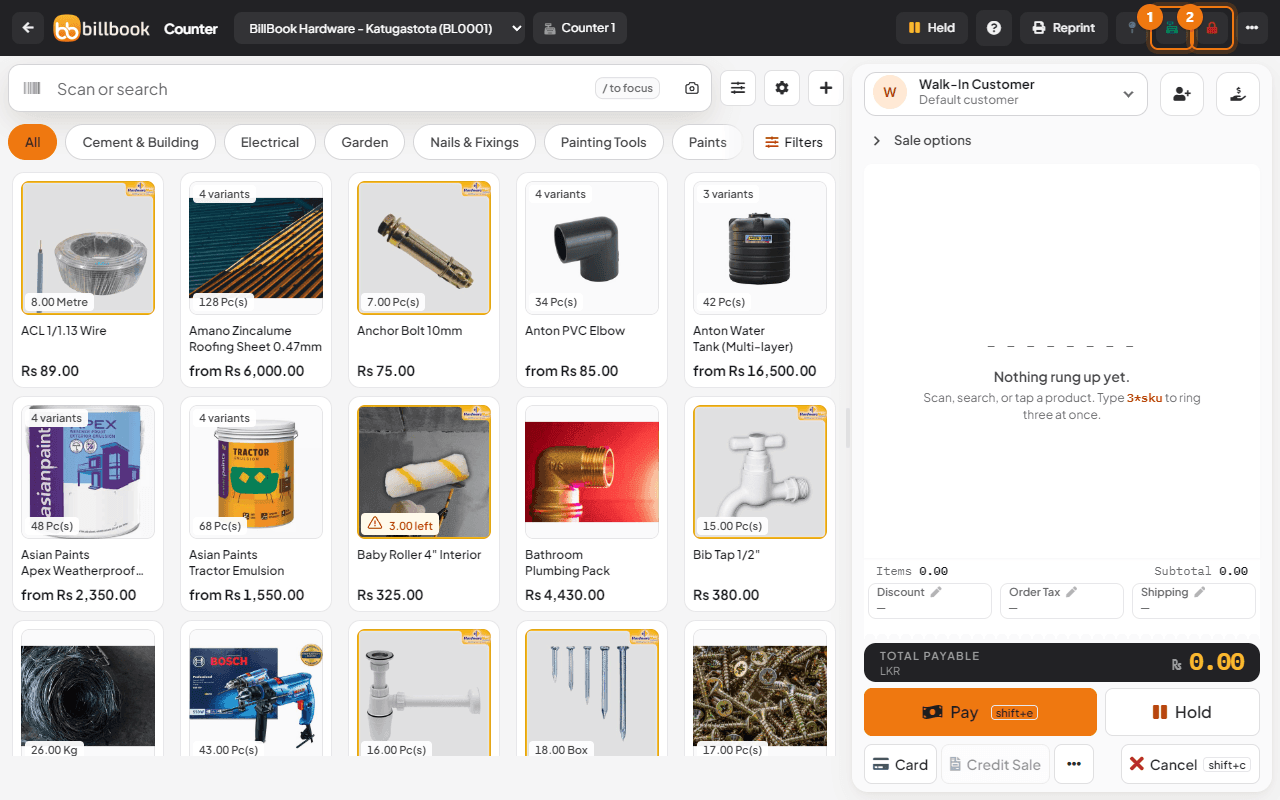
When a register is open, look at it any time from the buttons at the top right of the POS screen. Both are small icons. Hold the pointer over one to see its name. The counter you are on shows in the header, next to the location.
- Go to Sell > Sales counter and select Continue, or select POS at the top.
- Select Register Details (1). Select Close Register (2), the red icon, when you are ready to close.
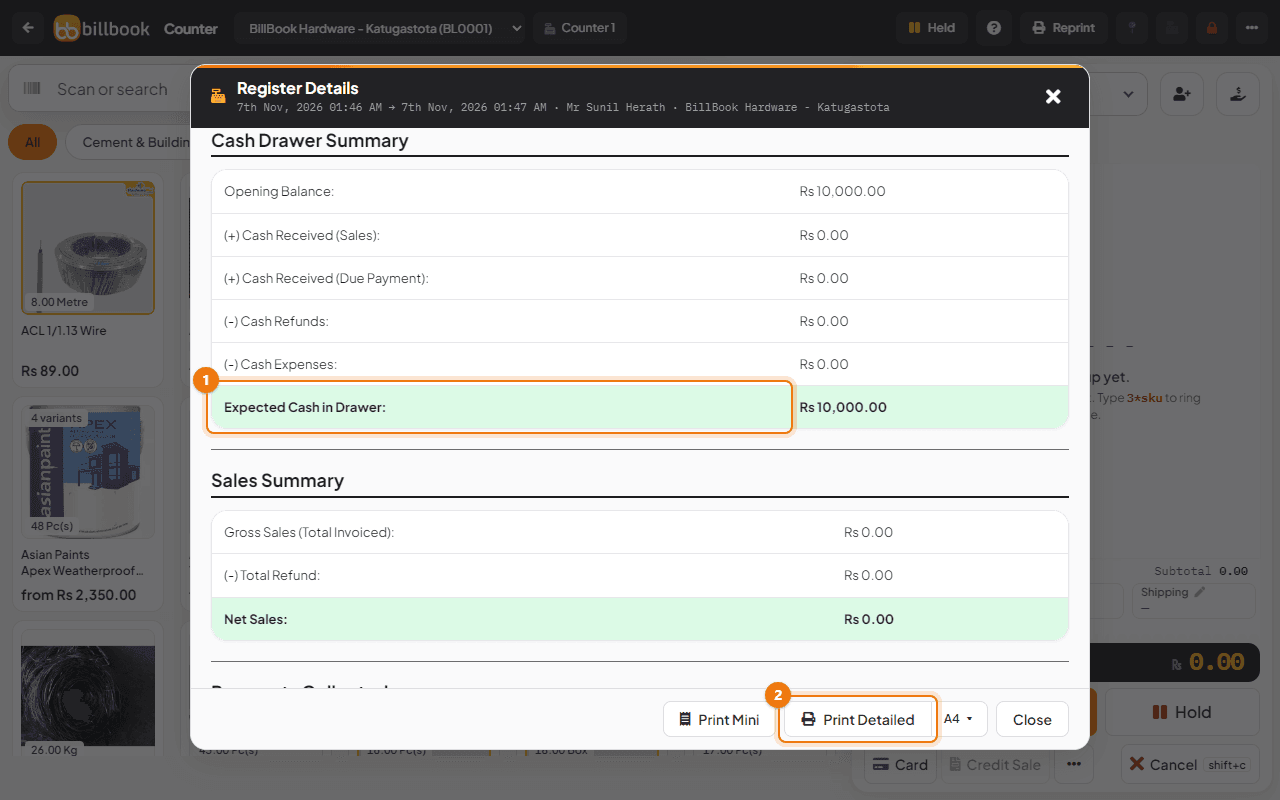
The Register Details window lists the Opening Balance, (+) Cash Received (Sales), (+) Cash Received (Due Payment), (-) Cash Refunds and (-) Cash Expenses. Expected Cash in Drawer (1) is the total of these. Below it you find Sales Summary, Payments Collected, Outstanding Receivables and the products sold. Select Print Detailed (2) or Print Mini for a printout.
Close with cash denominations#
- On the POS screen select Close Register, the red icon at the top right. You can also select Close register on your own card in Sell > Sales counter.
- Check Expected Cash in Drawer, the large figure at the top left. Under it BillBook shows how it adds up: the float, plus cash in, minus cash out.
- Count the drawer. In Cash Denominations, enter how many of each note or coin you have, for example 1 under 5,000.00 (1), 4 under 1,000.00, 1 under 500.00 and 5 under 100.00.
- Select Use this count as total cash (2). It fills Total cash counted. The Difference line shows how far you are from the expected cash: green when it matches, red when you are short.
- Enter the Total Card Slips and Total cheques you hold.
- Add a Closing Note. It is needed when there is a difference, to explain it.
- Select Close Register (3).
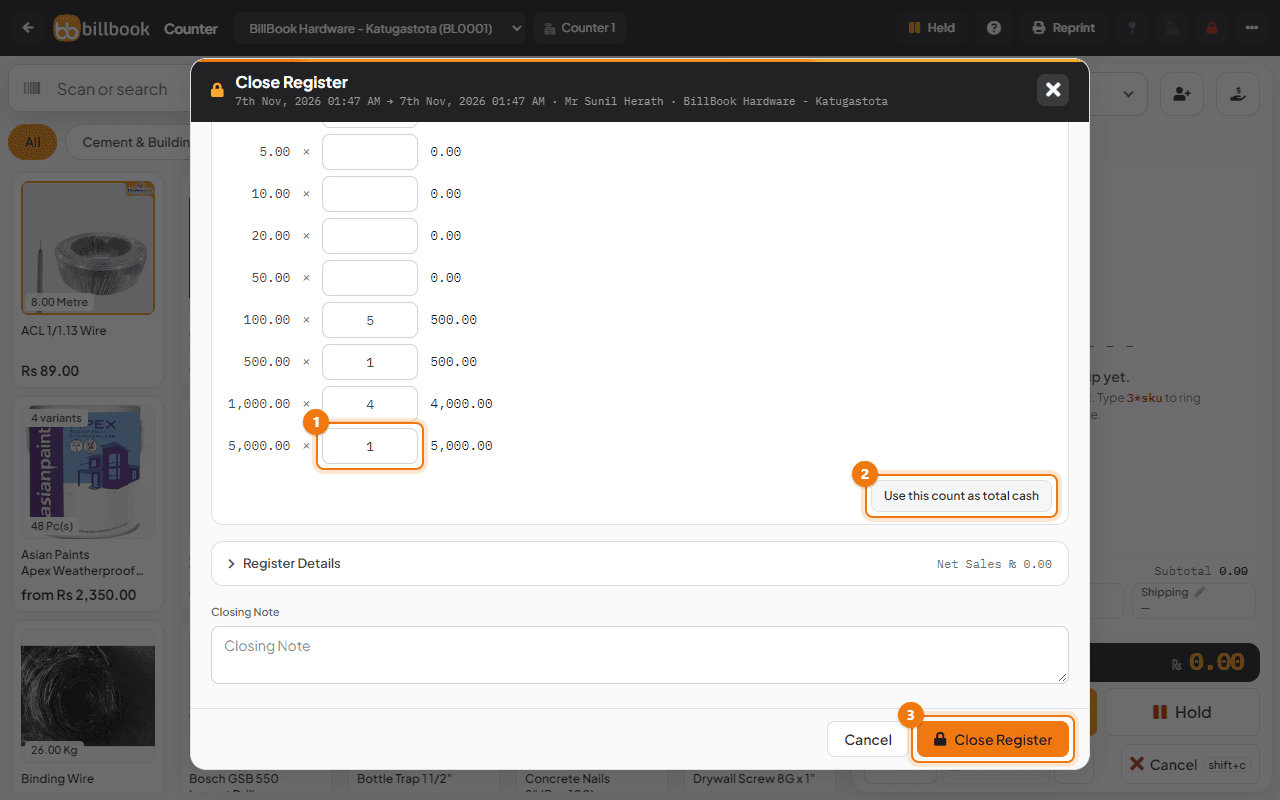
BillBook then shows Sell > Sales counter again, with the counter Free. Open a new register for the next shift in the same way.
Tip: You can also type the total in Total cash counted without using the note count. The note count helps you catch counting mistakes. Register Details in the same window shows the sales behind the figure.
Close a register for someone else#
If a cashier goes home without closing, the owner or an admin can close it. Go to Sell > Sales counter and select Close register on the busy counter. The window says whose register it is. Count the cash, enter it in Total cash counted (1) and always give the reason in Closing Note (2). Then select Close Register (3).
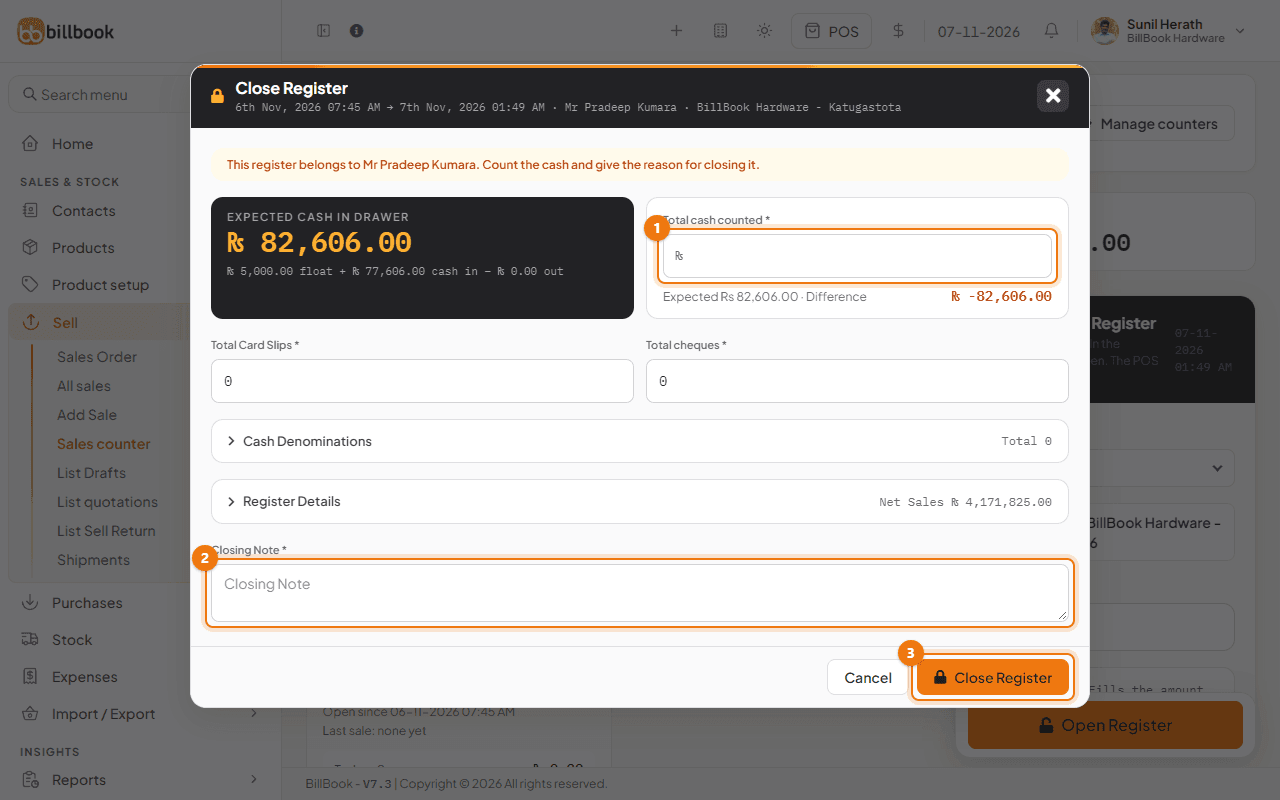
BillBook records who closed the register on behalf of the cashier. A register that is still open after its day ends is shown in red as Left open past its day, and its cashier has to close it before selling again. See Cash counters.
Day closing (Z report)#
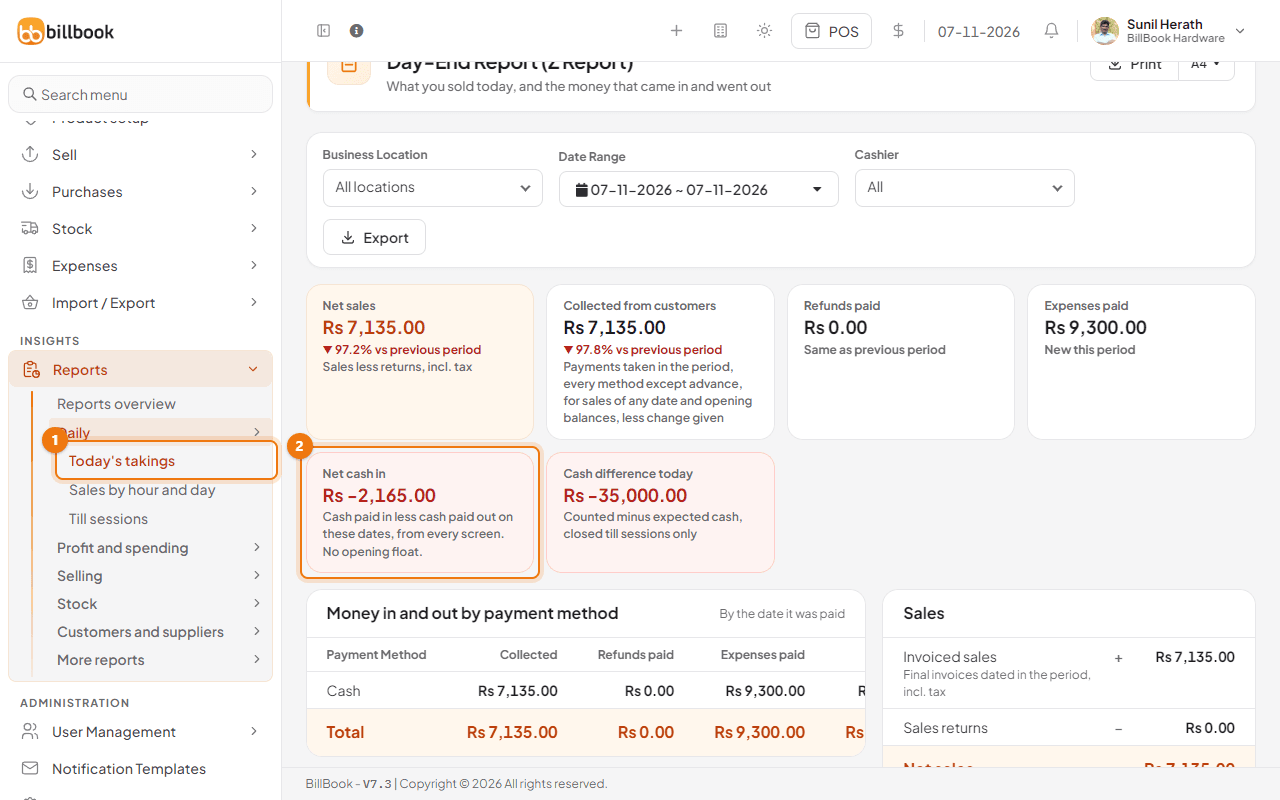
The register closing covers one drawer. For a whole-day view across all cashiers and payment methods, go to Reports > Daily > Today's takings (1). The page is called Day-End Report (Z Report). It opens on today. Choose the Business Location, the Date Range and the Cashier. It shows Net sales, Collected from customers, Refunds paid, Expenses paid, Net cash in (2) and Cash difference today, with a split by payment method and a list of Cash register sessions with the opening cash, expected cash and counted cash of each. Select Print to print it.
Net cash in is the cash paid in less the cash paid out on those dates, from every screen, with no opening float. It can differ from the Expected Cash in Drawer of one register, which only counts that till while it was open and adds its float.