
Find any setting fast
Last updated: 7 November 2026 · 2 min read
Business Settings has many tabs, and it is easy to lose a setting you only change once a year. Use the search box to go straight to it by name, such as currency, SKU or tax.
Open Business Settings#
- Go to Settings > Business Settings (1). Select Settings in the left menu to open its group; BillBook keeps each menu group open or closed the way you left it. You can also choose Business Settings from your name menu at the top right.
- The search box (2) is under the page heading, above the list of tabs. A small / badge at its right end reminds you of the shortcut.
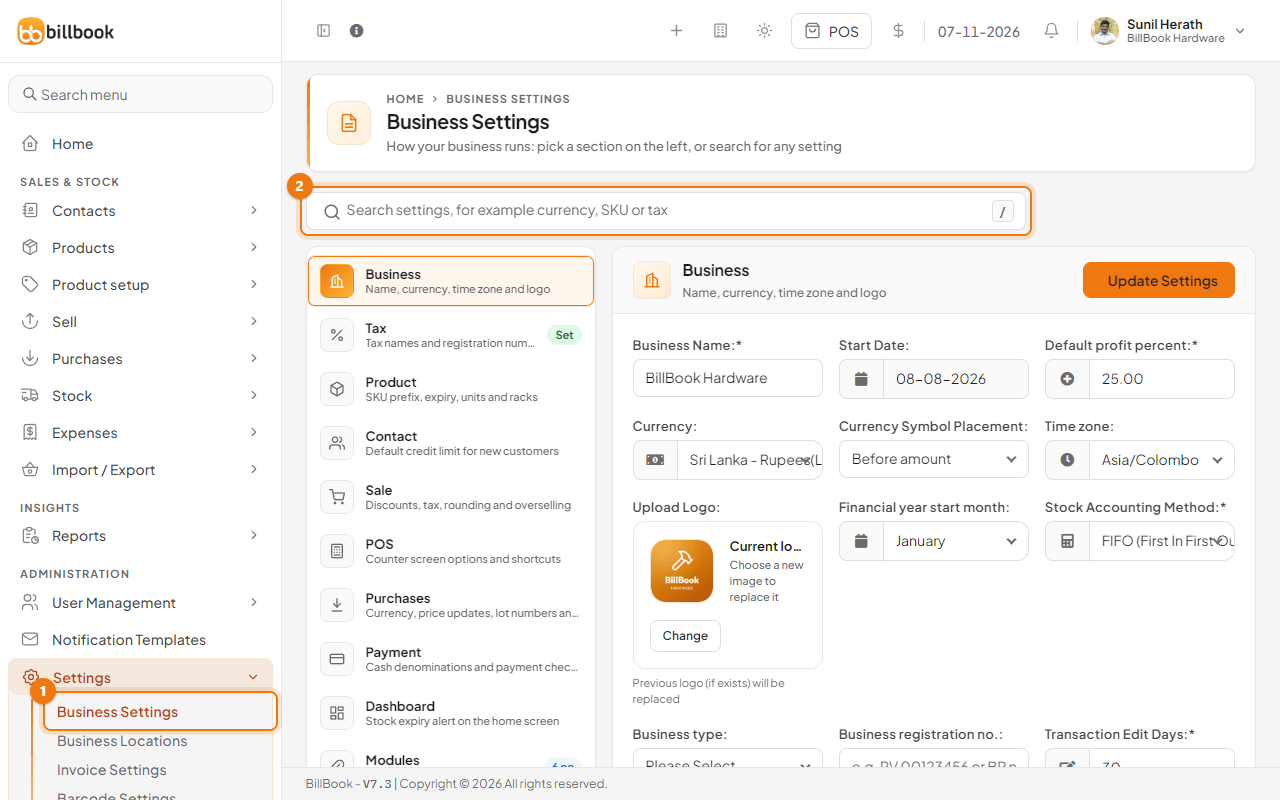
BillBook opens on the tab you used last, so you may land on a tab other than Business.
Search with the / key#
- Press the / key on your keyboard, or select the search box. You can do this from anywhere on the page except inside a text box.
- Type a word, for example currency (1). Results appear as you type, grouped under the tab they belong to, including tabs hidden under Show advanced settings.
- Select a result (2), or use the arrow keys and press Enter. Press Esc to close the search without choosing.
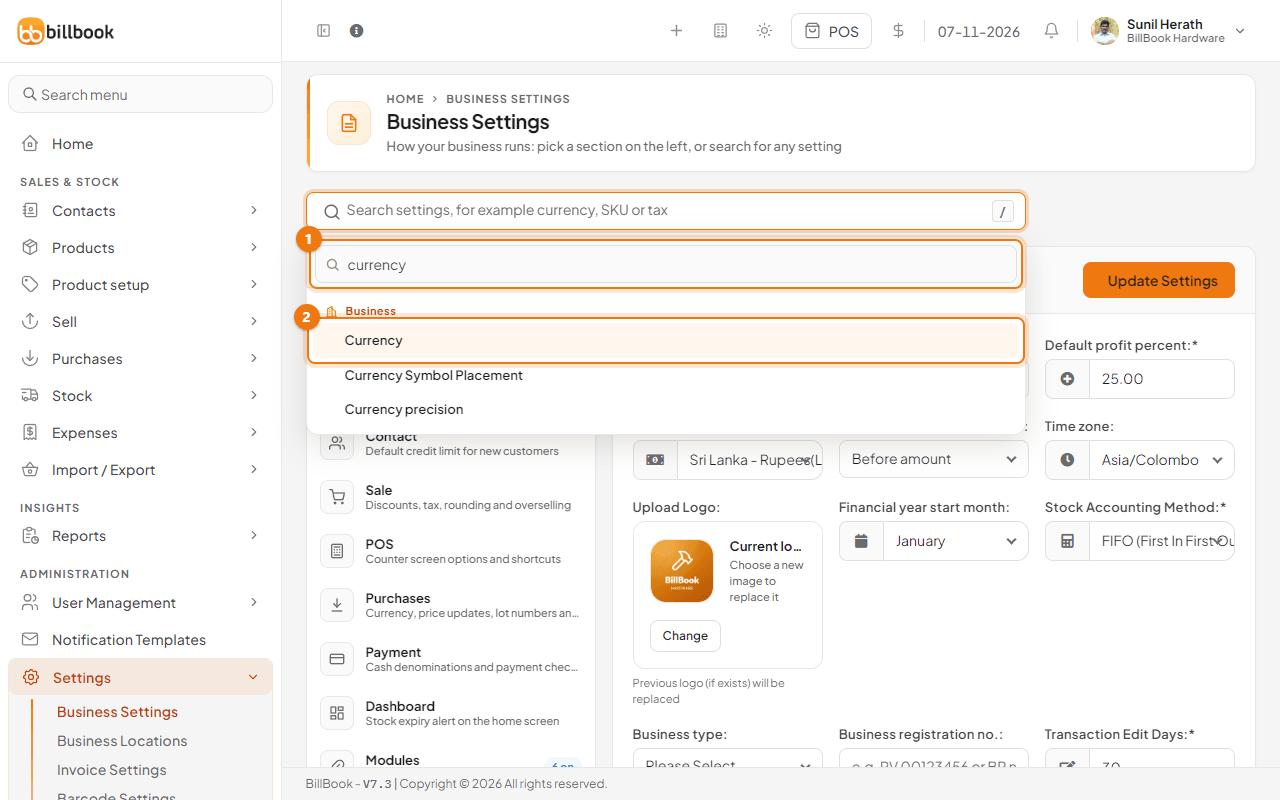
Tip: Try short words that match what the setting does: tax, sku, prefix, rounding or logo. If nothing matches, try another word or look through the tabs.
Jump to a tab#
When you choose a result, BillBook opens the right tab and highlights the setting, so you can see it at once. In the picture below, searching for sku opened the Product tab (1) and put the cursor in SKU prefix (2).
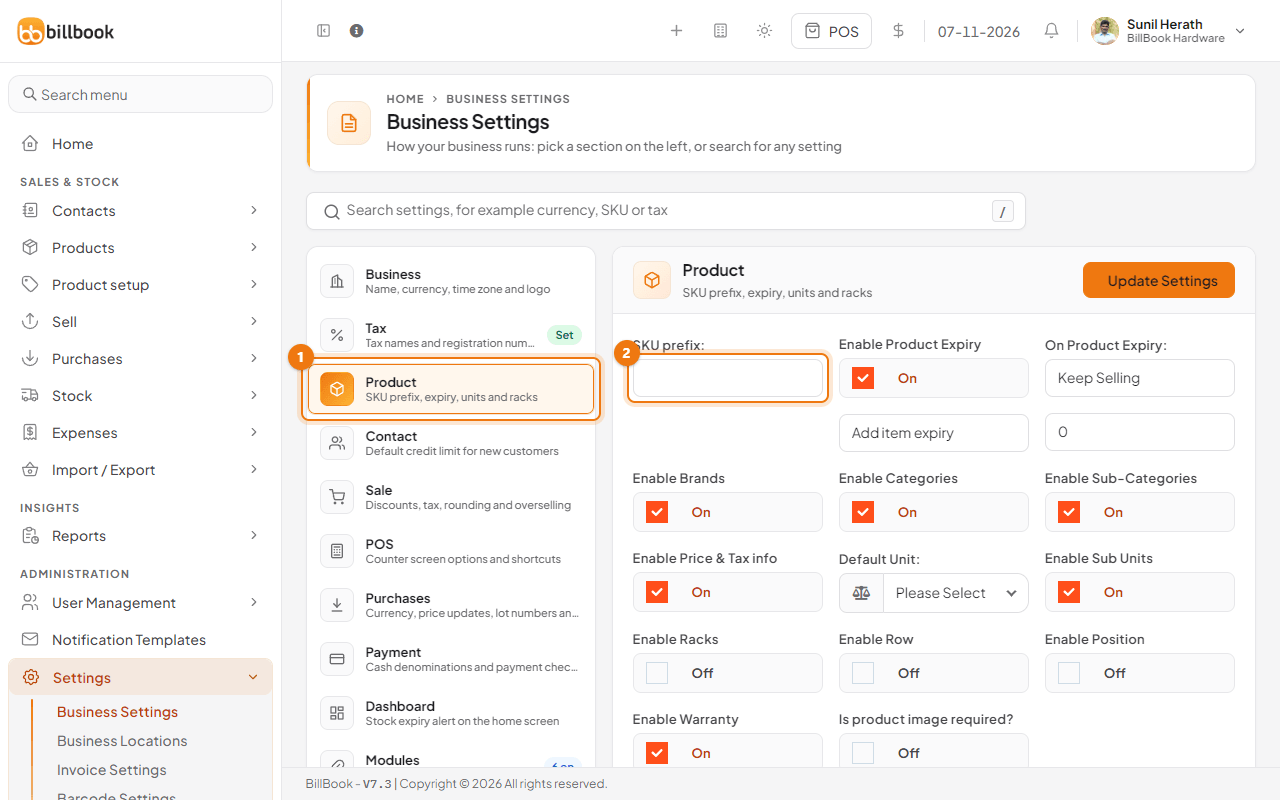
You can also open a tab yourself. The list on the left shows Business, Tax, Product, Contact, Sale, POS, Purchases, Payment, Dashboard and Modules. Select Show advanced settings under the list to add Display Screen, Prefixes, Email Settings, SMS Settings, WhatsApp, Reward Point Settings and Custom Labels. BillBook remembers this choice until you close the browser tab. Some tabs show a small tag, such as Set, Not set, Off or 6 on, so you can see at a glance whether they are in use.
- Select a tab in the list, for example Modules (1).
- Change what you need.
- Select Update Settings (2) to save. The heading above the settings shows the name of the tab you are on.
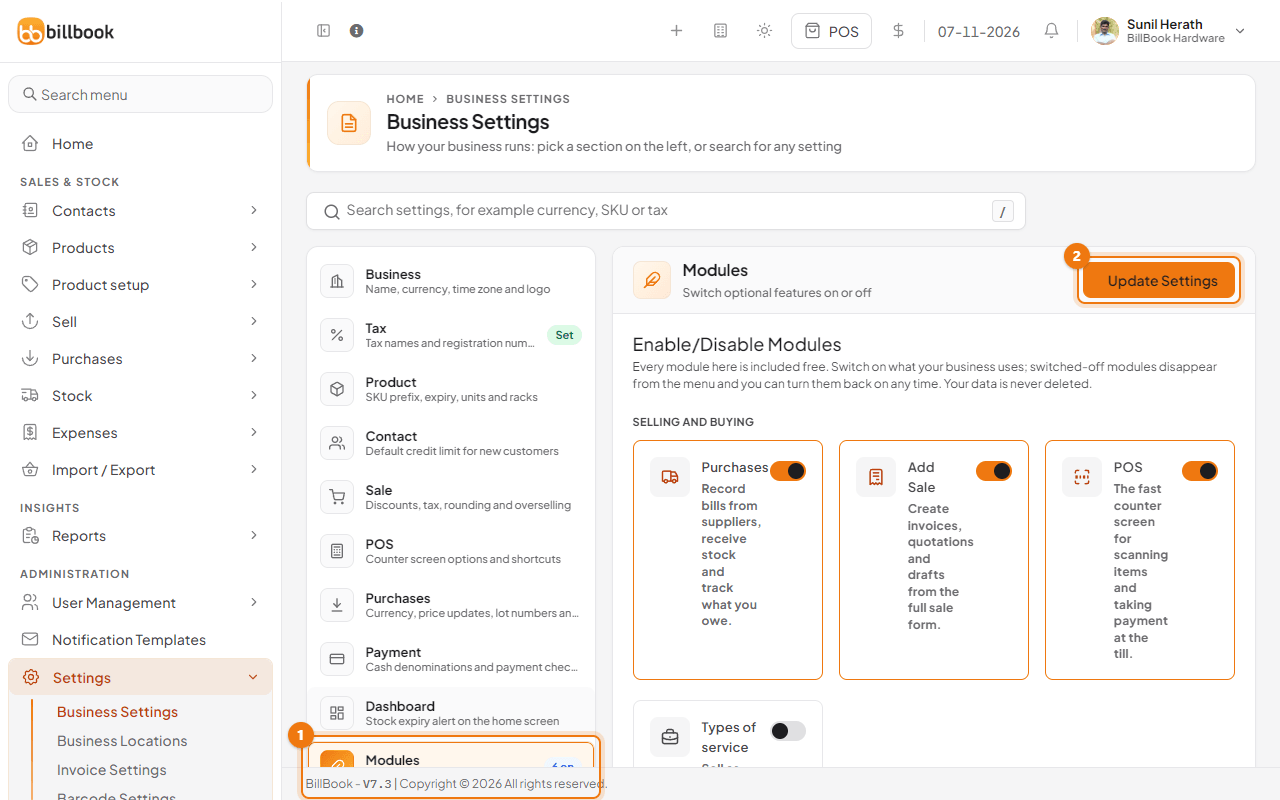
Note: Changes on a tab are saved only when you select Update Settings.