
Customer and supplier reports
Last updated: 6 November 2026 · 5 min read
These reports show the money between you and the people you trade with: who owes you, whom you owe, what customers paid you, what you paid your suppliers, and which cheques are due. Open them from Reports, under Customers and suppliers.
Before you start: The balances come from the sales, purchases, payments and opening balances you have recorded. To collect or pay a due, see Collect and pay dues.
Balances#
Reports > Customers and suppliers > Who owes me opens Debtors & Creditors (Ageing). Its first tab shows what every customer owes you and what you owe every supplier on the last day of the dates you choose.
- Choose the Date Range and a Business Location. You can also choose a Customer Group Name.
- Tick Only with a balance (2) to hide contacts who owe nothing.
- Choose Customers or Suppliers (1) to switch the table.
- Read the cards: Customers owe you, You owe suppliers, Net (what is owed to you less what you owe) and the number of Contacts with a balance.
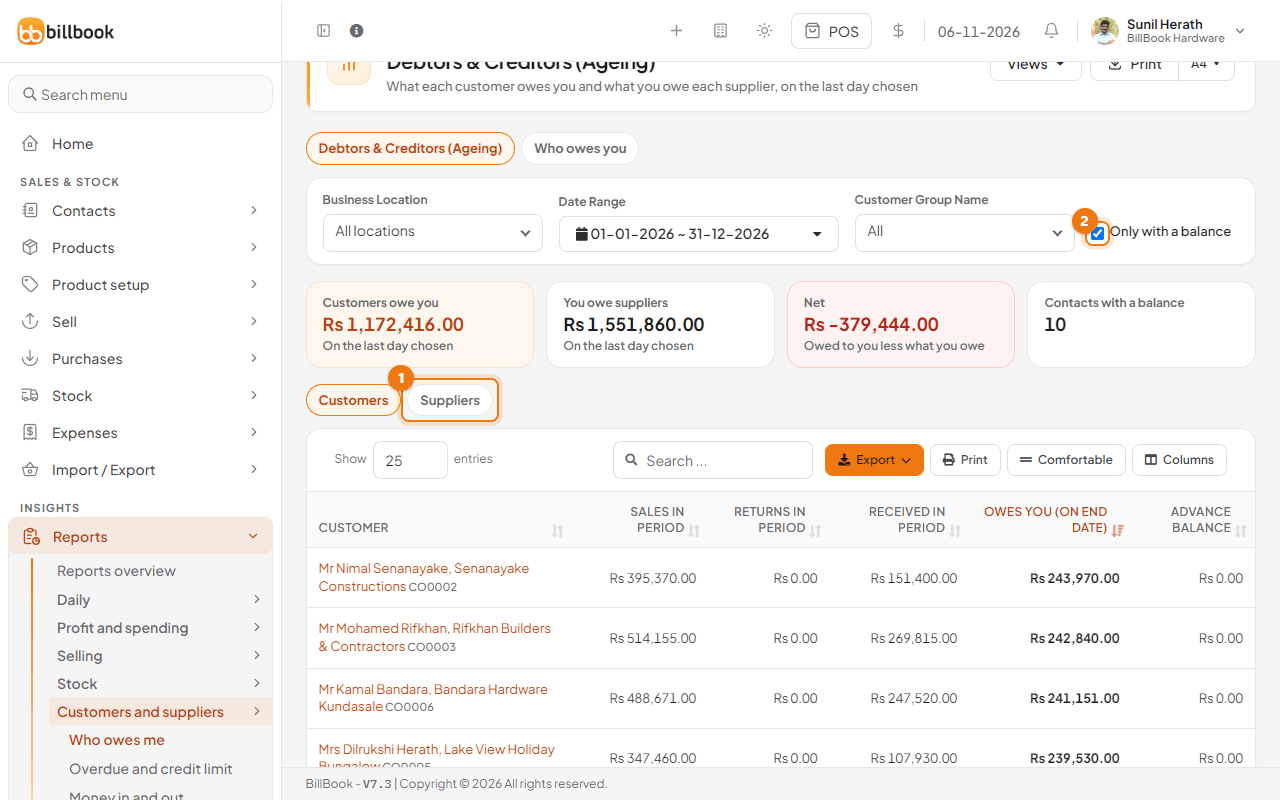
In the customers table, each row shows the sales, returns and payments received in the dates you chose, the amount the customer Owes you (on end date) and any Advance balance. The suppliers table works the same way. You can save your usual filters with Views; see Reports overview.
Who owes (ageing)#
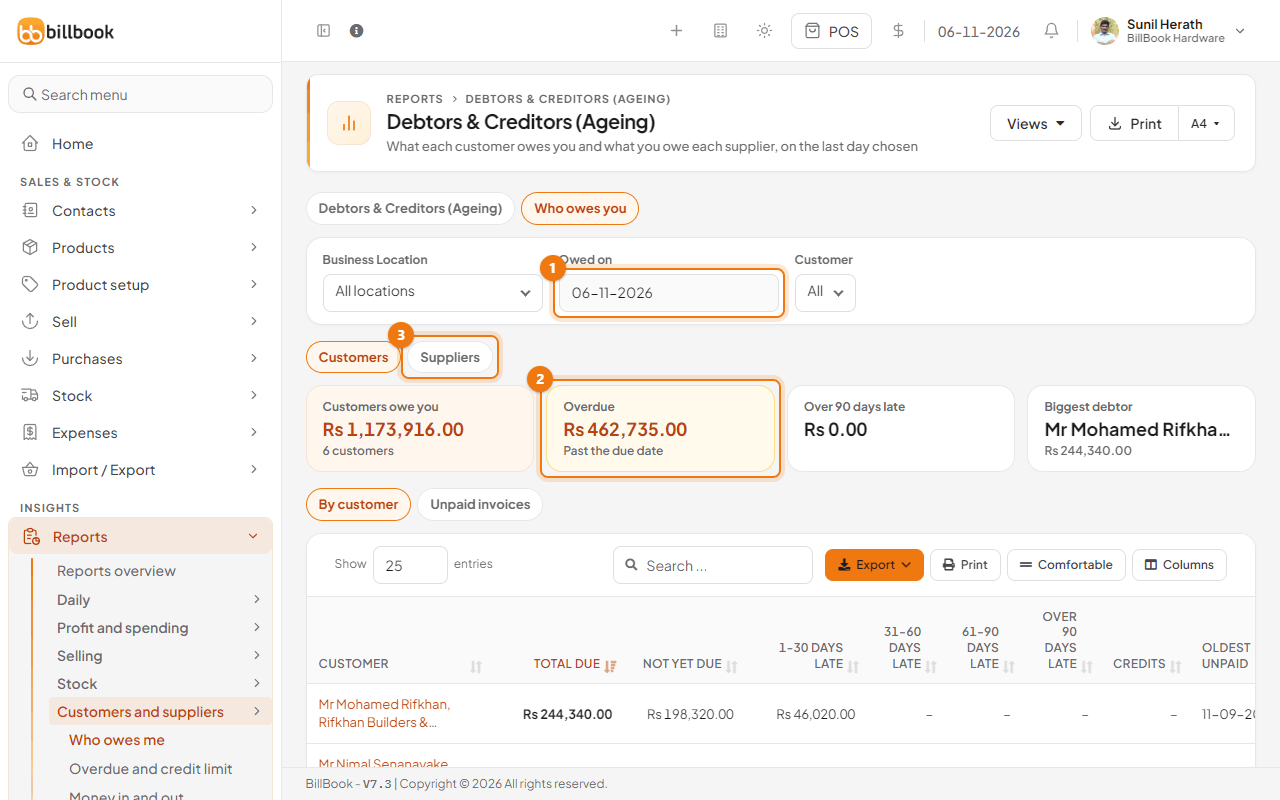
The second tab, Who owes you, lists unpaid sales and how overdue they are, so you know whom to call first.
- Choose the date in Owed on (1). It opens on today. You can also pick a Business Location or one Customer.
- Read the cards: Customers owe you, the Overdue amount (2) that is past its due date, the amount Over 90 days late and the Biggest debtor.
- In the By customer table, each customer's total due is split into Not yet due, 1-30 days late, 31-60 days late, 61-90 days late and Over 90 days late. The Credits column shows any credit the customer holds, and Oldest unpaid shows the date of their oldest unpaid invoice.
- Choose Unpaid invoices to see the invoices one by one.
- Select Suppliers (3) above the cards to see what you owe your suppliers in the same way, by how late each bill is.
Overdue and credit limit#
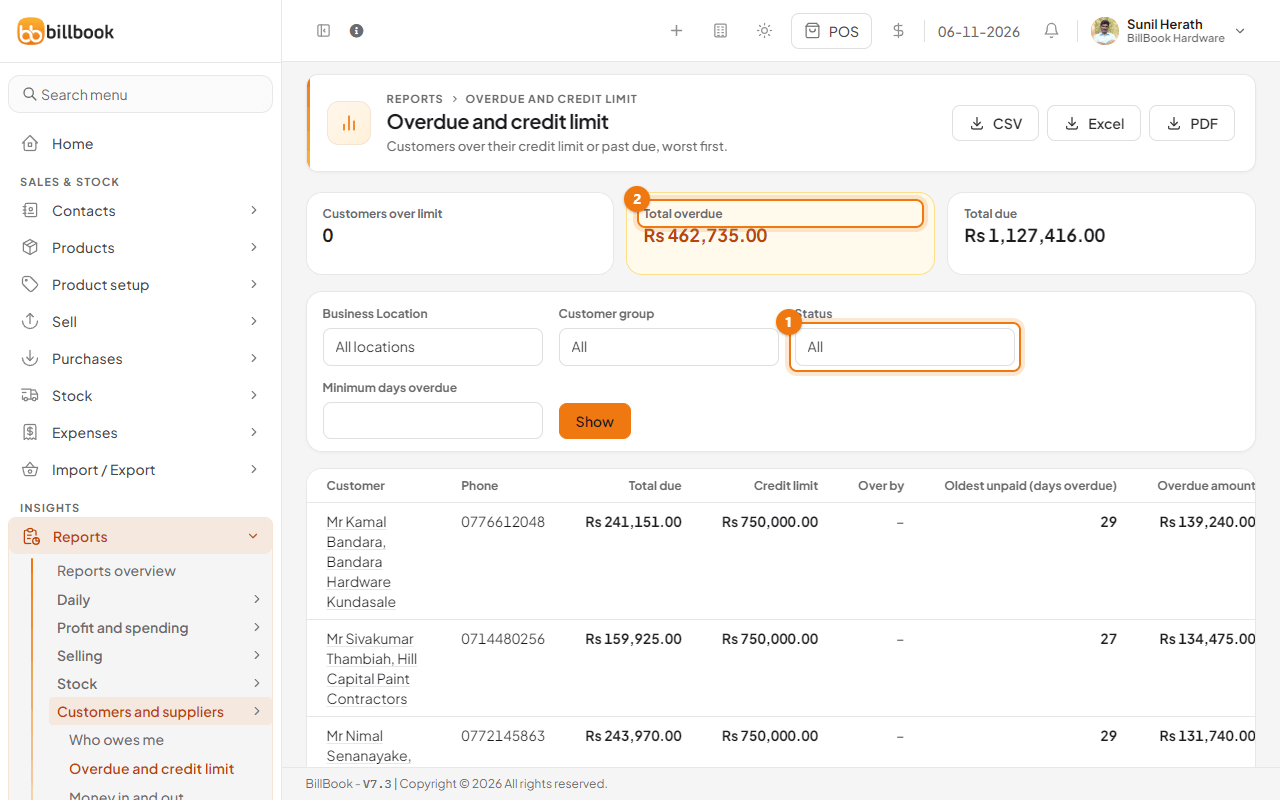
Reports > Customers and suppliers > Overdue and credit limit lists customers who are over their credit limit or past their due date, worst first. Set each customer's credit limit on their contact.
- Use Status (1) to see All, Only over limit or Only past due. You can also filter by Business Location and Customer group, or type a number in Minimum days overdue. Select Show.
- Read the cards: Customers over limit, Total overdue (2) and Total due.
- In the table, each customer shows their phone number, Total due, Credit limit, how much they are Over by, the Oldest unpaid (days overdue) and the Overdue amount.
Use CSV, Excel or PDF at the top of the page to save the list.
Payments received#
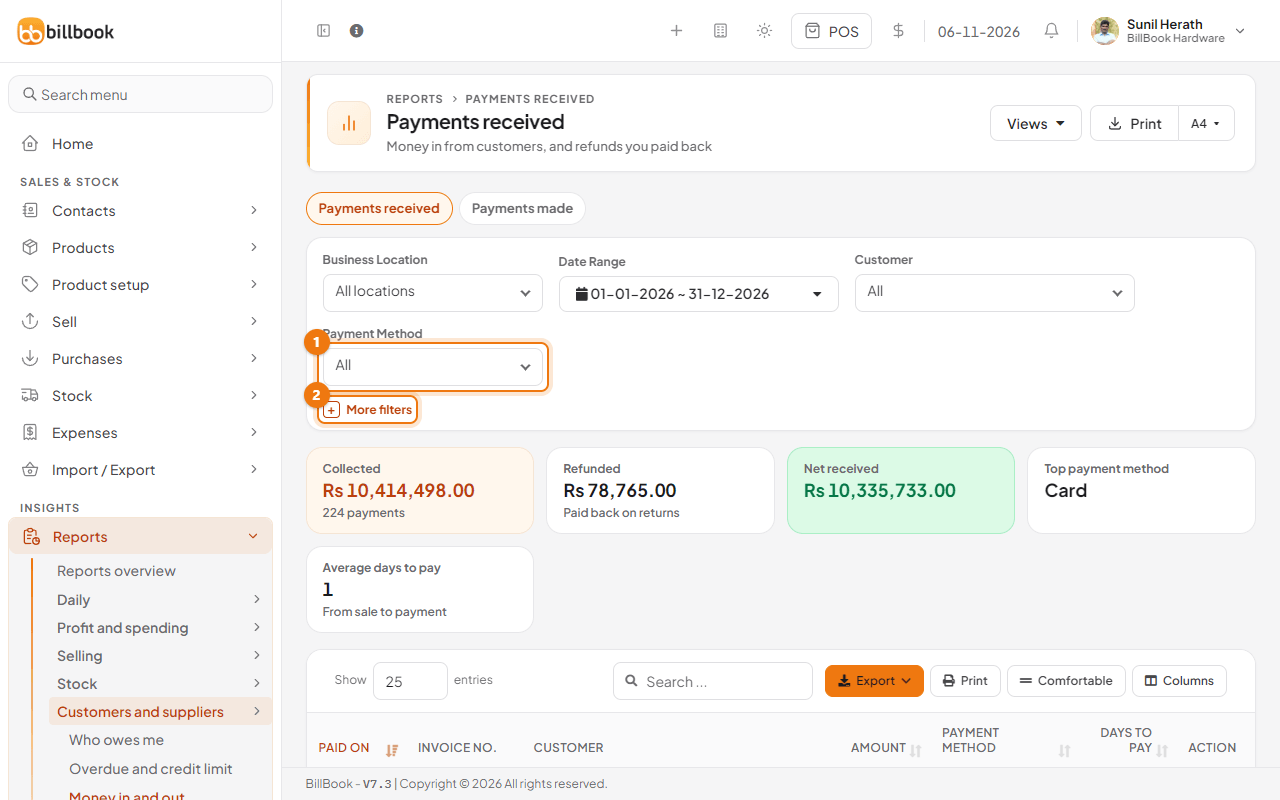
Reports > Customers and suppliers > Money in and out opens Payments received, the list of money that came in from customers.
- Choose the Date Range and, if you want, a Customer or Payment Method (1). Select More filters (2) for more choices, such as the customer group and who recorded the payment.
- Read the cards: Collected, Refunded (paid back on returns), Net received, the Top payment method and the Average days to pay.
- In the table, each payment shows the date it was paid, the invoice number, customer, amount, payment method and the days it took to pay. Refunds show as negative amounts.
Payments made#
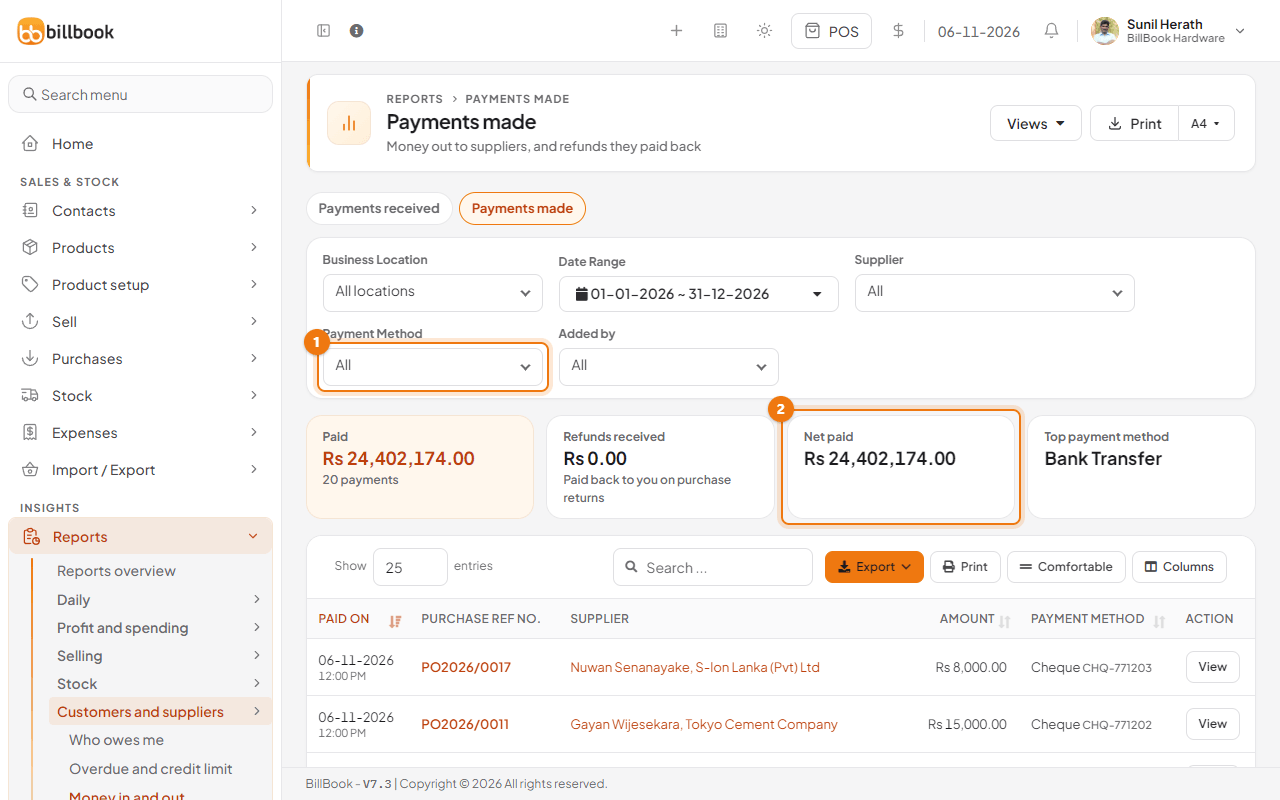
Select the Payments made tab on the same page to see the money you paid out to suppliers.
- Choose the Date Range and, if you want, a Supplier, Payment Method (1) or the person who recorded the payment under Added by.
- Read the cards: Paid, Refunds received (paid back to you on purchase returns), Net paid (2) and the Top payment method.
- In the table, each payment shows the date, the purchase reference number, the supplier, the amount and the payment method.
Cheques#
Reports > Customers and suppliers > Cheques opens the Cheque Register. It lists the cheques you received from customers and the cheques you gave to suppliers, by due date. A cheque shows here when a payment is recorded with the method Cheque; enter its Cheque number and Cheque due date when you record the payment.
- Read the four cards: Received, due this week, To pay, due this week, Received, past due date and Issued, past due date. Each shows the amount and the number of cheques.
- Use Direction (1) to see only Received or Issued cheques, and Status (2) to see Past due date, Due this week, Due later or No due date. You can also set a Due date range and a Business Location, then select Show.
- In the table, each cheque shows its due date, cheque number, direction, customer or supplier, the invoice or bill, the amount and its status.
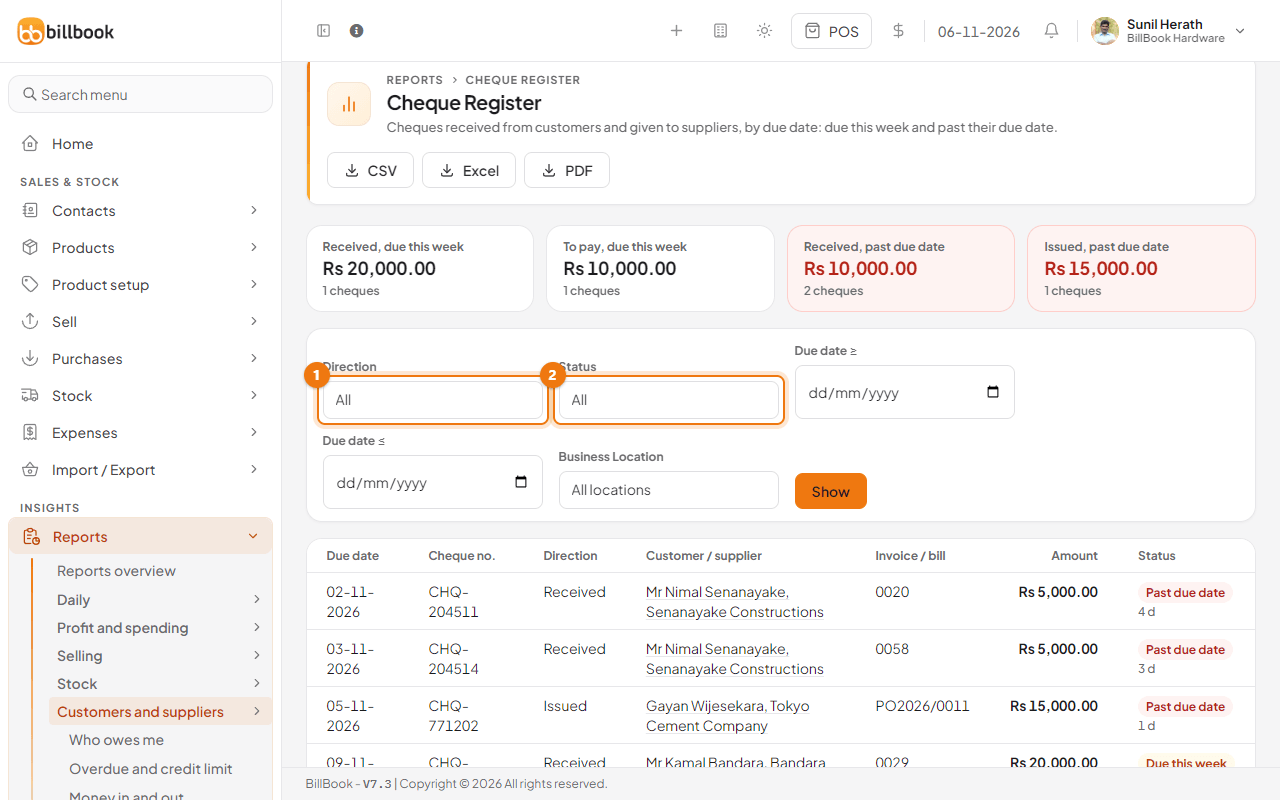
Note: BillBook does not record whether a cheque was deposited or bounced, so the status only compares the due date with today. Several invoices paid by one cheque show as one line.
Use CSV, Excel or PDF at the top of the page to save the register.