Sales orders
Last updated: 31 October 2026 · 3 min read
A sales order is a promise to a customer: "we will supply these items at these prices". Use it when a contractor orders 20 bulbs today and collects them in two lots next week. The order holds the details, and you make the invoice when the goods leave.
Before you start: Sales orders must be turned on, as shown below. Stock is not reduced when you save a sales order. It is reduced only when you turn the order into a sale.
Turn on sales orders#
- Go to Settings > Business Settings and open Sale.
- Tick Enable Sales Order (1).
- Select Update Settings (2).
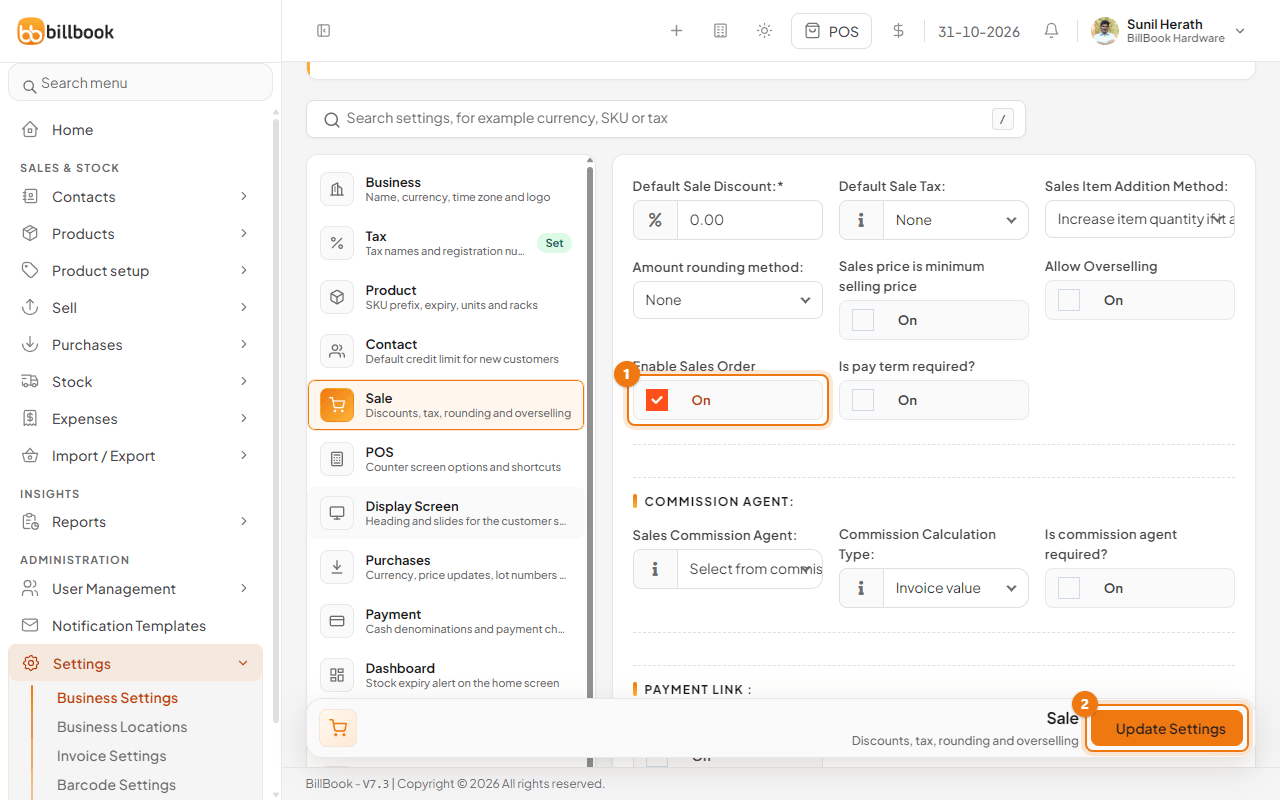
Sales Order now shows under Sell in the menu, and the Add Sale form gets a Sales Order field.
Create a sales order#
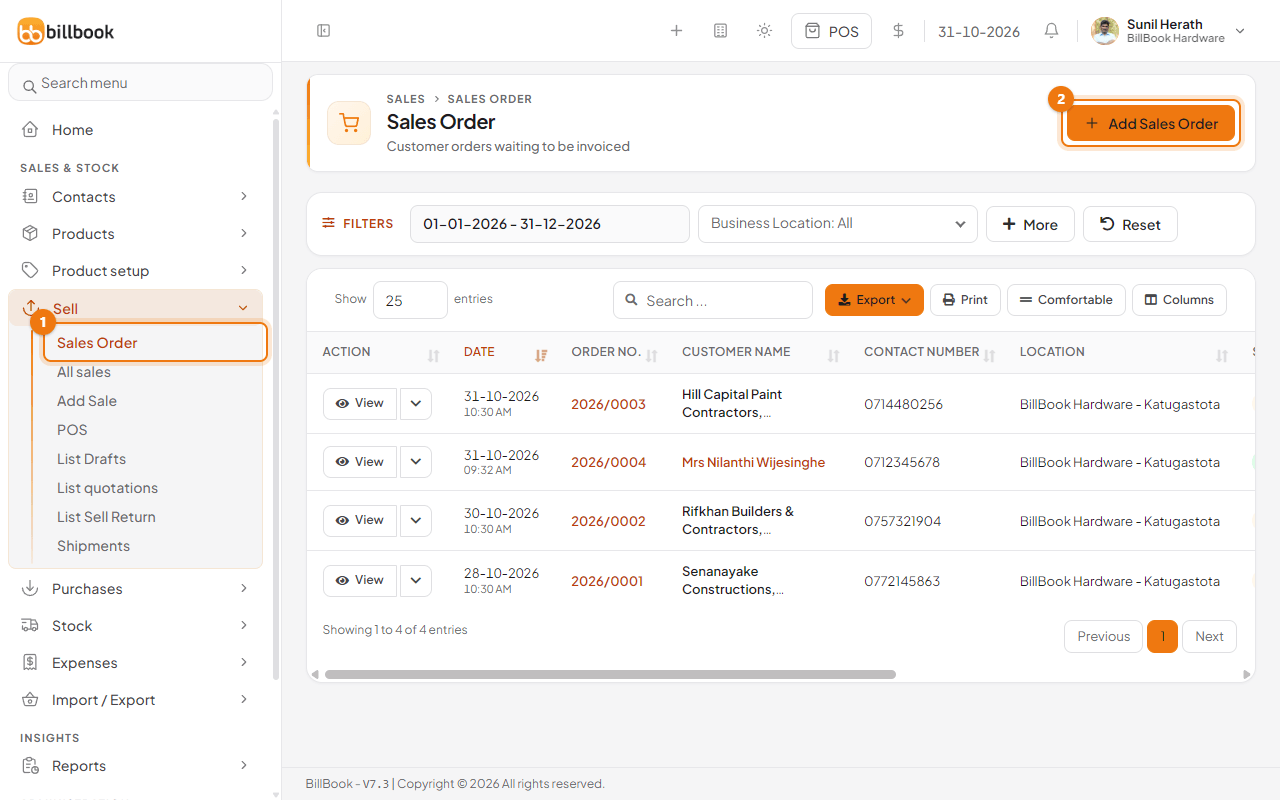
- Go to Sell > Sales Order (1) and select Add Sales Order (2).
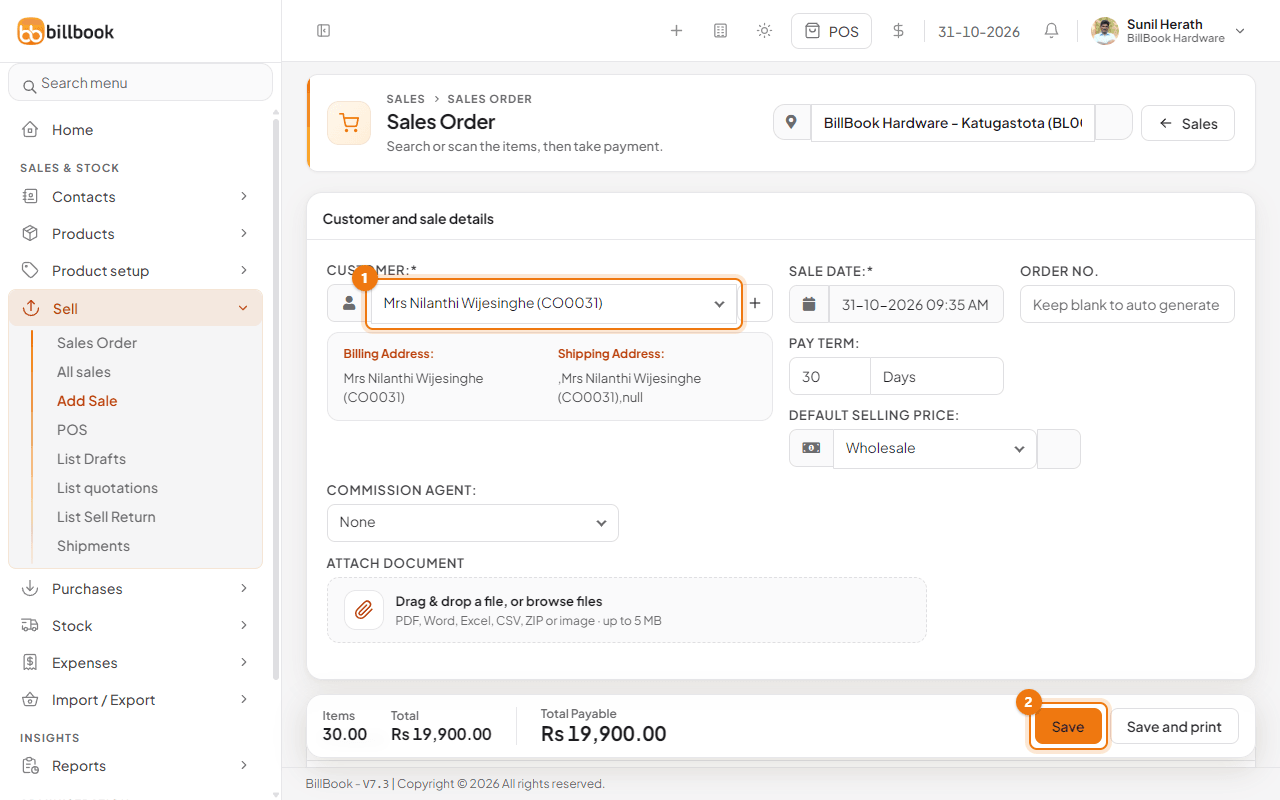
- Choose the Customer (1). Leave Order No. empty to let BillBook number it, for example 2026/0004.
- Search for each item in the product box and set the Quantity. For example, 20 of Philips LED Bulb 13W B22 and 10 of PVC Conduit Pipe 20mm.
- Add Shipping Details or Shipping Charges if you will deliver the goods.
- Select Save (2).
The order appears in Sell > Sales Order with the status Ordered. To change it later, open the arrow next to View on its row and choose Edit. The same menu has Edit Shipping and Shipping Documents.
Convert to a sale#
You do not convert from the order list. You pick the order on the sale.
- Go to Sell > Add Sale.
- Choose the same Customer. Only that customer's open orders are offered.
- In Sales Order (1), choose the order, for example 2026/0004. The items and quantities load into the table.
- Change a quantity if you are delivering only part of the order.
- Set Status (2) to Final, enter the payment if the customer pays now, and select Save.
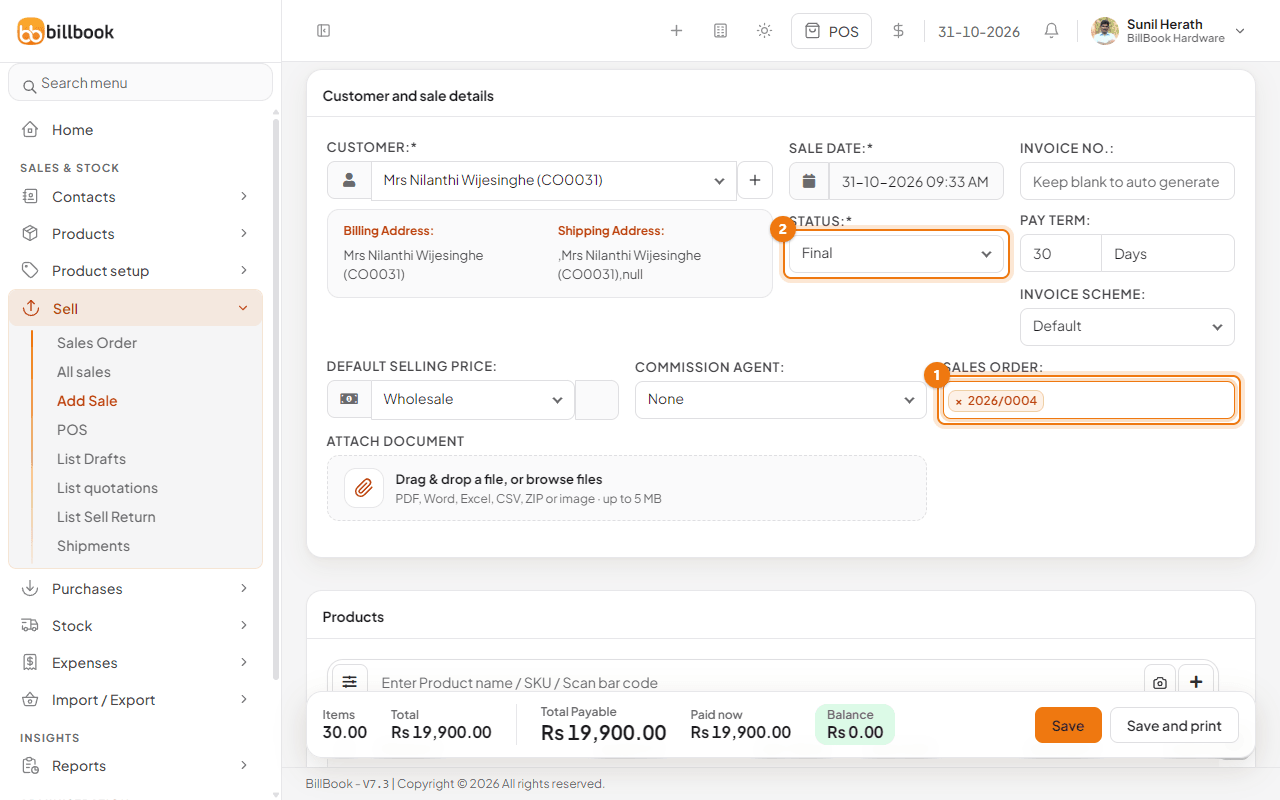
The sale reduces your stock and the order is updated. You can choose more than one order for the same customer on one sale.
Follow an order through delivery#
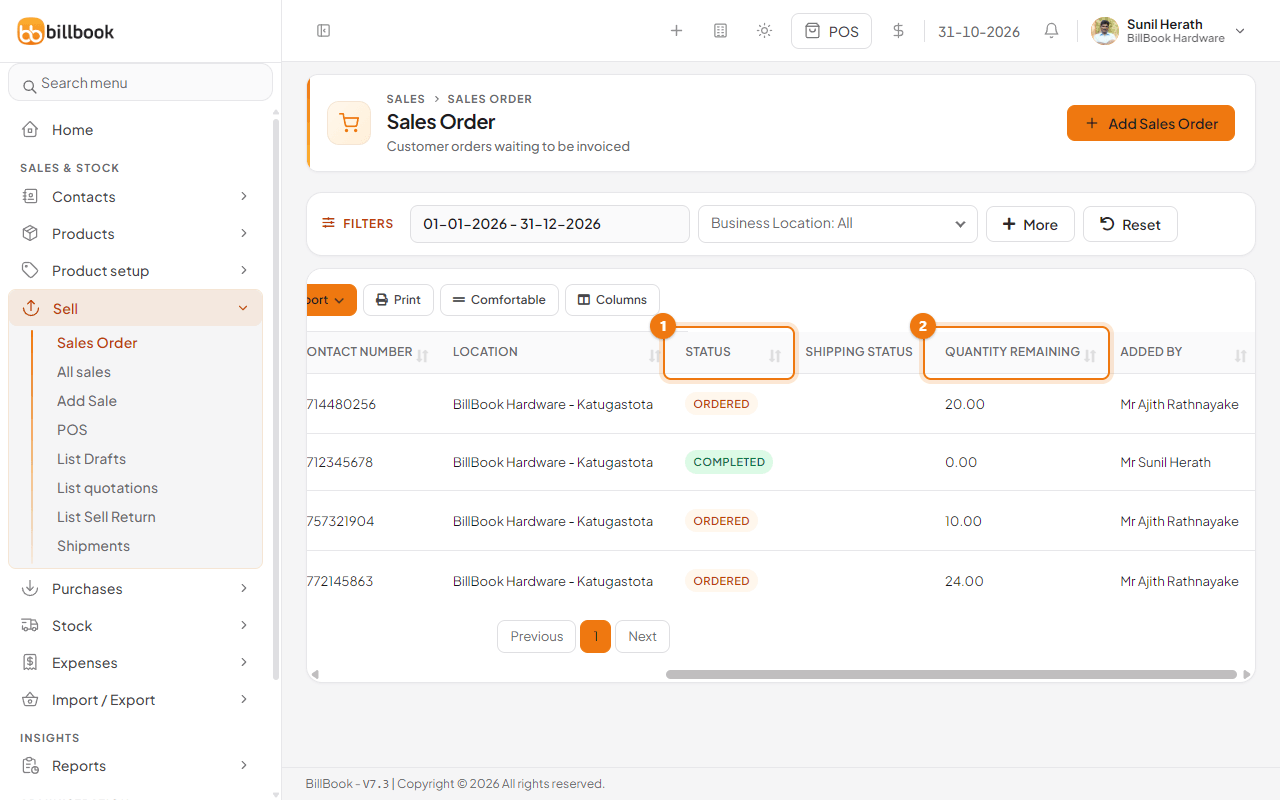
The Sell > Sales Order list shows the Status (1) and Quantity Remaining (2) of each order. An order is Ordered until something is delivered, Partial when some items have gone out and Completed when nothing remains. Scroll the table to the right to see these columns.