
Invoice numbering
Last updated: 7 November 2026 · 3 min read
An invoice scheme decides how your invoice numbers are counted, for example CB-0001, CB-0002. Make one for each branch if you want each shop to have its own series, so the Colombo 06 shop never shares numbers with the Katugastota shop.
Before you start: You need permission to open Settings. A scheme only changes how new invoices are numbered. Numbers already issued stay as they are.
Create an invoice scheme#
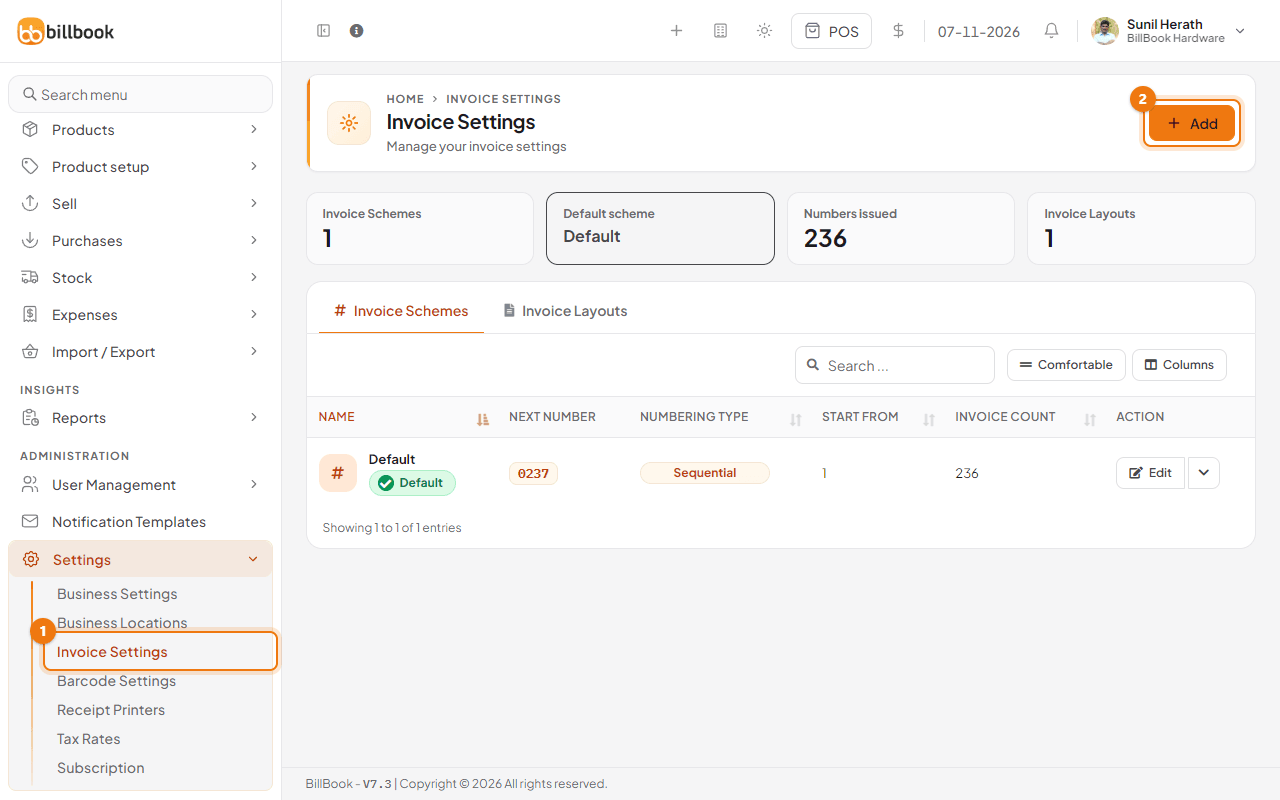
- Go to Settings > Invoice Settings (1). The Invoice Schemes tab lists each scheme with its next number, numbering type, start number, invoice count and number of digits.
- Select Add (2).
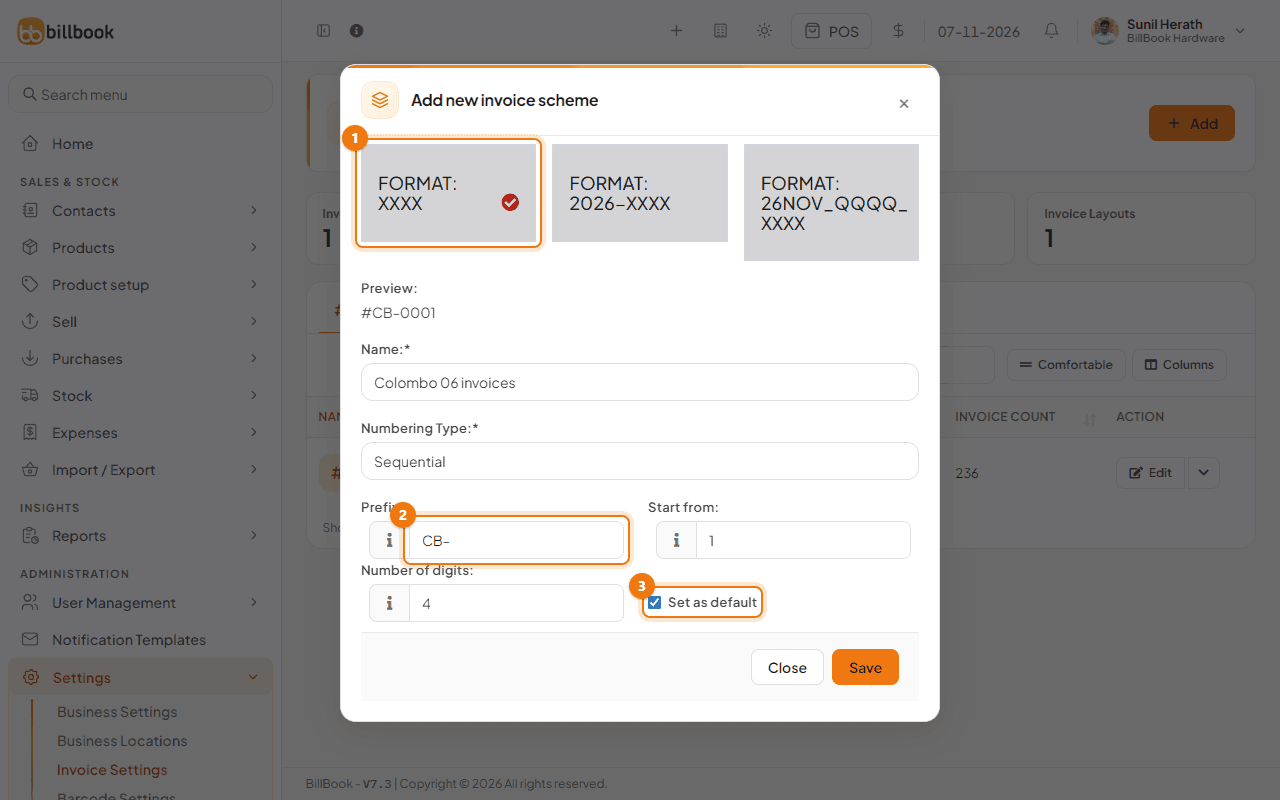
- Choose a format card (1). XXXX counts 0001, 0002, 0003. 2026-XXXX starts with the year. A third card, 26NOV_QQQQ_XXXX, is for Sri Lanka VAT tax invoices and is offered to businesses that use Sri Lankan rupees (LKR). See the last section.
- Enter a Name that tells you which shop it is for, for example Colombo 06 invoices.
- Leave Numbering Type on Sequential. Aleatory/Random gives random numbers instead.
Number format and prefix#
- Enter a Prefix (2), for example CB-. Include the dash if you want one.
- Enter Start from, the first number, for example 1.
- Choose Number of digits, from 4 to 10. With 4 digits the first invoice is CB-0001.
- Check the Preview at the top of the form. It shows what the first number will look like, for example #CB-0001.
Set a default scheme#
Tick Set as default (3) to make this scheme the default one, then select Save.
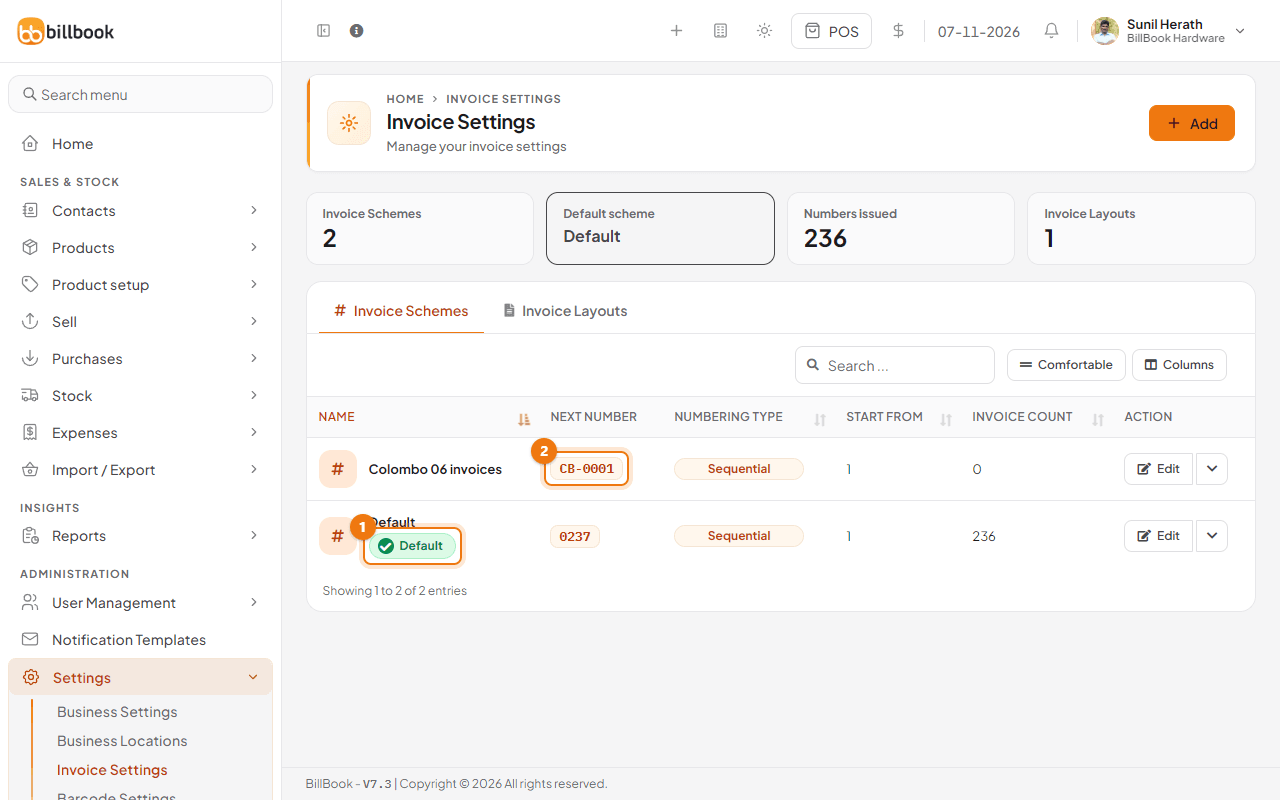
The new scheme appears in the list with its next number (2), here CB-0001. The scheme that is the default carries the Default badge (1). The default scheme cannot be deleted, so make another scheme the default first if you want to remove it.
Note: Each location keeps its own choice under Settings > Business Locations, where you pick the Invoice scheme for POS and Invoice scheme for sale. Existing locations do not change when you change the default. See Set up business locations.
To change a scheme later, select Edit on its row.
Sri Lanka VAT numbers#
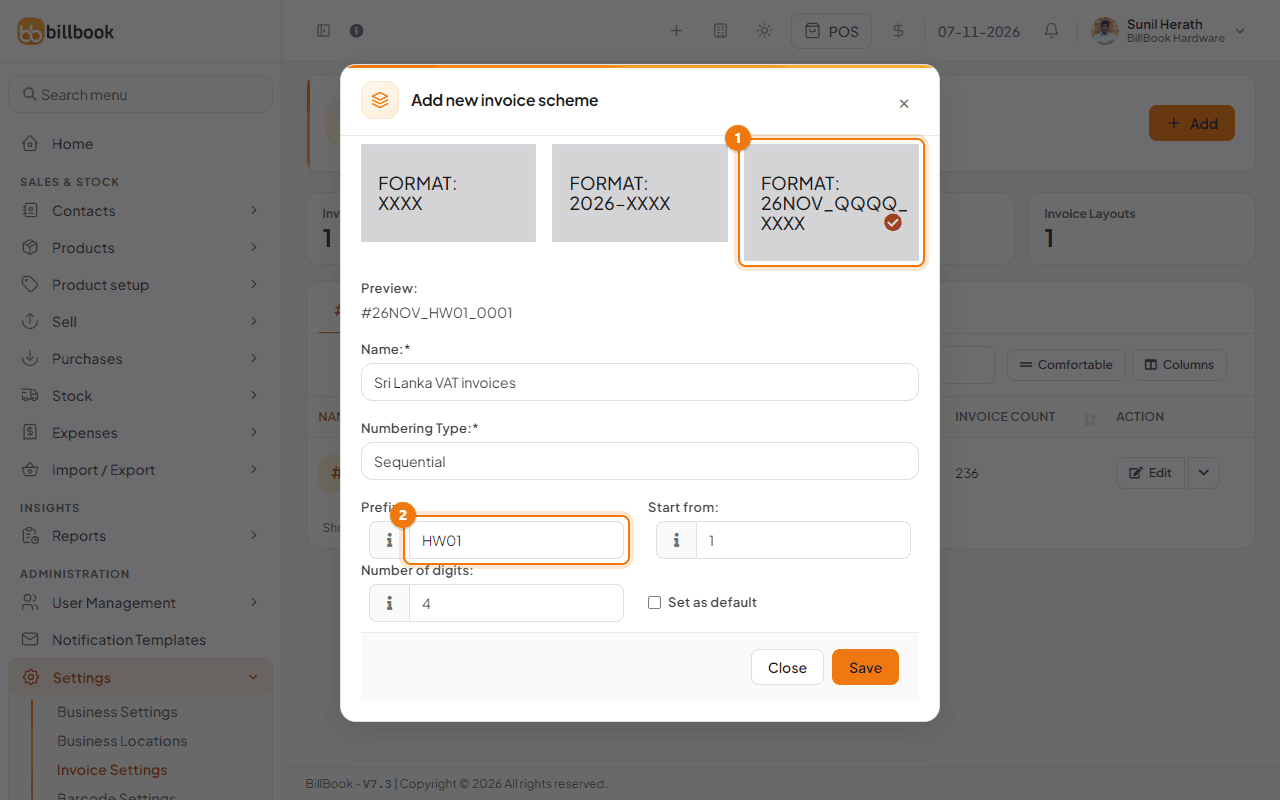
Choose the 26NOV_QQQQ_XXXX card (1) to number invoices in the shape YYMMM_code_number: the two-digit year, the three-letter month, a code you choose, and a running number, for example 26NOV_HW01_0001..
- Enter a Name, for example Sri Lanka VAT invoices.
- Enter the code in Prefix (2). It is required and takes 1 to 15 letters or digits, with no spaces or dashes, for example HW01.
- Set Start from and Number of digits, then select Save.
Use this scheme together with the Sri Lanka Tax Invoice design, which checks that the number is in this shape. See Invoice layouts. Then choose the scheme for the location as described in the note above.