
Give change (tender)
Last updated: 7 November 2026 · 2 min read
When a customer pays Rs. 5,000.00 for a Rs. 2,910.00 sale, the cashier needs to know how much to hand back. BillBook works out the change and records it on the sale, so your cash drawer and your reports stay correct.
Change return in POS#
- Go to Sell > Sales counter, add the items and select Pay. The Payment window opens with Exact chosen.
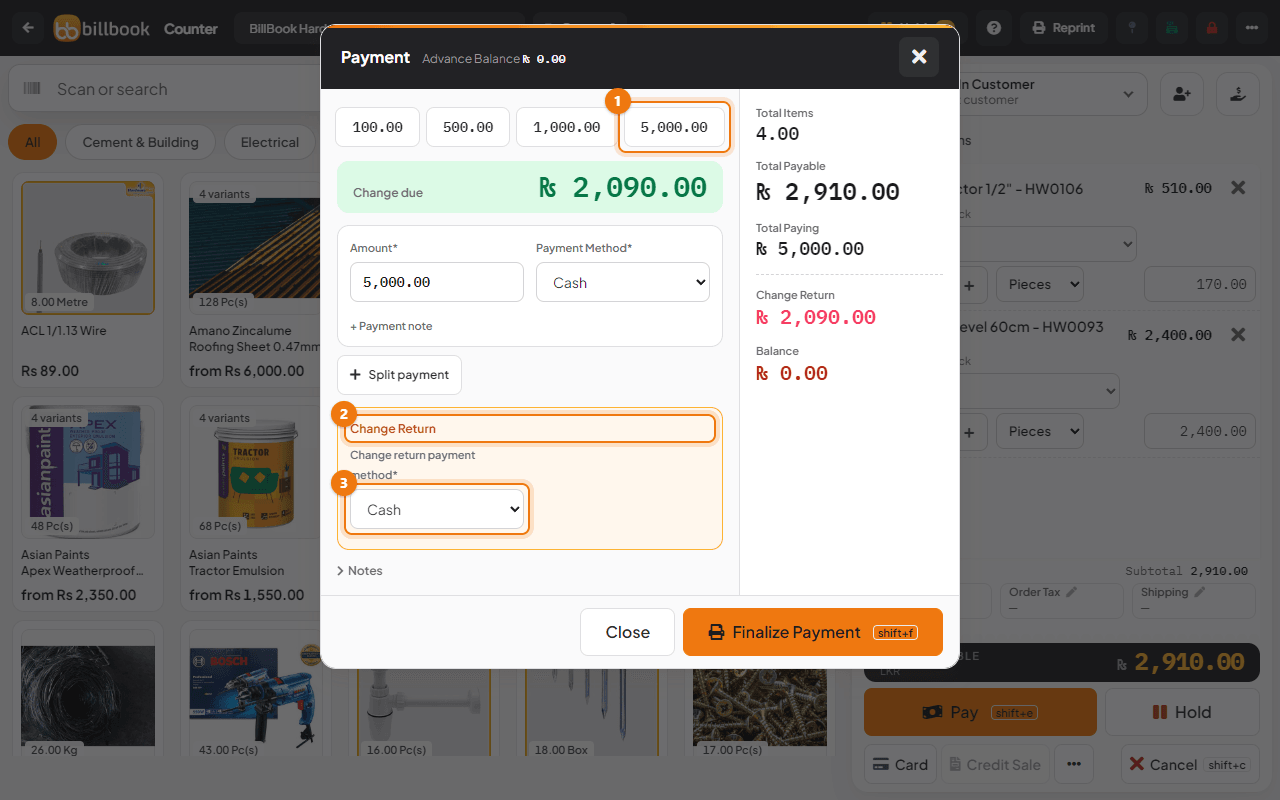
- In the Tendered row at the top, select the note the customer gave you (1), for example 5,000.00. Or type the amount in the Amount box. Exact fills the exact total.
- Look at Change due, the large figure at the top. It shows 2,090.00, the money to give back. The panel on the right agrees: Total Payable is 2,910.00, Total Paying is 5,000.00 and Change Return shows 2,090.00.
- A Change Return box (2) also appears under the payment row with the Change return payment method (3). Leave it on Cash when you hand the change over in cash.
- Select Finalize Payment.
BillBook shows Sale added successfully. The sale is saved as Rs. 2,910.00 paid, and the receipt lists the cash you received and the change returned.
Tip: If the customer pays exactly, Change Return stays at 0.00 and the Change Return box does not appear.
Rename the change label on invoices#
On the receipt, the change line is printed as the payment method followed by a label in brackets, such as Cash (Change returned). You choose the words for the label on the invoice layout.
- Go to Settings > Invoice Settings and open the Invoice Layouts tab.
- Select Edit on the layout you use at the counter, then open the Totals and payments tab.
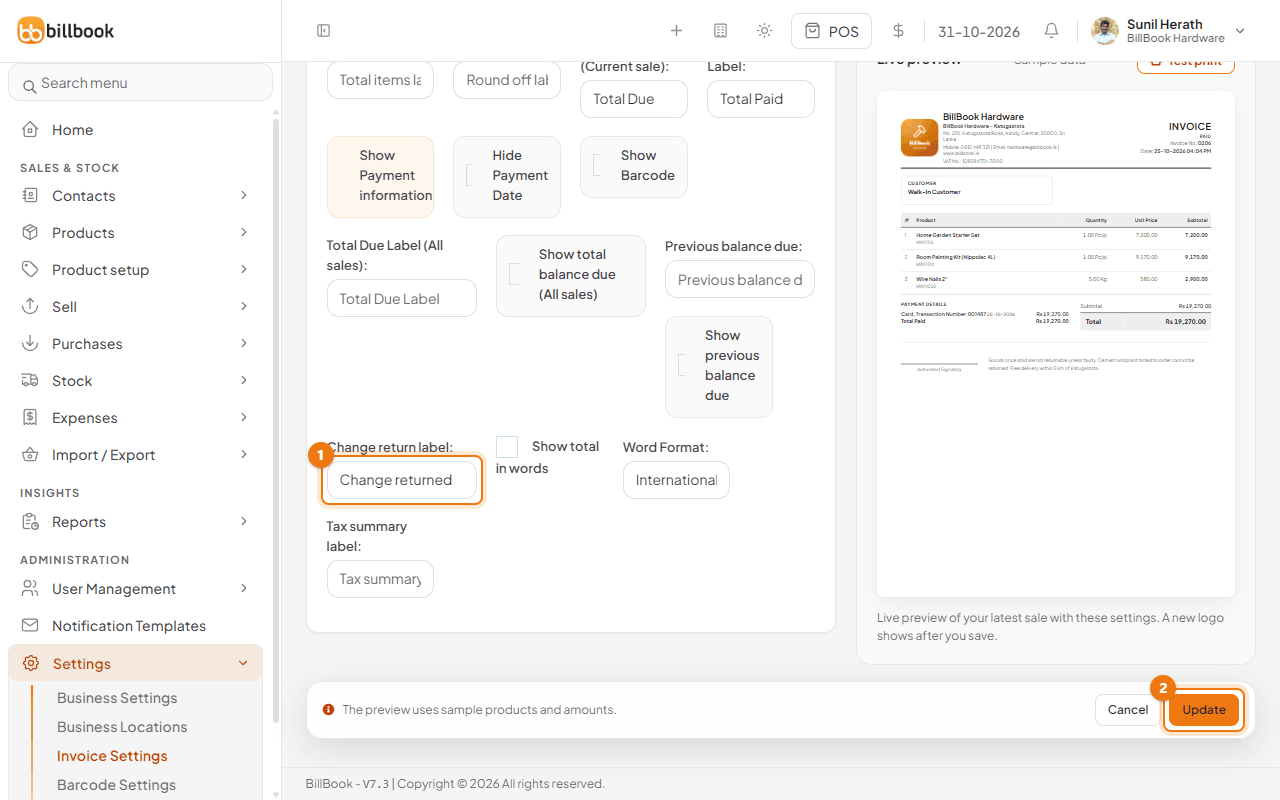
- Type your own words in Change return label (1), for example Change returned or Customer change.
- Select Update (2).
New receipts use the new label. If you leave the field empty, the line is printed as the payment method followed by (-), for example Cash(-), so it is better to always fill it in.
Change the change-return payment method#
By default change is given in cash. If you give it another way, for example back to the customer's card or by bank transfer, change it for that sale.
- In the Payment window, find the Change Return box.
- Open Change return payment method (3) and choose Cash, Card, Cheque, Bank Transfer, Other or a custom method.
- Select Finalize Payment.
The method you choose is saved with the sale and shown in the receipt's payment details.