Collect and pay dues
Last updated: 6 November 2026 · 4 min read
Many customers take goods on credit and pay later, for example a painting contractor who settles at the end of the month. Use this page when the money arrives: you can mark one invoice as paid, or record a single payment against everything the customer owes.
Before you start: The customer needs at least one unpaid sale or an opening balance. Suppliers work the same way: open Contacts > Suppliers and use Pay on the supplier's row to pay what you owe them.
Pay a single invoice#
Use this when the customer is paying for one particular invoice.
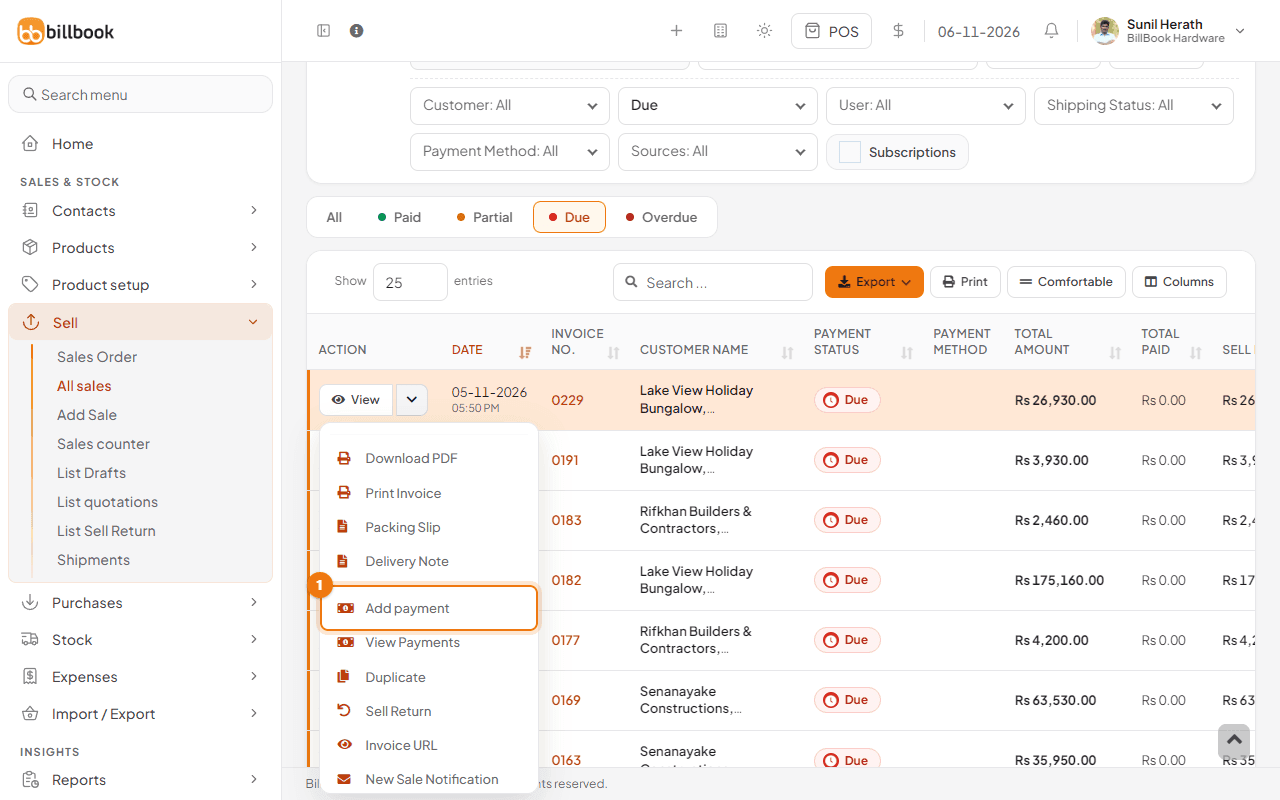
- Go to Sell > All sales. Unpaid invoices show Due in the Payment Status column. Select Due above the table to list only those.
- On the invoice's row, open the arrow next to View and select Add payment (1).
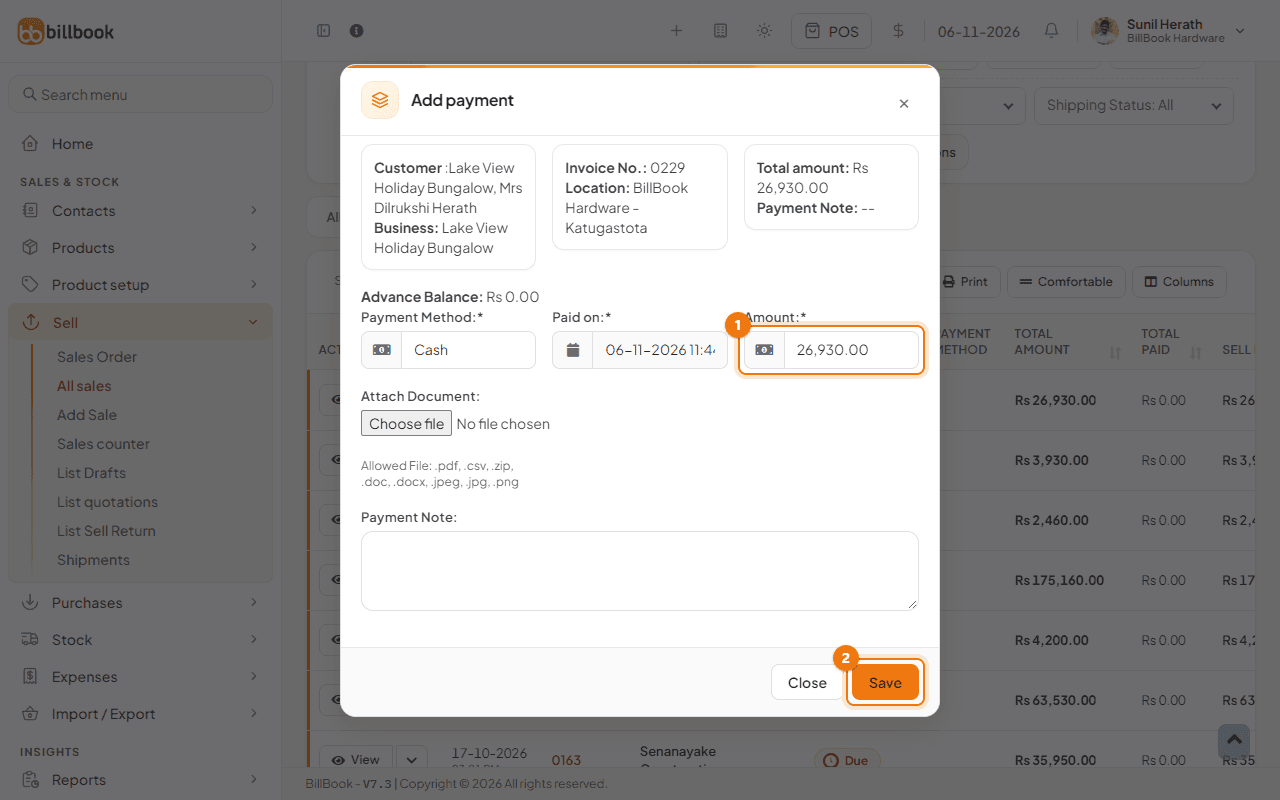
- The pop-up shows the customer, the Invoice No. and the Total amount. Check the Payment Method and Paid on date. The Amount (1) starts at the full amount due, for example 26,930.00 for invoice 0229.
- Select Save (2). BillBook shows Payment added successfully and the invoice changes to Paid.
To see the payments already made on an invoice, open the same menu and select View Payments.
Pay a contact's total due#
Use this when the customer hands you one amount for everything they owe, instead of picking invoices one by one.
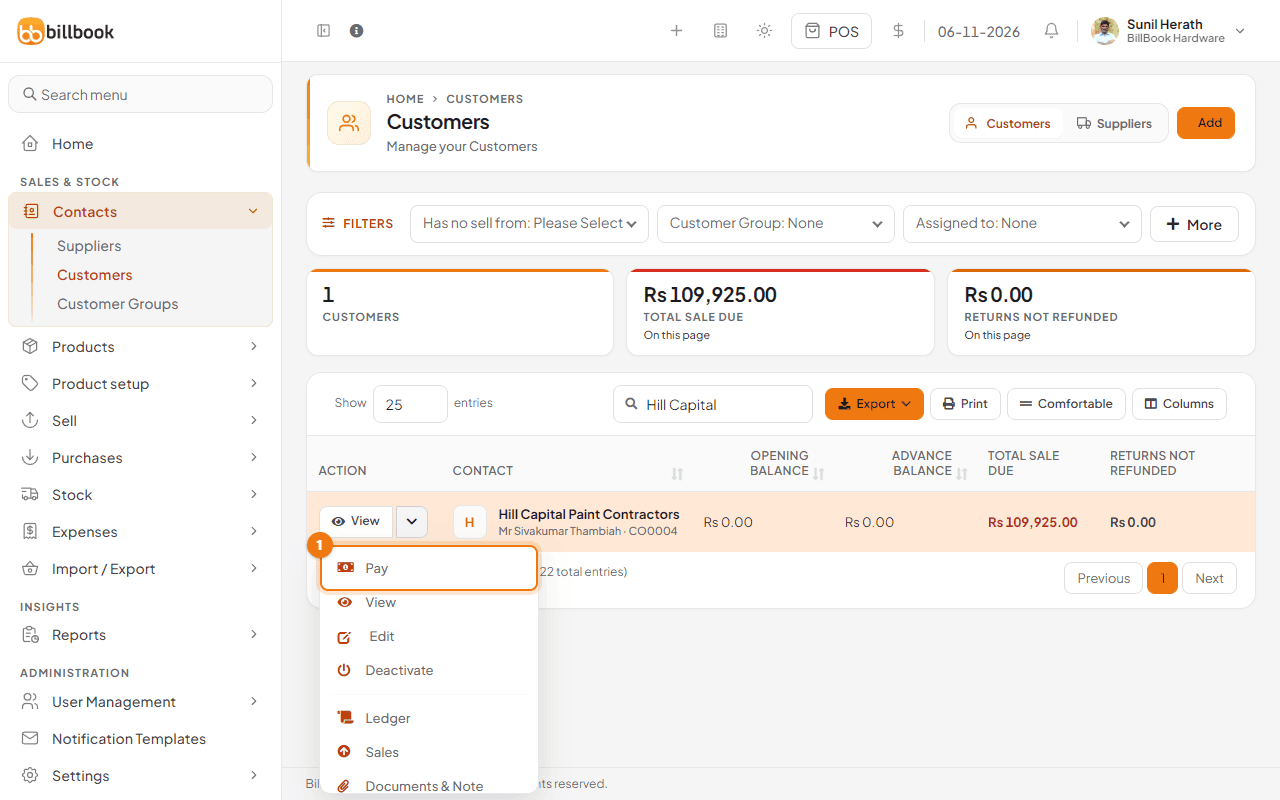
- Go to Contacts > Customers. On the customer's row, open the arrow next to View and select Pay (1).
- The pop-up shows the customer's Total Sale, Total Paid, Total Sale Due, Opening Balance and Opening Balance Due. The Amount (1) starts at the total of everything due, for example 159,925.00 for Hill Capital Paint Contractors.
- If the customer has an opening balance due, read the line under the boxes: Part payments settle the oldest amount due first, usually the opening balance, then the oldest invoices. You can also tick Settle the opening balance first to make sure it is cleared before any invoice.
- Choose the Payment Method and enter the Amount received.
- Select Save (2). BillBook shows Payment added successfully.
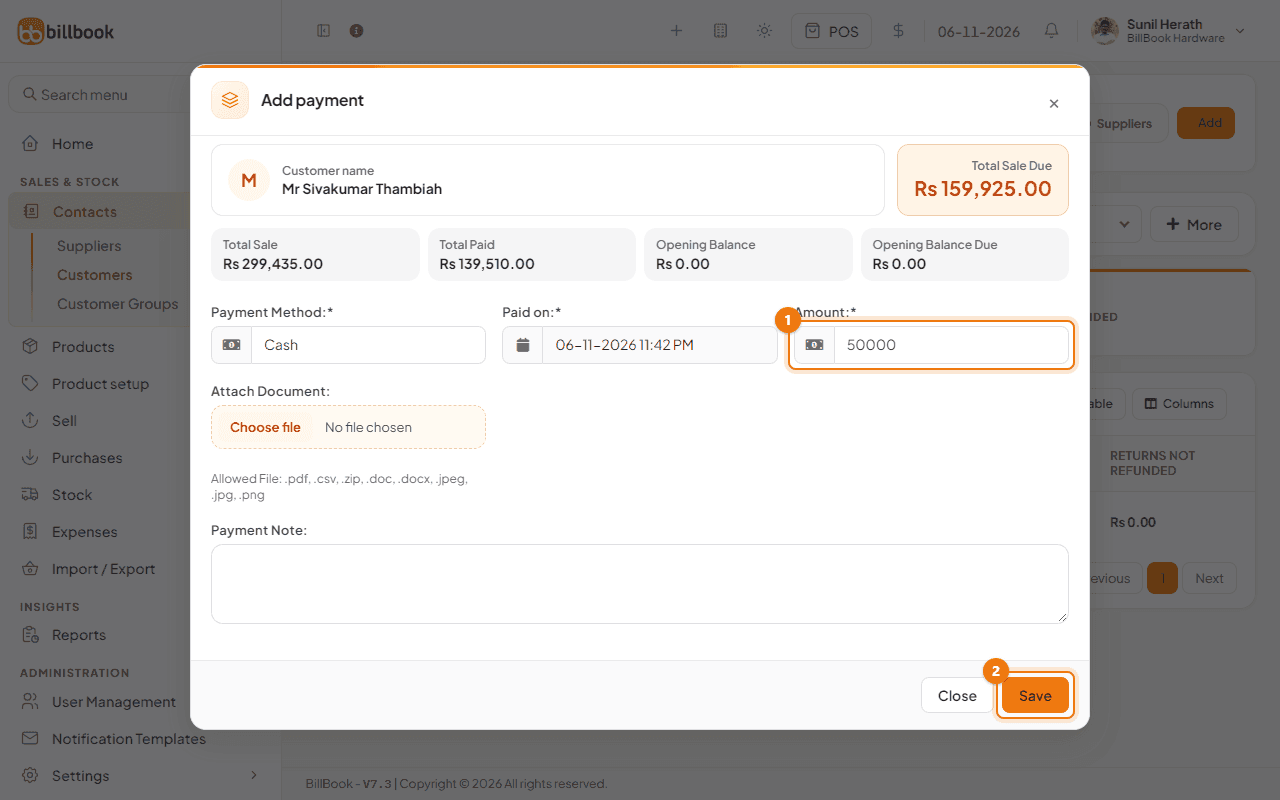
You can also open the contact with View and select Receive Payment (1) at the top of the page. It opens the same pop-up. Add advance next to it opens it too, for money paid before a sale, see Advance payments from customers.
Partial payments#
If the customer pays less than the total due, type the smaller amount in Amount and save. BillBook records it and keeps the rest as due.
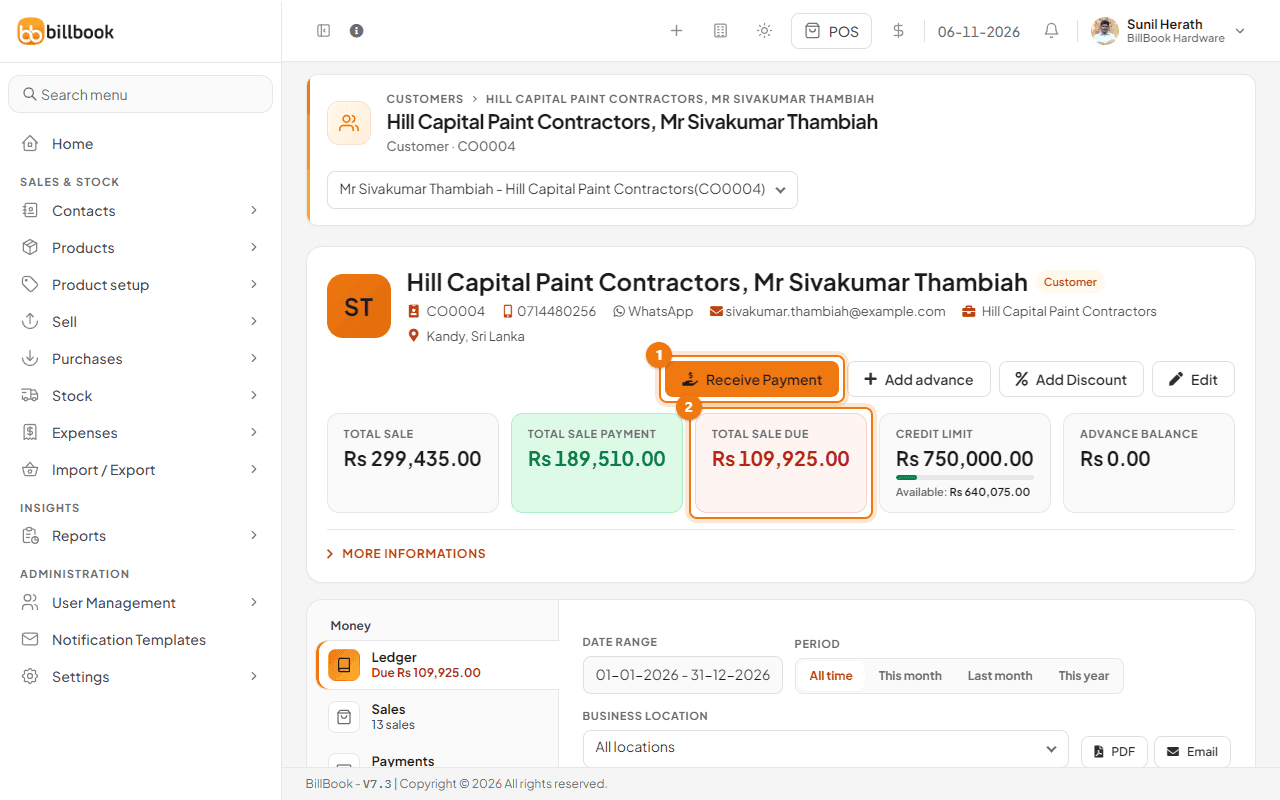
In our example Mr Sivakumar Thambiah of Hill Capital Paint Contractors owed Rs. 159,925.00 and paid Rs. 50,000.00. Afterwards the contact page shows Total Sale Due (2) of Rs. 109,925.00, and Total Sale Payment has gone up by the same amount. The Available amount under Credit Limit goes up too. If the customer also had an opening balance, the payment would clear that first and Opening Balance Due would go down before any invoice is touched.
Tip: If the customer wants the money to go to one particular invoice, use Add payment on that invoice from Sell > All sales instead. An invoice can also be paid in parts: change the Amount in the pop-up and its status becomes Partial.
A sale that is on hold is not counted as due. It only becomes due when you finish it on the POS screen.
Who Owes report#
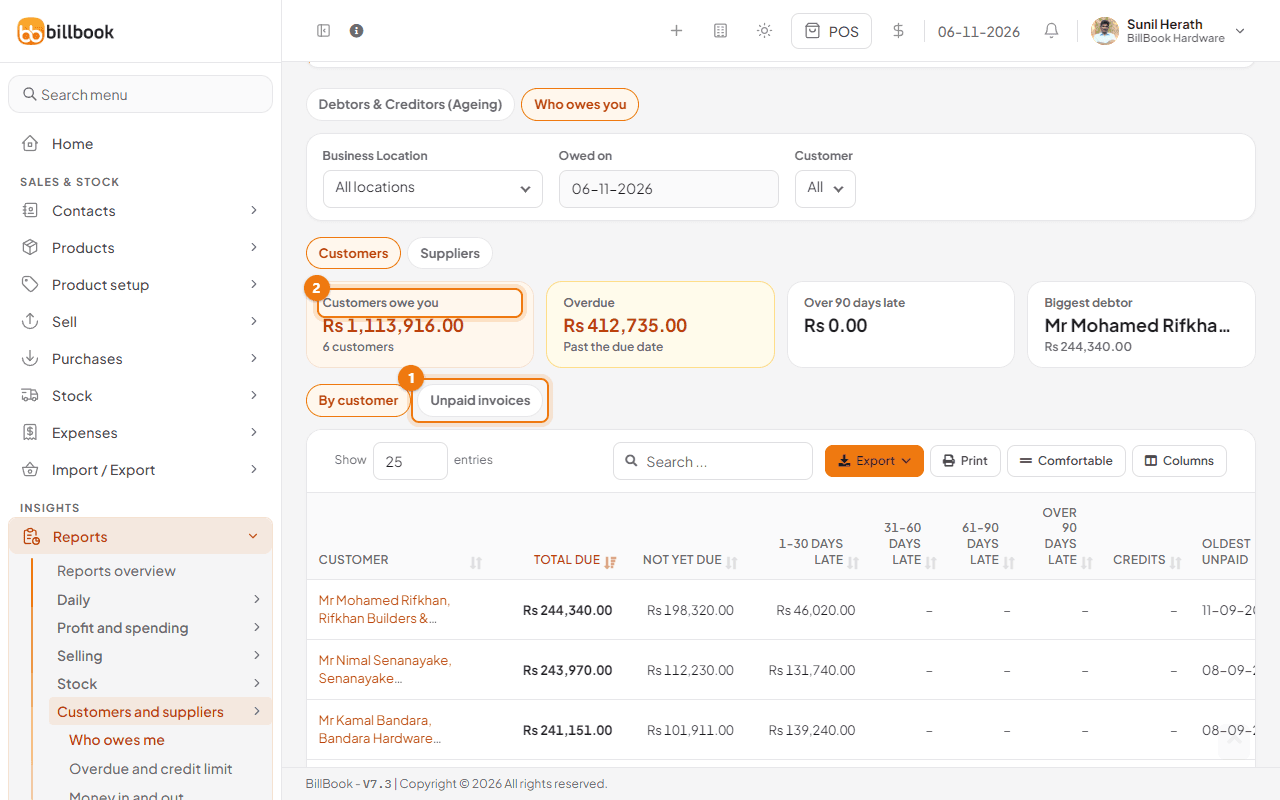
Go to Reports > Customers and suppliers > Who owes me, then select the Who owes you tab to see every customer with unpaid invoices on one page. Choose Customers or Suppliers under the filters. The cards at the top show how much Customers owe you (2) in total, how much is Overdue, how much is Over 90 days late, and the Biggest debtor.
- Under By customer, each customer's Total Due is split into Not yet due and how many days late it is: 1-30 days late, 31-60 days late, 61-90 days late and Over 90 days late.
- Select Unpaid invoices (1) to see the same figures invoice by invoice.
- Use Business Location, Owed on and Customer to narrow the list.