
Modifiers (add-ons)
Last updated: 7 November 2026 · 3 min read
A modifier is an extra that goes with a menu item, for example extra egg or extra cheese on a kottu, or no sugar in a tea. You group modifiers into a set, link the set to the products it belongs to, and the cashier picks from it when the item is added at the POS. Each modifier can have its own price, and the add-ons appear on the kitchen card.
Before you start: Turn on Modifiers in Settings > Business Settings > Modules. Turn on restaurant and salon features shows how.
Create a modifier set#
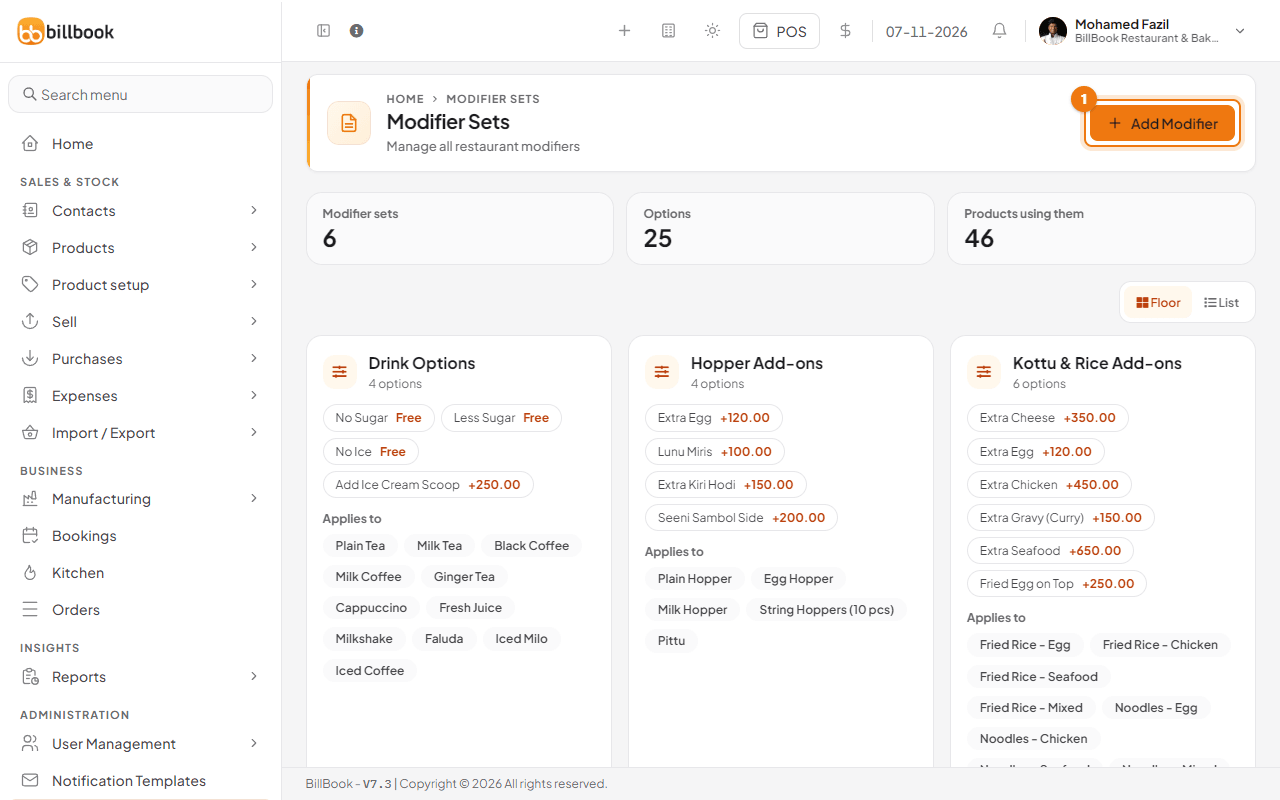
- Go to Settings > Modifiers. The page is called Modifier Sets. It shows how many sets, options and linked products you have, and one card for each set. Use Floor or List above the cards to change how the sets are shown.
- Select Add Modifier (1).
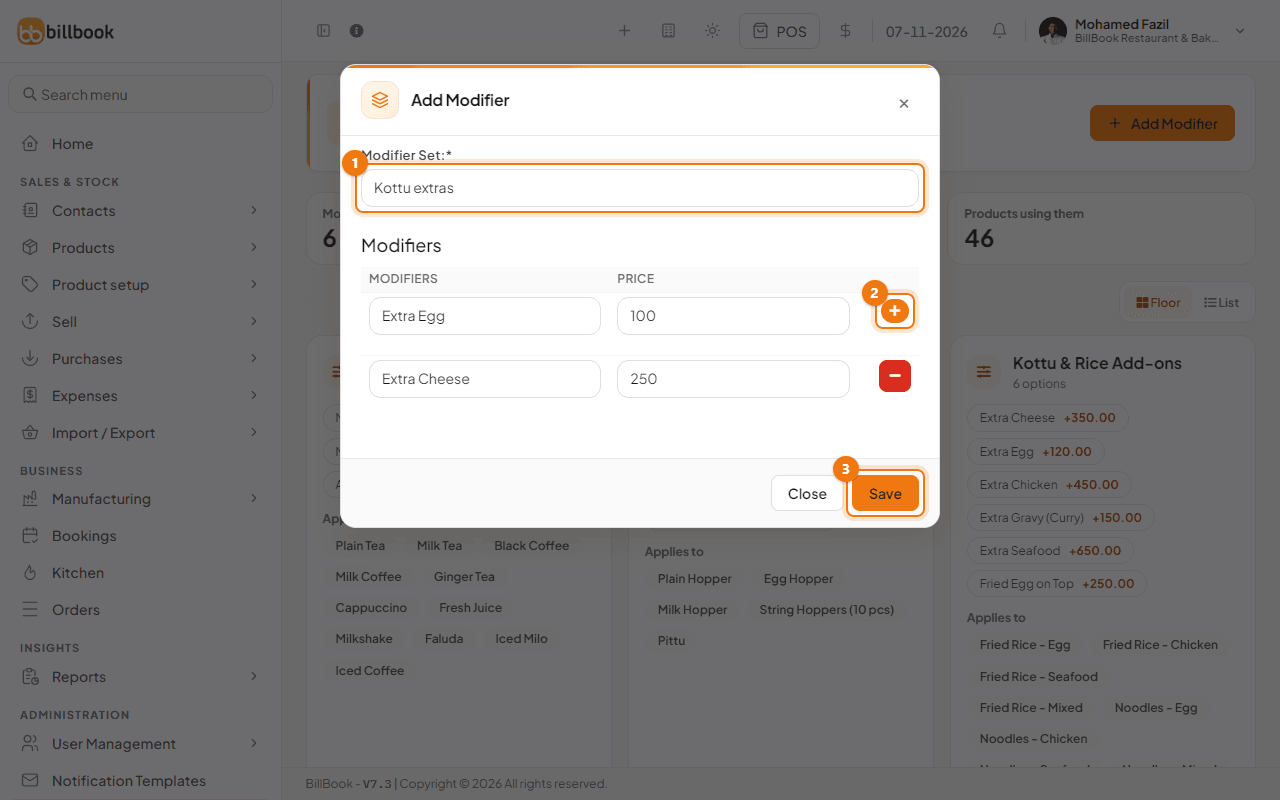
- Enter the Modifier Set name (1), for example Kottu extras.
- Under Modifiers, enter the first modifier's name, for example Extra Egg, and its Price, for example 100. Enter 0 for a free option such as No Sugar.
- Select the + button (2) to add another row, for example Extra Cheese at 250. Select the red − button on a row to remove it.
- Select Save (3).
The new set appears as a card with its options and prices, such as Extra Egg +100.00. To change a set later, select Edit (1) on its card, change the name, the options or the prices, and save.
Link modifiers to products#
A set does nothing until you link it to products. A new card says No products yet. Use Products to attach this set.
- On the set's card, select Products (2).
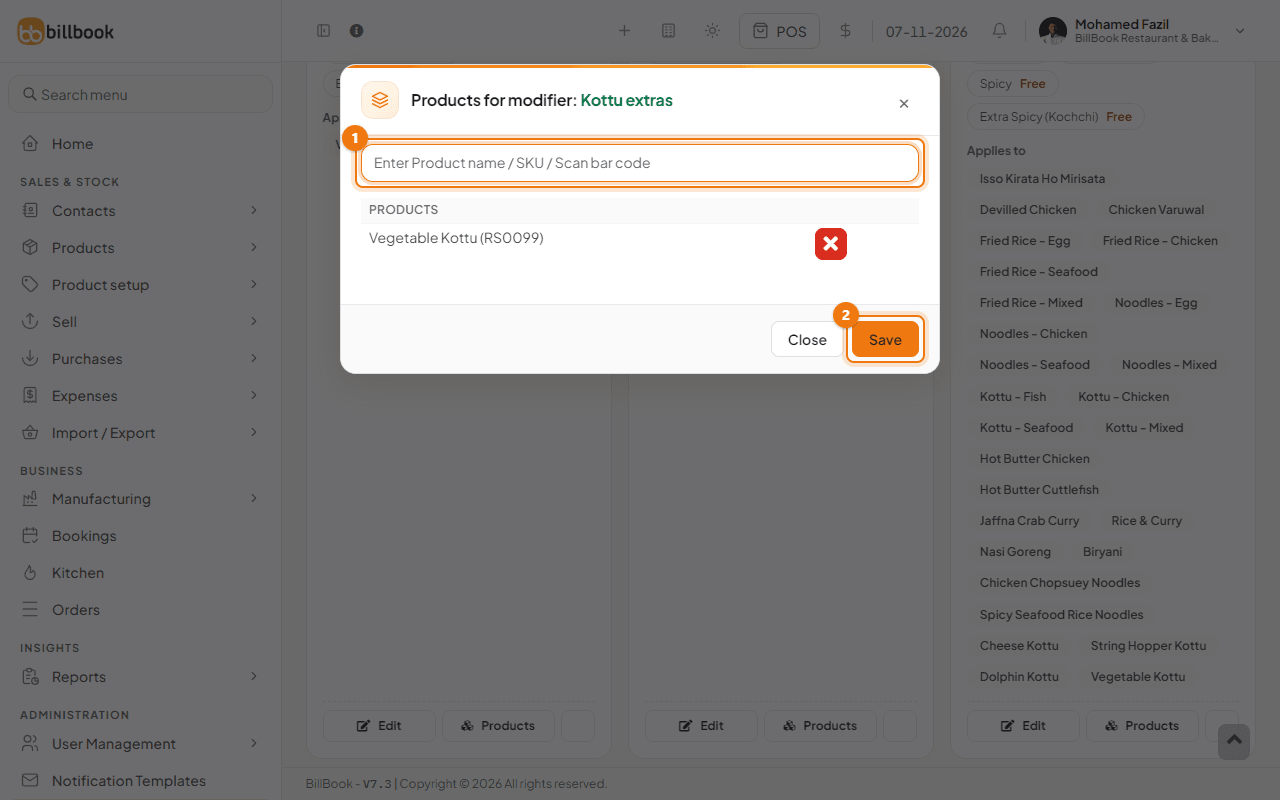
- Type a product name, SKU or barcode in the search box (1) and choose the product from the list, for example Vegetable Kottu. Repeat for each product.
- To take a product off, select the red x next to it.
- Select Save (2).
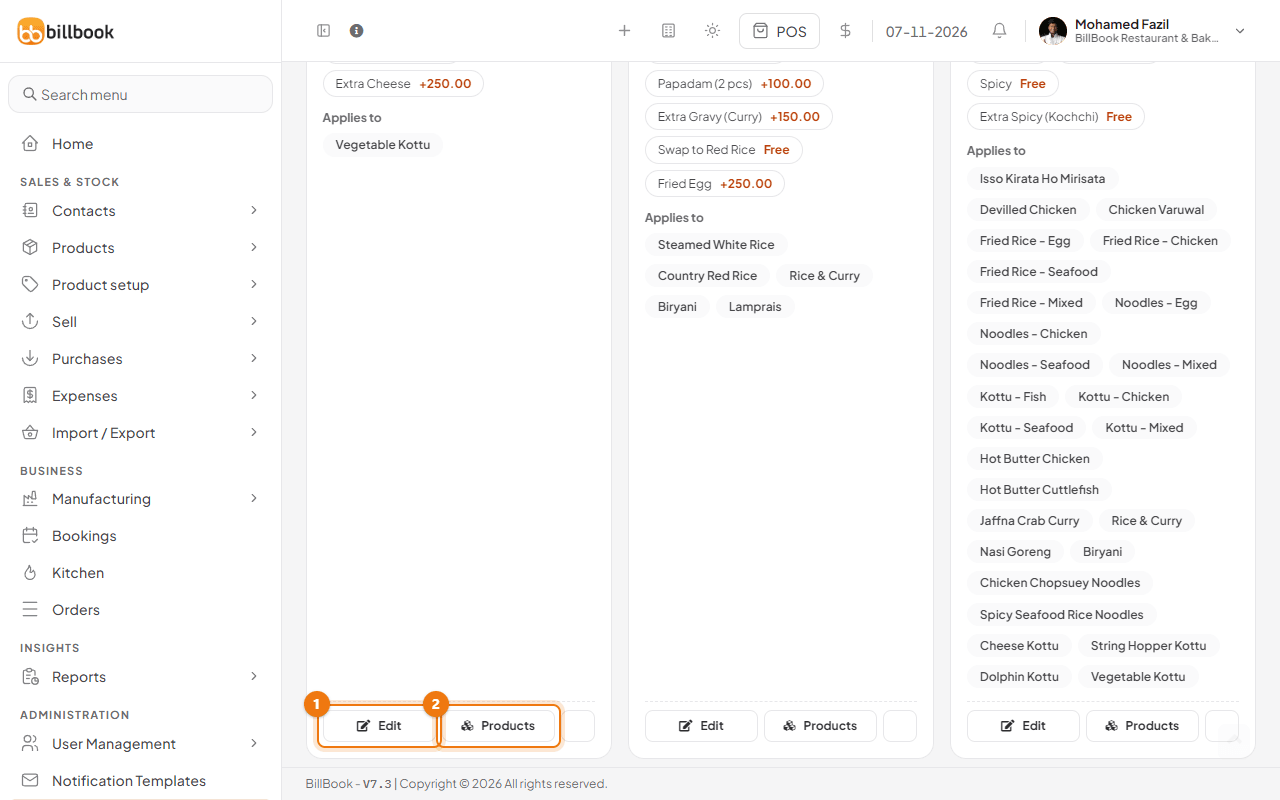
The card now lists the product under Applies to. One product can belong to more than one set, for example a kottu can have Kottu & Rice Add-ons, Spice Level and Kottu extras together.
Choose modifiers in POS#
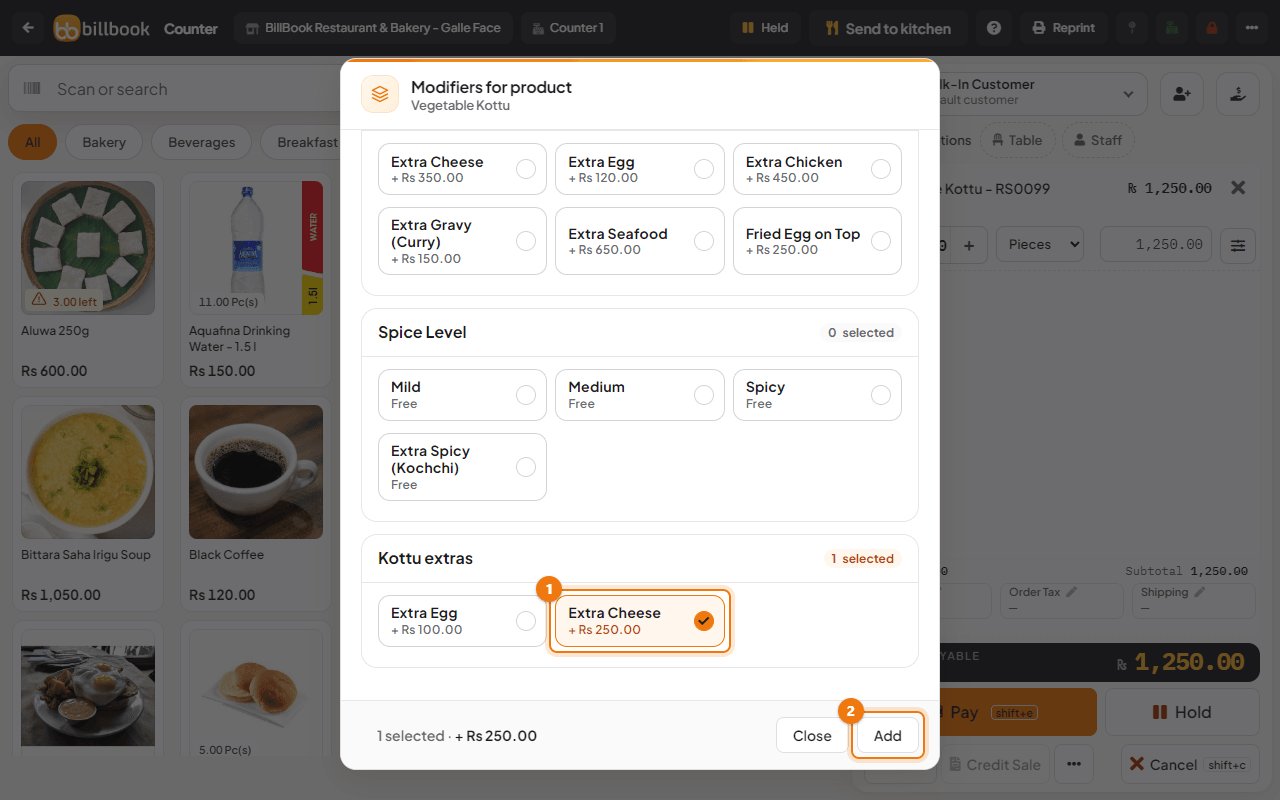
- On the POS screen, add the product by selecting it or by typing its name in the search box. When it has modifiers, a window called Modifiers for product opens with each set and its options.
- Select the add-ons the customer wants (1). Each set shows how many are chosen, and the bar at the bottom shows the count and the extra price, for example 1 selected · + Rs 250.00.
- Select Add (2). Select Close to add the item with no add-ons.
The add-ons appear under the item in the cart, for example Extra Cheese(250.00 X 1.00), and the price is added to the total. They also show under the item on the Kitchen screen, so the cook sees them.
Note: The amount at the top right of the cart row includes the add-ons (for example Rs. 1,500.00). The price box under the name is the item's own price (1,250.00). The Total at the bottom adds up the rows including the add-ons.