
Service staff PIN
Last updated: 7 November 2026 · 2 min read
A service staff PIN stops one person from entering sales in another person's name. When a cashier chooses a waiter, stylist or technician on the POS screen, BillBook asks for that person's PIN first. The PIN is separate from the person's login password.
Before you start: Switch on Service staff in Settings > Business Settings > Modules, and give the person a role that has Service staff ticked (User Management > Roles). You need permission to edit users. Turn on restaurant and salon features shows these steps.
Turn on the PIN#
The PIN is set one person at a time on the user's own form. There is no PIN switch under Settings > Business Settings > POS.
- Go to User Management > Users and select Edit on the person, or select Add for a new user.
- Tick Enable service staff pin (1). The Staff Pin box (2) appears.
- Enter a PIN, for example 1234. Give each person a different one.
- Select Update (3). For a new user, select Save.
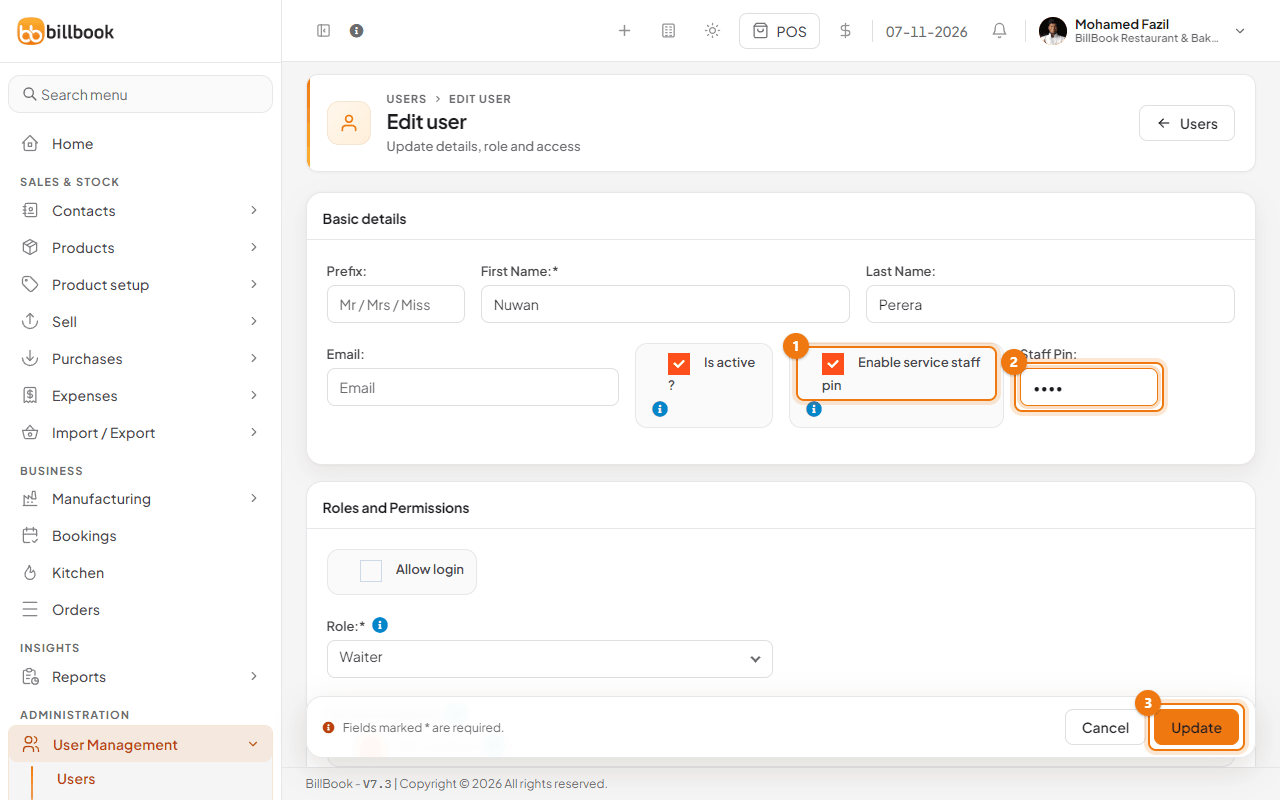
The form never shows the saved PIN. To change it, enter a new PIN and select Update. To stop asking for a PIN, untick Enable service staff pin and select Update. People are no longer asked for a PIN when you choose them.
Use the PIN at checkout#
- Select POS at the top of the screen (or Sell > Sales counter) and open Sale options.
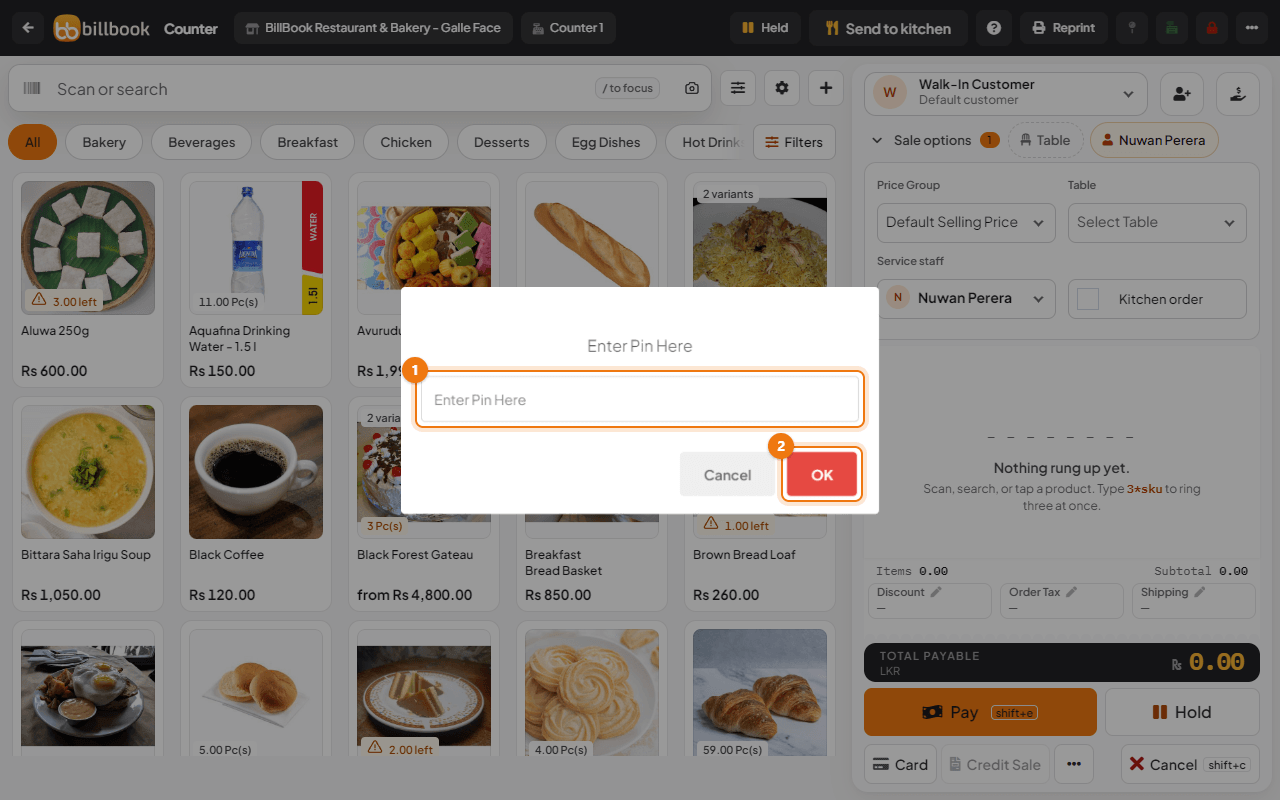
- Open the Service staff box and choose the person who has a PIN. A box called Enter Pin Here opens.
- Type the PIN (1) and select OK (2). BillBook shows Authentication successfull and the name stays in the box.
- Add the items and finish the sale as usual.
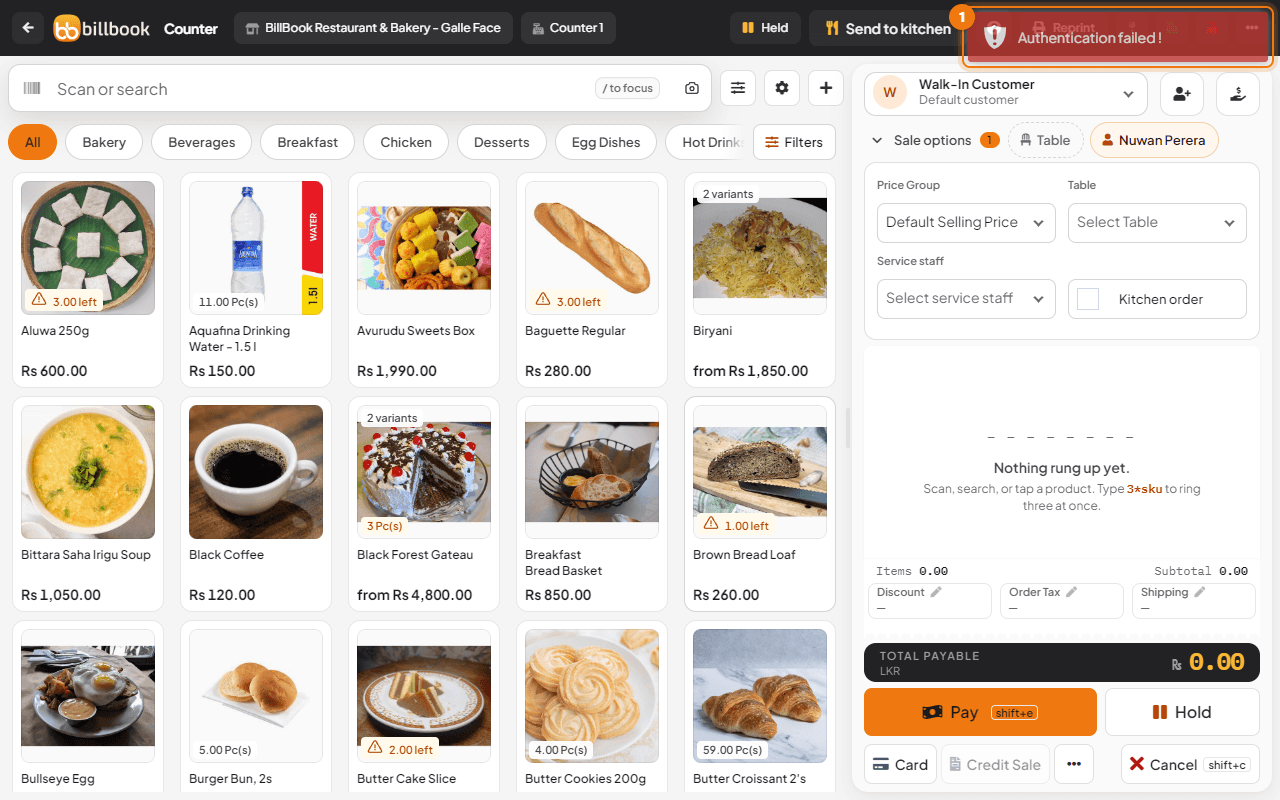
If the PIN is wrong, BillBook shows Authentication failed ! (1), does not accept that person, and the Service staff box goes back to empty. Choose the person again and enter the right PIN. Select Cancel in the PIN box to leave without choosing anyone.
Notes#
- The PIN is asked only for the person you choose for the whole sale. When you choose different staff for single items in each item's Select service staff box, no PIN is asked.
- A person without Enable service staff pin ticked can be chosen with no PIN.
- The PIN is not the login password. A cashier who knows a waiter's PIN can still choose that waiter, so keep PINs private.