
Units and sub-units
Last updated: 7 November 2026 · 3 min read
A unit is how you count an item: bags of cement, kilograms of nails, metres of wire. Add a sub-unit when you buy in one pack size and sell in another, such as a bag and a pack of 10 bags.
Before you start: To pick sub-units on a product, turn on Enable Sub Units in Settings > Business Settings > Product and select Update Settings. The Related Sub Units box then shows on the product form.
Add a unit#
- Go to Product setup > Units (1). The list shows each unit's Name, Short Name and whether it Allow Decimal.
- Select Add (2).
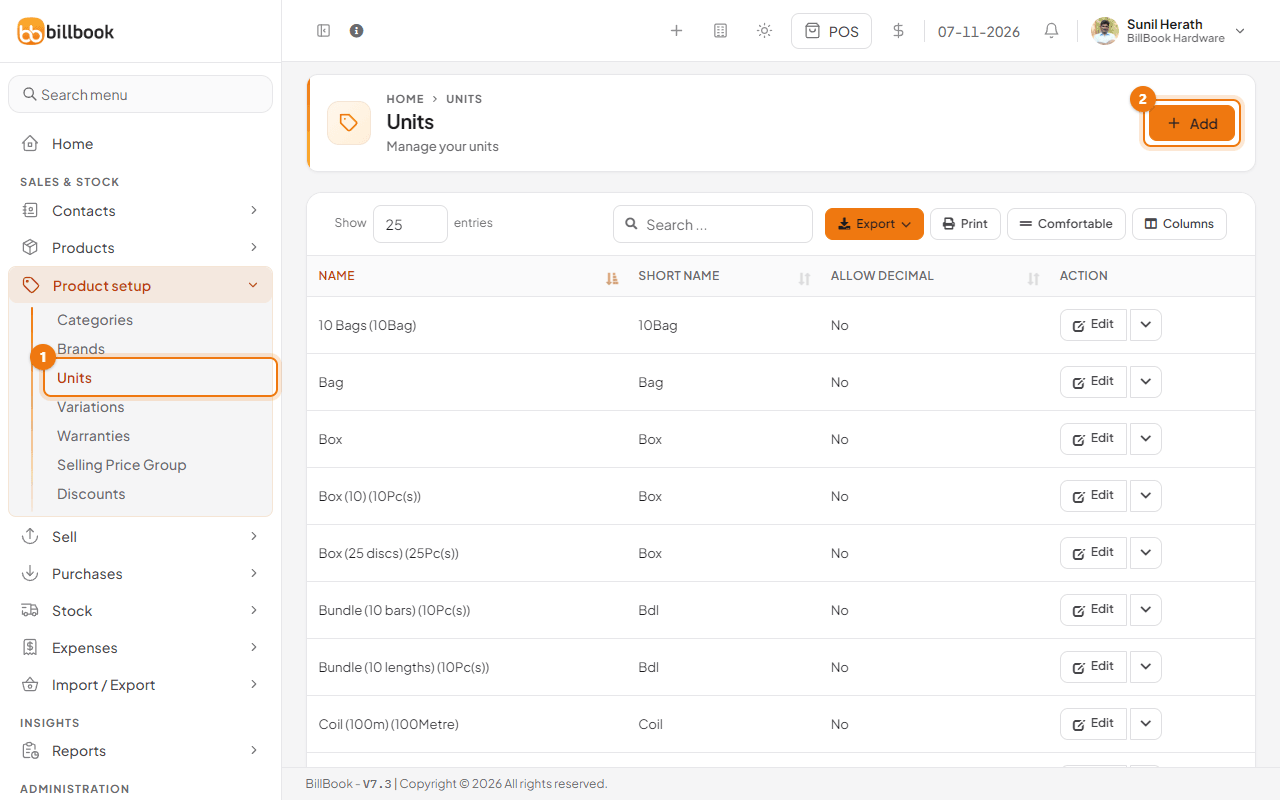
- Enter the Name (1), for example Kg, and a Short name.
- Choose Yes or No under Allow decimal. Choose Yes for things you weigh or measure, such as Kg or Metre, so you can sell 1.5 Kg. Choose No for things you count, such as Pieces or Bag.
- Select Save.
You can change a unit later with Edit on its row.
Multiple units (box and piece)#
Use this when a unit is a fixed number of another unit. For example, a Dozen is 12 Pieces, and Box (10) is 10 Pieces.
- Add the smaller unit first, for example Pieces.
- Select Add again and enter the name and short name of the bigger unit.
- Tick Add as multiple of other unit (2).
- Enter how many of the smaller unit it holds (3), for example 12, and choose the smaller unit, for example Pieces (Pc(s)).
- Select Save.
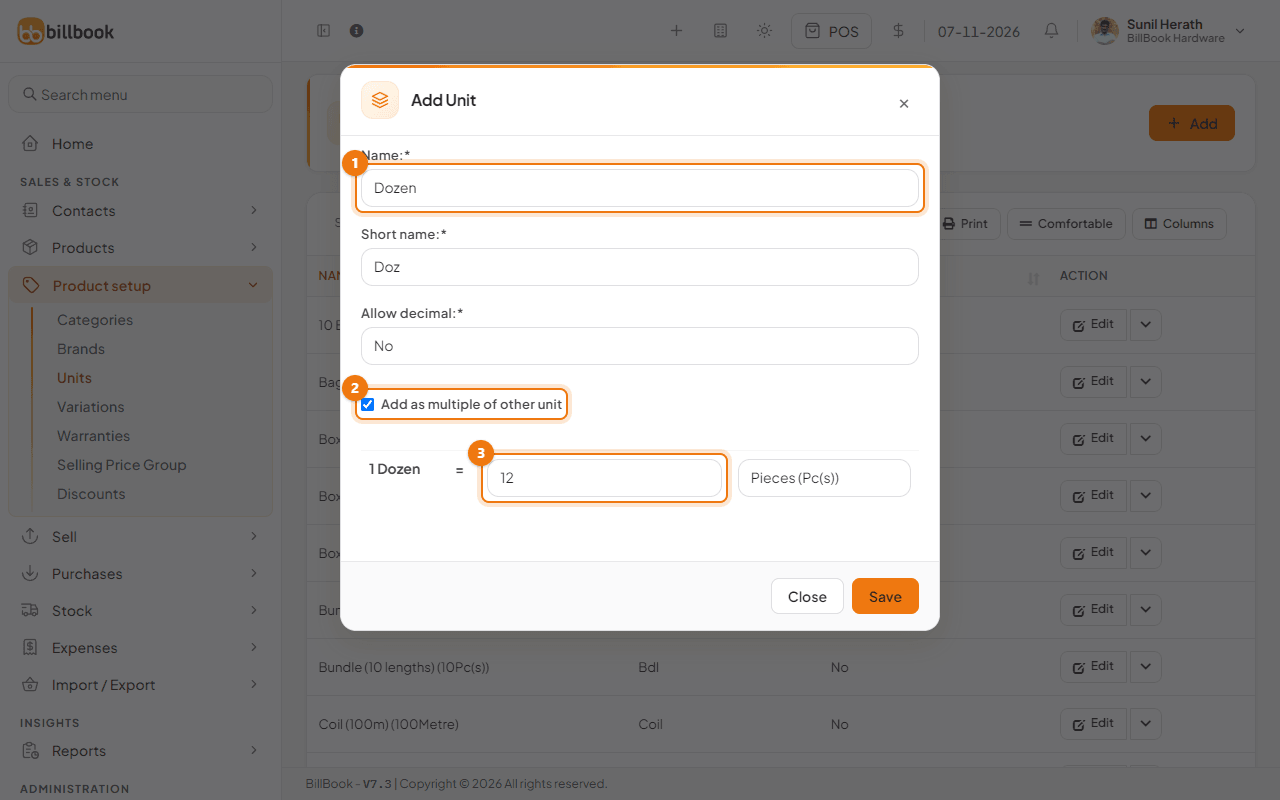
Note: Take care when you edit the number in a unit that is already in use. BillBook warns that changing it changes the purchase and sales stock to match.
Secondary units#
This build of BillBook does not have a separate secondary unit setting. Sub-units, described below, are how you buy in one unit and sell in another.
How sub-units work on a product#
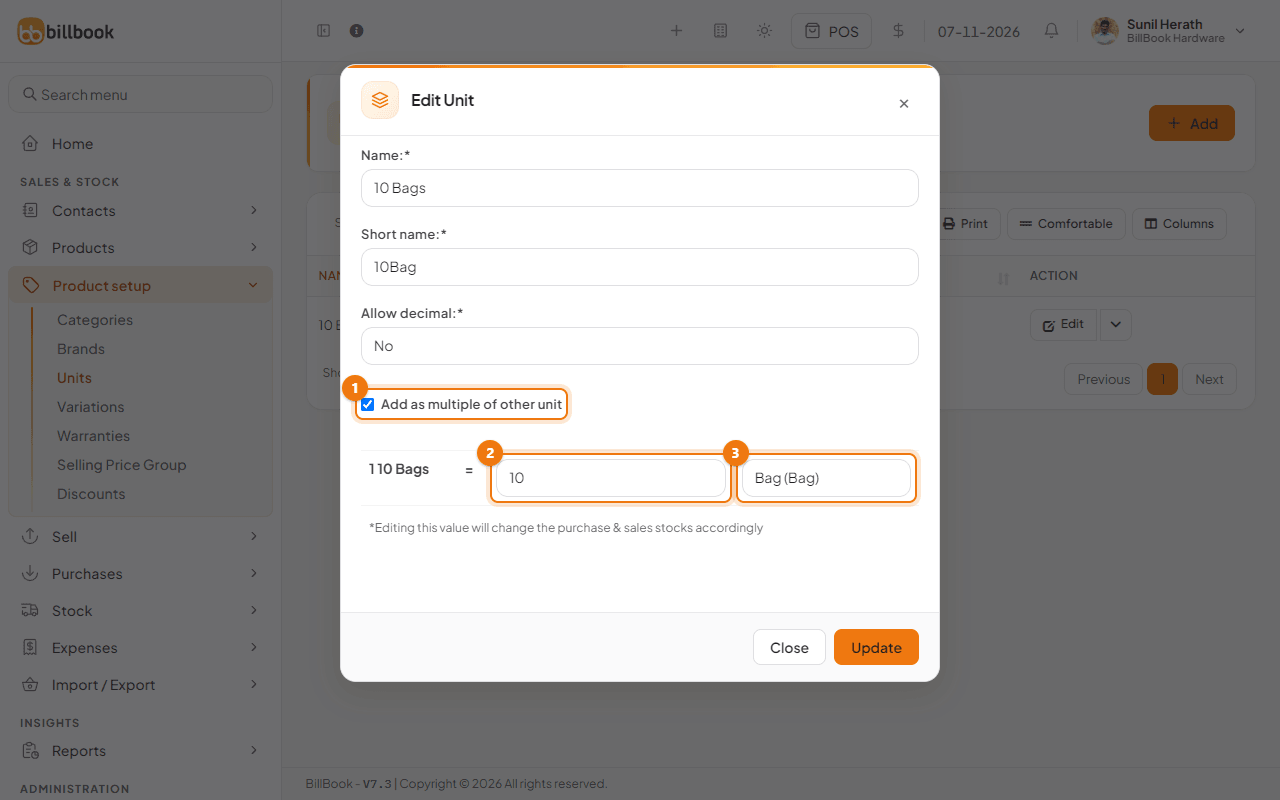
The demo hardware business has Bag and a sub-unit called 10 Bags. Open the 10 Bags row with Edit: it is set up as 1 10 Bags = 10 Bag (1 to 3 in the picture below). Stock is always counted in the main unit, so selling one 10 Bags takes ten Bag off the shelf.
To sell a product in both units:
- Go to Products > Add Product (or Edit an existing product).
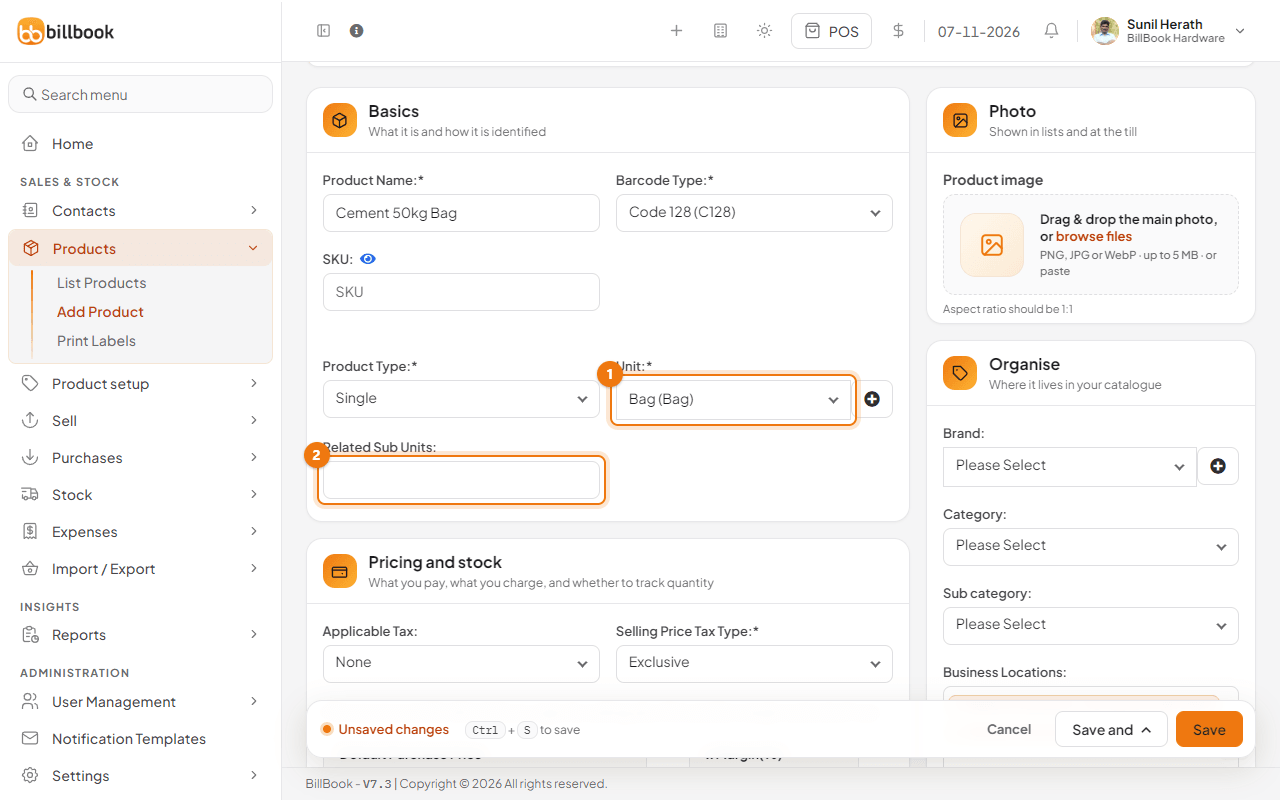
- Choose the main Unit (1), for example Bag (Bag).
- Under Related Sub Units (2), choose the sub-units that apply, for example Bag and 10 Bags. Leave it empty to allow all sub-units of that unit.
- Save the product.
When you add the product to a sale or purchase, a unit list on the line lets you switch between the main unit and its sub-units. The price follows the unit you choose.
Tip: On a sale, check the unit on each line before you save. A line can start on a sub-unit such as 10 Bags instead of Bag, so a cashier who types 1 may sell ten bags by mistake.