Your profile, password and theme
Last updated: 7 November 2026 · 3 min read
Everything about you, rather than the business, is in the top bar and your user menu. Use it to keep your details up to date, change your password and make the screen easier on your eyes.
Update your profile#
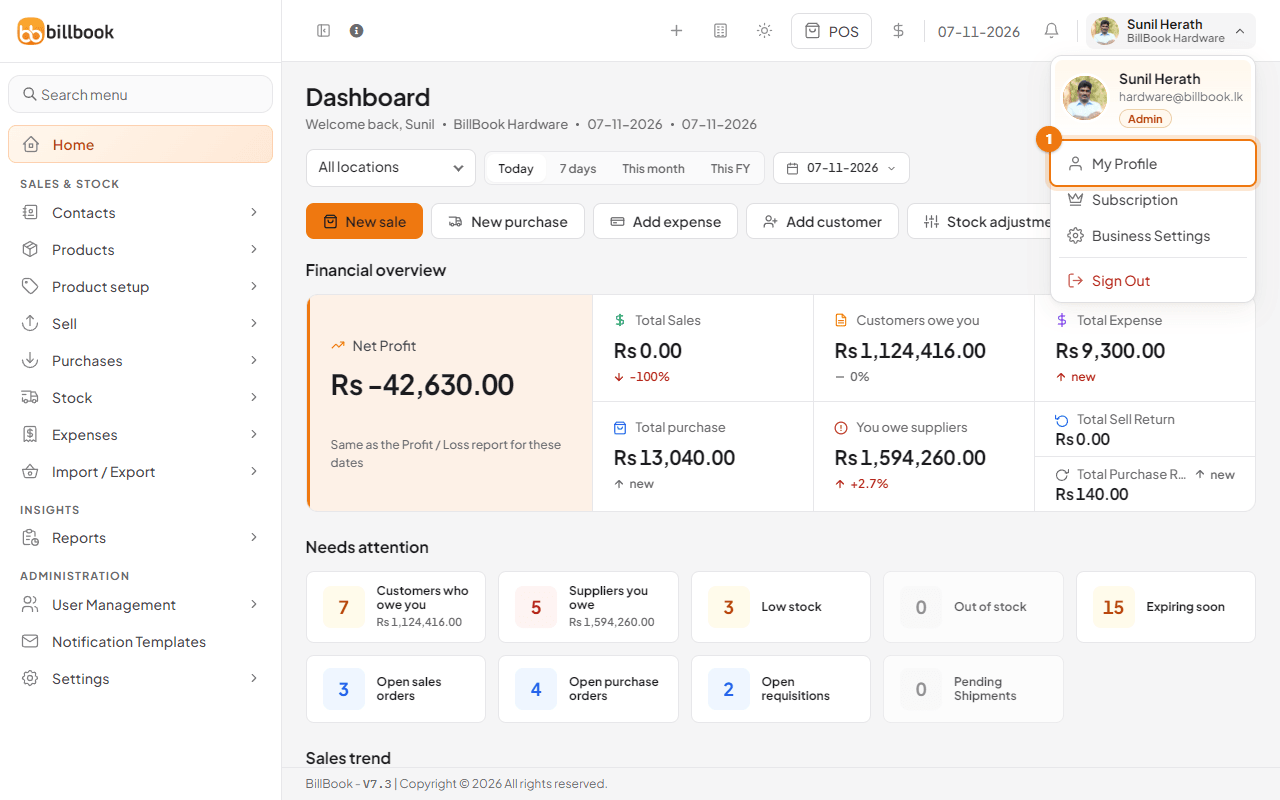
- Select your name at the top right to open the user menu.
- Select My Profile (1). The menu also has Subscription, Business Settings and Sign Out. Install app also appears when your browser offers to install BillBook. At the top the menu shows your name, email and role.
- Under Personal, change your Prefix, First Name (1), Last Name, Email (2) or Language if you need to.
- To change your photo, select Change (3) under Profile Photo and choose a square image. The photo shows in the top bar and on your profile.
- Open More Informations to add social links, ID details, custom fields and bank details.
- Select Save profile at the bottom of the page.
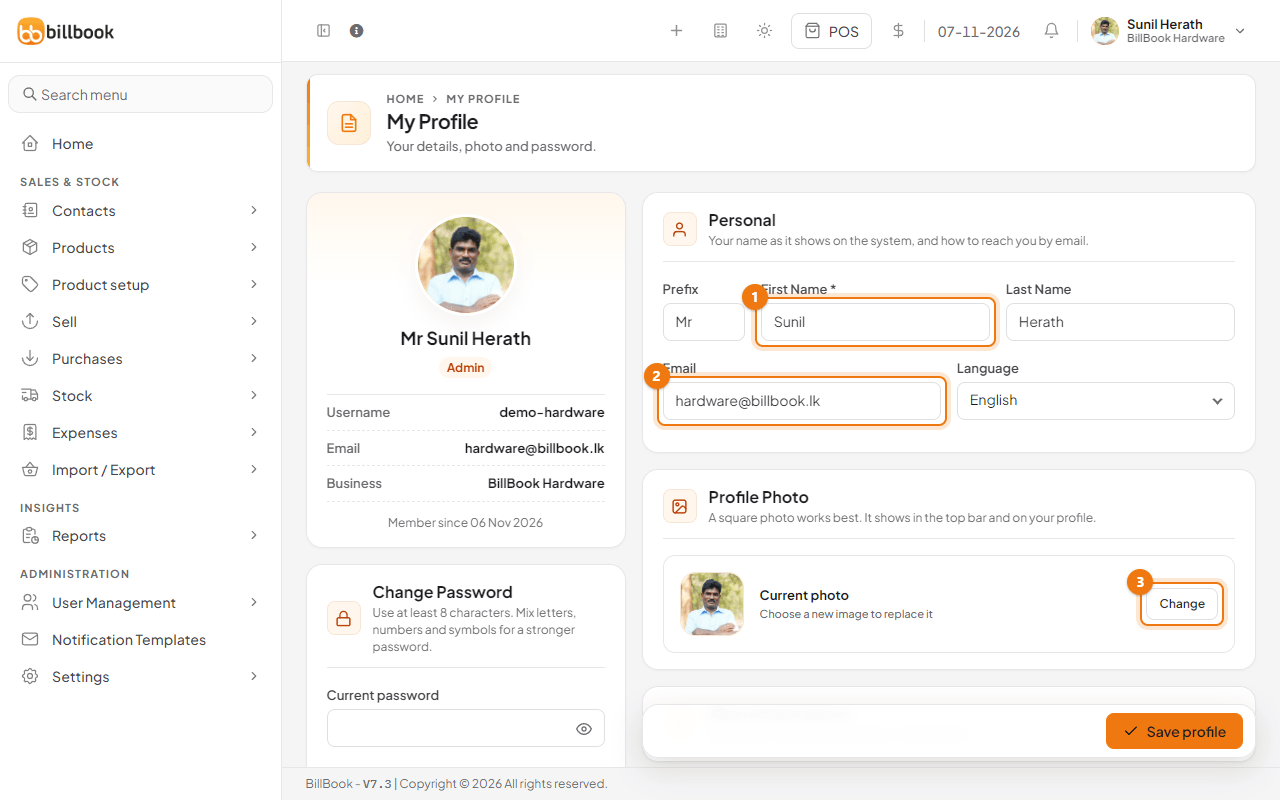
Note: Your username and the business name are shown on the left of the page but cannot be changed here. Ask the business owner if your username needs to change.
Change your password#
The Change Password card is on the left of My Profile. Use at least 8 characters, and mix letters, numbers and symbols for a stronger password.
- Enter your Current password (1).
- Enter a New password (2). A bar under the box shows how strong it is.
- Type it again in Confirm new password. BillBook shows Passwords match when both are the same.
- Select Change Password (3).
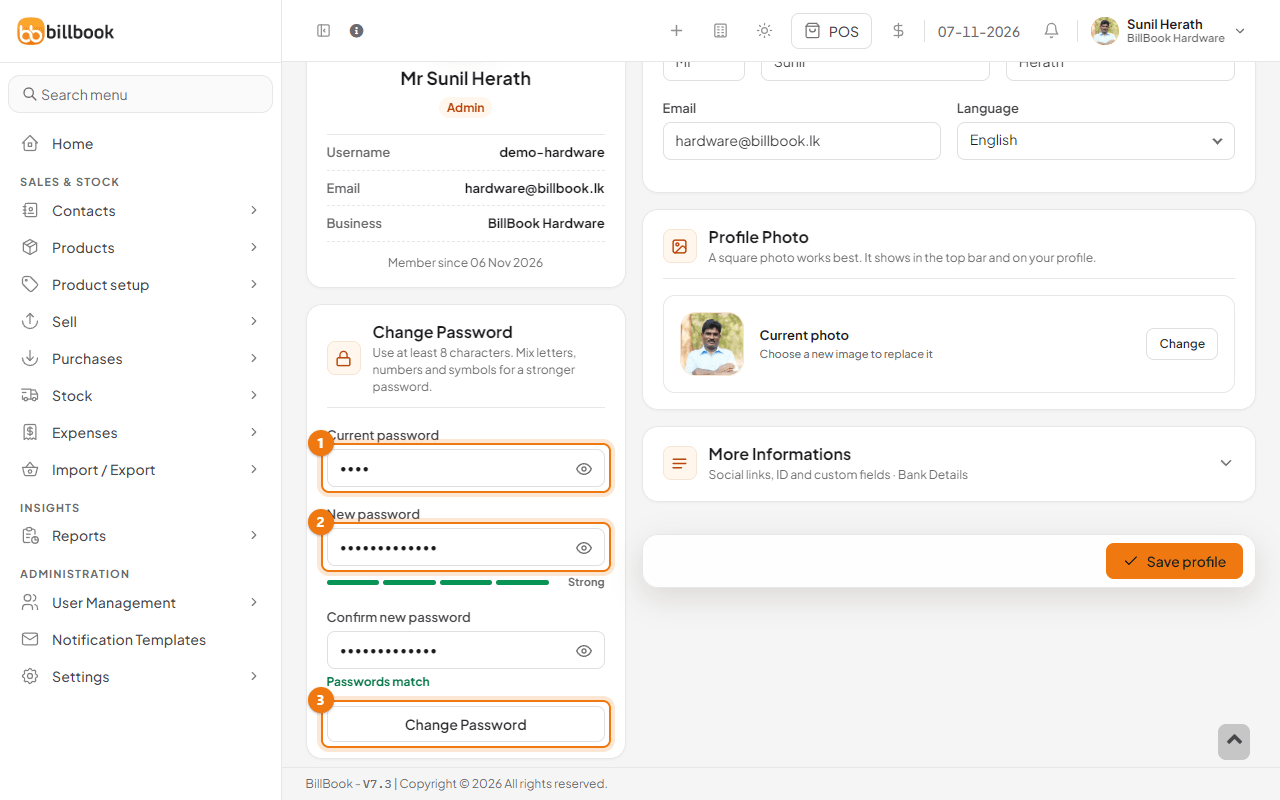
Tip: Select the eye icon in a password box to see what you typed.
Switch light or dark mode#
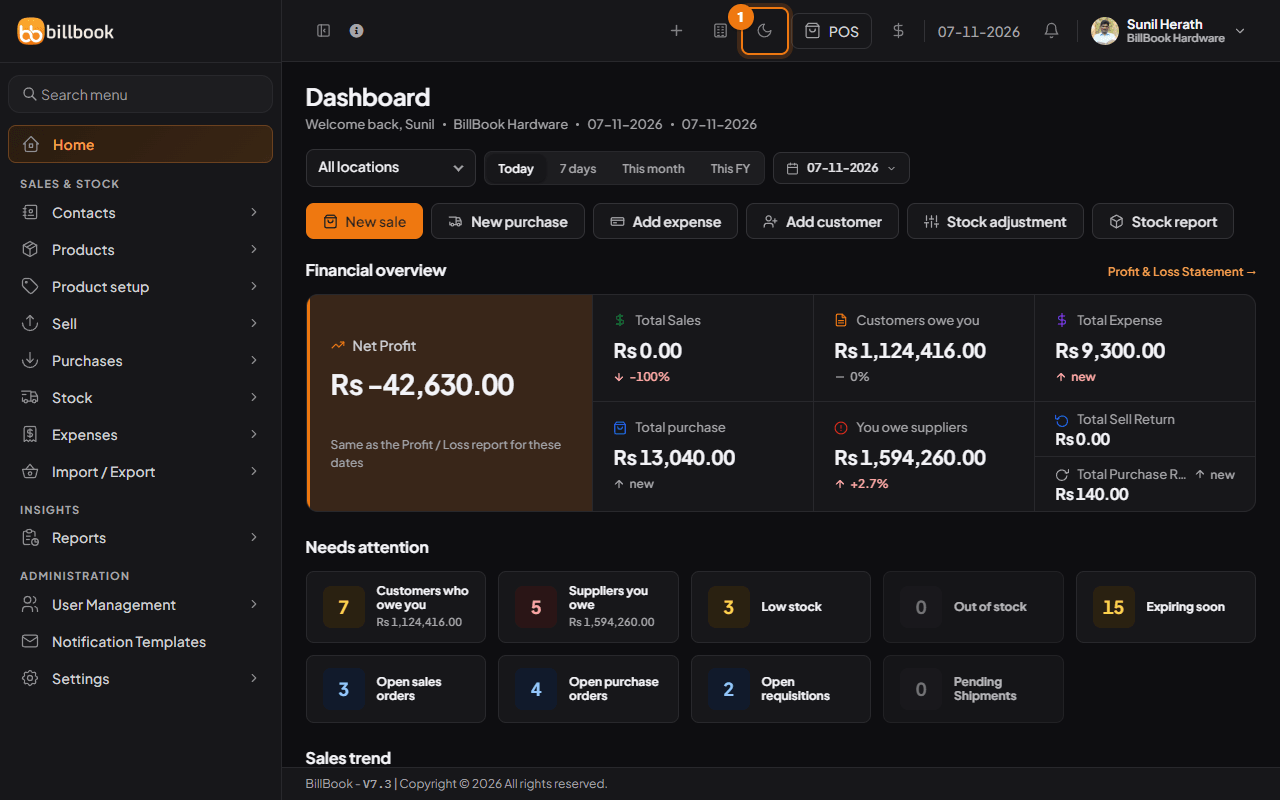
Select the Theme button (1) in the top bar, the sun or moon icon. Each press switches between light mode and dark mode. BillBook remembers your choice for your login, so other users keep their own.
Calendar view#
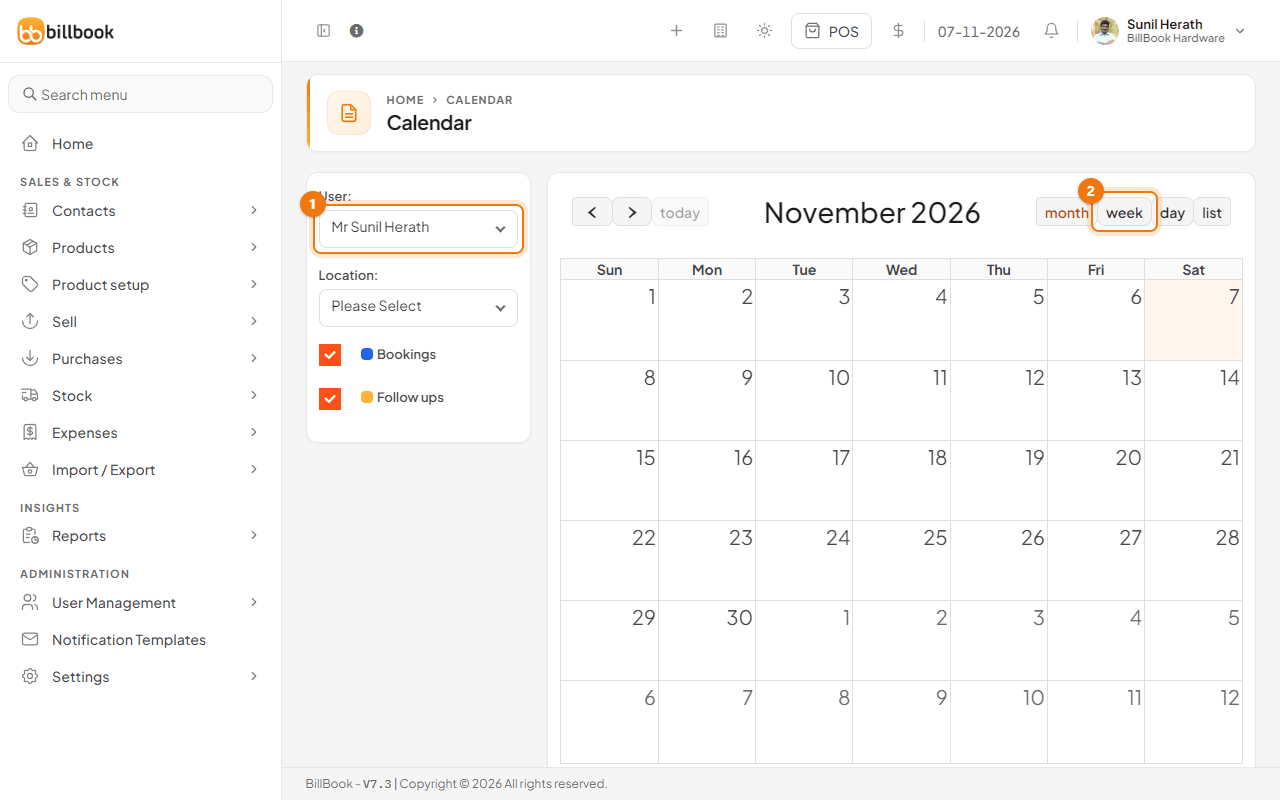
Open the calendar from the + button in the top bar, then choose Calendar. The same menu has Application Tour and Tour this page, which start the guided tour. See Take the Application Tour.
- Use the arrows and today to move between months.
- Select month, week (2), day or list to change the view.
- Use User (1) and Location to show one person's or one location's entries.
- Keep Bookings and Follow ups ticked to show them on the calendar.
Notification bell#
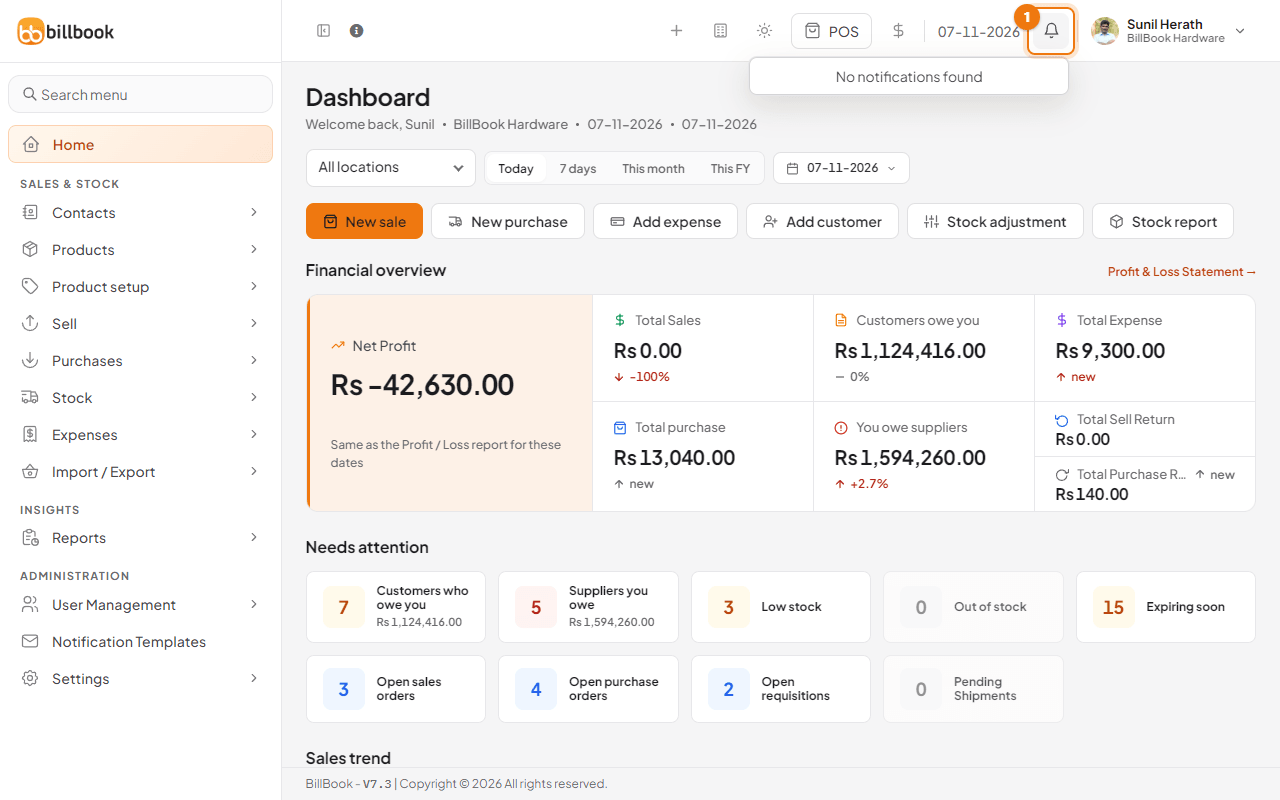
Select the bell (1) in the top bar to see your notifications. When you have none, it shows No notifications found.