
Create an invoice (Add Sale)
Last updated: 31 October 2026 · 4 min read
Sell > Add Sale is a normal form on a full page. Use it when you write up an invoice at a desk for a customer who is not standing at the till, such as a contractor who orders four items and wants delivery to a building site.
Before you start: You need permission to add sales. Add the customer first under Contacts, so their address, pay term and price group fill in for you.
When to use Add Sale instead of POS#
- Use Sell > Sales counter for the counter: scanning, fast cash sales, change and receipts. See Sell from the POS screen.
- Use Sell > Add Sale when you want to see the whole invoice in one page: you pick the sale date, invoice number, pay term, shipping details and an attached document, and you can print a full A4 or A5 invoice.
Both create the same kind of sale. It appears under Sell > All sales.
Create the invoice#
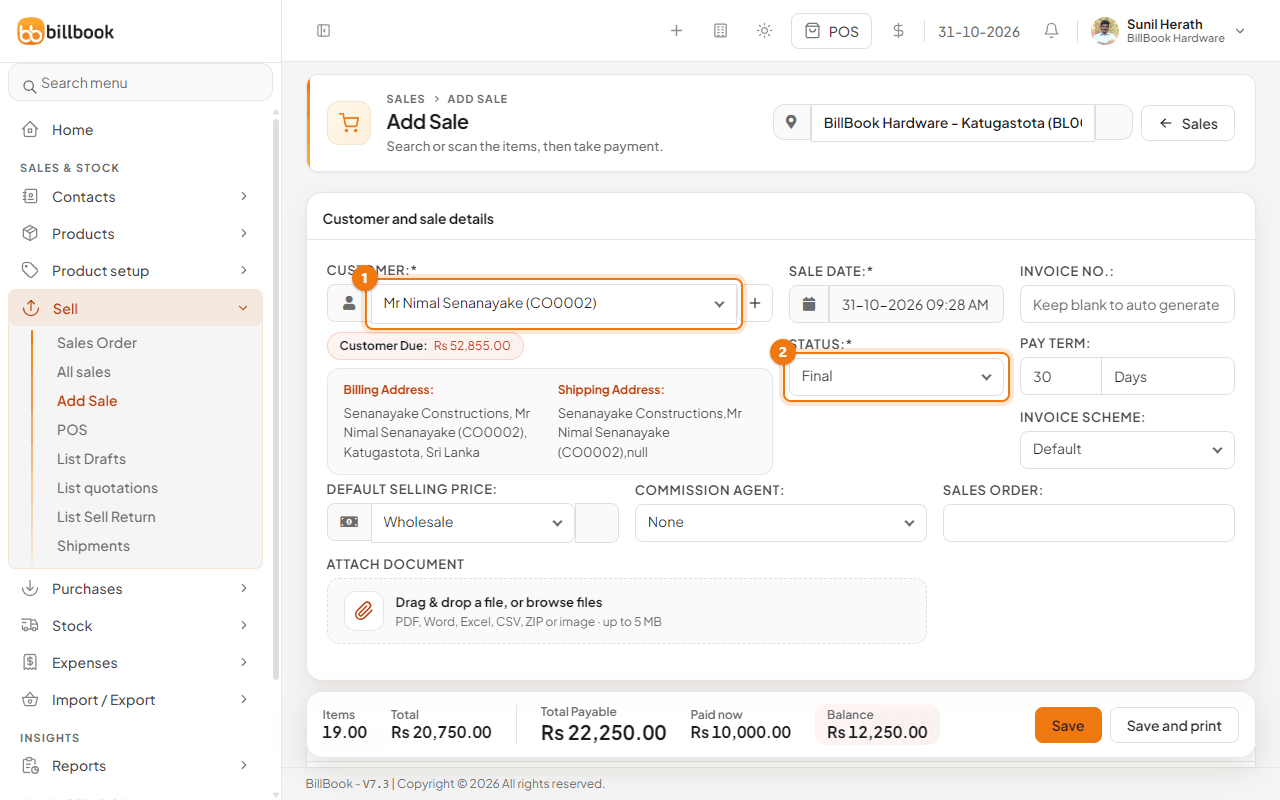
- Go to Sell > Add Sale. Check the business location at the top, for example BillBook Hardware - Katugastota.
- Choose the Customer (1). Their price group and pay term fill in. For a contractor in the Wholesale price group, Default Selling Price changes to Wholesale and the unit prices follow it. If the customer owes you money, Customer Due shows under the name.
- Set Status (2) to Final. Choose Draft, Quotation or Proforma instead if the invoice is not final yet.
- Leave Invoice No. empty to let BillBook number it, or type your own. Change Sale Date or Pay Term if needed.
- In the product box (1), type a product name, SKU or scan a barcode. Choose the item from the list. Repeat for every item, for example Stanley Claw Hammer 16oz, Ingco Measuring Tape 5m, Philips LED Bulb 9W B22 and S-lon PVC Pipe 1" Type 1000.
- Change the Quantity (2) of each line. You can also change the unit price or add a discount on a line. The total updates as you type.
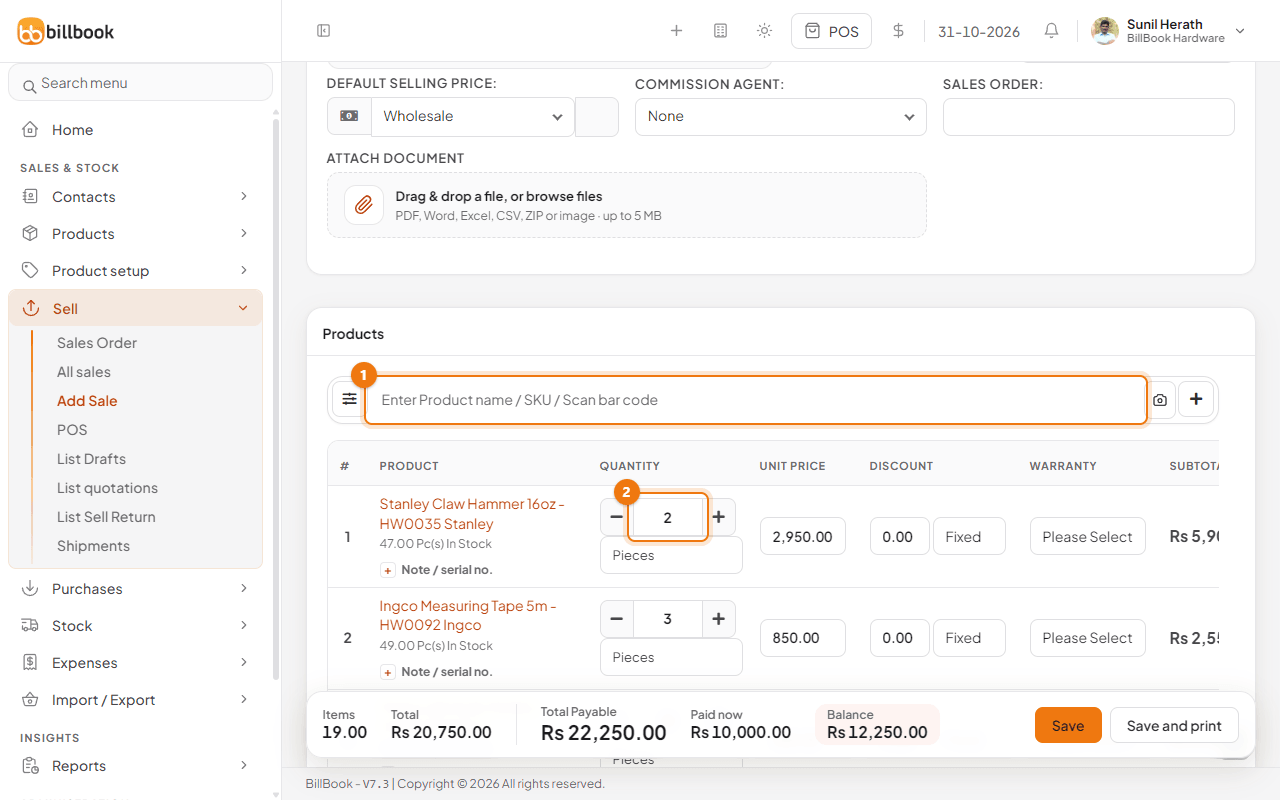
Note: Some items, such as cement, are sold in a larger unit (for example 10 Bags) by default. Check the unit under the quantity before you save.
- Use Discount Type, Discount Amount and Order Tax under Discount, tax and extras if the whole invoice has a discount or tax.
- Under Add payment, enter the Amount (1) the customer pays now and choose the Payment Method. If the customer pays less than the total, the rest stays as the Balance and the sale shows as Partial. Leave it at 0 for a full credit sale.
- Select Save (2).
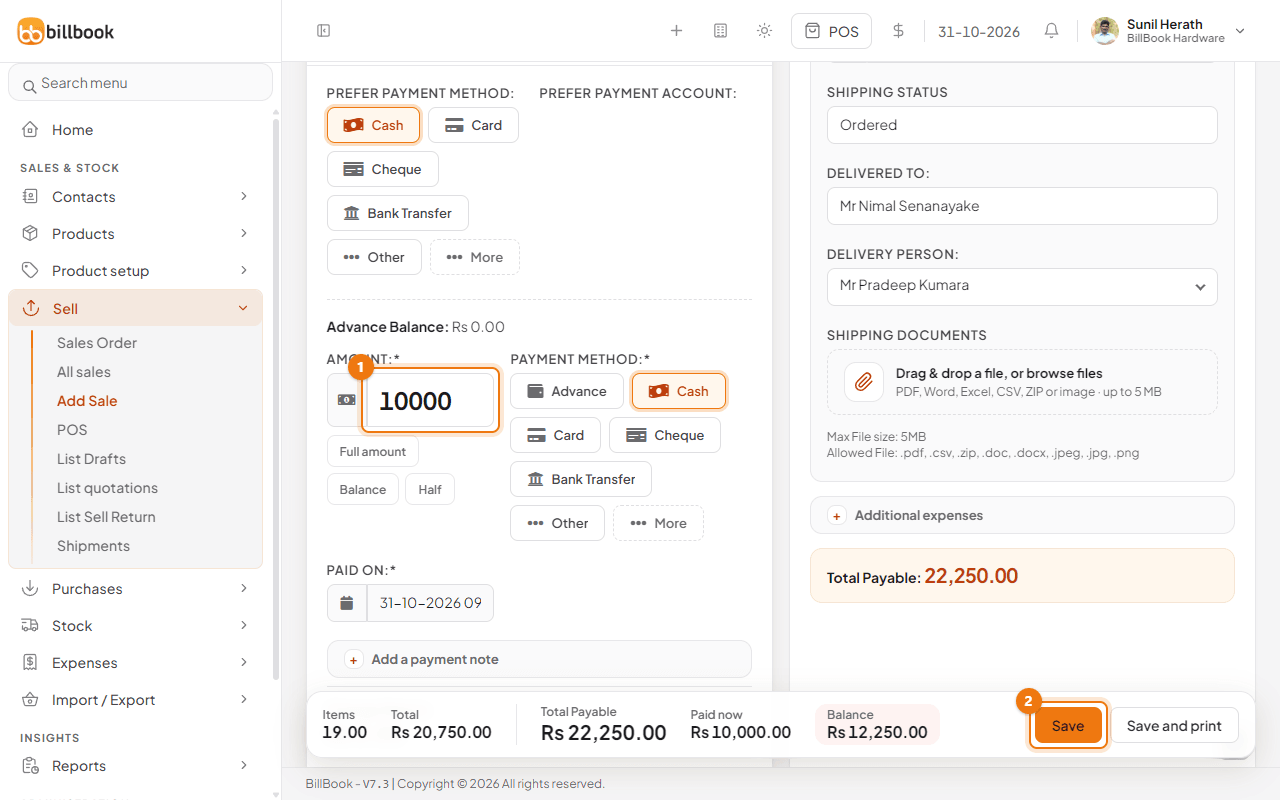
BillBook shows Sale added successfully and opens Sell > All sales, where the new invoice is at the top. Select Save and print instead if you want the invoice to open in the print window straight away.
Shipping details#
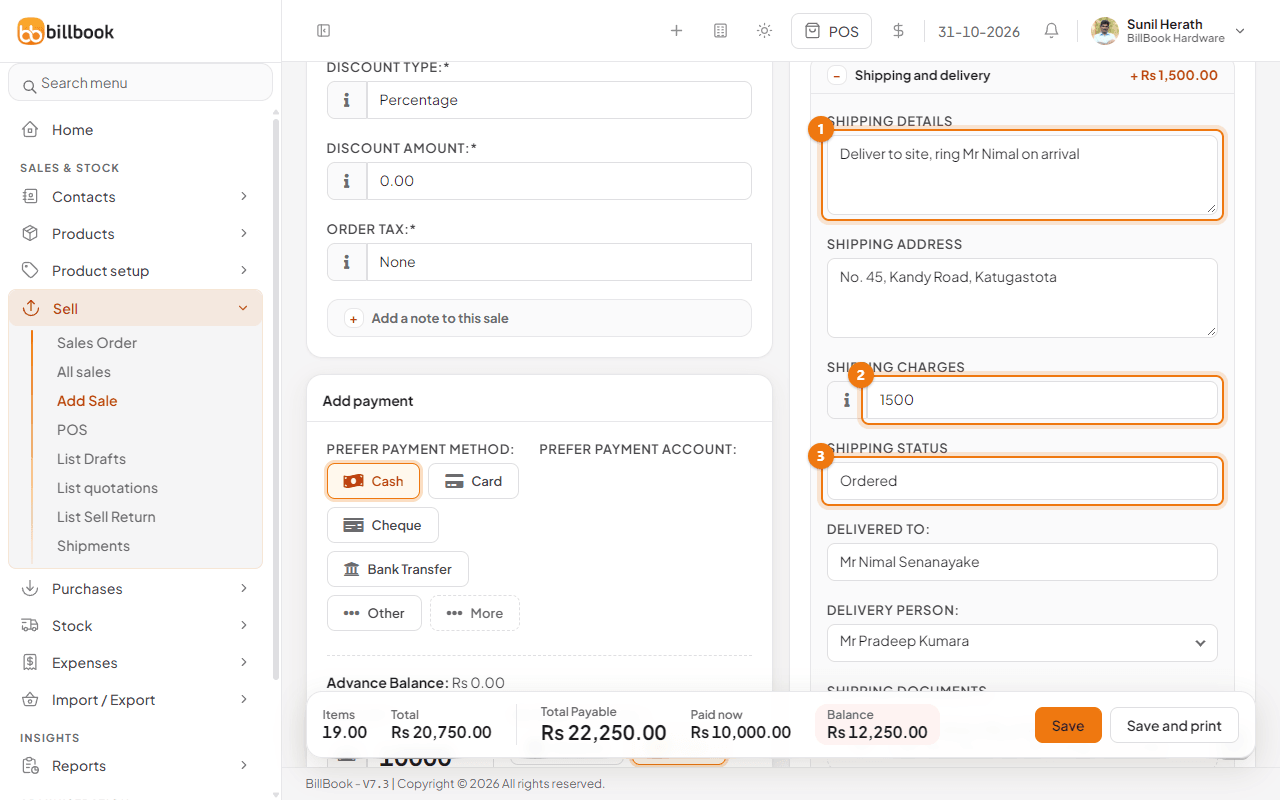
If you deliver the goods, fill in the Shipping and delivery box next to the payment.
- Type the Shipping Details (1), for example Deliver to site, ring Mr Nimal on arrival, and the Shipping Address.
- Enter Shipping Charges (2). The charge is added to the total payable.
- Choose the Shipping Status (3): Ordered, Packed, Shipped, Delivered or Cancelled.
- Fill in Delivered To and choose the Delivery Person from your users. You can attach Shipping Documents (PDF, Word, Excel or an image, up to 5 MB).
You can update the shipping status later without editing the whole sale. See Shipments.
A4 or A5 paper#
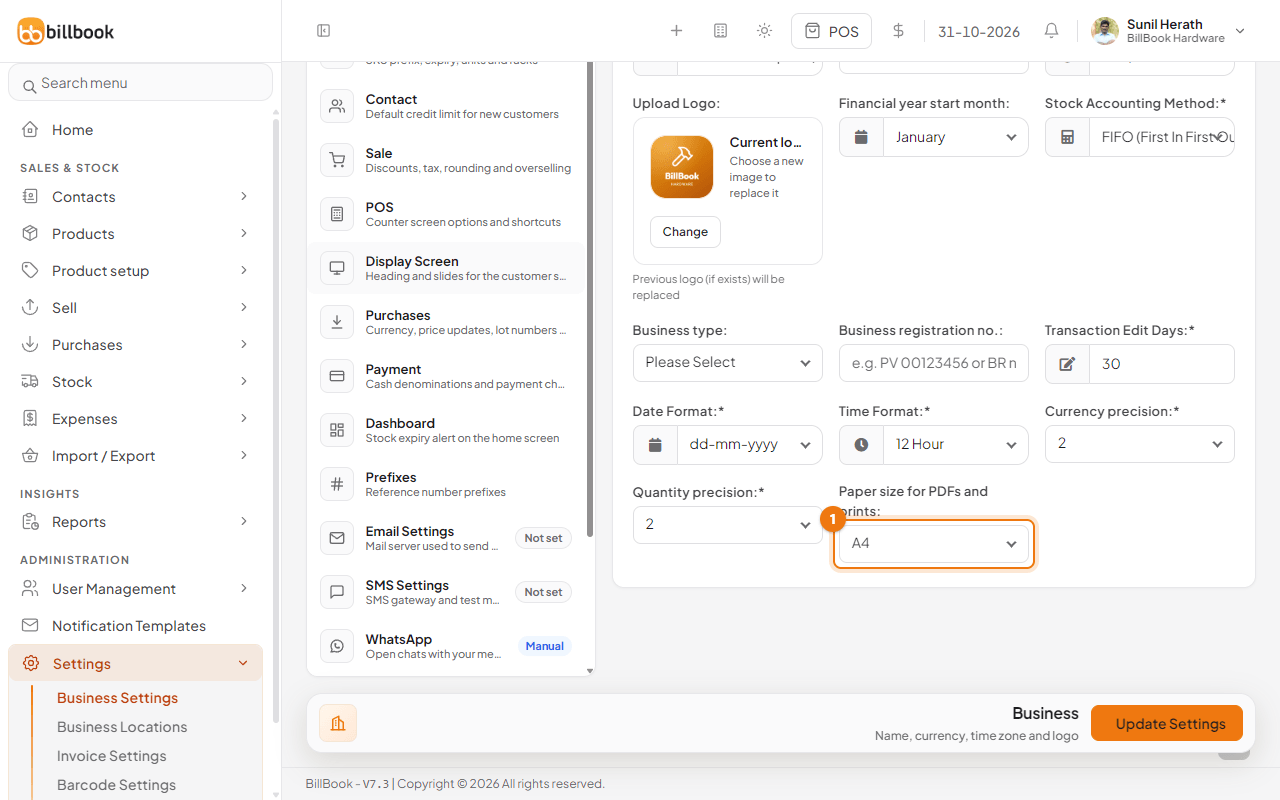
Documents that BillBook makes as PDFs and prints, such as invoices, use one paper size for the whole business.
- Go to Settings > Business Settings and open Business.
- Under Paper size for PDFs and prints (1), choose A4 or A5. Choose A5 if you print on half sheets.
- Select Update Settings.
The layout of the printed invoice, such as the logo, columns and footer, is set under Settings > Invoice Settings.