
Expense refunds
Last updated: 7 November 2026 · 1 min read
Sometimes a supplier gives money back, for example the electricity board refunds an overcharge. Record it as an expense refund so your expenses and profit stay correct.
Before you start: Record the refund in the same way as an expense. The steps are in Record expenses.
Add an expense refund#
- Go to Expenses > Add Expense.
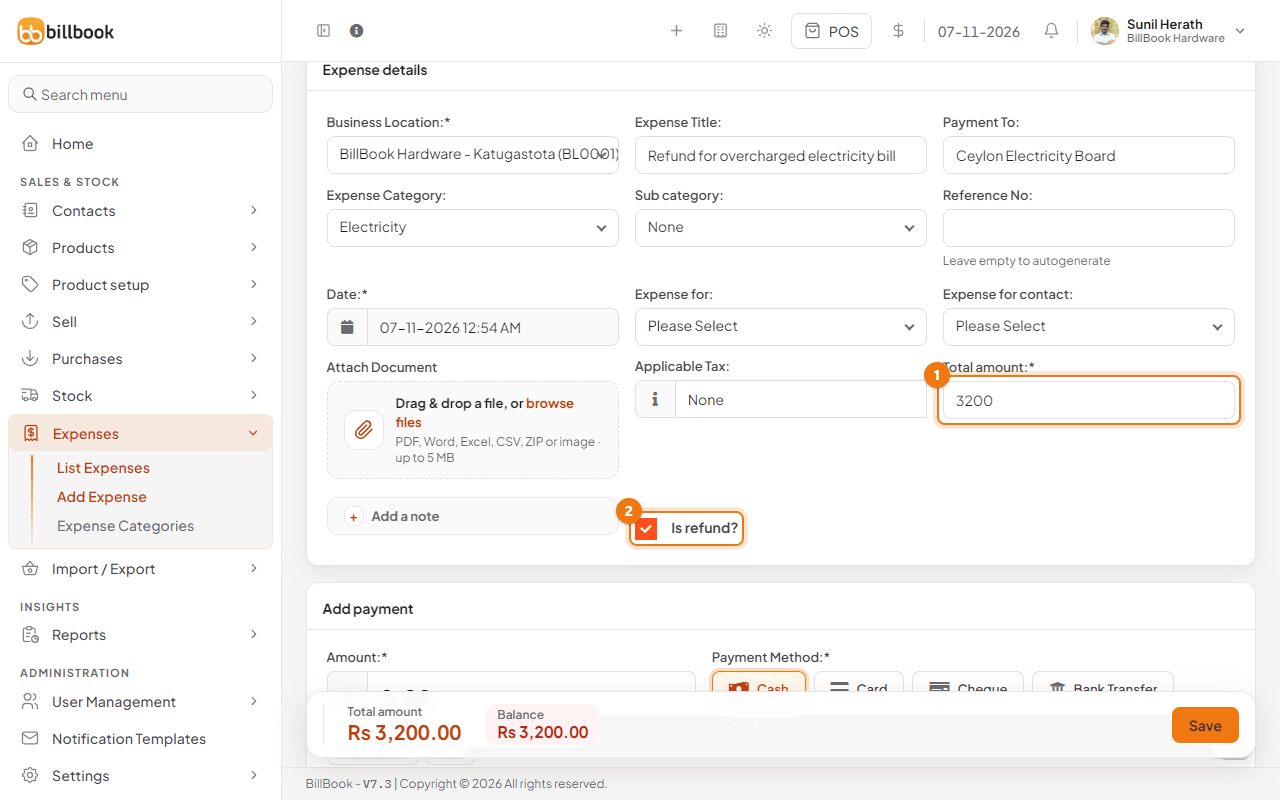
- Choose the Business Location, the Expense Category (for example Electricity) and enter a title such as Refund for overcharged electricity bill.
- Enter the refund in Total amount (1), for example 3,200.00.
- Tick Is refund? (2).
- Under Add payment, select Full amount, choose the Payment Method by selecting its button and select Save.
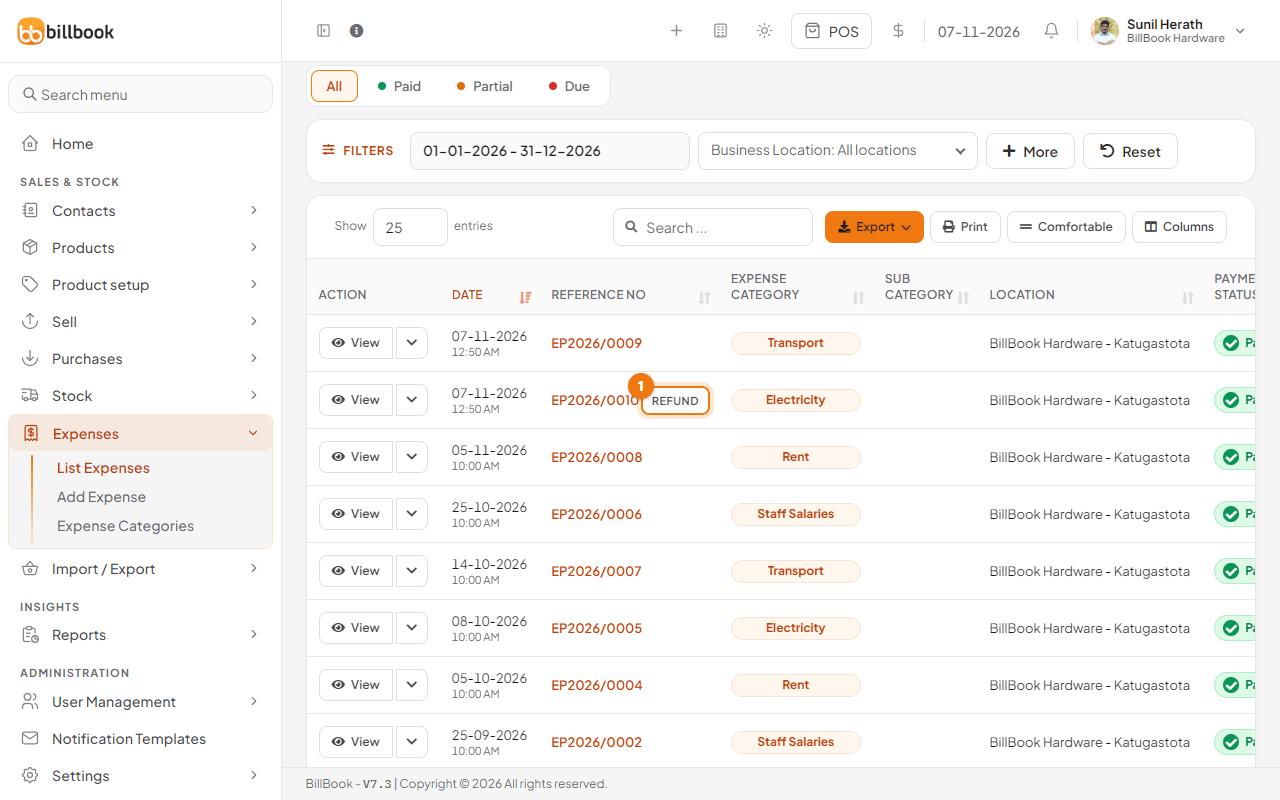
BillBook shows Expense added successfully. In Expenses > List Expenses the refund has a REFUND label (1), and its amount shows with a minus sign, for example - Rs. 3,200.00.
Effect on net profit#
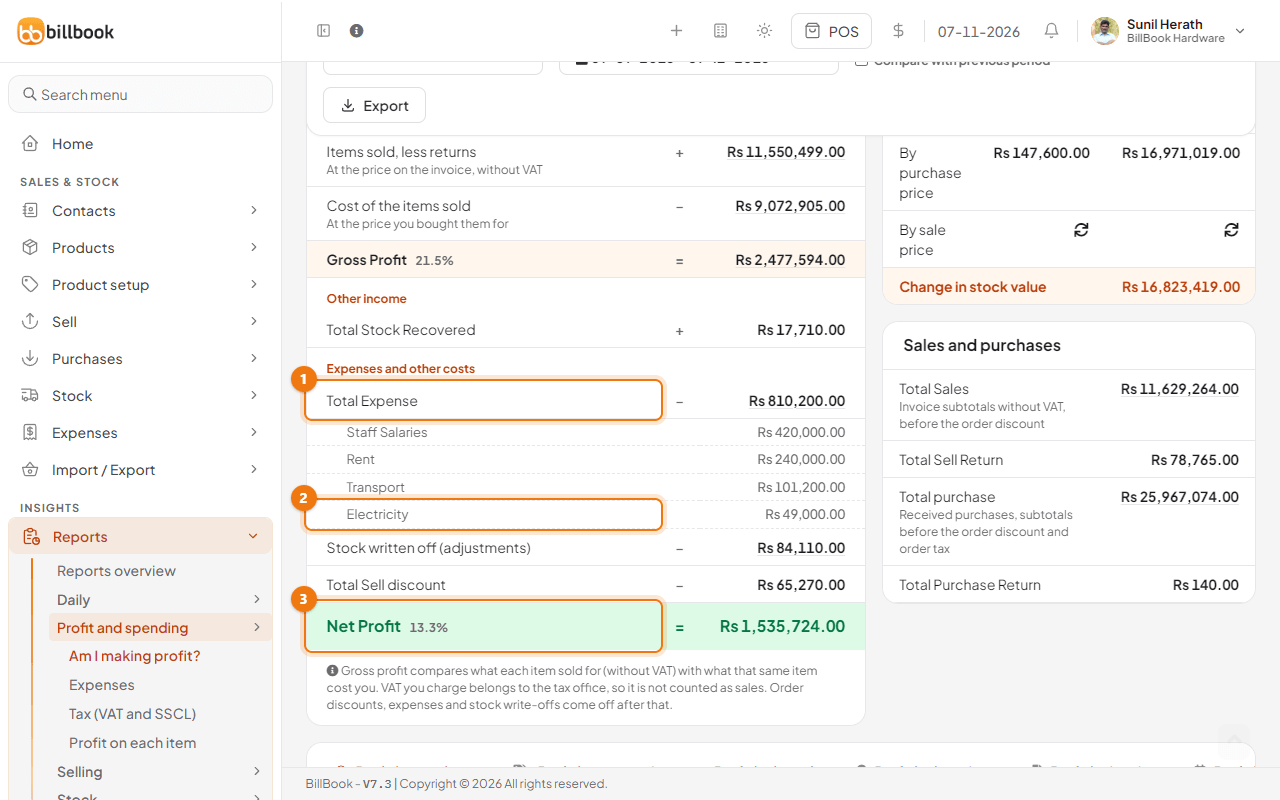
A refund works against the expense. It lowers your total expenses for that category, so your Net Profit goes up by the same amount.
Open Reports > Profit and spending > Am I making profit?, which shows the Profit & Loss Statement. Under Expenses and other costs, Total Expense (1) includes the refund: Electricity (2) is lower by Rs. 3,200.00, and in this example shows Rs. 49,000.00. Net Profit (3) is higher by the same Rs. 3,200.00.
Note: Use Is refund? only for money you receive back. For a normal cost, leave it unticked.