
Purchase returns
Last updated: 7 November 2026 · 3 min read
Use a purchase return when you send goods back to a supplier, for example damaged cement bags or wire that is the wrong size. BillBook takes the goods out of your stock and reduces what you owe the supplier, or tracks the refund they owe you.
Return against a purchase#
Do this when you still have the original purchase in BillBook.
- Go to Purchases > List Purchases.
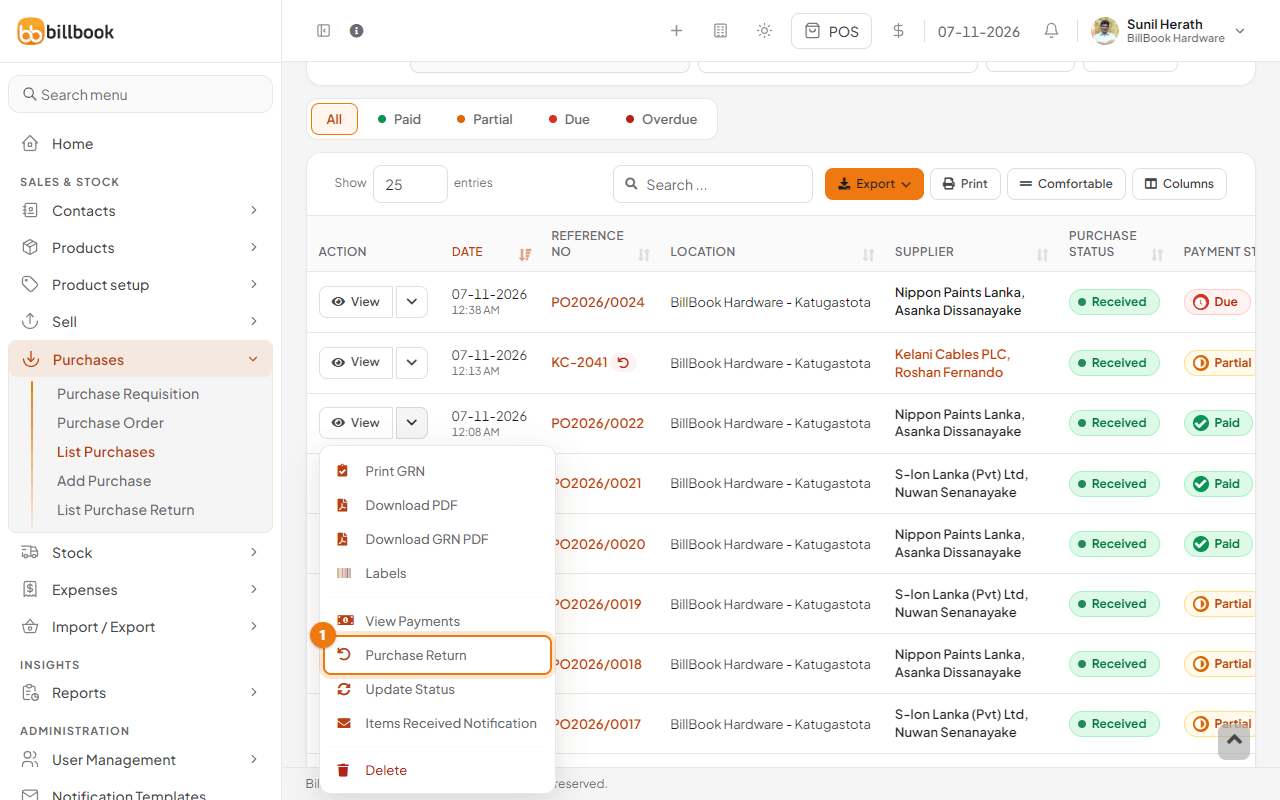
- Select the arrow next to View on the purchase's row, then Purchase Return (1). You can also select Purchase Return inside the purchase's View window.
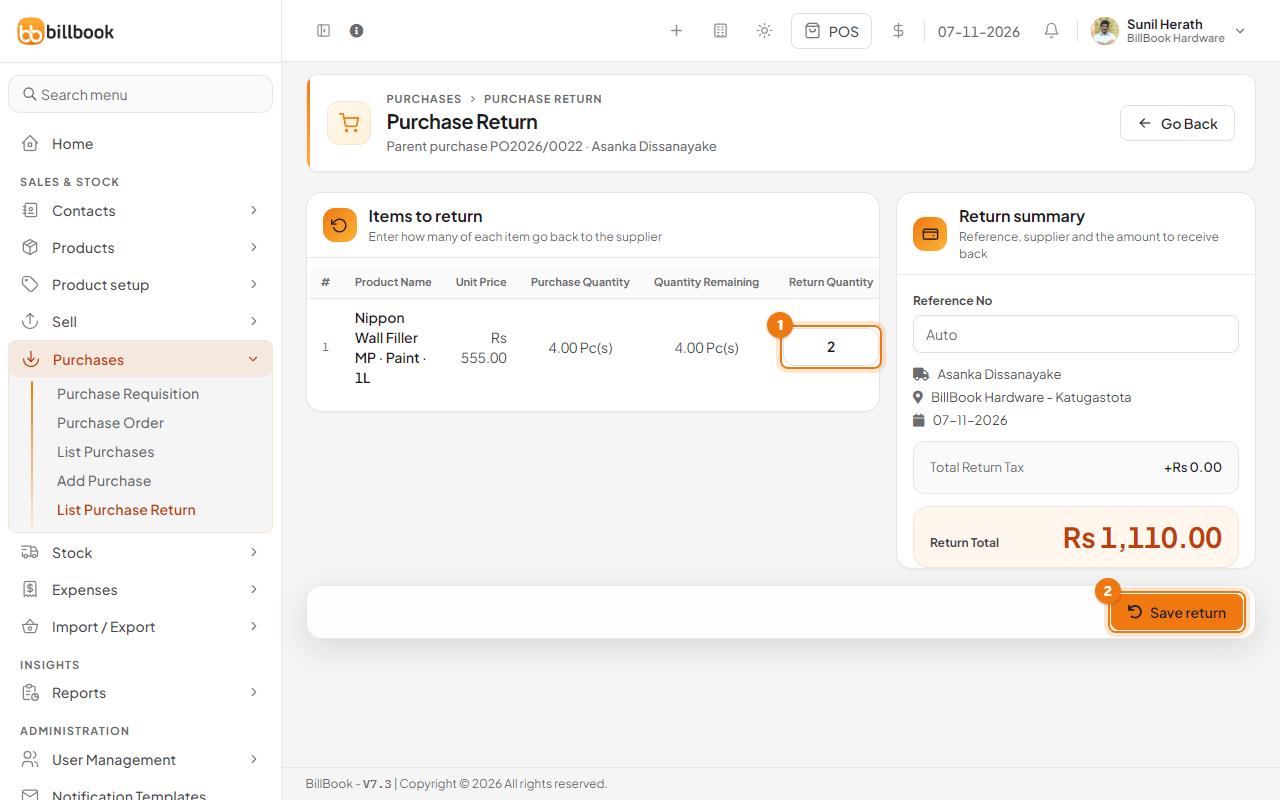
- The Purchase Return screen shows the parent purchase and lists its lines with the Purchase Quantity and Quantity Remaining you can still return.
- Enter the Return Quantity (1) for each product going back, for example 2 pcs. The Return Total updates. If the table is wider than the screen, scroll it sideways to reach the box.
- Leave Reference No as Auto or type your own, then select Save return (2).
BillBook shows Purchase return added successfully. The return appears in Purchases > List Purchase Return, linked to its Parent Purchase. A return arrow also appears beside the purchase's reference number in List Purchases.
Return without an invoice#
Use this when you no longer have the purchase in BillBook, or the goods came from a supplier you did not record.
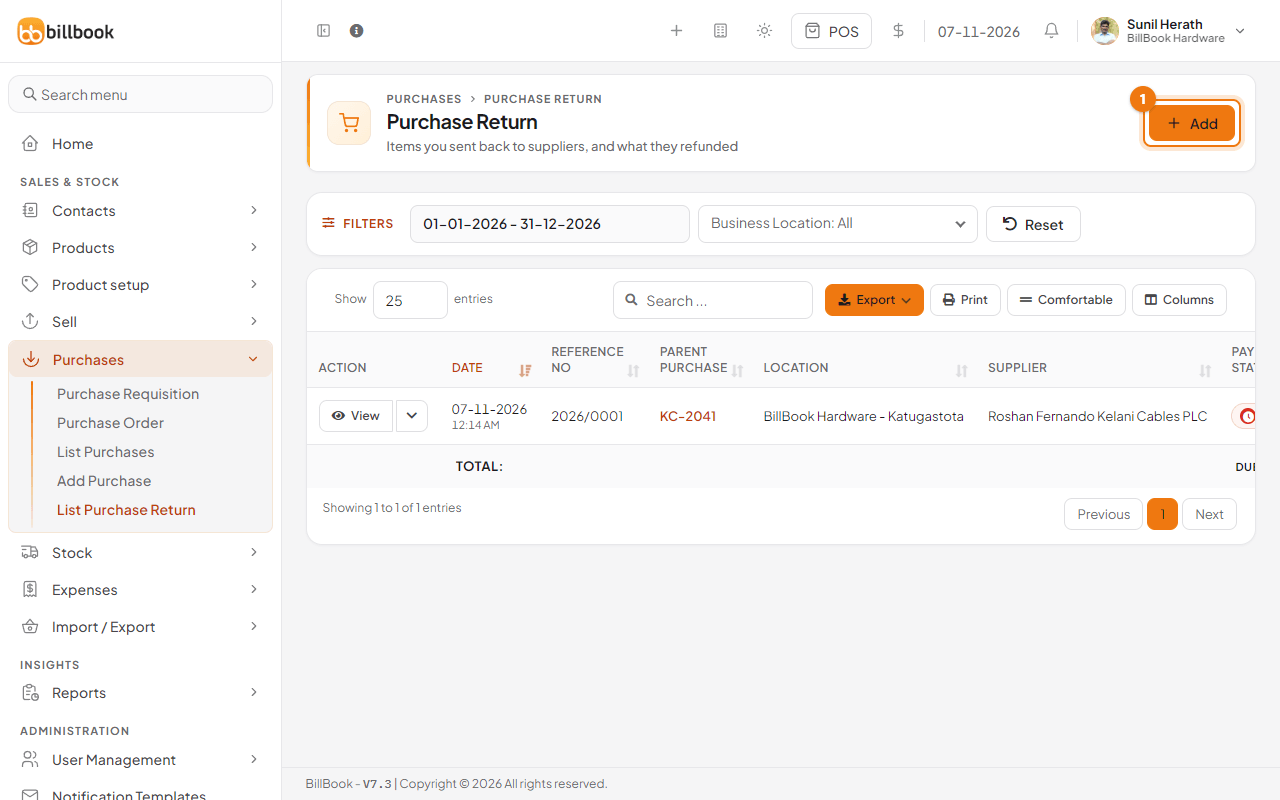
- Go to Purchases > List Purchase Return and select Add (1).
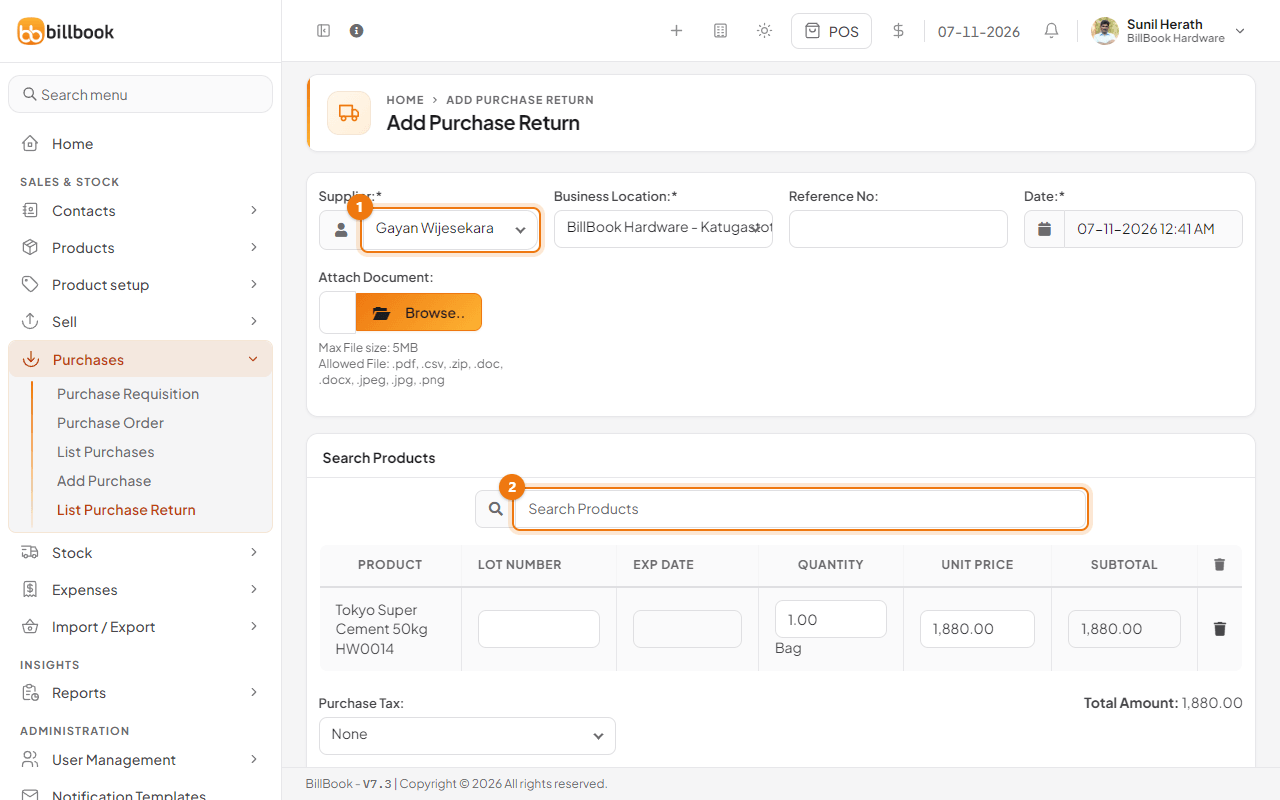
- Choose the Supplier (1) and the Business Location the goods are leaving.
- Search for each product in Search Products (2) and pick it. It is added to the table below, where you enter the quantity and the Unit Price you want credited.
- Add a Purchase Tax if needed. Select Submit at the bottom of the screen.
The return is saved with its own number, such as 2026/0002.
Supplier refund#
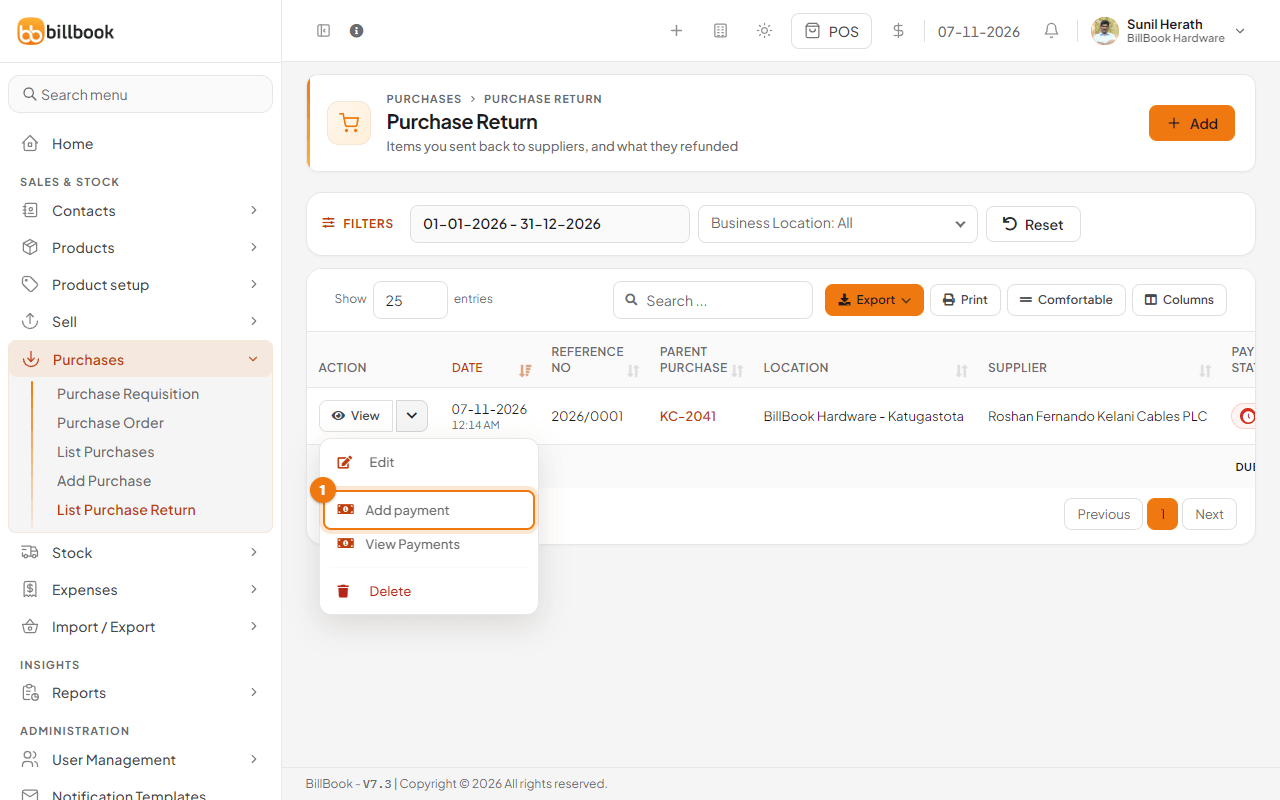
A new return shows Due under Payment Status. That means the supplier has not yet refunded you. When they pay you back, record it:
- On Purchases > List Purchase Return, select the arrow next to View on the return, then Add payment (1). View Payments in the same menu lists what has been recorded.
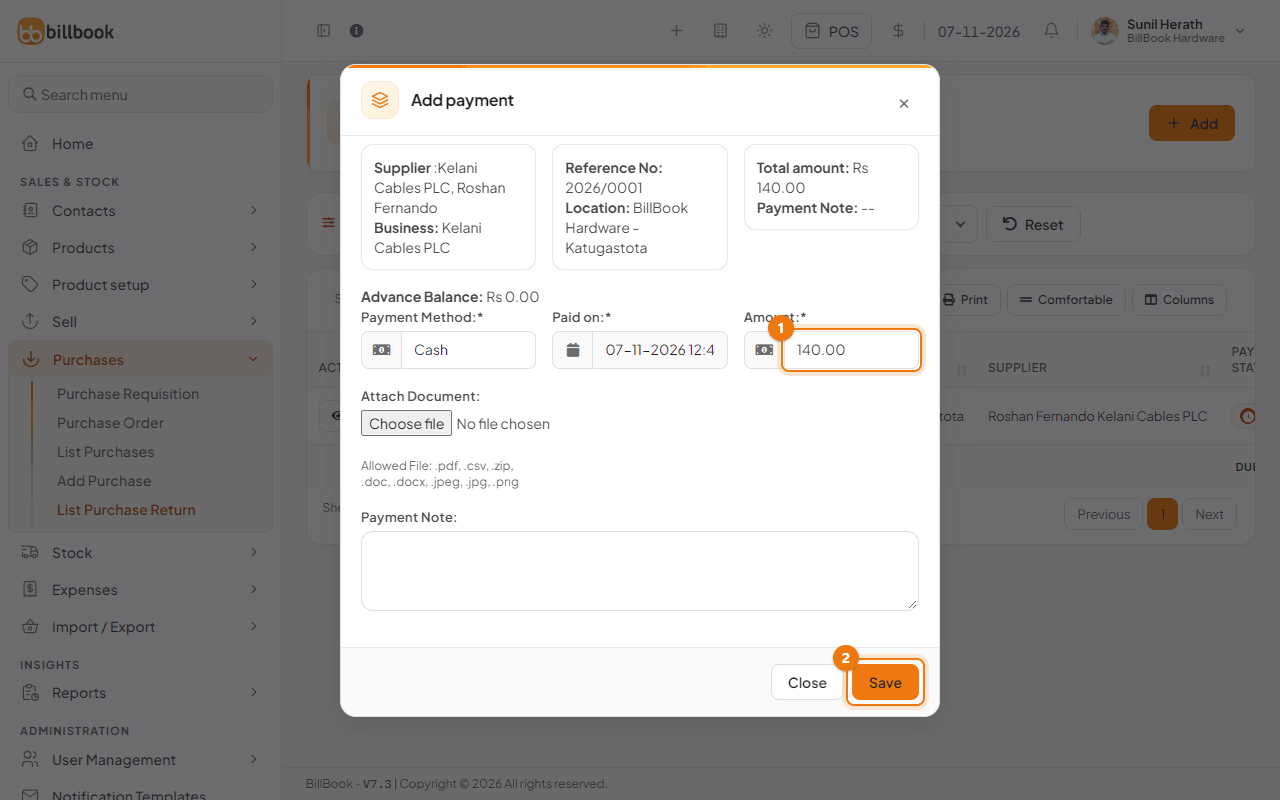
- Check the Amount (1), which starts as the full return total, the Payment Method and the date.
- Select Save (2).
The status changes to Received once the whole refund is recorded. If the supplier gives you a credit note instead of money, leave the return as Due and the supplier's return balance stays visible under Contacts > Suppliers.
Effect on stock#
- Stock goes down at the business location by the returned quantity as soon as you save the return.
- You can only return up to the Quantity Remaining on the purchase.
- Deleting a return from its row menu puts the stock back.
- To change a return, select Edit in its row menu on Purchases > List Purchase Return.