
Turn features on or off (modules)
Last updated: 6 November 2026 · 3 min read
Modules are the big features of BillBook. If your shop never uses bookings or recurring invoices, switch that module off and its menus and screens go away, so your team sees only what they use.
Before you start: You need permission to open Settings. Turning a module off hides its screens. It does not delete any data, so switching it on again brings everything back.
What each module toggle does#
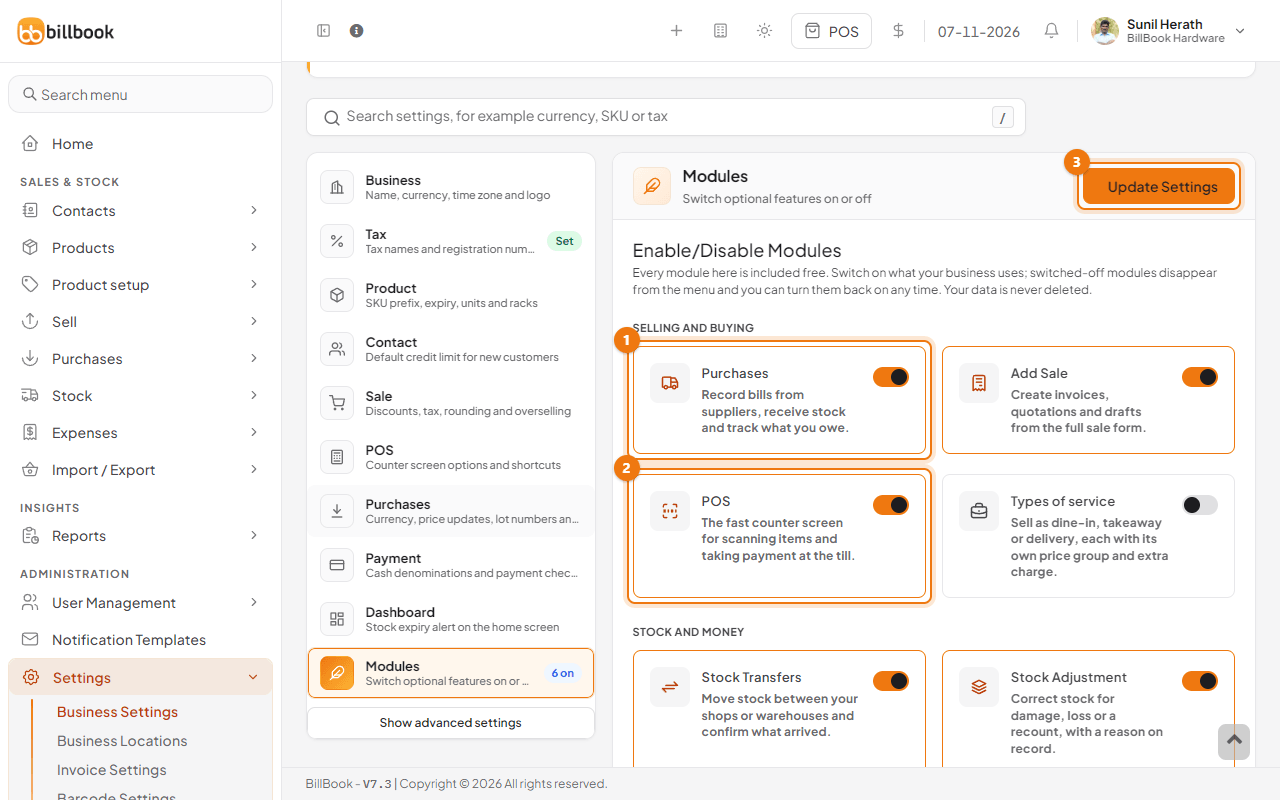
The Modules tab shows 14 cards, each with a short description and a switch. They are grouped as Selling and buying, Stock and money and Restaurant and service.
| Module | What it does | Hidden when off | |---|---|---| | Purchases | Record purchases, purchase orders, requisitions and returns | The Purchases menu | | Add Sale | The full invoice screen, drafts and quotations | Add Sale, List Drafts and List quotations under Sell | | POS | The cash counter screen | Sales counter under Sell and the POS button at the top | | Stock Transfers | Move stock between your locations | Stock Transfers under Stock | | Stock Adjustment | Write off or correct stock | Stock Adjustments and Stock count under Stock | | Expenses | Record shop costs | The Expenses menu | | Account | Payment accounts, cash flow and balance sheet | The Accounts menu and the account reports | | Tables | Restaurant tables | Tables under Settings | | Modifiers | Add-ons for restaurant and salon items | Modifiers under Settings | | Service staff | Assign a waiter or stylist to a sale | The Orders menu | | Enable Bookings | Table and appointment bookings | The Bookings menu | | Kitchen (For restaurants) | A kitchen order screen | The Kitchen menu | | Enable Subscription | Recurring invoices | Subscriptions under Sell | | Types of service | Dine in, take away or delivery, with packing charges | Types of service under Settings |
A hardware or grocery shop usually needs Purchases, Add Sale, POS, Stock Transfers, Stock Adjustment, Expenses and Account, and Types of service if it delivers. Restaurants and salons add Tables, Modifiers, Service staff, Enable Bookings and Kitchen. See Turn on restaurant and salon features.
Turn a module on#
- Go to Settings > Business Settings and open the Modules tab. The tab shows how many modules are on, for example 6 on.
- Switch on the card you want, for example Purchases (1) or POS (2). A switched-on card has an orange border.
- Select Update Settings (3) at the top right of the card.
Scroll down to Restaurant and service for the rest. Switch on Enable Subscription (1) to use recurring invoices, then select Update Settings.
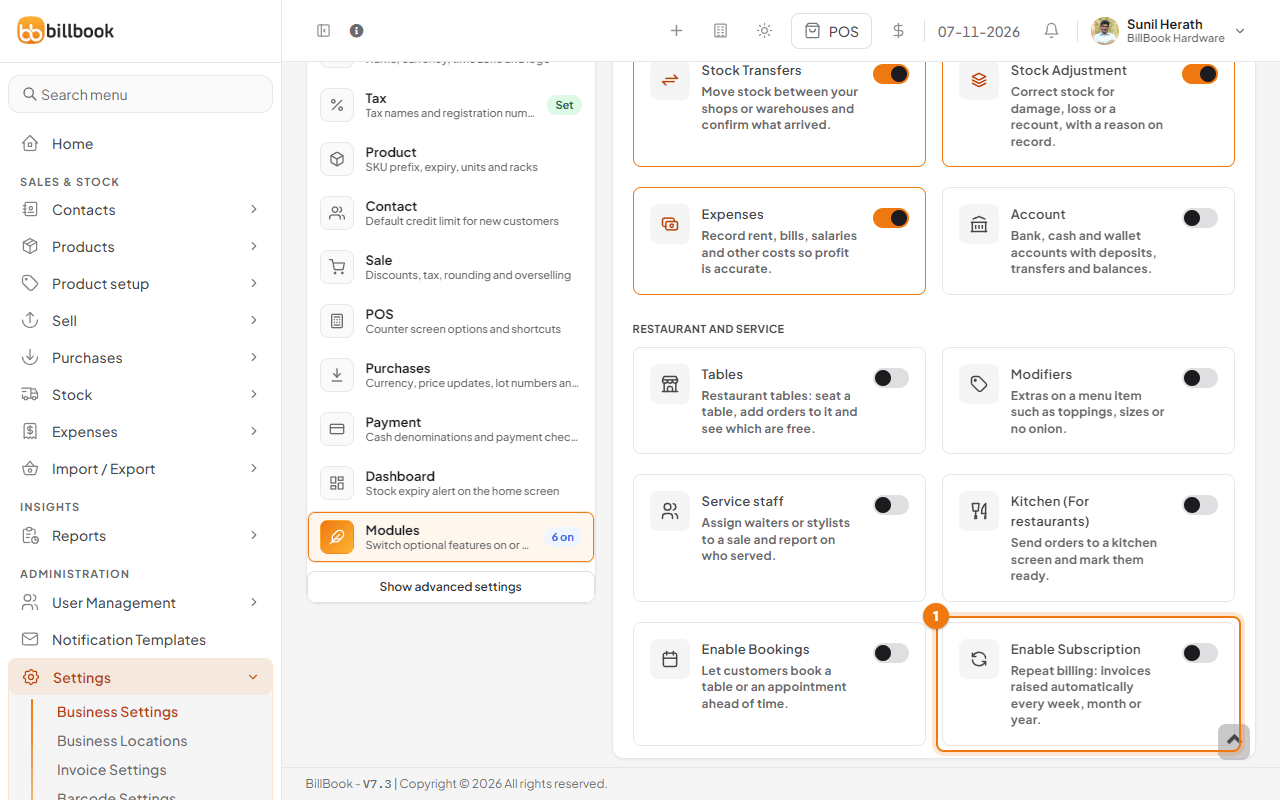
BillBook saves the setting and the new menu appears after the page reloads. Some modules also need a permission on the user's role before the menu shows; see Roles and permissions.
What hides when it is off#
Switch a module off and select Update Settings. The menu items in the table above disappear for everyone, and so do their buttons on other screens. For example, with POS off the POS button at the top is gone.
The pages themselves are closed too, not only hidden. If someone opens one from an old bookmark or link, BillBook shows Feature switched off, with a reminder to turn it on here.
Tip: Switch a module off only when you are sure nobody uses it. Your records stay in the system, and the module's reports are hidden until you switch it on again.