
Drafts, quotations and suspended sales
Last updated: 7 November 2026 · 4 min read
Not every sale is finished on the spot. A builder asks for a price before he buys, a customer wants to think it over, or someone leaves the counter to fetch cash. BillBook lets you save the sale and come back to it.
Before you start: A draft or quotation does not take stock off your shelves and does not record any payment. Only a finished invoice does.
Save a draft#
A draft is a sale you started but have not finished, for example a list you are still building for a customer.
- Go to Sell > Sales counter, choose the customer and add the items.
- Select the ... button (1) next to Card. This opens the More menu. Under Save as, select Draft (2). You can also press shift+d.
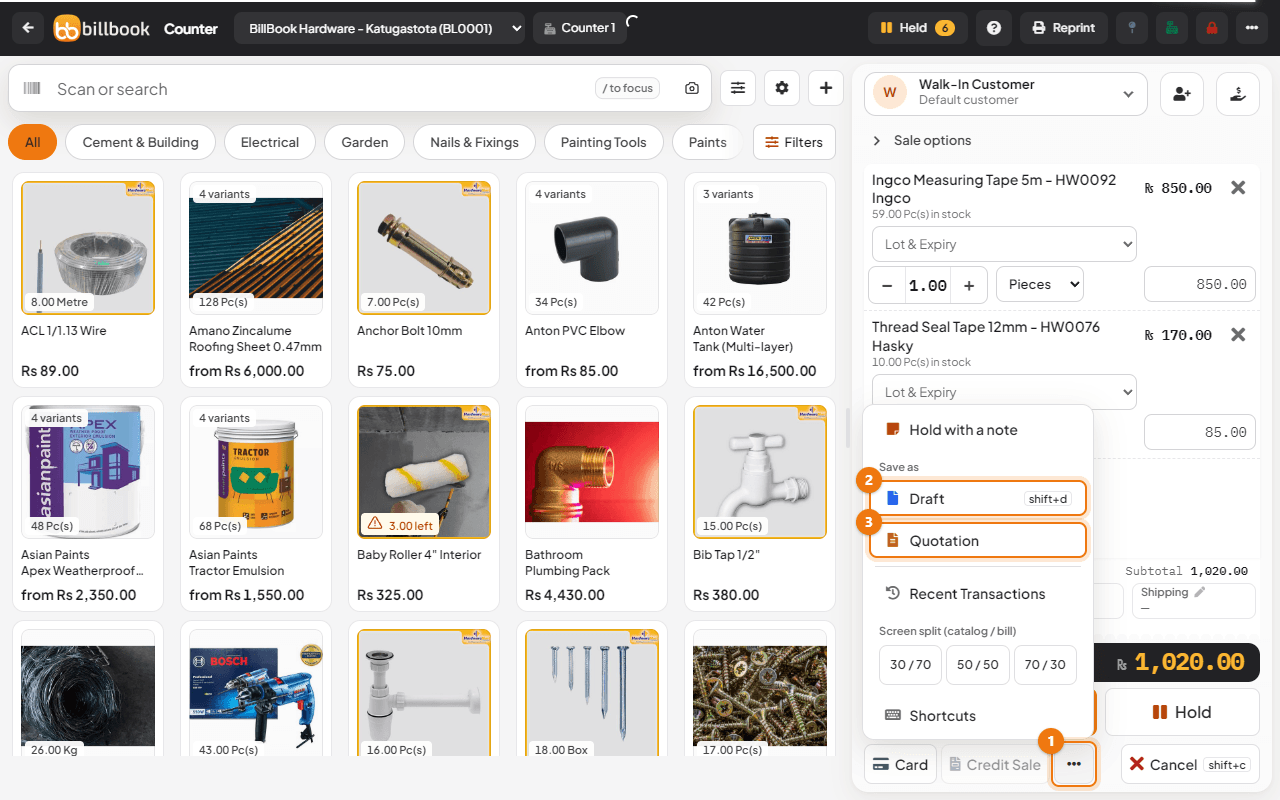
BillBook shows Draft added successfully. To work on it later, go to Sell > List Drafts, open the arrow next to View on its row and select Edit.
Create a quotation#
A quotation is a price offer you give to a customer before they buy.
- In Sell > Sales counter, choose the customer and add the items.
- Select the ... button (1), then Quotation (3) under Save as.
BillBook shows Quotation added successfully and gives it a reference number such as 2026/0009. Find it under Sell > List quotations, where you can view, print or download it as a PDF.
A quotation can also be sent to the customer as a web link or a notification. Those options are covered in a separate page on sharing invoices.
Convert a quotation to an invoice or proforma#
When the customer says yes, turn the quotation into the real sale.
- Go to Sell > List quotations.
- On the quotation's row, select the arrow next to View.
- Select Convert to invoice (1). BillBook asks Are you sure ?. Select OK.
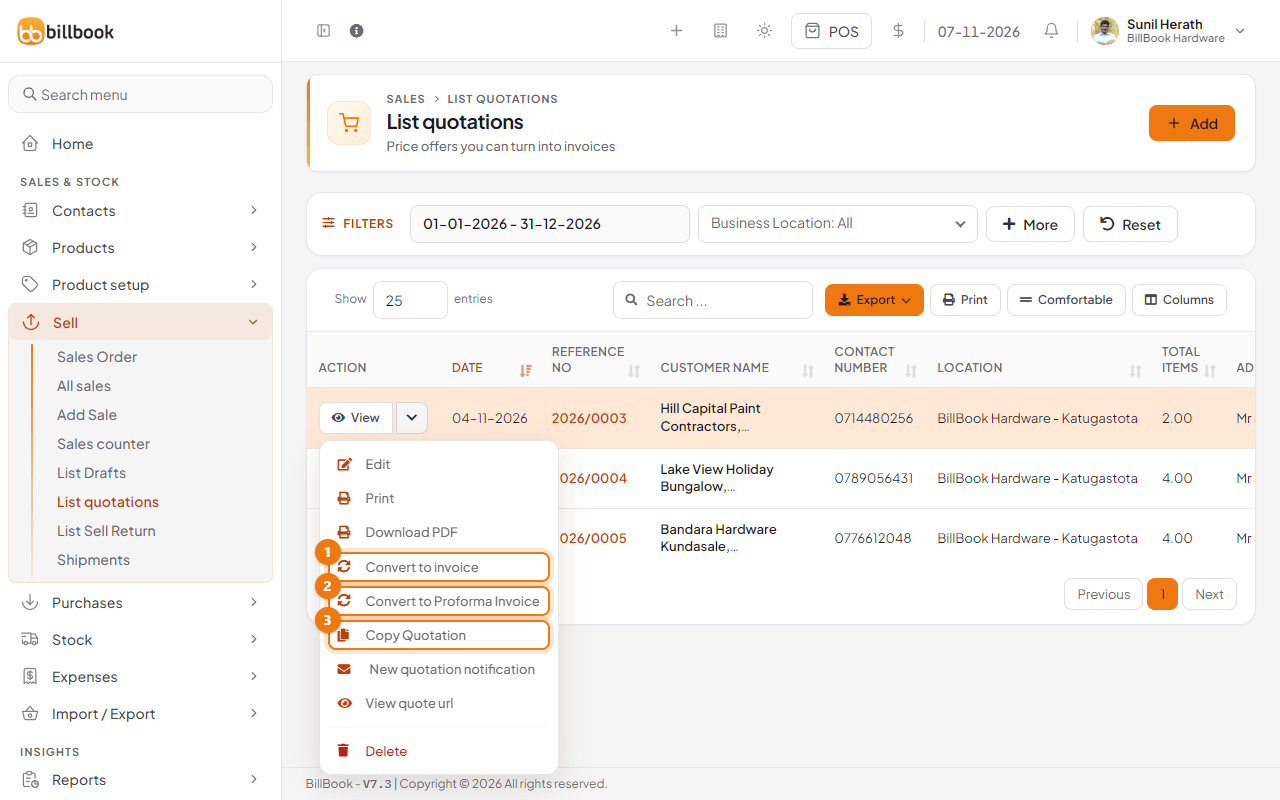
BillBook shows Converted to invoice 0237 successfully and opens All sales. The items now come off your stock. The register must be open, and a customer with a credit limit is checked against it, so you may see Customer Credit Limit Exceeded instead.
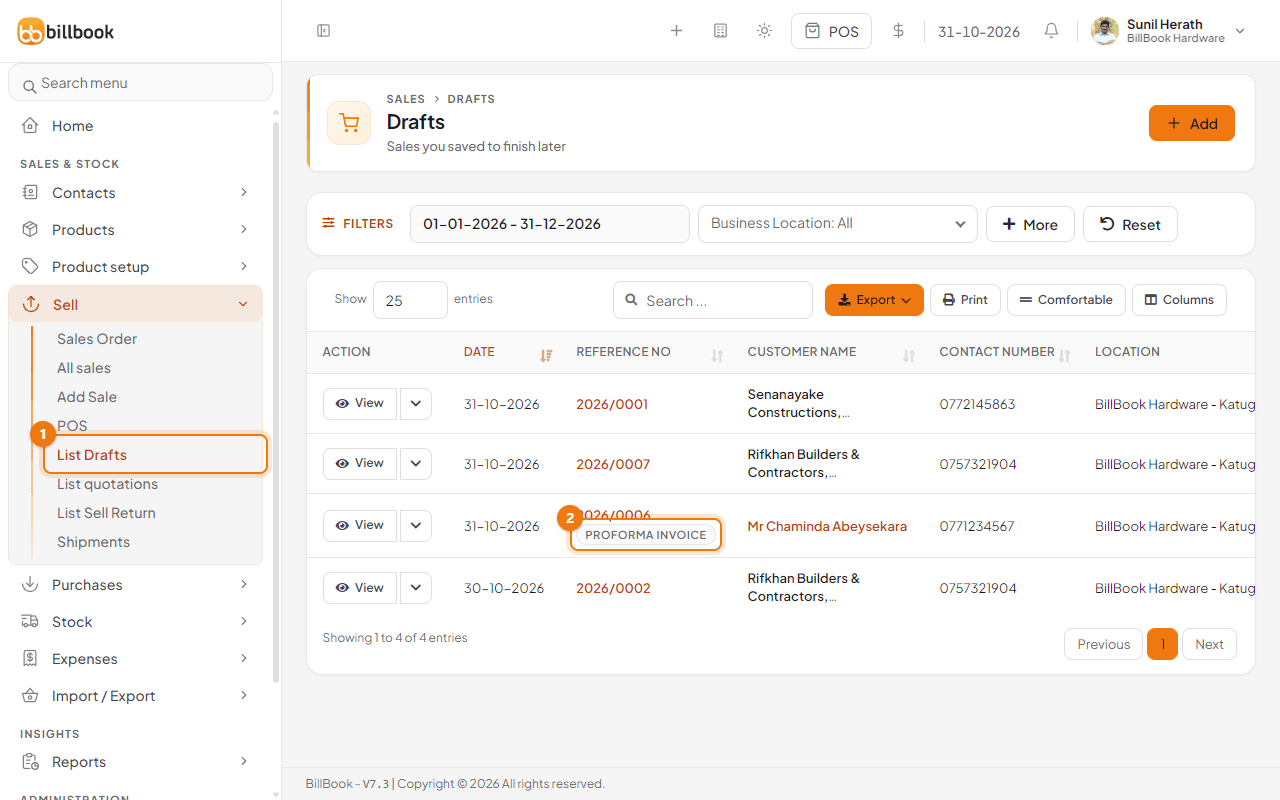
If the customer wants a proforma invoice first, a document they can use to arrange payment before you release the goods, select Convert to Proforma Invoice (2) instead. BillBook shows Converted to Proforma Invoice. The quotation leaves the quotation list and appears under Sell > List Drafts with a PROFORMA INVOICE label (2 in the picture below). It is still not a sale, so stock is not taken off yet.
Copy a quotation#
If another customer wants the same price list, or the same customer wants a changed version, copy the quotation instead of typing it again.
- Go to Sell > List quotations and select the arrow next to View on the quotation.
- Select Copy Quotation (3).
BillBook shows Quotation copied as and the new reference number, for example 2026/0008. The copy appears at the top of the list, and you can change it with Edit.
Hold and resume a sale#
Use Hold when a customer steps away. The sale waits in a list and the cashier can serve the next person.
- Add the items to the sale.
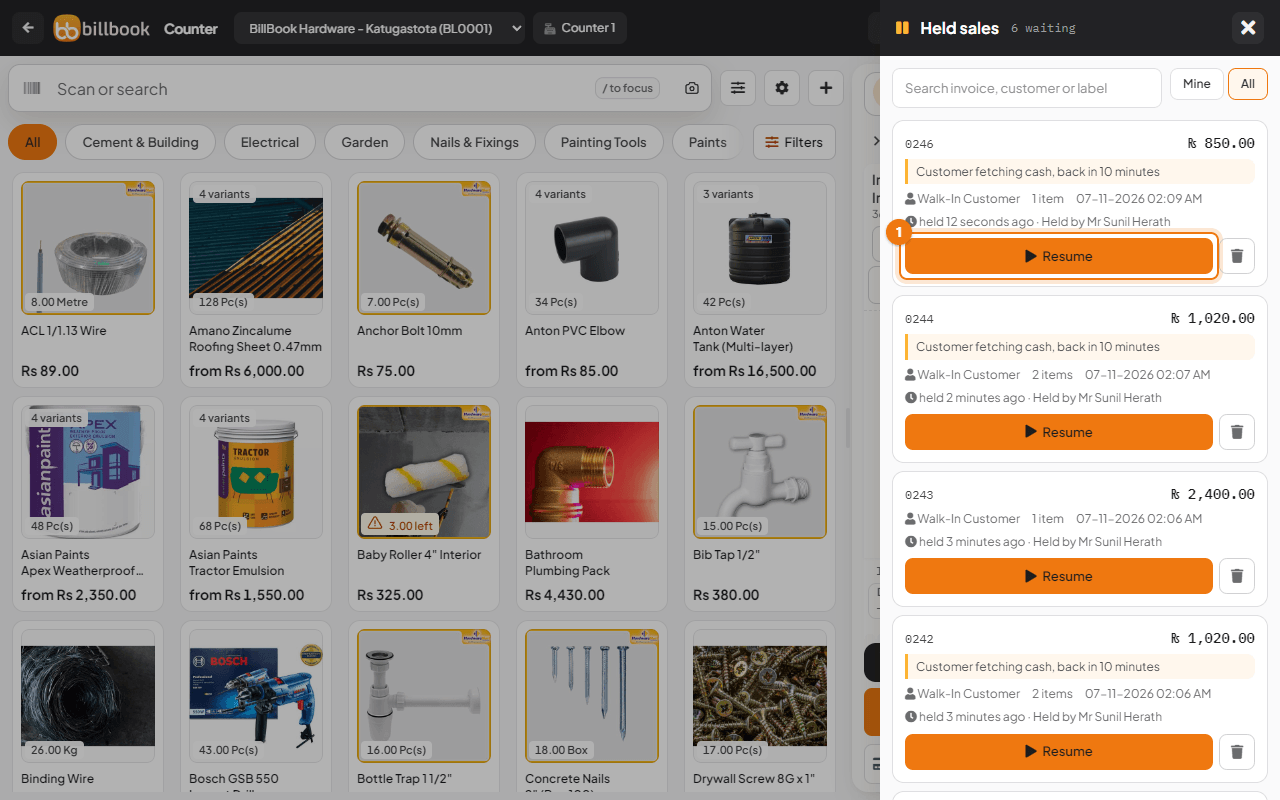
- Select Hold (2) beside Pay to hold it at once. To type a reminder such as Customer fetching cash, back in 10 minutes, select the ... button, then Hold with a note (1), and select Hold.
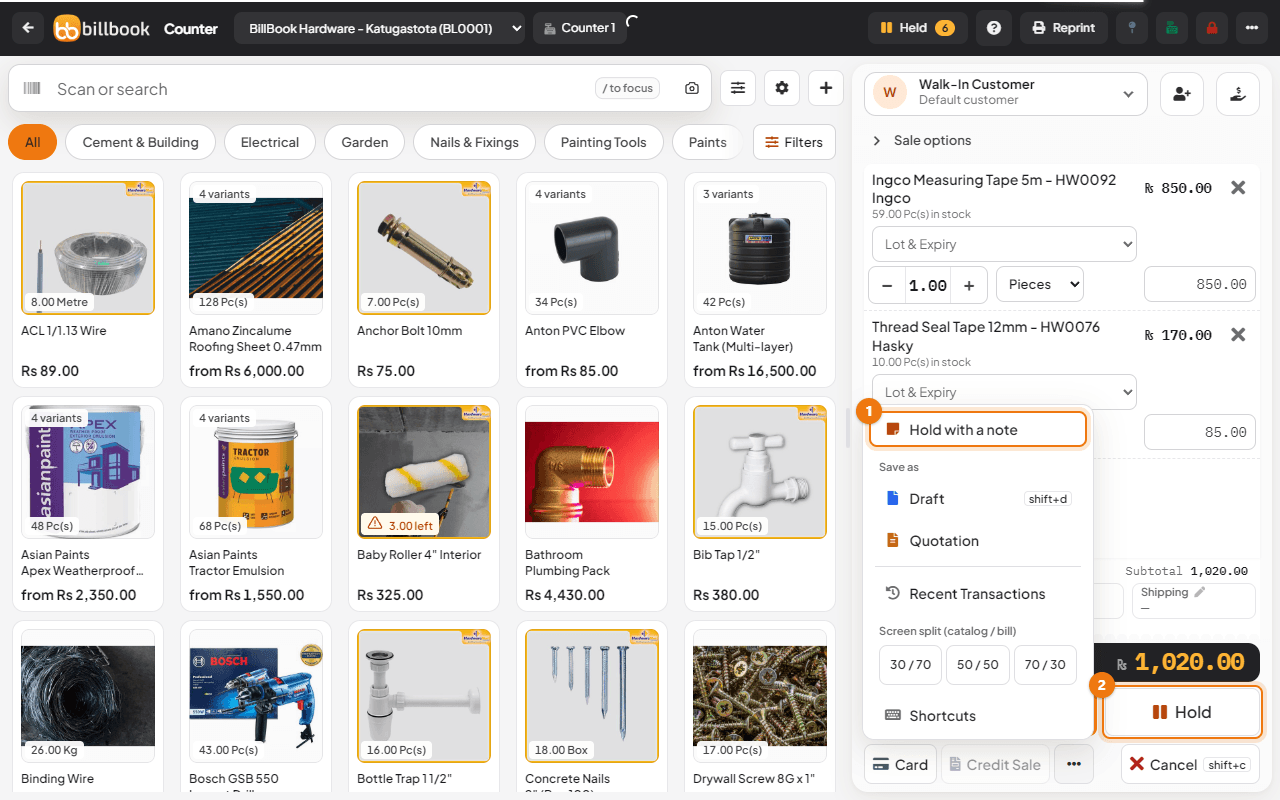
BillBook shows Sale held and clears the screen for the next customer. The Held button in the header shows how many sales are waiting. To bring one back:
- Select Held in the header. The Held sales panel lists each sale with its number, amount, customer, number of items, your note and who held it.
- Select Resume (1). The sale opens on the full POS screen with a Suspended label.
- Finish the sale as usual, for example with Pay.
A held sale is not a real sale yet. It takes no payment, adds nothing to your sales totals or what a customer owes, and cannot be returned. You can search the panel, switch between Mine and All, and delete a held sale with a reason. All of that is in Hold, resume and delete held sales.
Note: If you cannot see the hold buttons, the owner may have turned on Disable Suspend Sale on the POS tab in Settings > Business Settings. Likewise Disable Draft hides the Draft option.