
Take the Application Tour
Last updated: 7 November 2026 · 4 min read
The Application Tour dims the screen and lights one control at a time, with a short note about what it does. It is the quickest way for a new owner or cashier to learn the dashboard, the POS screen and the product form without reading a manual.
Before you start: Sign in to BillBook. You see only the chapters your role allows. For example, Make a sale needs permission to sell and the POS module, and the Dashboard chapter is for the owner or an admin.
Start the tour#
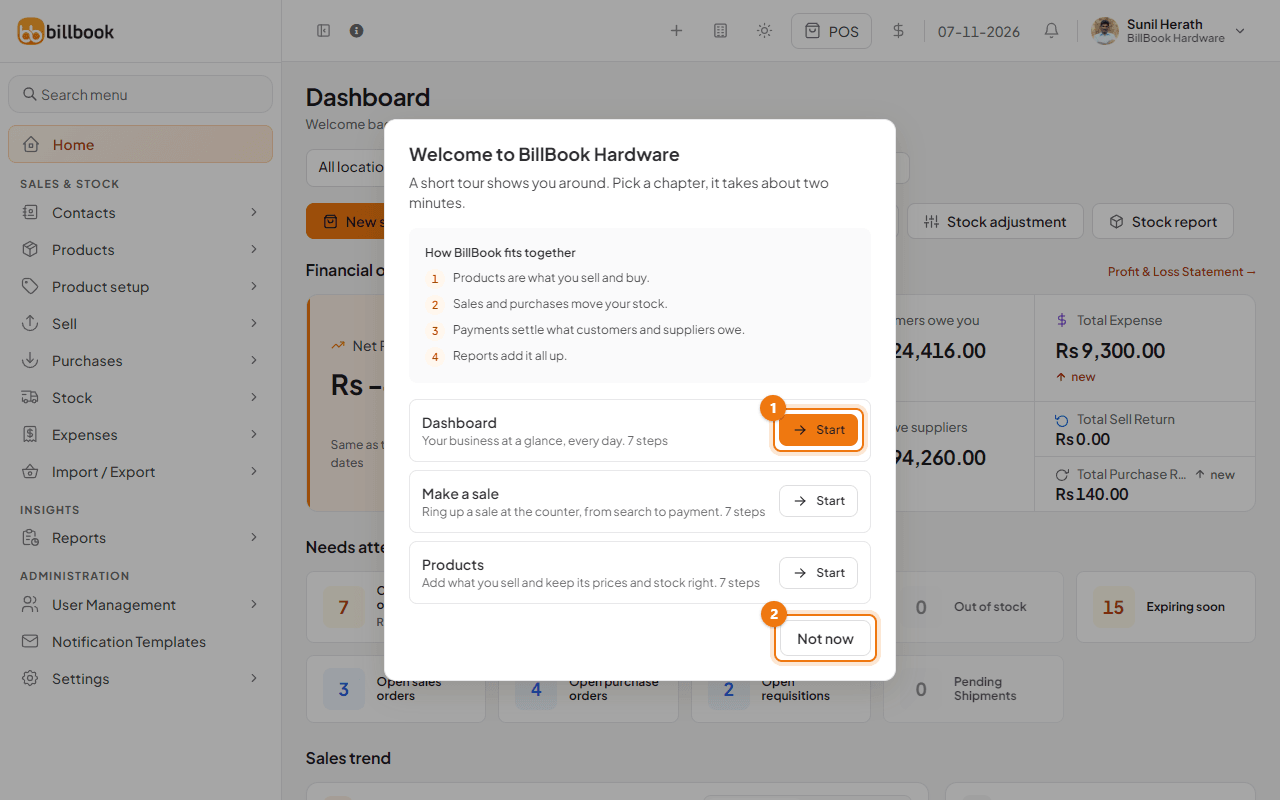
The first time you open the dashboard, BillBook shows a Welcome to window with your business name. It shows how BillBook fits together: products are what you sell and buy, sales and purchases move your stock, payments settle what customers and suppliers owe, and reports add it all up.
- Under the list, find the chapter you want. Each one shows how many steps it has.
- Select Start (1) next to a chapter. The first chapter, Dashboard, is the highlighted one.
- Select Not now (2) if you want to skip it. The window does not come back by itself, but you can open the tour whenever you like.
Choose a chapter#
To open the tour again later, select the + button in the header, then Application Tour (1).
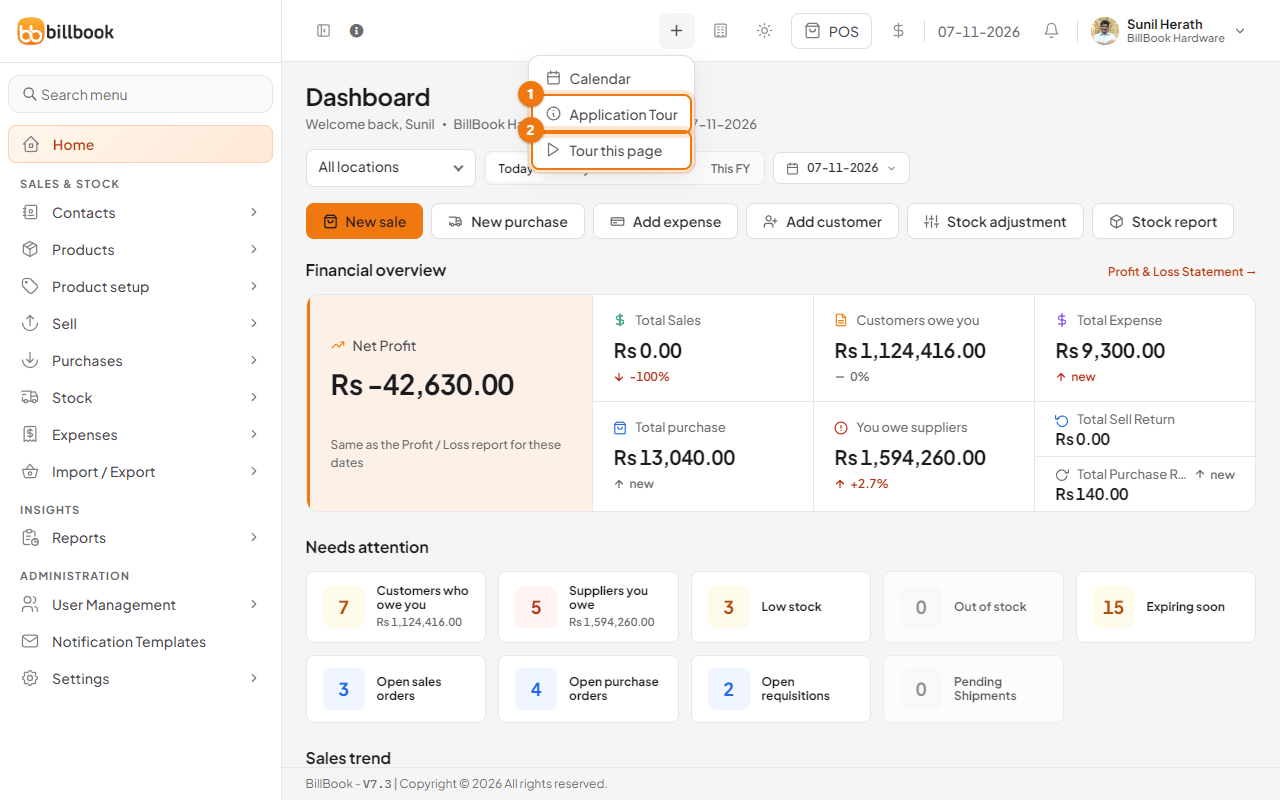
The Application Tour window lists the chapters:
- Dashboard: the period, the location, the financial overview, net profit, Needs attention, the sales trend and quick actions. See Tour the home dashboard.
- Make a sale: the location, search, customer, cart, discount, payment and drafts on the POS screen. See Sell from the POS screen.
- Products: the product list, the Add button, name and SKU, unit, prices and tax, stock and barcode labels. See Add a product.
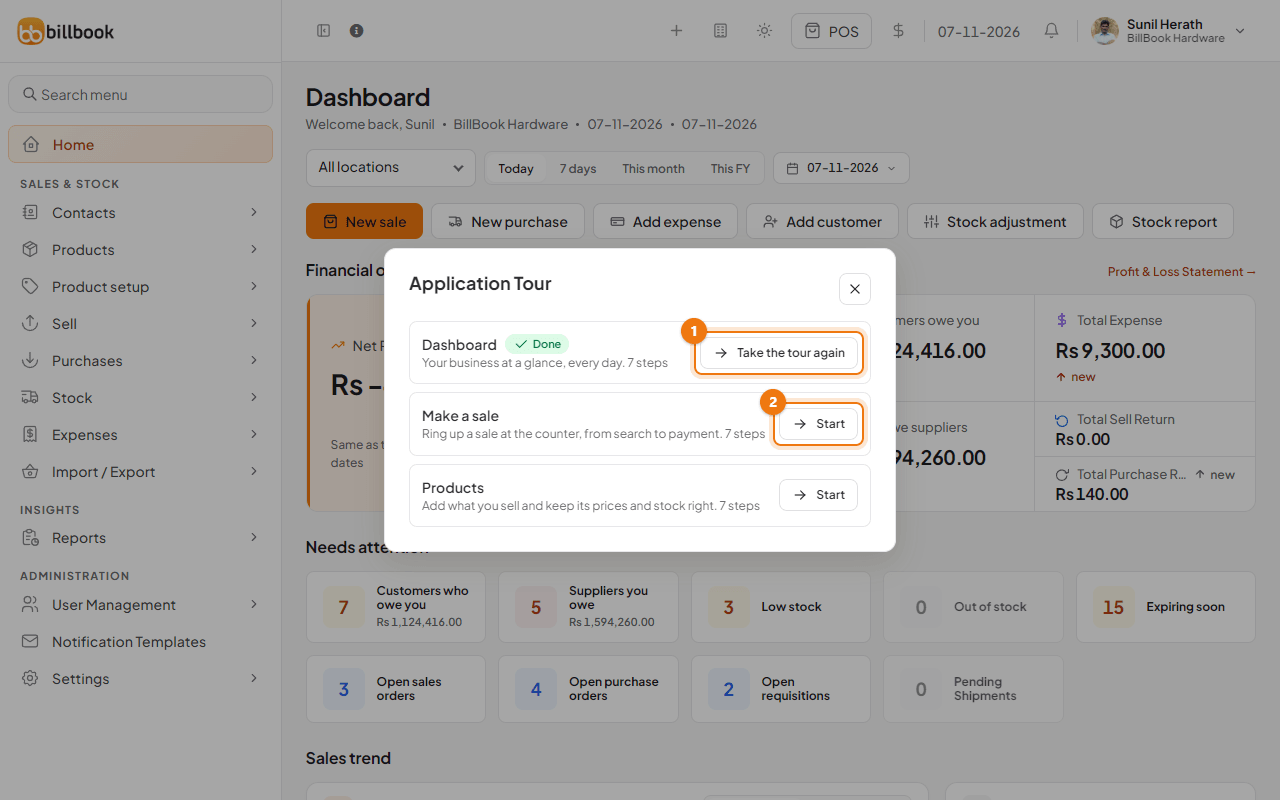
Select Start next to a chapter. A chapter you have not finished shows Continue (step 2), or whichever step you reached, so you can carry on where you left off. A chapter you finished shows Done and Take the tour again.
Follow the steps#
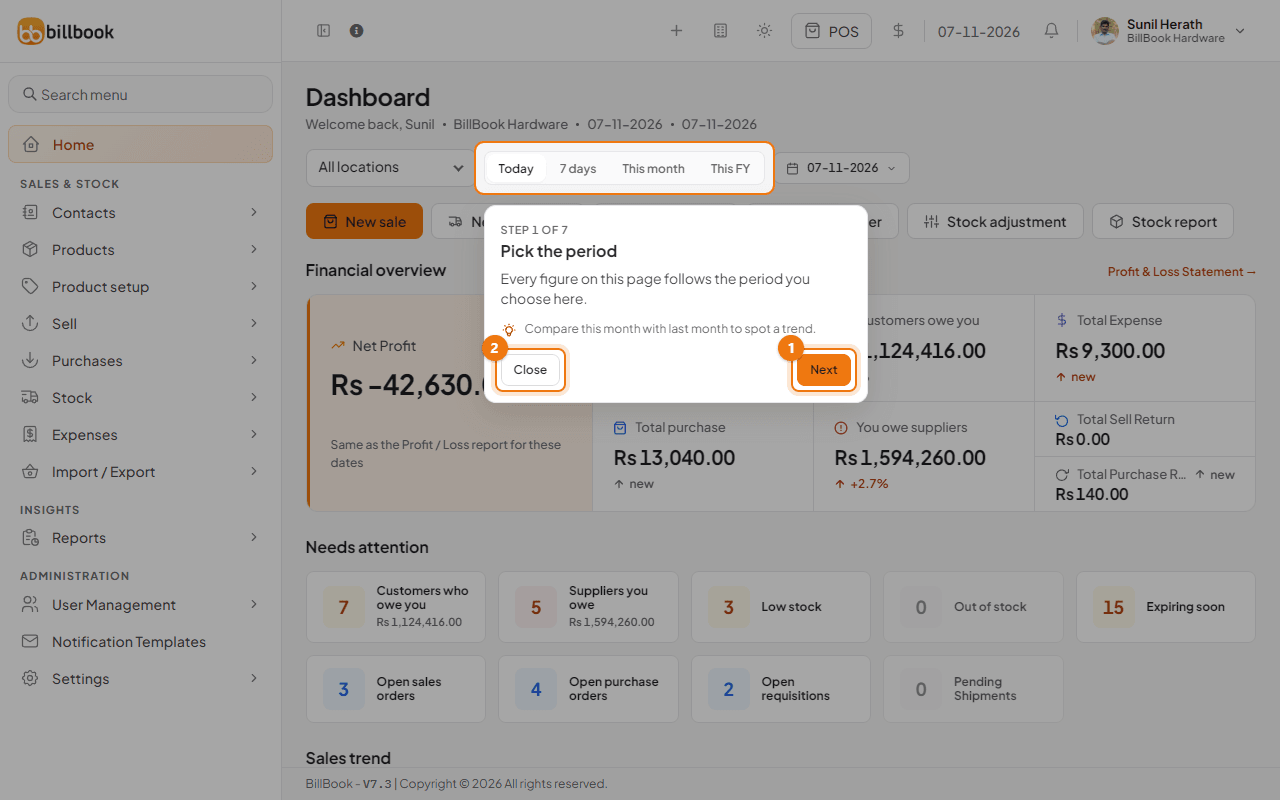
Each step shows a pop-up beside the lit control, with Step 1 of 7 at the top, a title, one or two sentences and a tip.
- Read the note, then select Next (1) for the next step. You can also press the right arrow key on your keyboard.
- Select Back to go to the step before, or press the left arrow key.
- Select Close (2), or press Esc, to stop the tour. You can continue it later from the Application Tour window.
- On the last step, Next becomes Finish. BillBook then says Chapter finished. Pick another one any time from the Application Tour menu.
The tour only points things out. It changes nothing in your shop. A chapter can take you to another page on its own, for example the Products chapter opens the add product form and the barcode label page.
Note: If your POS cart already has items when you start Make a sale, BillBook warns Your cart already has items and asks you to finish the sale first, or select Continue anyway. If a till must be opened first, BillBook says The tour could not open that page. Open the cash register, then continue from the Application Tour window.
The picture below shows the Application Tour window after the Dashboard chapter is finished. Select Take the tour again (1) to repeat it, or Start (2) to begin Make a sale.
Tour this page#
To tour only the screen you are on, select the + button in the header and choose Tour this page. It starts the steps for that page and shows only where the tour has steps, so it is missing from the menu on other pages.
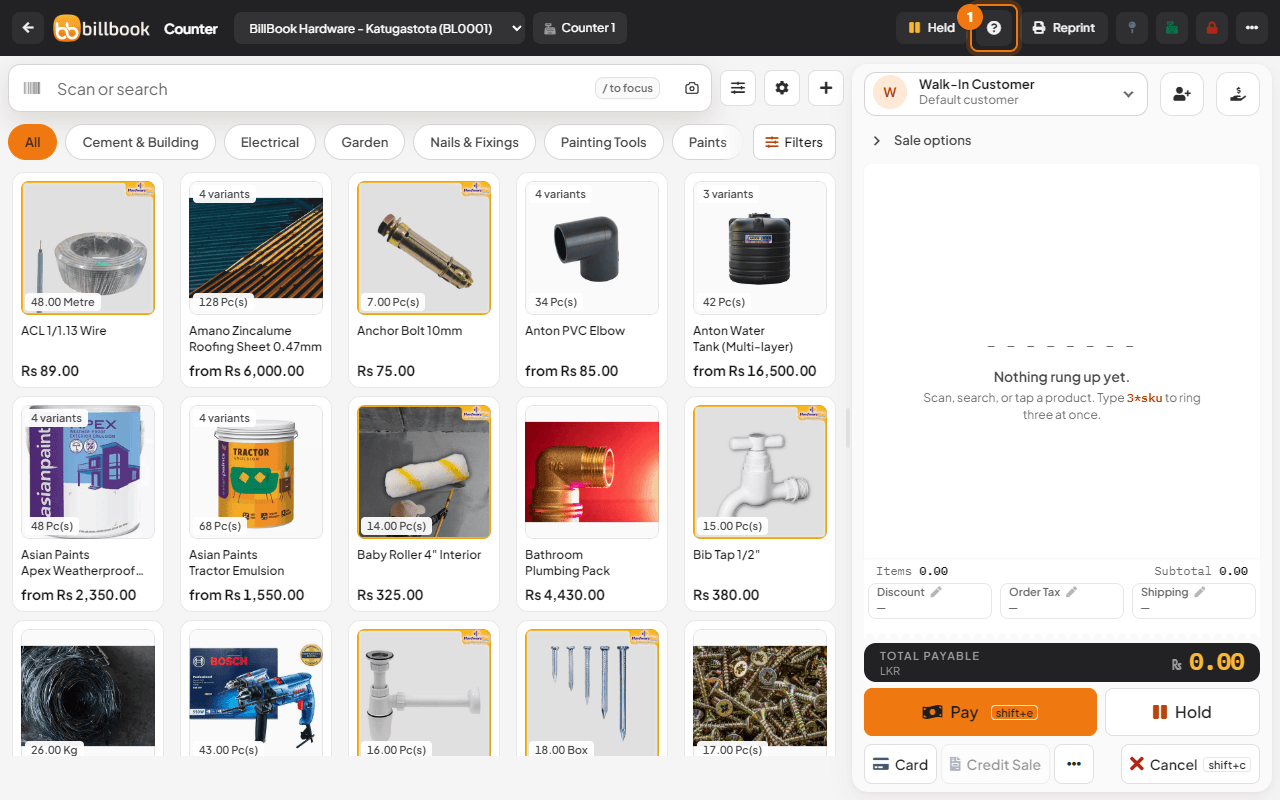
On the POS screen, use the question mark button (1) in the top bar. It is the same as Tour this page.
Take the tour again#
Open the + menu, select Application Tour and choose Take the tour again next to a finished chapter, or Start next to any other.
The tour speaks your language. If your profile language is Sinhala or Tamil, the tour pop-ups use that language. Change it in My Profile. See Your profile, password and theme.