
Find, edit and reprint sales
Last updated: 4 November 2026 · 4 min read
Every sale you make, from the POS or from Add Sale, is listed under Sell > All sales. Use it to find an invoice a customer is asking about, correct a mistake, or print the invoice again.
Before you start: What you can do depends on your permissions. If a menu item below is missing, ask the owner to check your role under User Management > Roles.
Filter all sales#
- Go to Sell > All sales. The list shows this year's sales, newest first.
- Use the Date Range and Business Location boxes at the top. Select More to open the other filters: Customer, Payment Status, User, Sales Commission Agent, Shipping Status, Payment Method and Sources. Tick Subscriptions to see only recurring invoices.
- Choose the Customer (1), for example Senanayake Constructions.
- Select a payment tab (2): All, Paid, Partial, Due or Overdue. The Payment Status filter changes with it.
- Type an invoice number, customer name or phone number in the search box (3).
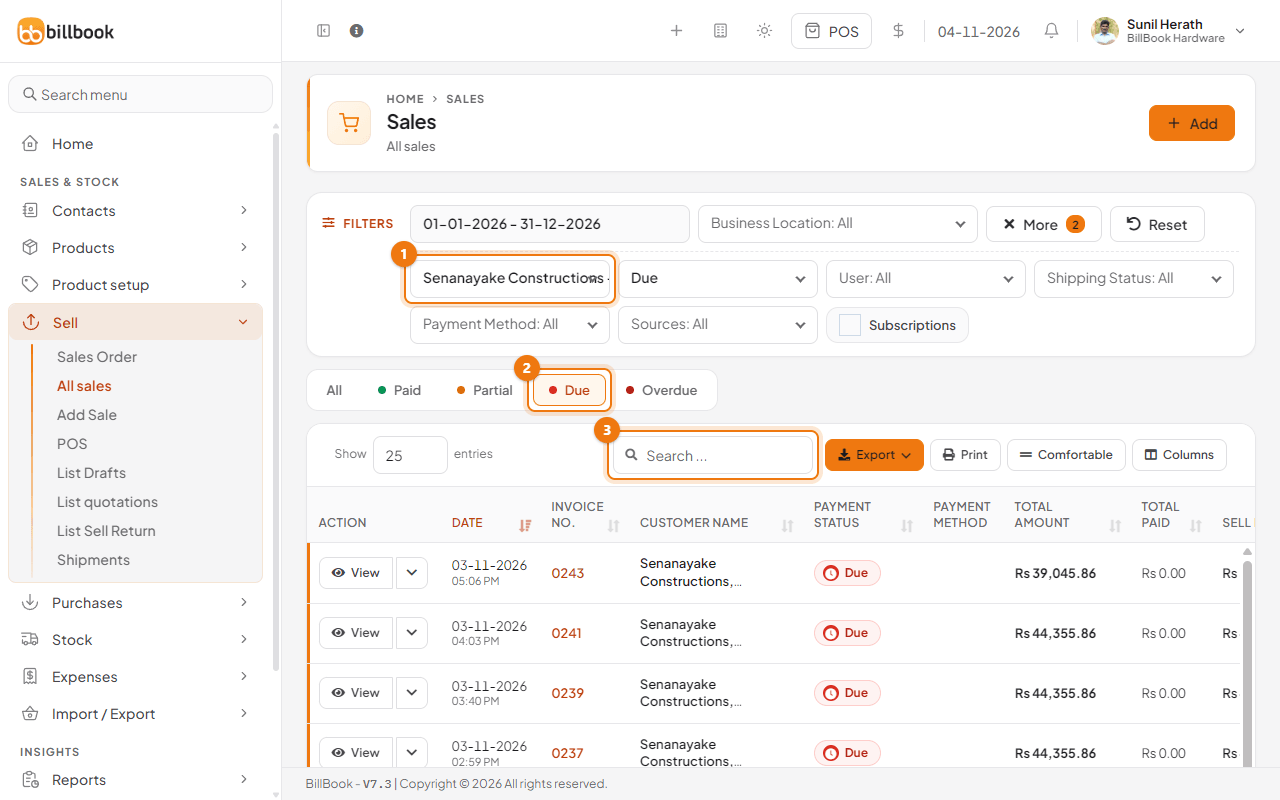
Select Reset to clear every filter. Export and Print above the table save or print the list as it is filtered.
Edit a sale (edit window)#
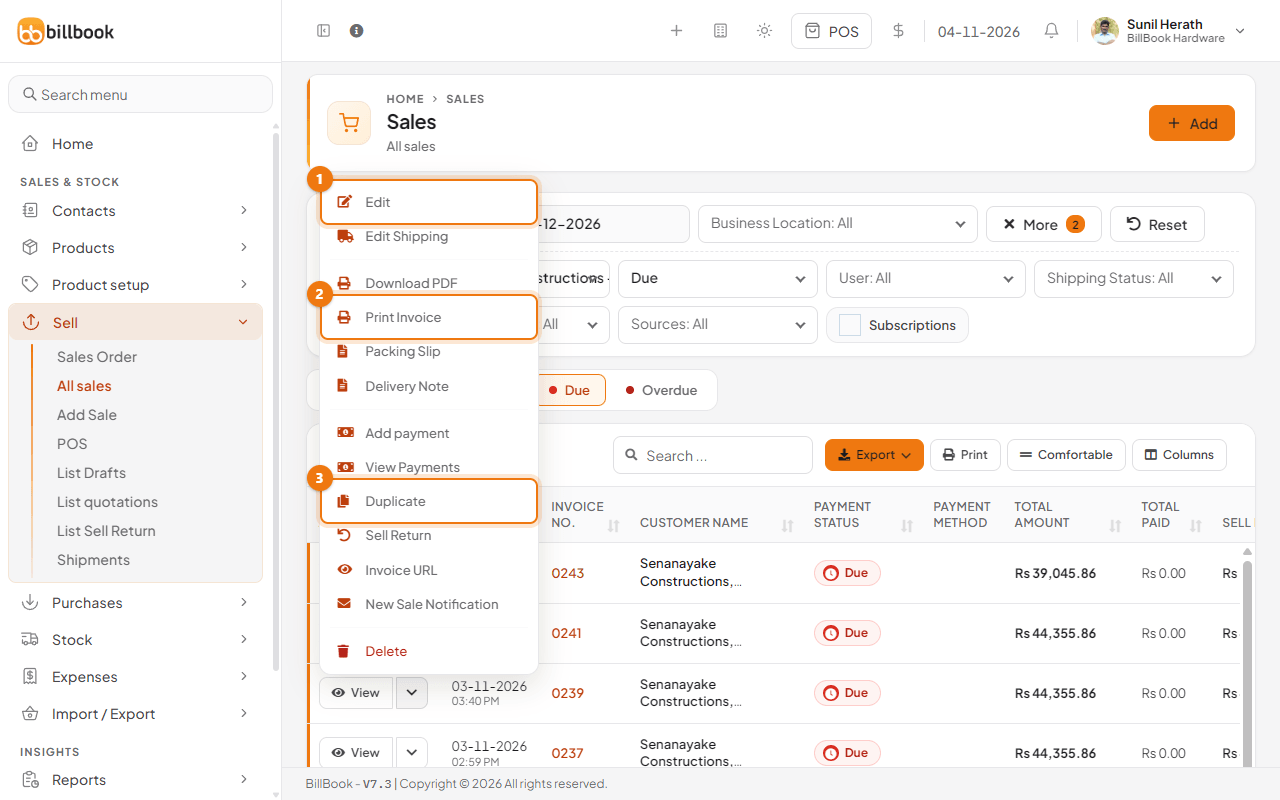
- On the sale's row, open the arrow next to View and select Edit (1).
- Change the items, quantities, customer, payment or shipping details, then save the sale. Stock and the customer's balance update to match.
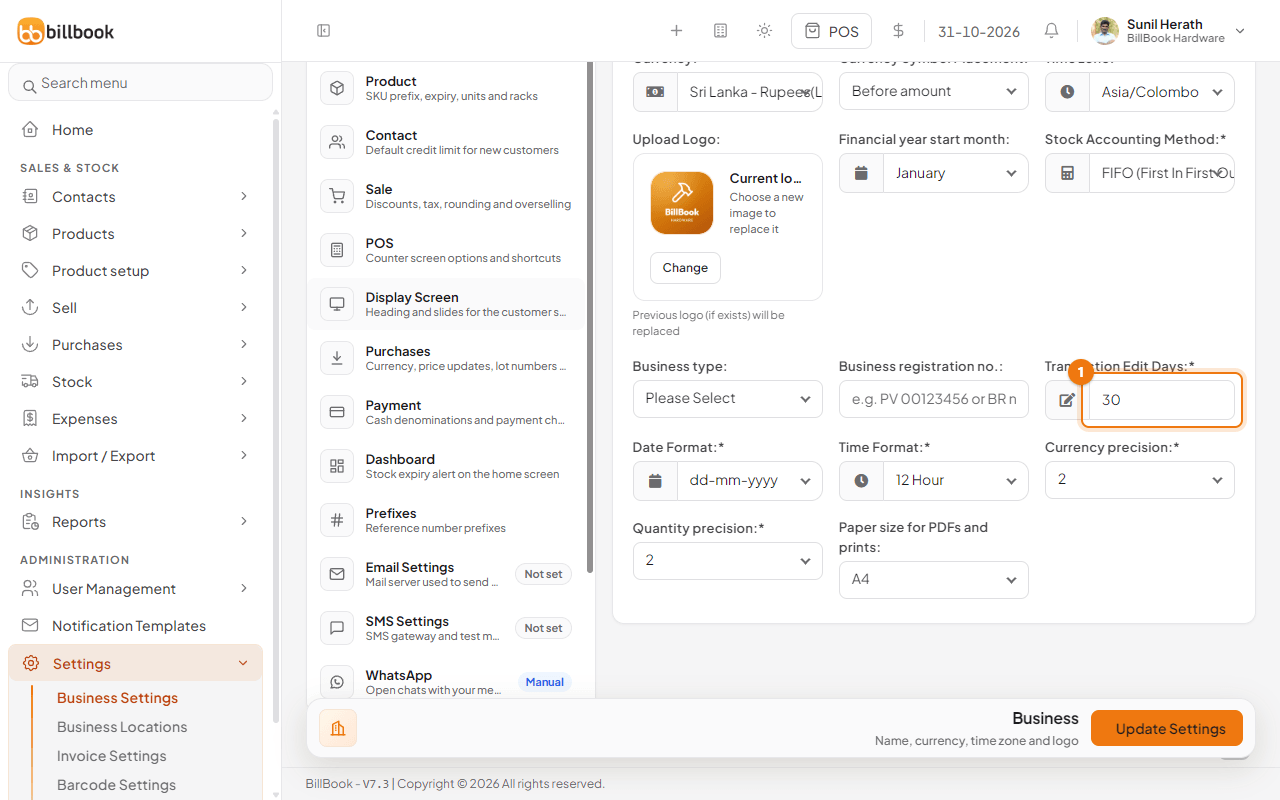
A sale can only be edited for a number of days after its sale date. The owner sets the number in Settings > Business Settings, under Business, in Transaction Edit Days (1). The demo business uses 30. After that, BillBook shows Transaction edit not allowed after 30 days.
Note: A sale that is on hold shows the label Held and has no Add payment in its menu. Finish it on the POS screen first. See Hold, resume and delete held sales. A sale that already has a sell return cannot be edited. BillBook tells you to edit the return instead. See Sell returns. To change only the delivery details, use Edit Shipping in the same menu. See Shipments.
Repeat an order#
To repeat a finished sale, owners and admins can use Duplicate (3) in the same row menu. BillBook makes a new draft with the same customer and items, dated today, and opens it. It shows Draft created from the sale. Check it, then finalise it. The copy has no payments, so check the prices, then finish it as a new sale. Duplicate only appears on finished sales and only for admins.
For a quotation there is another way:
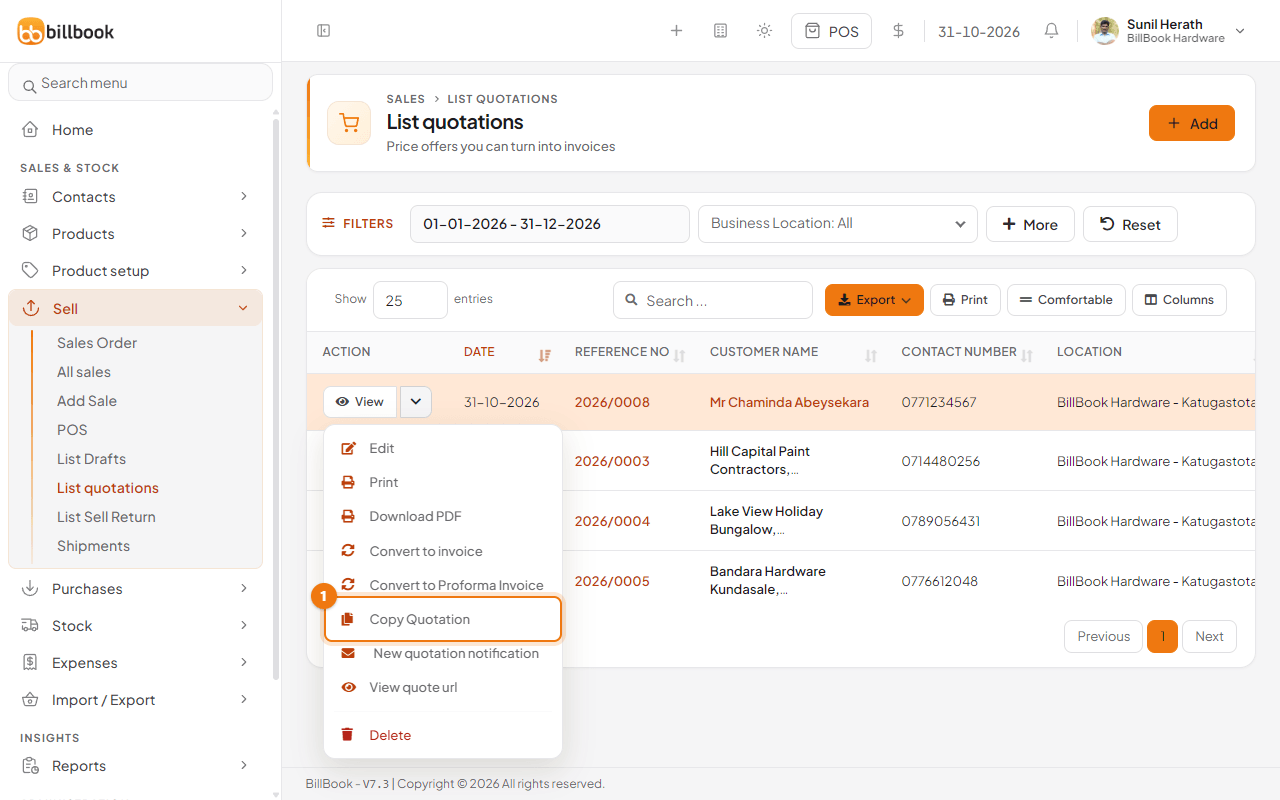
- For a quotation: go to Sell > List quotations, open the arrow next to View and select Copy Quotation (1). BillBook makes a new draft with the same customer and items, dated today, ready to edit and convert.
- For a regular customer's repeat order: make a quotation for it once, and copy it each time.
See Drafts, quotations and suspended sales for how to turn a quotation into an invoice.
Reprint or email an invoice#
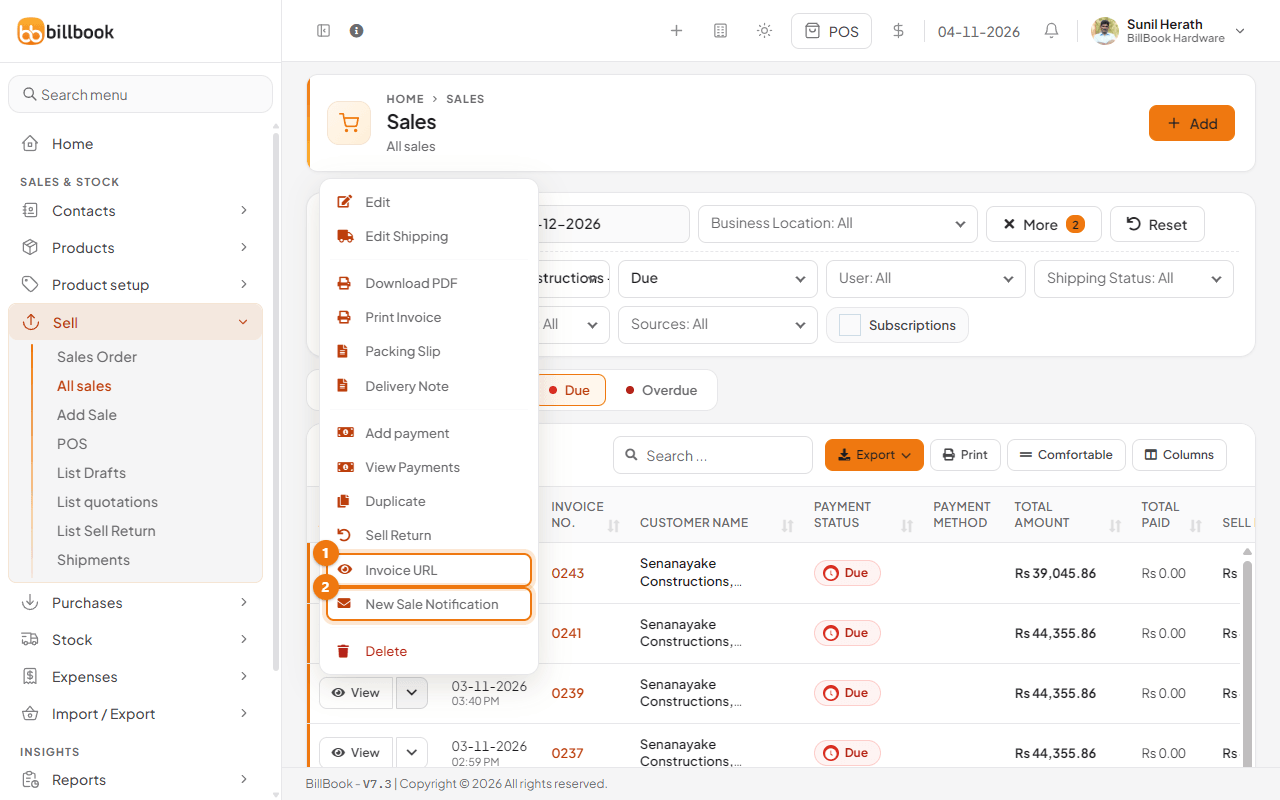
The same row menu in Sell > All sales has everything for giving the customer a copy. At the POS, the Reprint button in the top bar prints the last receipt again.
- Select Print Invoice to open the invoice in your browser's print window, Download PDF to save it, or Packing Slip and Delivery Note for the delivery team.
- Further down the menu, Invoice URL (1) opens a link you can send the customer so they can view the invoice online.
- New Sale Notification (2) opens a message for the customer, by email or SMS. Check the message and the customer's email address, then send it from that window.
Tip: Sending email and SMS needs your email or SMS settings to be filled in first, under Settings > Email Settings and Settings > SMS Settings.