
Recurring invoices
Last updated: 31 October 2026 · 3 min read
Some customers pay the same amount on a schedule: a monthly maintenance contract for a hotel, a weekly paint-mixing service for a contractor. Instead of typing the invoice each time, make it once as a subscription and BillBook creates the next ones on its own.
Before you start: Subscriptions must be turned on, as shown below, and you need permission to add sales.
Turn on subscriptions#
- Go to Settings > Business Settings and open Modules.
- Tick Enable Subscription (1).
- Select Update Settings (2).
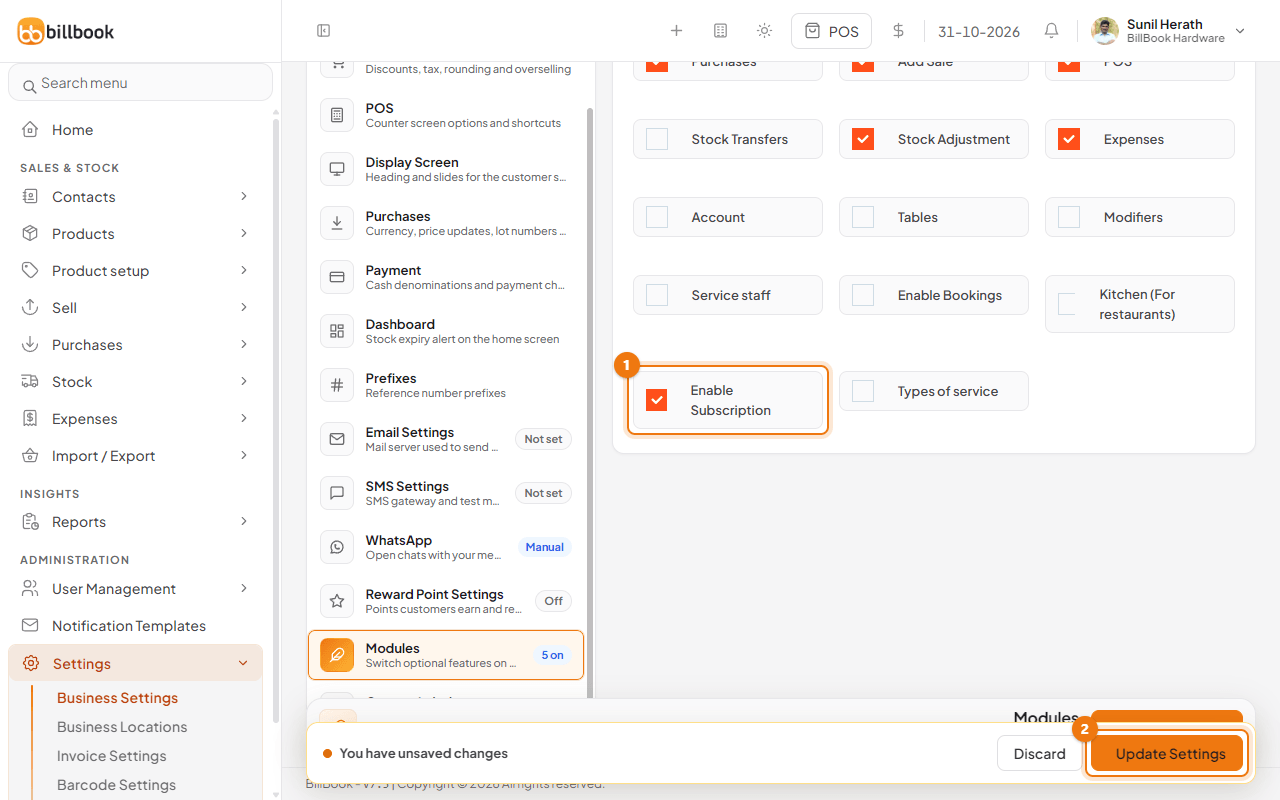
Subscriptions now shows under Sell in the menu, and the Add Sale form gets a Subscribe? tick box. To switch the feature off again, untick it in the same place.
Make a sale recurring#
- Go to Sell > Add Sale and make the invoice as usual: choose the Customer, set Status to Final and add the items, for example Paint mixing service. See Create an invoice (Add Sale).
- Tick Subscribe? (1). The Subscribe window opens. Set the interval as shown in the next section.
- Select Save (2).
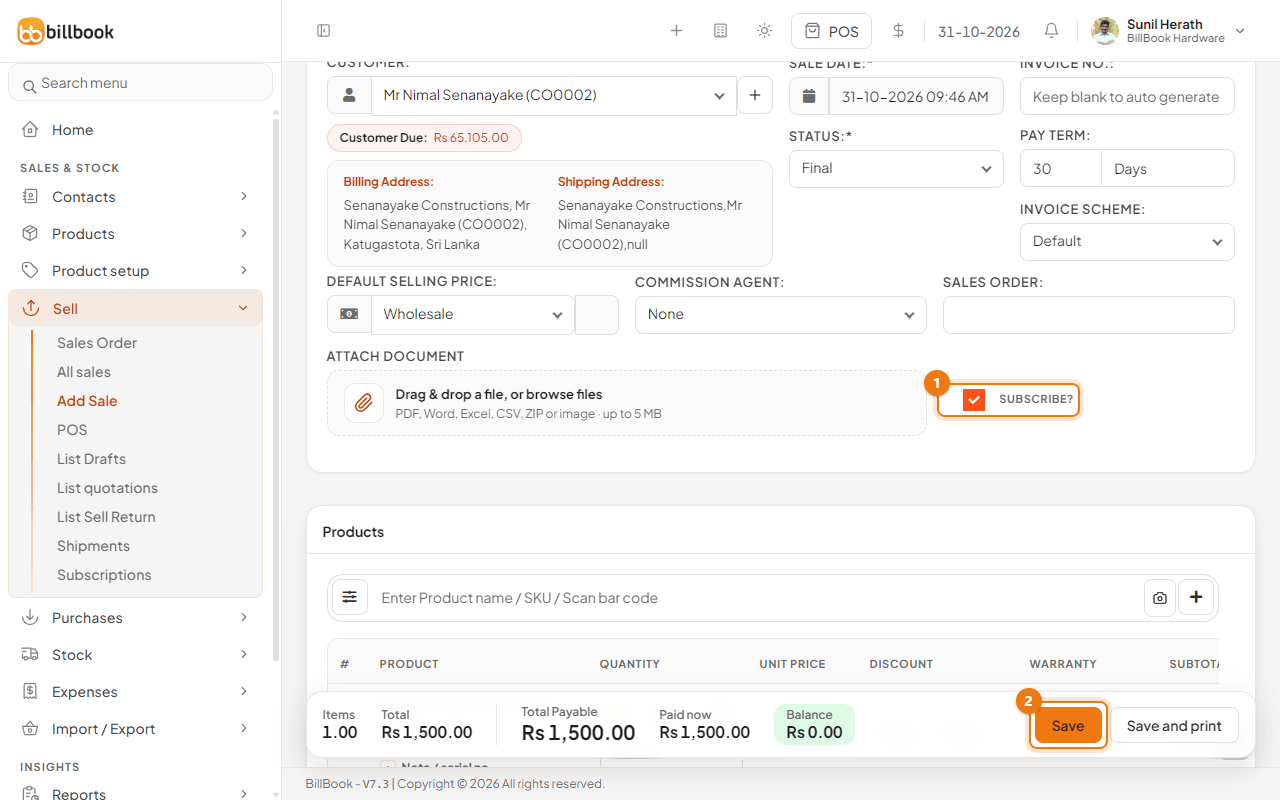
This first invoice is a normal sale. It is also the pattern that BillBook copies for the next invoices.
Interval and repetitions#
In the Subscribe window:
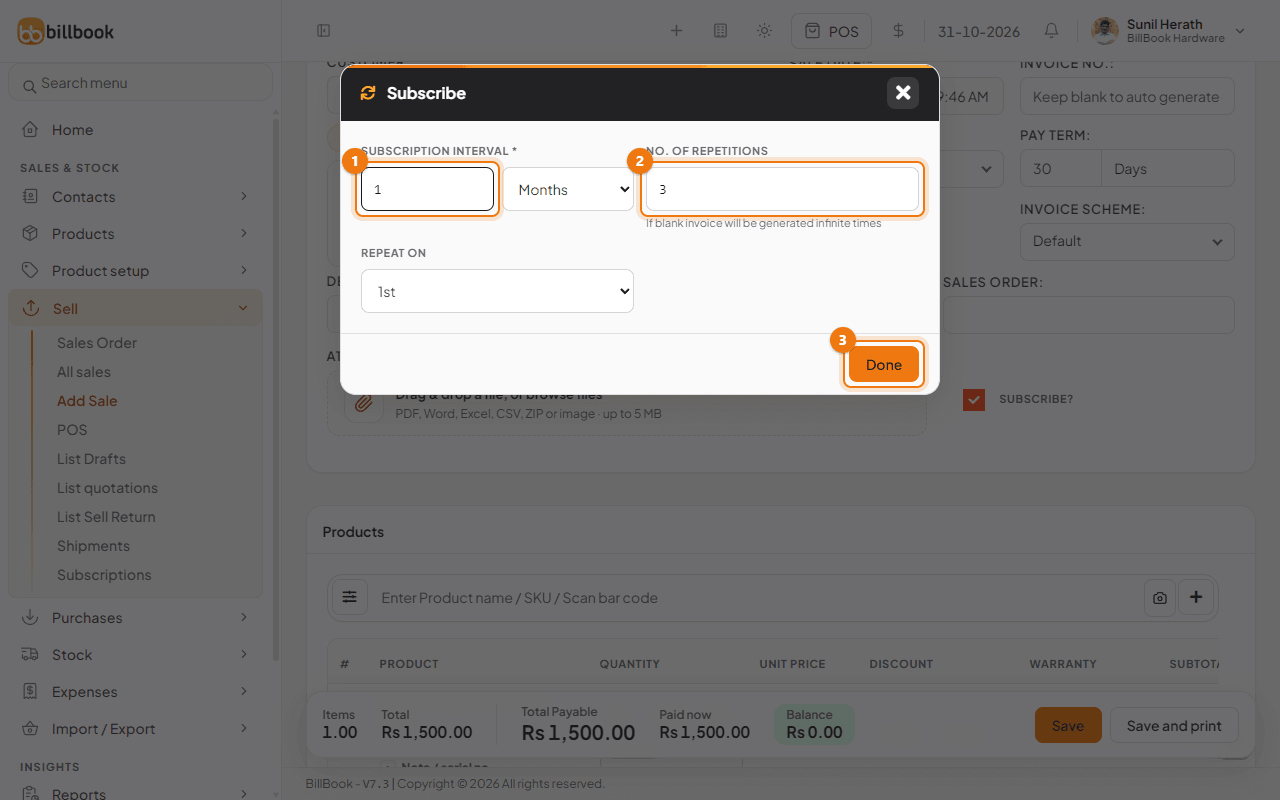
- Type a number in Subscription Interval (1) and choose Days, Months or Years. For a monthly invoice, enter 1 and choose Months.
- Type the No. of Repetitions (2). The window reminds you: if you leave it blank, the invoice is generated infinite times. Enter 3 for three invoices.
- For monthly intervals, choose the day of the month in Repeat on, for example 1st.
- Select Done (3), then save the sale.
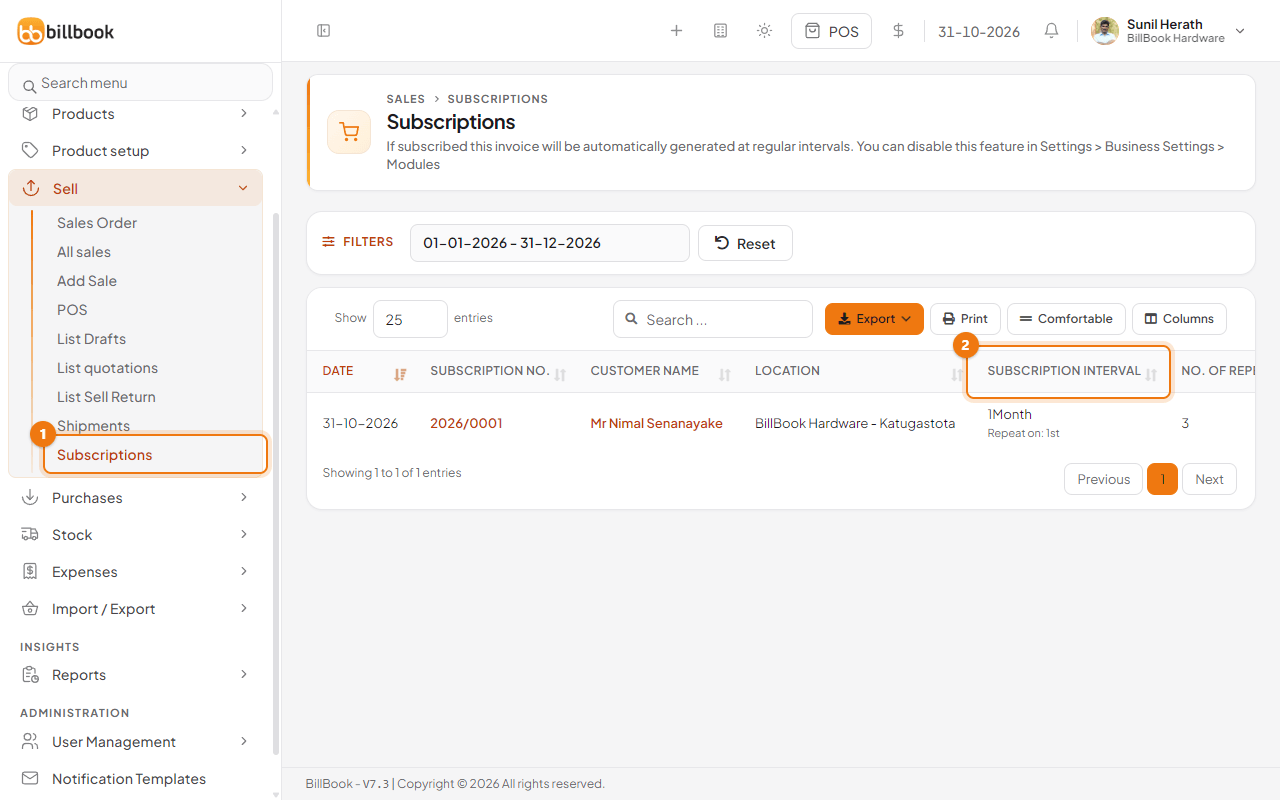
Go to Sell > Subscriptions (1) to see every recurring invoice. Each row shows the Subscription No., the Customer Name, the Subscription Interval (2), for example 1 Month, Repeat on: 1st, and the No. of Repetitions. Scroll to the right for Generated Invoices, Last Generated and the Upcoming Invoice date.
Tip: In Sell > All sales, select More and tick Subscriptions to list only the invoices that came from subscriptions.
Stop a recurring invoice#
- Go to Sell > Subscriptions.
- On the row, open the arrow next to Edit and select Stop Subscription (1).
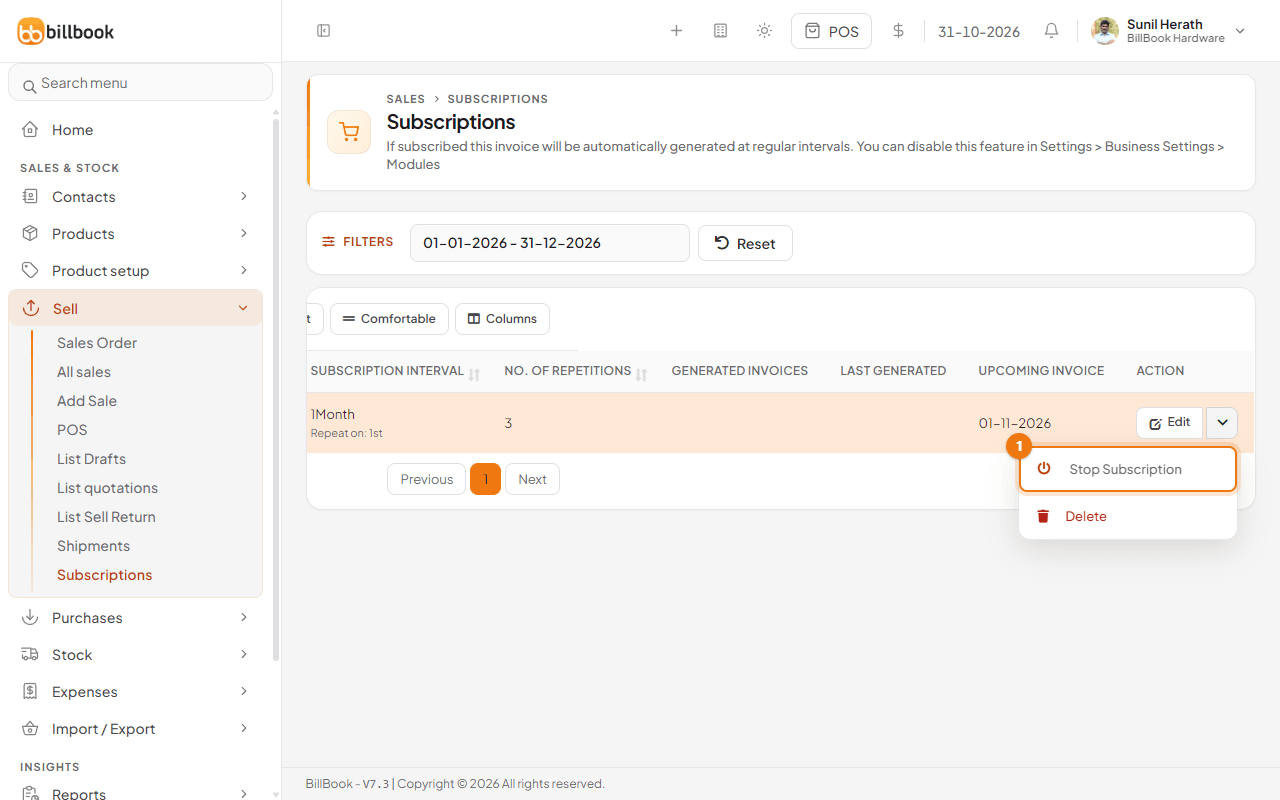
BillBook stops at once, with no question, and the Upcoming Invoice date disappears. Invoices already made stay in Sell > All sales. To start again, open the same menu and select Start Subscription. The menu also has Delete, which removes the subscription sale itself.