
Service staff timer
Last updated: 7 November 2026 · 4 min read
The timer keeps track of how long a waiter, stylist or technician is busy with the items you gave them. When you sell an item that has a preparation time and name the service staff for it, that person shows as busy until the time is up, then becomes free again.
Before you start: Switch on Service staff in Settings > Business Settings > Modules, and switch on Enable service staff in product line in Settings > Business Settings > POS. You also need at least one user whose role has Service staff ticked. Turn on restaurant and salon features shows each step.
Use cases#
- Restaurants: a waiter or cook is busy for the minutes it takes to prepare the order, so the cashier can give the next order to someone who is free.
- Salons and spas: a haircut or massage takes a set time, so the stylist is shown as busy for that long.
- Service centres: a technician is busy for the time a repair is expected to take.
Turn on and use the timer#
The timer is not a switch of its own. It works when a product has a preparation time and the sale names the service staff for that item.
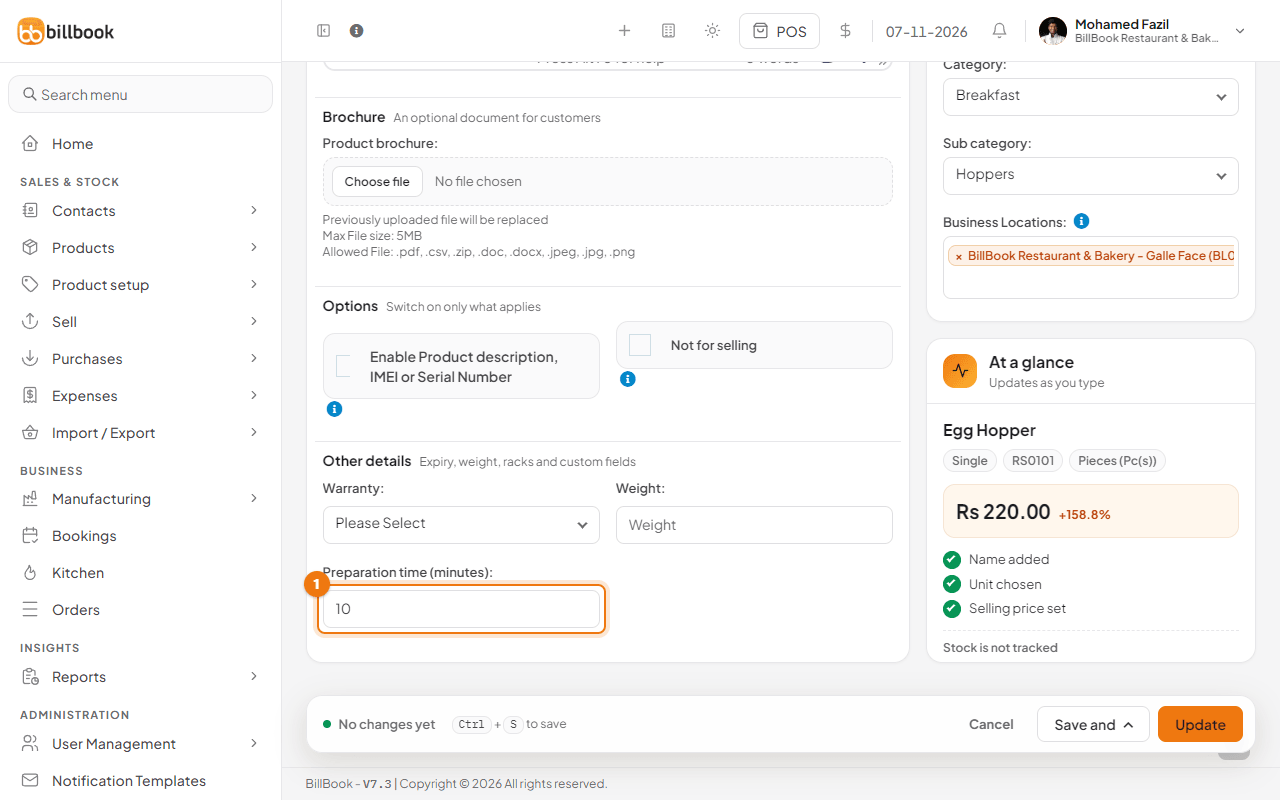
- Go to Products > List Products and select Edit on the product, for example Egg Hopper.
- Open More details and scroll to Other details.
- Enter the minutes in Preparation time (minutes) (1), for example 10.
- Select Update.
Now sell the item:
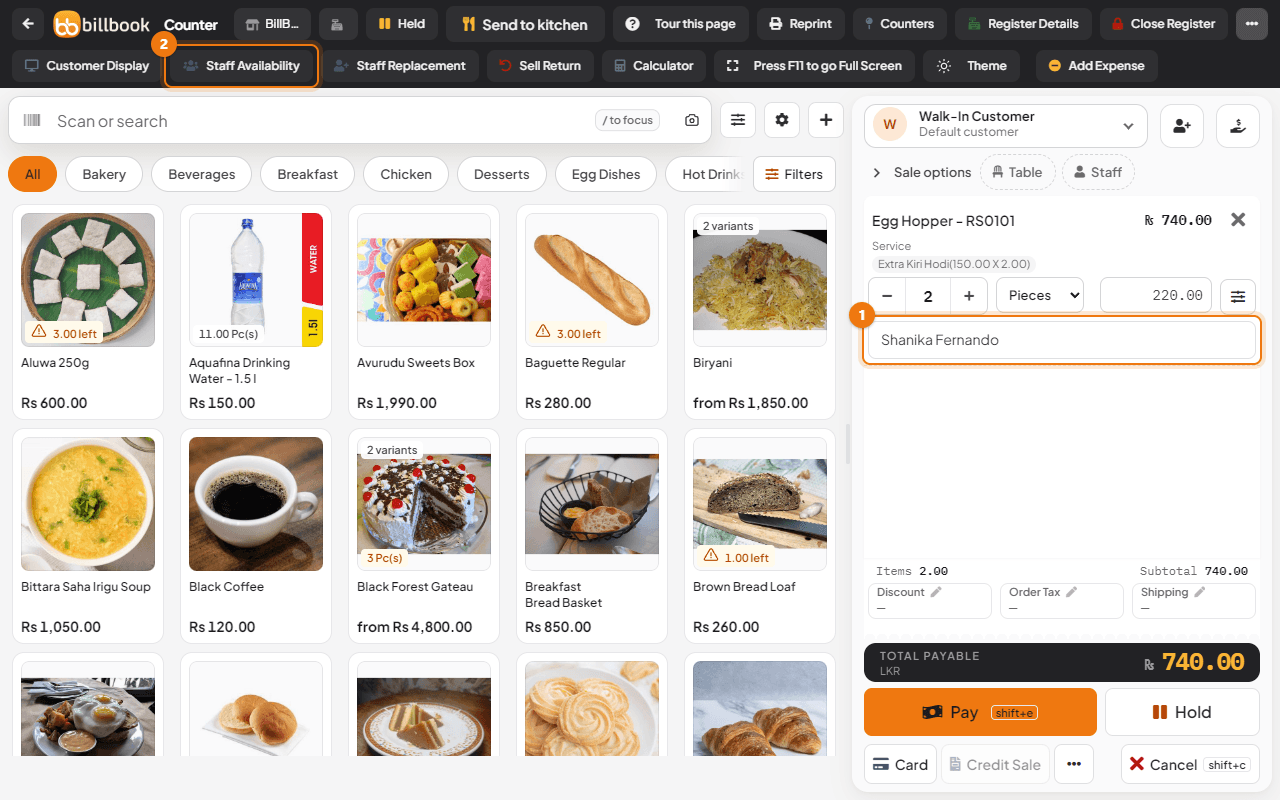
- Select POS at the top of the screen (or Sell > Sales counter) and add the product. If it has add-ons, choose them in the window that opens.
- In the item's Select service staff box (1), choose the person who will prepare it.
- Finish the sale. BillBook adds the preparation time times the quantity to that person's busy time. Two Egg Hopper at 10 minutes each make Shanika busy for 20 minutes.
If the same person is already busy, the new time is added after the time they already have.
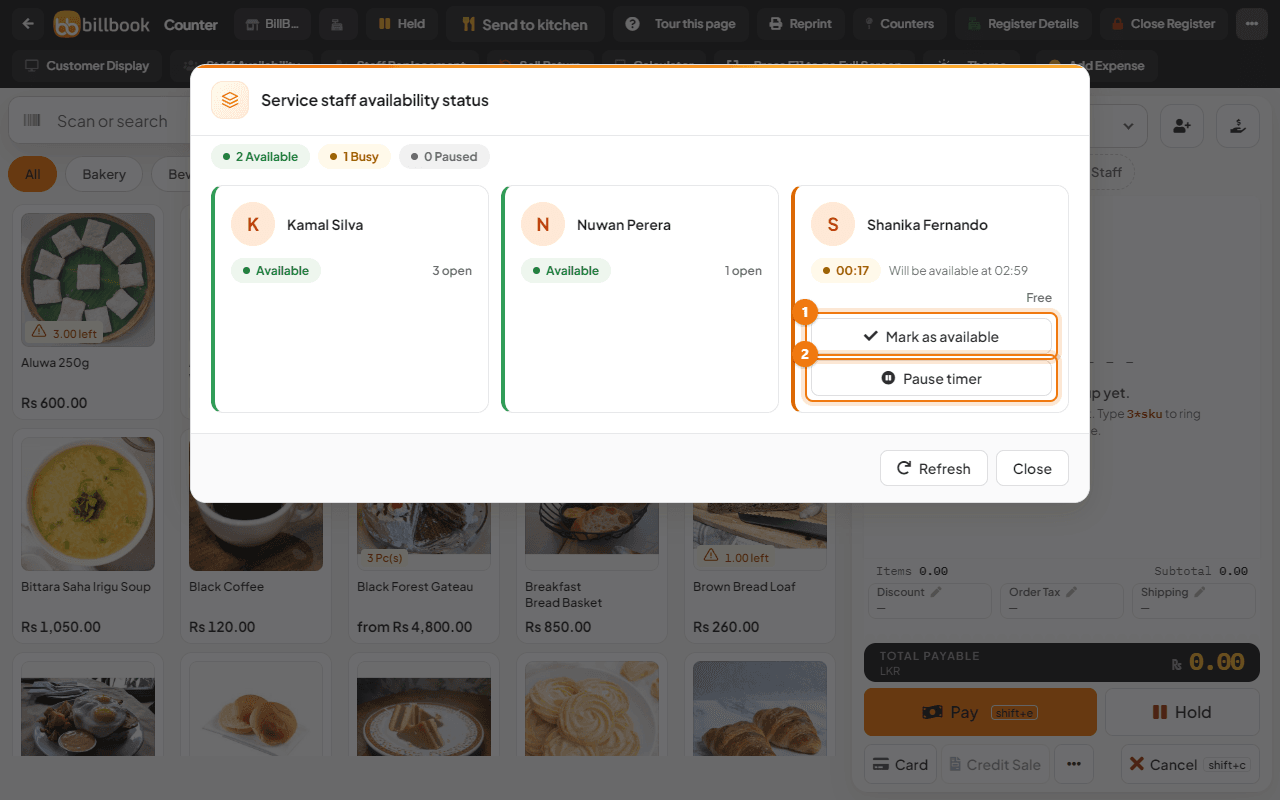
To see who is free, select More at the top right of the POS screen, then Staff Availability (2). The pop-up Service staff availability status counts how many are Available, Busy and Paused. Each person has a card:
- Available means free. A busy person shows the minutes left, for example 00:14, and Will be available at the time.
- Under the name, Free or a number such as 2 open shows how many open orders that person has.
- Mark as available (1) frees the person at once, for example when the work finished early.
- Pause timer (2) stops the clock, for example while a stylist is on a break. Select Resume timer to carry on, and the paused minutes are added back.
- Refresh updates the cards.
Note: The timer only reminds you who is busy. BillBook does not stop you from choosing a busy person for a new item.
Change service staff on a sale#
If the wrong person was chosen, or someone else took over, you can change the service staff after the sale.
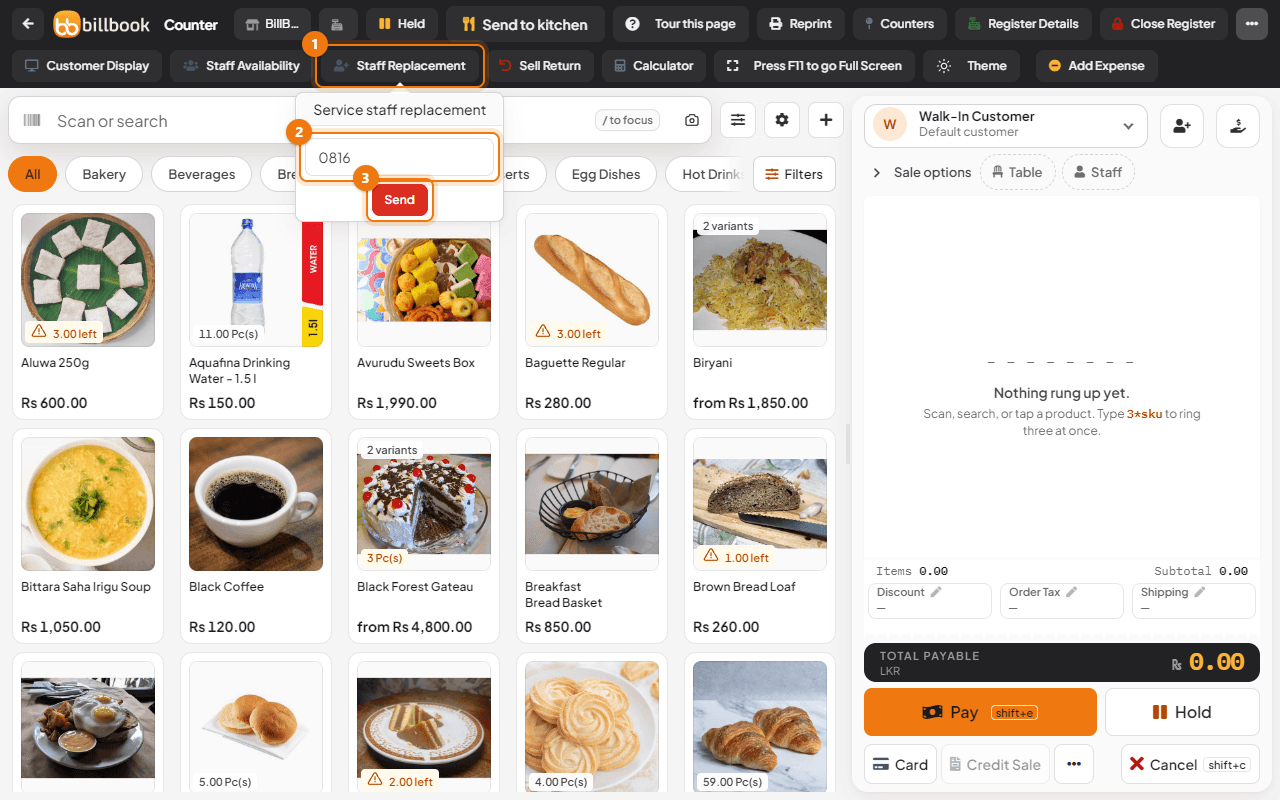
- On the POS screen, select More at the top right, then Staff Replacement (1).
- Enter the Invoice No. (2) of the sale, for example 0816, and select Send (3).
- In the window that opens, choose a new person for the whole sale (1).
- If Enable service staff in product line is on, the table below lists each item. Choose a different person for any item (2). Only real products are listed; modifier lines follow the staff of the product they belong to.
- Select Save (3). BillBook shows Updated Successfully.
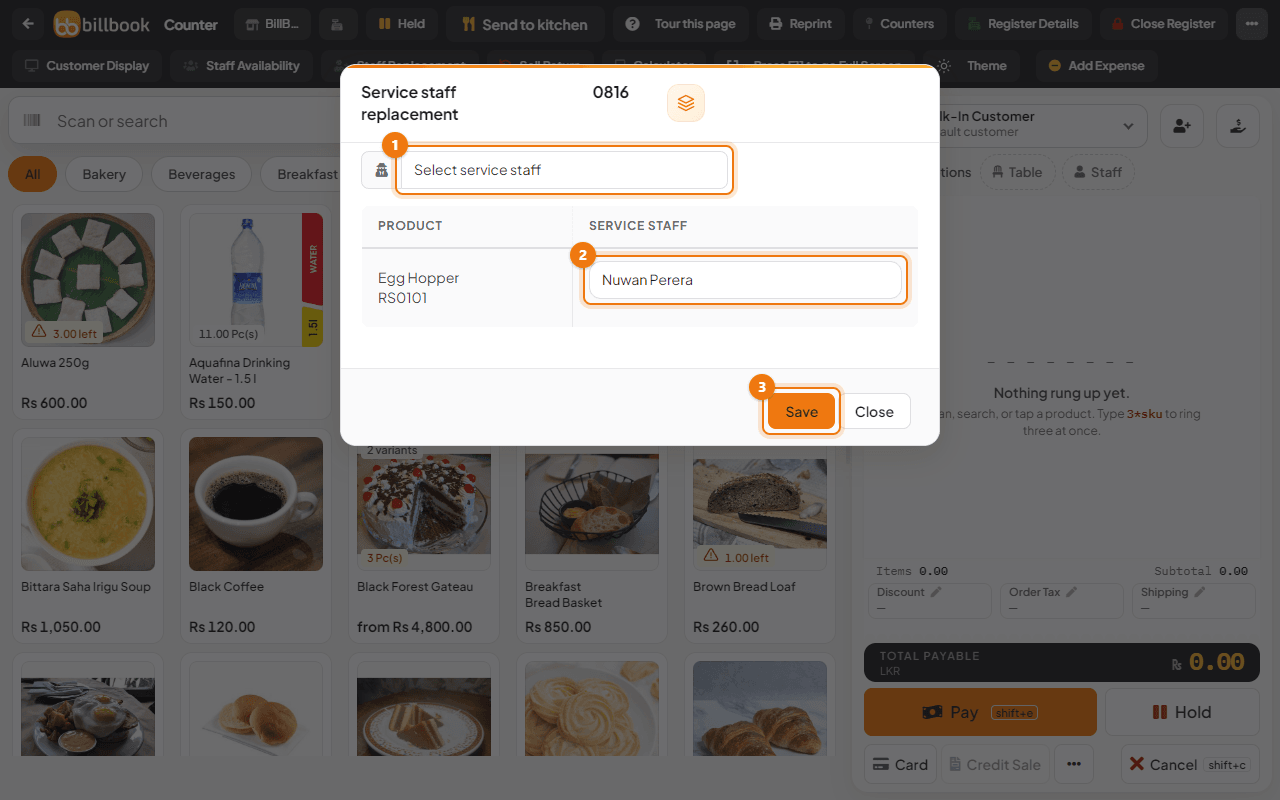
You need permission to edit sales to use Staff Replacement. Changing the person does not change the busy time that was already added to the first person, so use Mark as available for them if needed.