
Notification templates
Last updated: 7 November 2026 · 3 min read
A notification template is the wording of a message BillBook sends, such as a thank-you after a sale or a payment reminder. You write it once with tags like the customer's name and the invoice total, and BillBook fills in the real details each time.
Before you start: Email, SMS and WhatsApp each need their own set-up before a message can leave BillBook. See Email (SMTP) setup, SMS setup and WhatsApp and auto-send.
Templates for customers and suppliers#
- Select Notification Templates (1) in the sidebar.
- The boxes at the top count your templates and how many are ready for Email, SMS and WhatsApp, and how many are Sent automatically.
- Pick a template from the list on the left. Customer Notifications (2) has New Sale, Payment Received, Payment Reminder, New Booking and New Quotation. Supplier Notifications (3) has New Order, Payment Paid, Items Received, Items Pending and Purchase Order. A third group, Notifications, has Send Ledger, the message that goes with a contact's statement. Use the Search templates box to find a template by name.
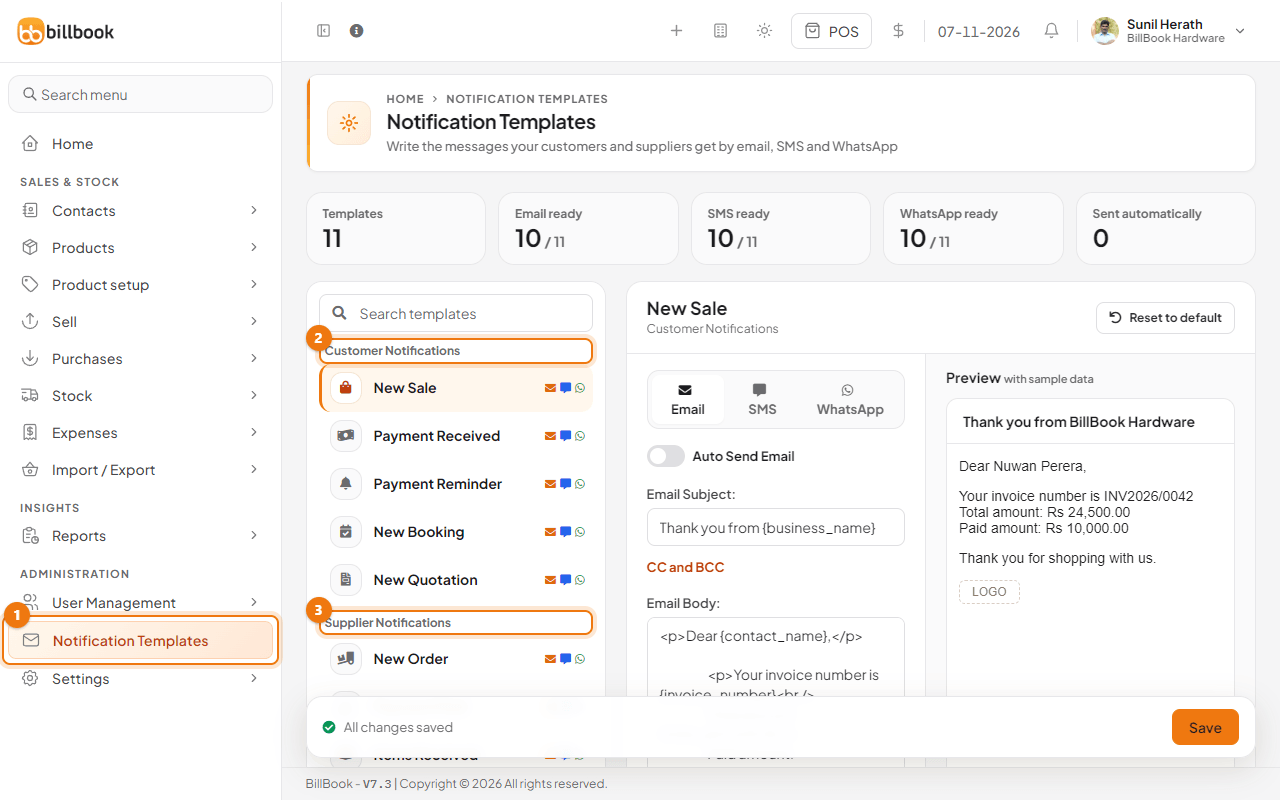
Each template has three tabs: Email, SMS and WhatsApp. The small icons next to a template show which of them already have text.
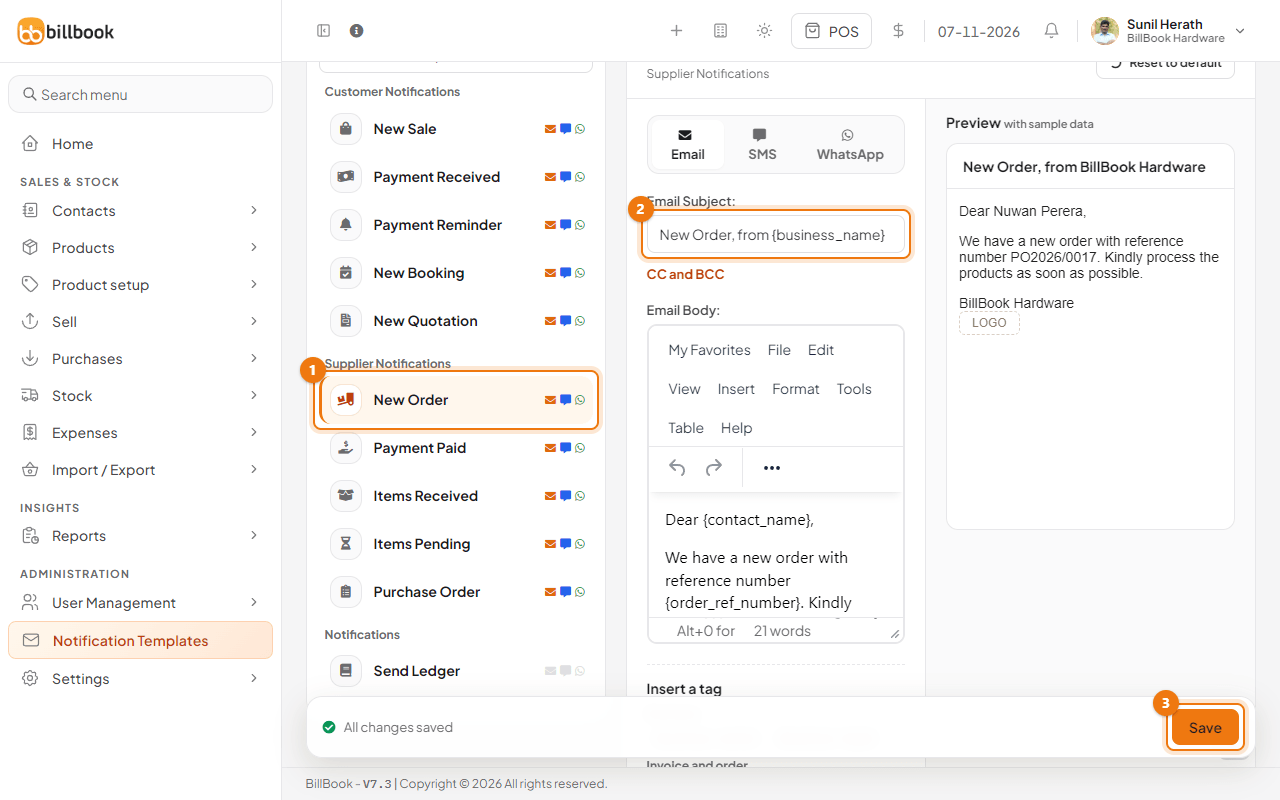
- Choose a template, for example New Order (1) under Supplier Notifications.
- On the Email tab, edit the Email Subject (2) and the Email Body. Select CC and BCC if you want copies sent to another address.
- On the SMS tab, edit the SMS Body. BillBook shows the number of characters and messages. Keep it short, because a long text is charged as several messages. The business logo does not work in SMS.
- On the WhatsApp tab, edit the Whatsapp Text. You can put a word between asterisks to make it bold in WhatsApp, as the ready-made text does.
- Check the Preview on the right, which uses sample data, then select Save (3).
Select Reset to default at the top of a template to go back to BillBook's ready-made wording.
Template tags#
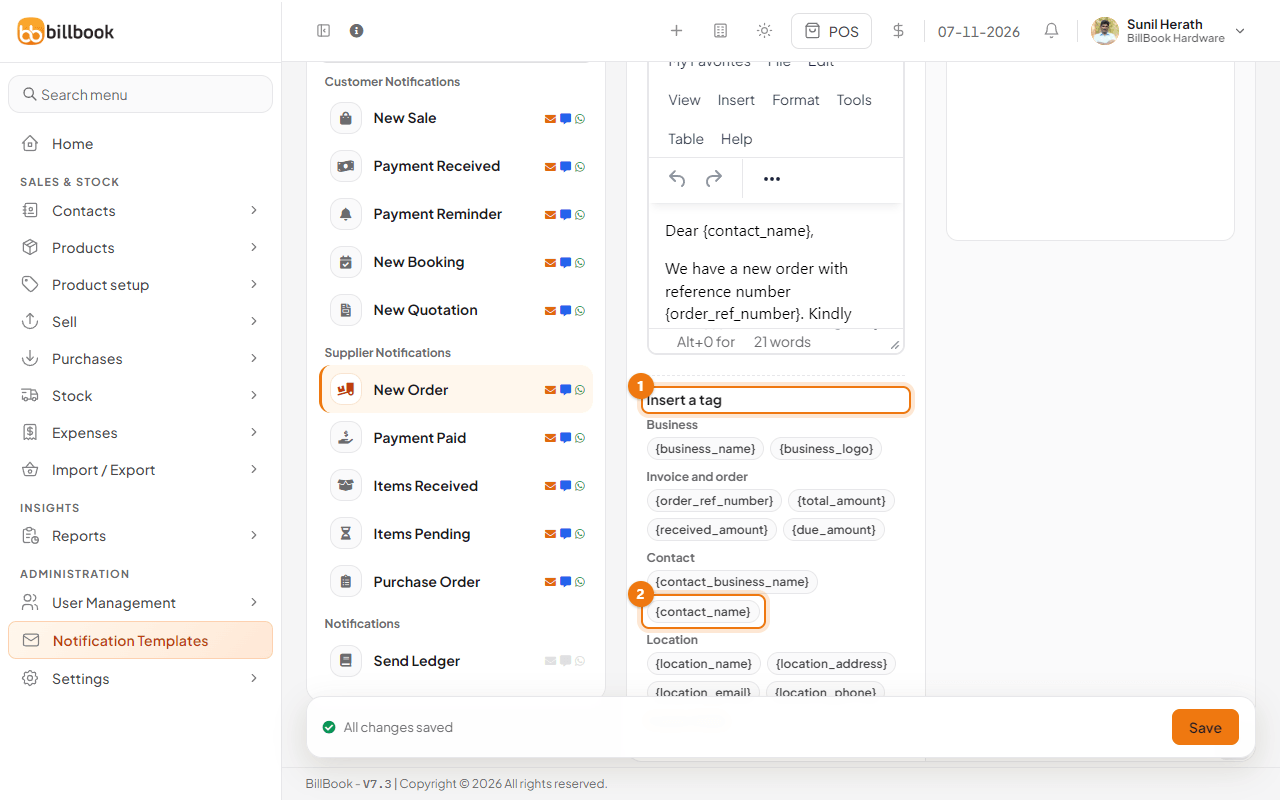
Tags are words in curly brackets, such as {contact_name}, that BillBook replaces with real details when it sends the message. The tags you can use are listed under Insert a tag (1) below the editor, grouped as Business, Invoice and order, Contact, Location and Custom fields.
Select a tag (2) to add it to your message, or type it exactly as shown, brackets included. For example, "Dear {contact_name}, your invoice {invoice_number} is {total_amount}" becomes "Dear Nuwan Perera, your invoice INV2026/0042 is Rs. 24,500.00".
Send a notification manually#
You do not have to switch on automatic sending. You can send the New Sale message yourself for any sale.
- Go to Sell > All sales.
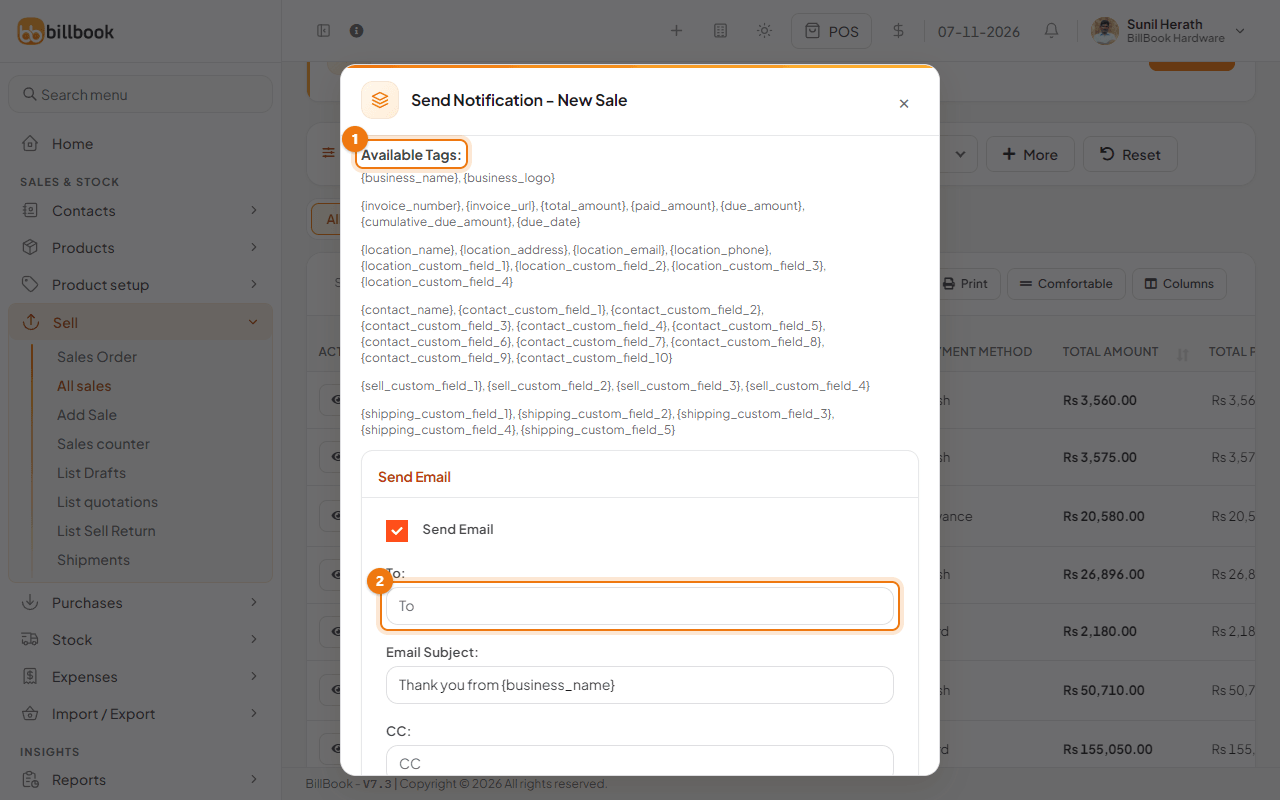
- On the sale's row, select the arrow next to View and choose New Sale Notification.
- The Send Notification - New Sale pop-up lists the Available Tags (1). Under Send Email, enter the customer's address in To (2). It stays empty when the customer has no email on file. Check the subject and body, and tick Attach invoice pdf in email if you want the invoice attached.
- To send an SMS or WhatsApp message too, open Send sms/whatsapp notification (2 in the next picture) and fill in the mobile number.
- Select Send (1 in the next picture). Select Close instead to leave without sending anything.
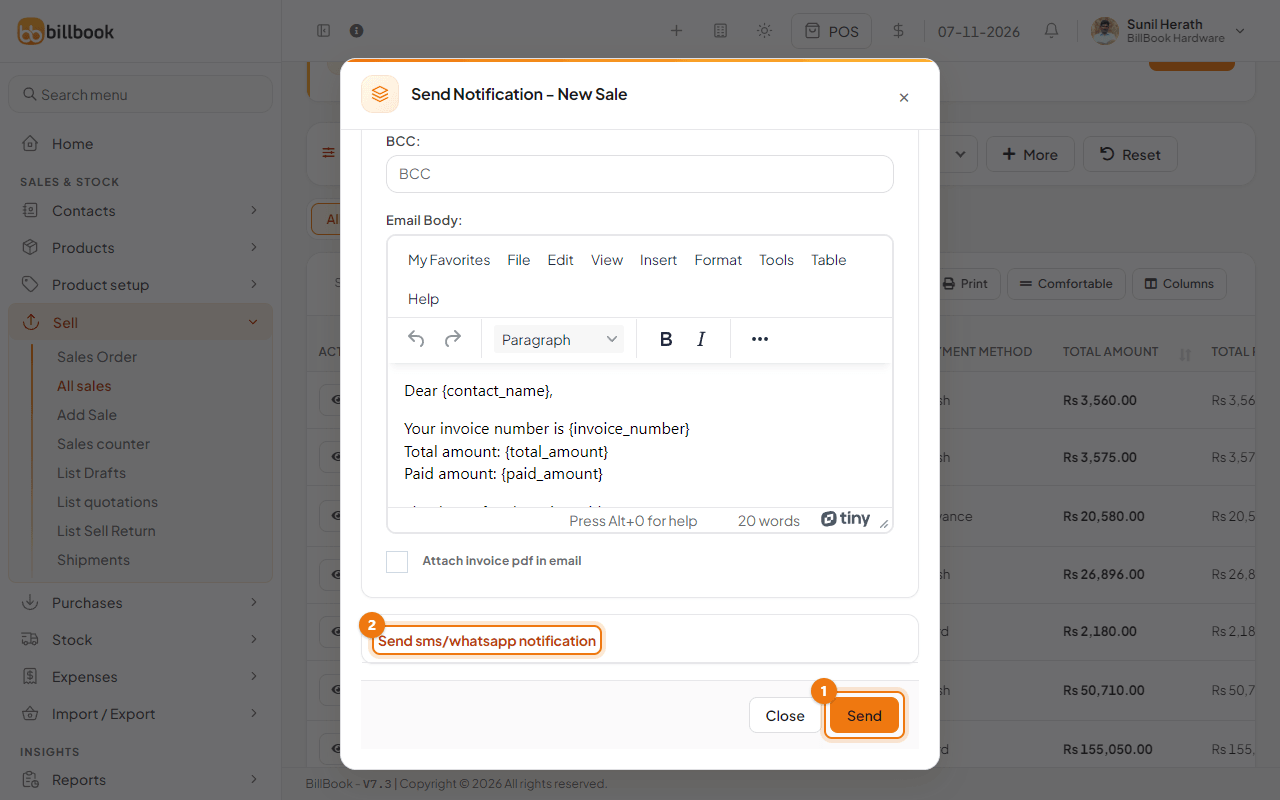
Note: The message is sent only when you select Send. Opening the pop-up sends nothing.