
Cash counters
Last updated: 7 November 2026 · 5 min read
A counter is one till in one location, for example Counter 1 and Counter 2 at your Colombo shop. When a cashier opens a register, they open it on a counter. BillBook then knows which cash drawer took which sales, and nobody can open a second register on a counter that is already in use.
Before you start: Selling from the Sales counter needs the POS module and permission to sell. Only the owner or an admin can add or rename counters.
What a counter is#
Every location starts with Counter 1. A counter belongs to one location and has a name. At any moment it is Free (no open register) or Busy (a cashier has a register open on it).
- One counter has at most one open register.
- Every new sale remembers the counter it was made on, so you can tell the tills apart.
- Receipts can print the counter name (see below).
- How many counters a location can have depends on your plan. The Manage counters window shows, for example, 2 of 2 counters, and the Extra counter add-on lets you add more.
Add, rename or deactivate counters#
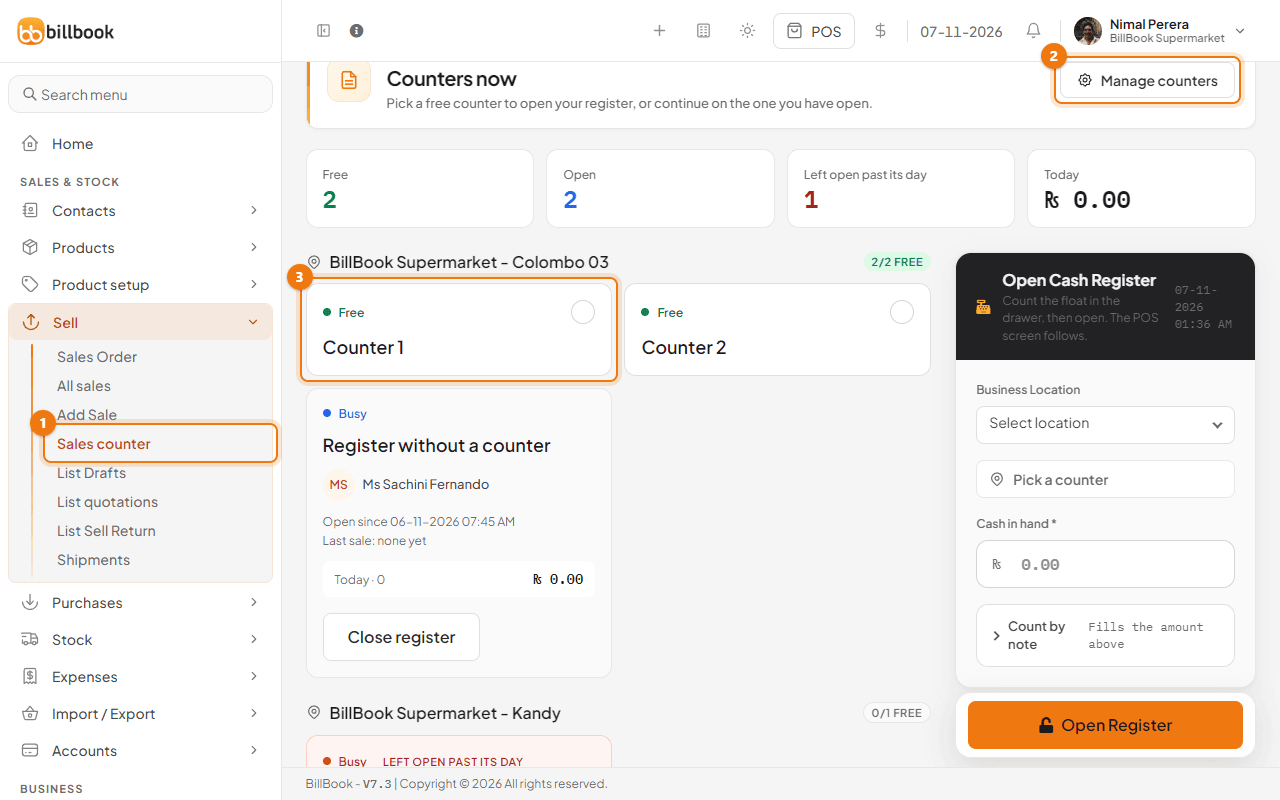
- Go to Sell > Sales counter (1). The page is called Counters now.
- Select Manage counters (2) at the top right. You only see this button if you are the owner or an admin.
- To add a counter, choose the Business Location, type a name in Counter name (1), for example Counter 2, and select Add counter (2).
- To rename a counter, change its name and select Update.
- To stop using a counter, select Deactivate (3). Select Activate later to bring it back.
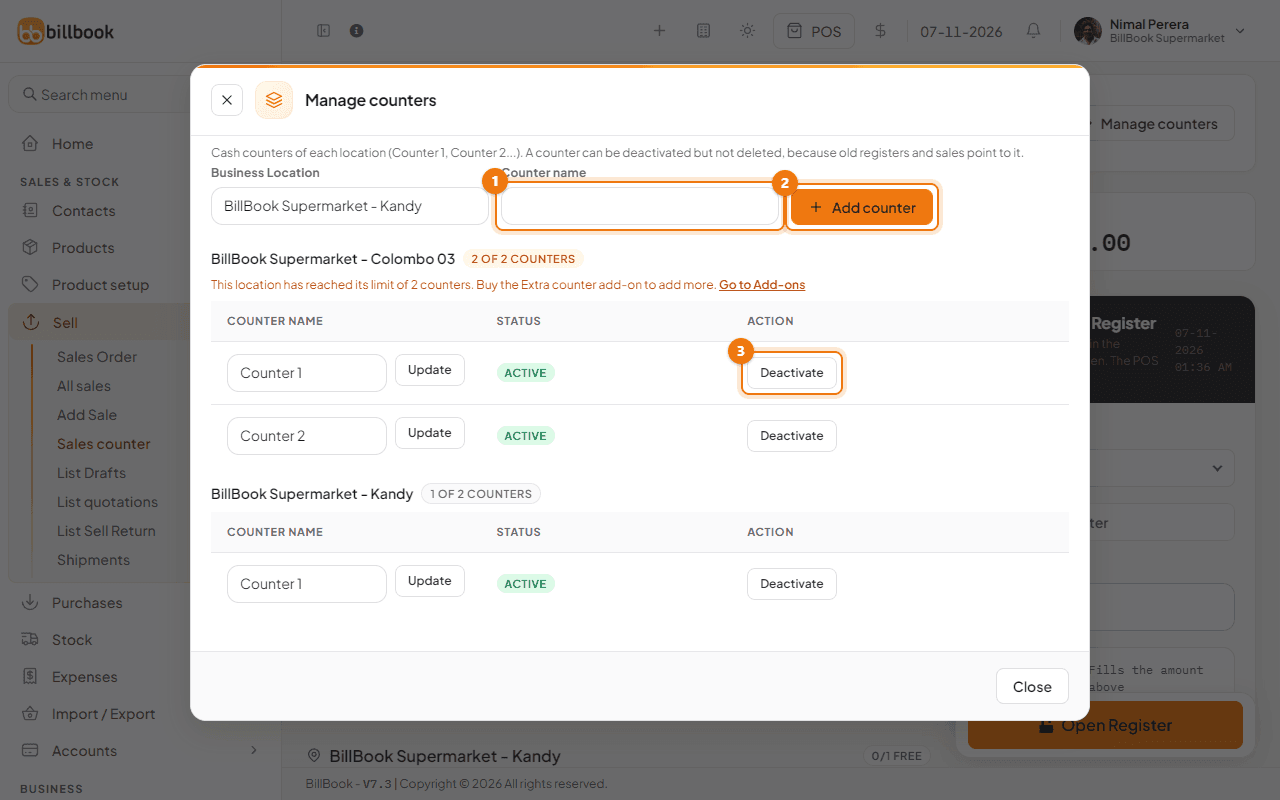
A counter cannot be deleted, because old registers and sales point to it. A deactivated counter simply disappears from the board. When a location has used all the counters its plan allows, the window says so and links to Add-ons. Turning a deactivated counter back on also uses up one place.
Open a register on a counter#
- Go to Sell > Sales counter. The cards show every counter of every location with its state.
- Select a free counter (1). Its card gets a tick, its name shows above Cash in hand, and the form's Business Location is set to that counter's location.
- Enter the float in Cash in hand (2). Select Count by note if you want to count it by note and coin.
- Select Open Register (3). The POS screen opens.
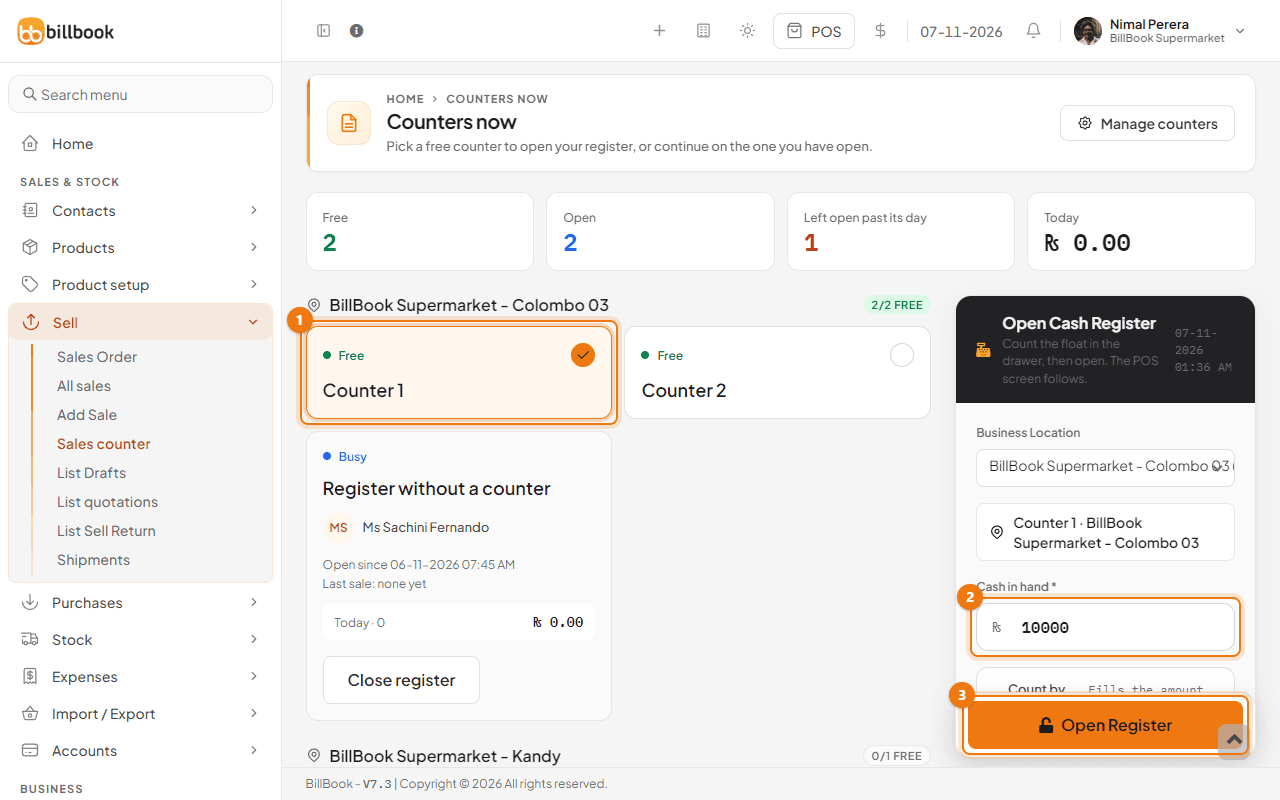
If you forget to pick a counter, BillBook asks you to Pick a counter. A Busy counter cannot be picked: close its register first or use another counter. A location with only one counter selects it for you. See Cash register: open and close for the float and for closing at night.
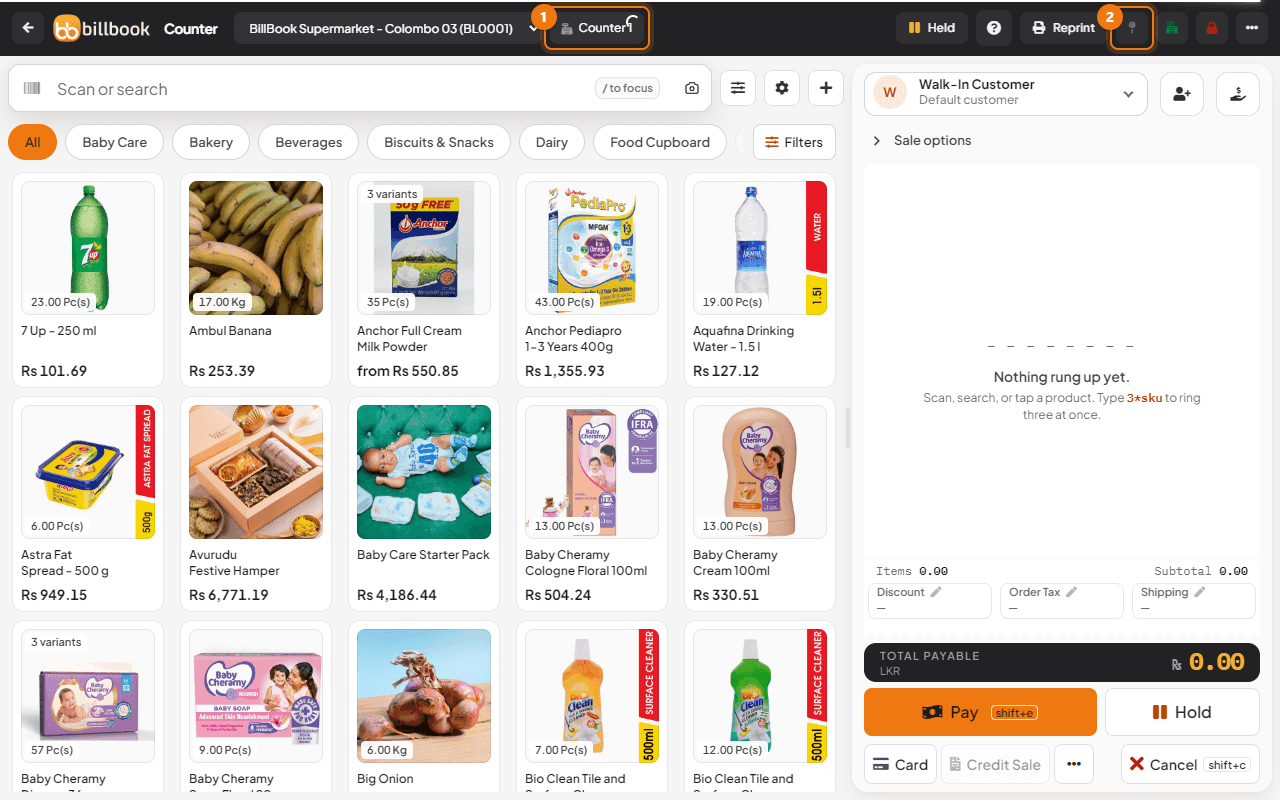
The POS header shows the counter your register is on (1). The Counters button (2) takes you back to this page.
Print the counter on receipts#
- Go to Settings > Invoice Settings and open the Invoice Layouts tab.
- Select Edit on the layout you print with.
- Tick Show counter (1) and select Update.
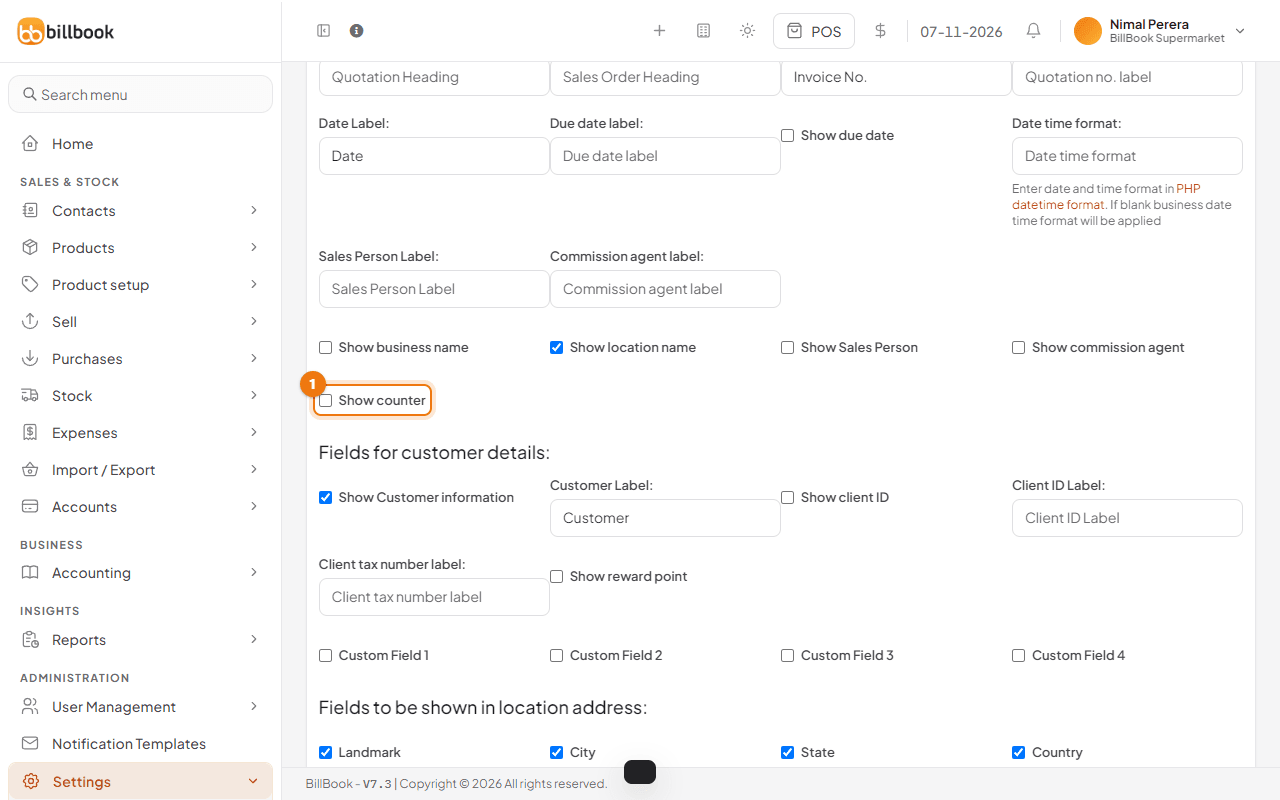
New receipts then get a Counter line with the counter name, for example Counter 1. The slim receipts, the A4 invoice and the Sri Lanka tax invoice can all print it. Sales made before counters existed, and sales made without a counter, show no counter.
See which counters are open#
The Sales counter page is also your live view. The four boxes at the top count the counters that are Free, Open, Left open past its day and today's takings (Today). Cashiers without permission to see register details only see Free and Busy.
Each card shows:
- The Free or Busy state, and Yours on your own counter.
- For a busy counter, who has it, when it was opened (Open since), the Last sale and the sales made Today.
- Continue and Close register on your own counter. The owner and admins also get Close register on every busy counter.
At the bottom, Users and registers lists every user with their counter and Open since time, or No open register. An open register that belongs to no counter (opened before counters existed) shows as Register without a counter.
A register left open past its day#
A register opened today must be closed before the new day starts, which is 4 AM by default. If a cashier forgets, the card turns red and says Left open past its day (1). The box at the top counts these too.
- Go to Sell > Sales counter.
- Find the red card and select Close register (2).
- Count the drawer and give the reason in Closing Note. Because you close it for someone else, BillBook asks for the counted cash and a note, and it records who closed it.
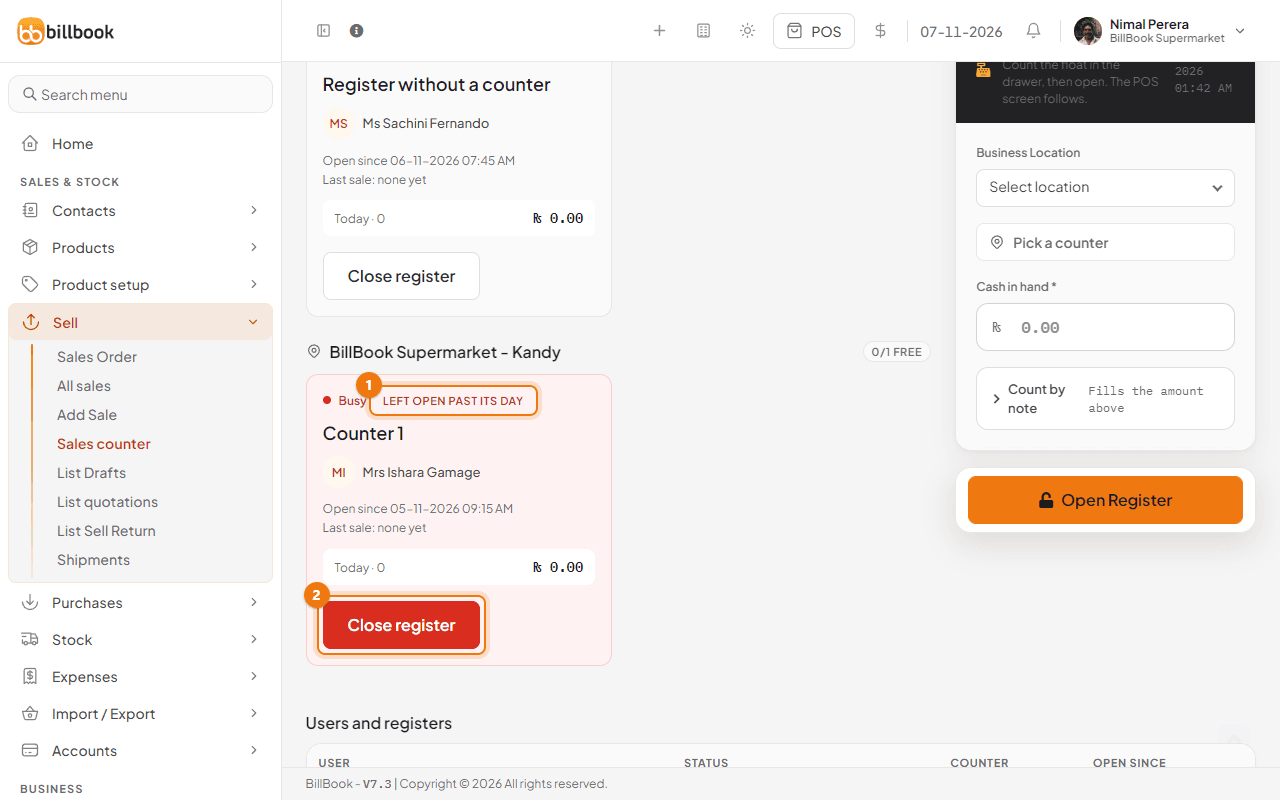
Until it is closed, the cashier who owns the register cannot sell at the POS or open a new register. They see a Close your register page that says when the register was opened and on which counter, with the same close form.
You can change the rule in Settings > Business Settings, on the POS tab:
- New day starts at (hour, 0-12): the hour after which yesterday's register counts as left open. The default is 4.
- Allow a register to stay open past the day (24-hour shop): tick this if your shop trades through the night. Registers are then never marked as left open.
Note: Even in a 24-hour shop, close the register at the end of each shift, so every shift's cash is counted on its own.