
Orders and line orders
Last updated: 7 November 2026 · 3 min read
The Orders screen is for the waiters and service staff. It shows each person's tables: what is ready to carry out and what is still in the kitchen. A waiter marks an order as served once it reaches the table. Line orders are single items that were given to one person, even if the rest of the order belongs to someone else.
Before you start: Switch on Tables, Service staff and Kitchen (For restaurants) in Settings > Business Settings > Modules. To give single items to different people, also switch on Enable service staff in product line in Settings > Business Settings > POS. Turn on restaurant and salon features shows each step.
Line orders#
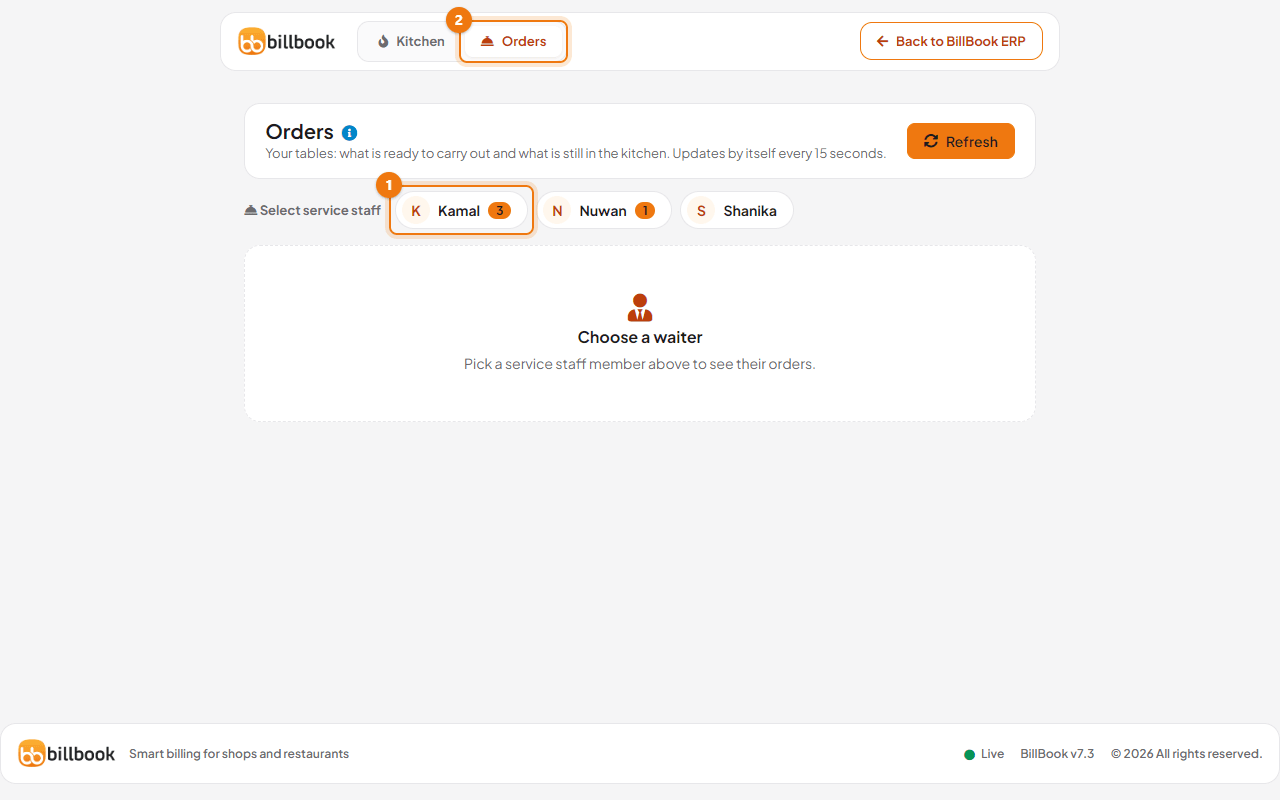
Open Orders under BUSINESS in the left menu (or the Orders tab at the top of the Kitchen screen).
- Choose a person under Select service staff (1). The number on a name is how many open orders that person has. A user whose role is a service staff role sees their own orders straight away and does not need to choose.
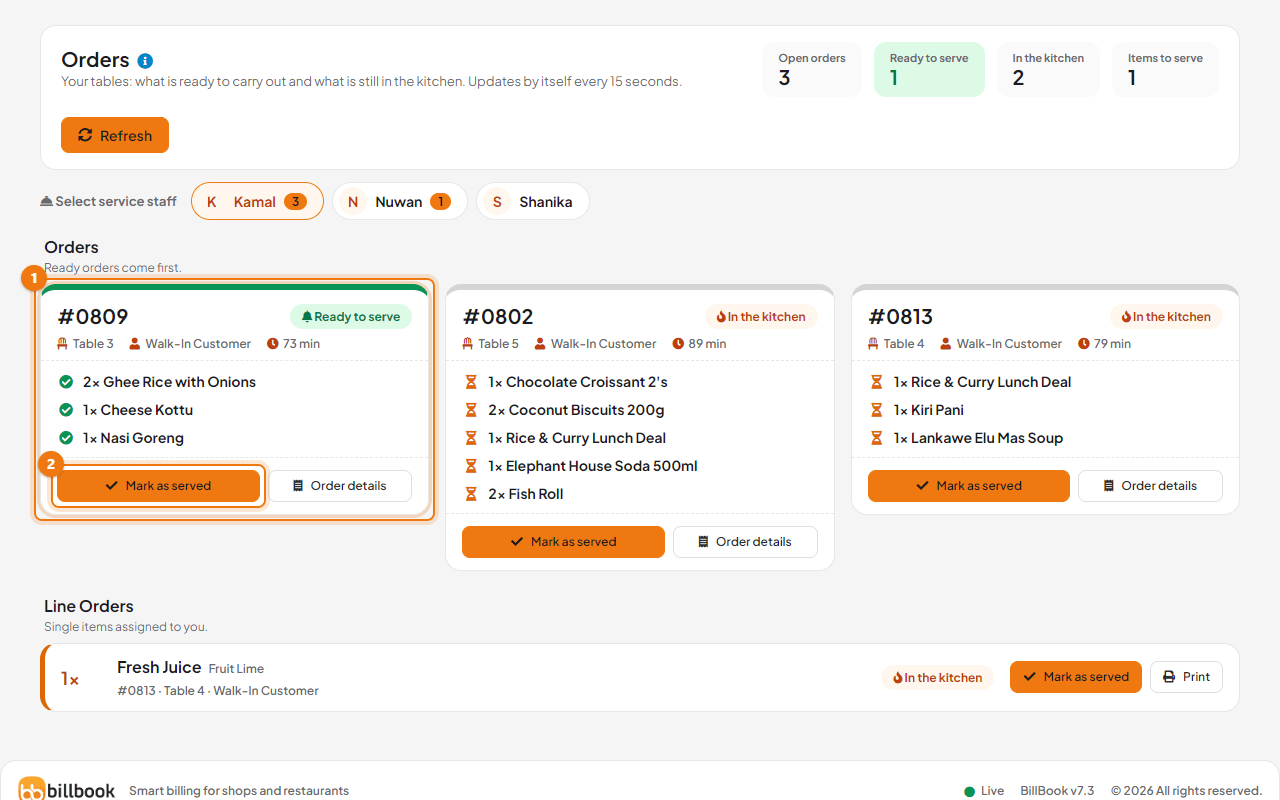
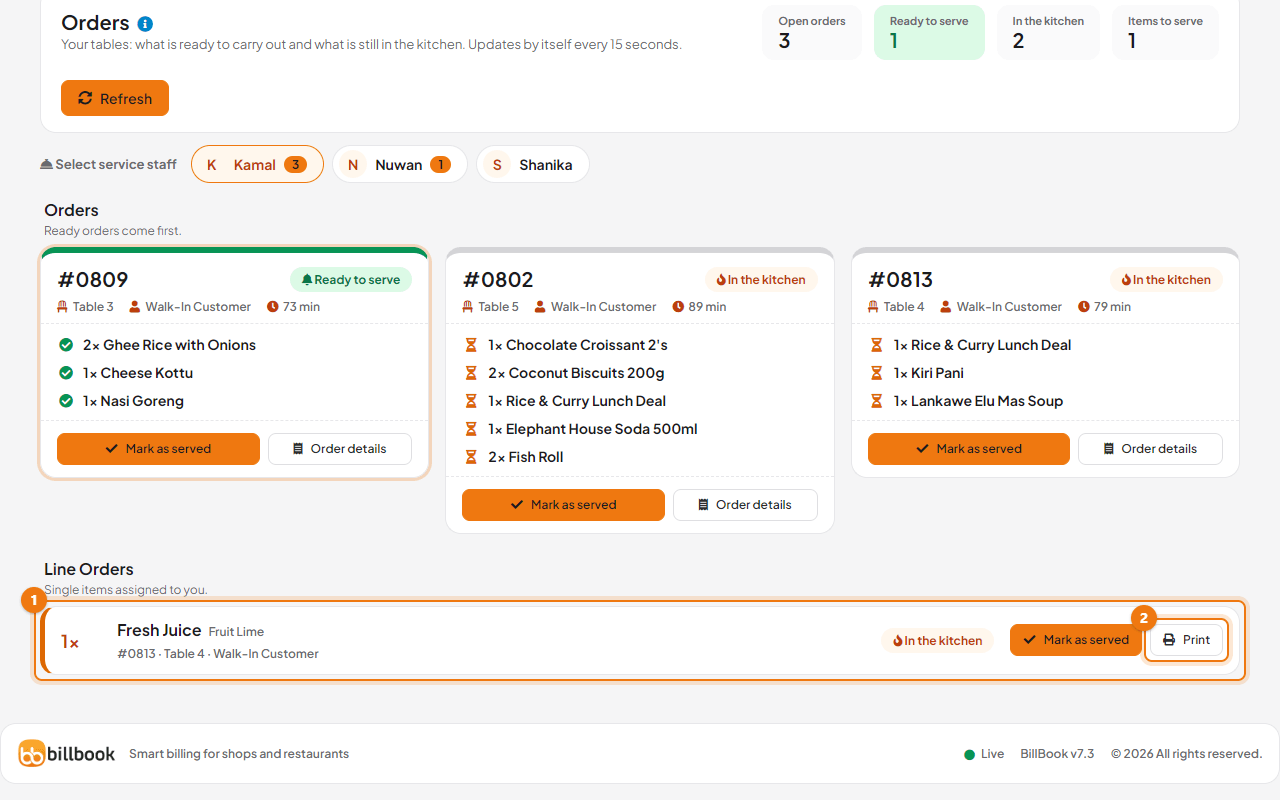
- Scroll to Line Orders (1). It says Single items assigned to you and lists the items given to that person in the item's Select service staff box at the POS. Each row shows the quantity, the item, the order number, table, customer and add-ons.
- Each row shows its status, for example In the kitchen, and the buttons Mark as served and Print.
If the list says No orders found, nothing was assigned to that person as a single item.
All orders#
The Orders section lists every order for the chosen person, which means orders where that person is the sale's service staff. Ready orders come first, then the longest waiting.
- The boxes at the top count Open orders, Ready to serve, In the kitchen and Items to serve.
- Each card shows the order number, the table, the customer and the minutes waited, with its items and add-ons.
- A green card marked Ready to serve (1) has been cooked in the kitchen. A card marked In the kitchen is still being prepared, and Partly ready means only some items are done.
- Order details opens the full sale.
The screen updates itself every 15 seconds. Select Refresh to update it now.
Mark as served#
- On the order's card, select Mark as served (2). To serve a single item, select Mark as served on its row under Line Orders.
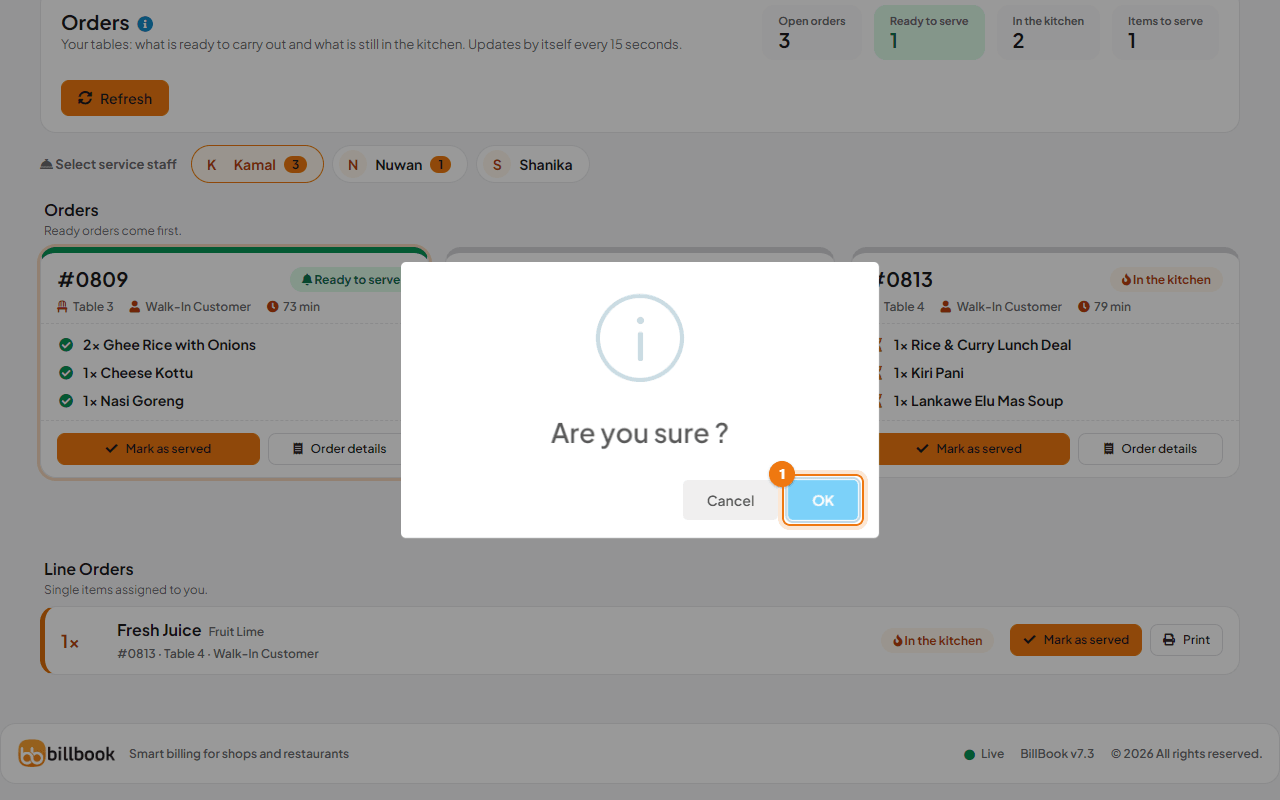
- BillBook asks Are you sure ?. Select OK (1).
BillBook shows Order successfully marked as served. A served line order leaves the Line Orders list. The items you served on a whole order are shown with a double tick and are dimmed.
Note: In this version of BillBook a whole order that you mark as served can stay on the Orders screen labelled Partly ready, with its items dimmed. The items are recorded as served; the card is just not hidden yet.
Print a line order#
Print gives the kitchen or the bar a small slip for one item, for example to stick on a drink.
- Under Line Orders, select Print (2) on the item.
- Your browser's print window opens. Choose the printer and print as for any other page.
The slip shows the order number, when it was placed, the order status, the customer, the table, the service staff, the location, the item with its add-ons and the quantity.