Deposits, transfers and closing accounts
Last updated: 7 November 2026 · 3 min read
Once your accounts are set up, use deposits and transfers to record money moving around your business, such as taking Friday's cash to the bank or moving surplus to savings. Each one updates the balance of every account it touches.
Before you start: You need at least two accounts for a transfer. See Set up payment accounts.
Deposit money#
Use Deposit when money goes into an account. If it came from another account of yours, such as cash taken from the drawer to the bank, choose that account too so both balances stay correct.
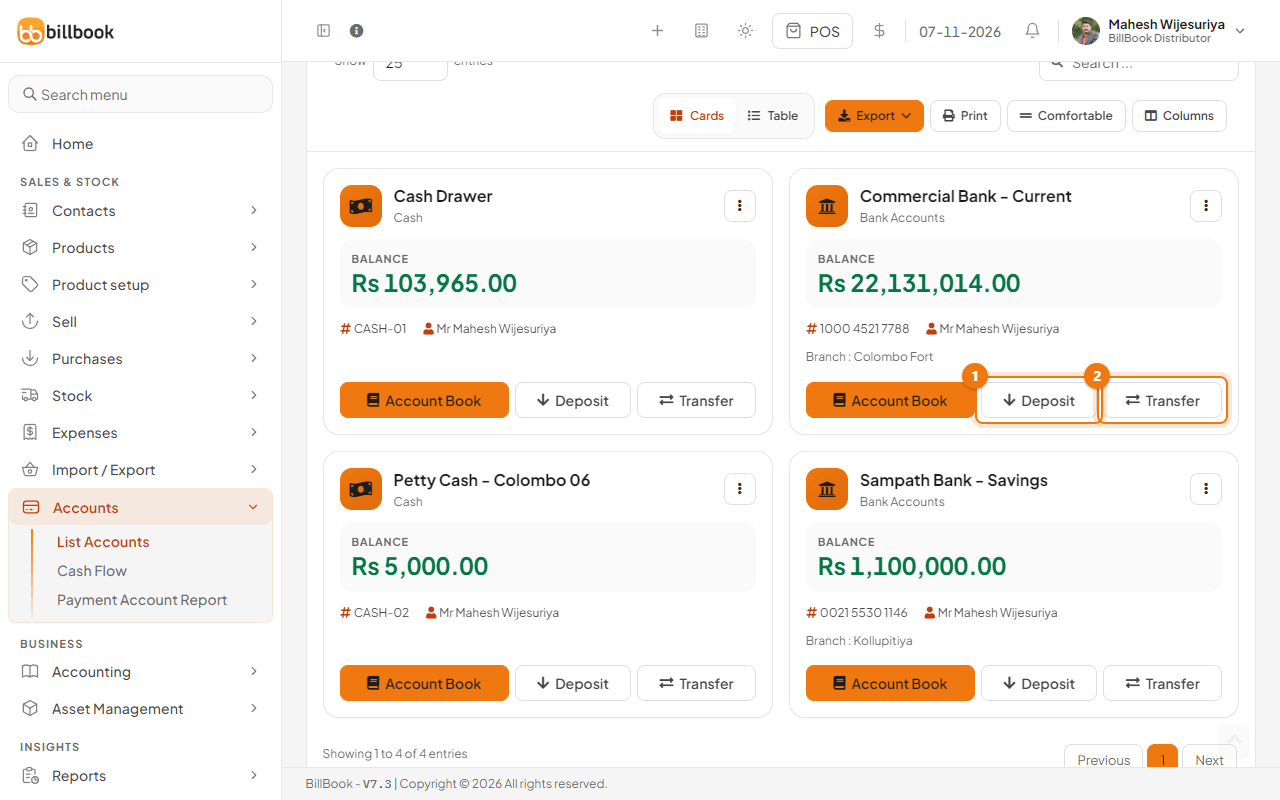
- Go to Accounts > List Accounts.
- On the card of the account that receives the money, select Deposit (1).
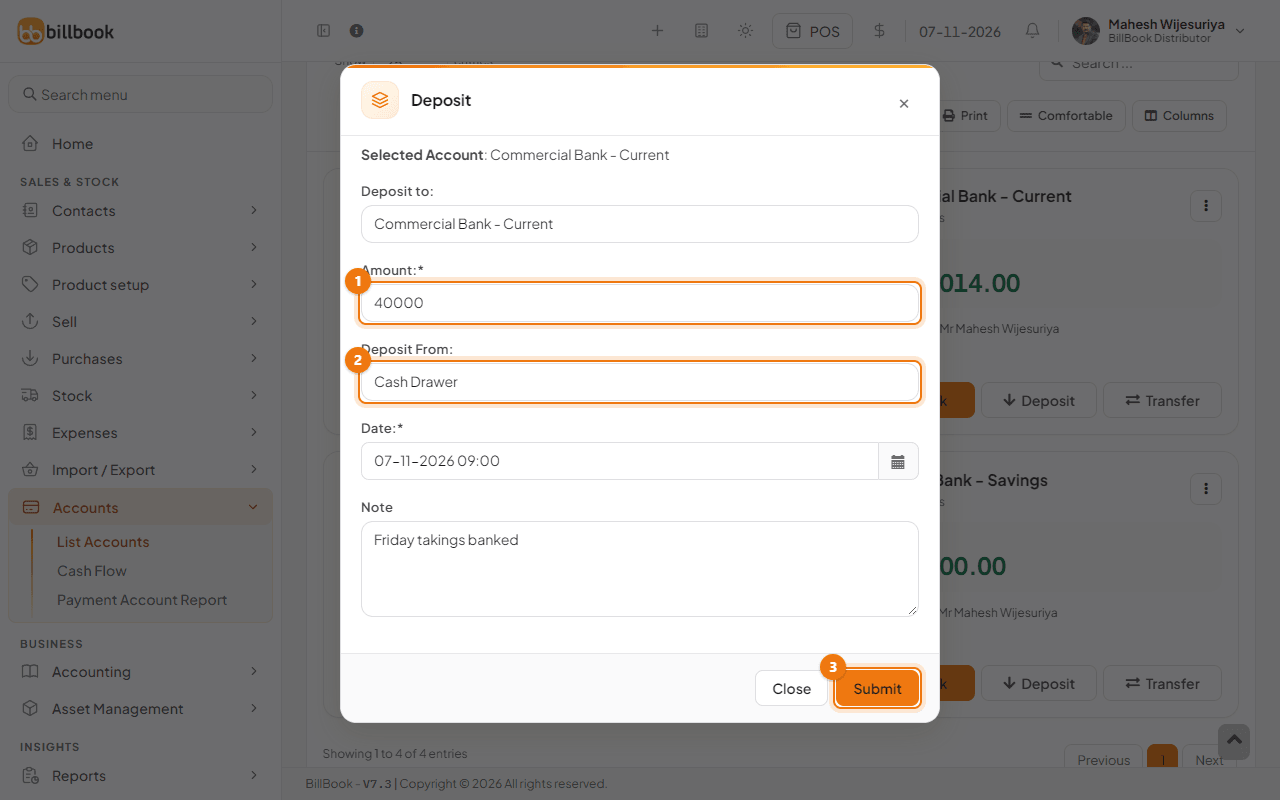
- Enter the Amount (1). The pop-up already shows Deposit to with this account.
- Under Deposit From (2), choose the account the money came from, for example Cash Drawer. Leave it on Please Select if the money came from outside your accounts, such as the week's cash sales.
- Pick the Date, which is required, and add a Note, for example Friday takings banked.
- Select Submit (3). BillBook shows Amount deposited successfully.
Transfer between accounts#
Use Transfer to move money from one account to another, for example from your current account to savings. The sending account goes down and the receiving account goes up by the same amount.
- On the card of the account the money leaves, select Transfer (2 in the first picture above).
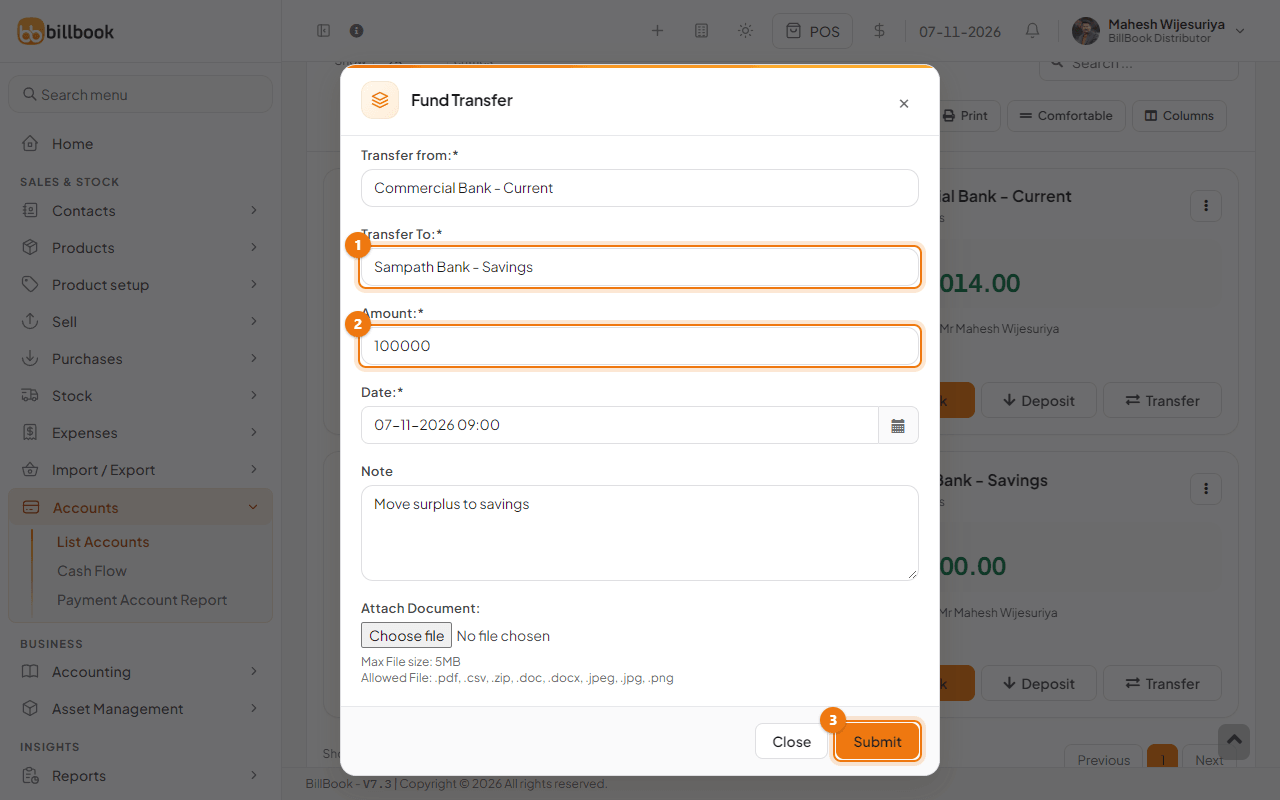
- Transfer from shows this account. Choose Transfer To (1), for example Sampath Bank - Savings.
- Enter the Amount (2) and pick the Date.
- Add a Note. If you have a bank slip, you can attach it under Attach Document (PDF, Word, CSV, ZIP or an image, up to 5 MB).
- Select Submit (3). BillBook shows Fund transfered successfully.
Edit or delete a transaction#
Every deposit, transfer and opening balance is listed in the account's book.
- On the account's card, select Account Book. It shows the current balance and every entry with its Debit, Credit and running Balance. Use the date range, Transaction Type and Added By filters, or the search box, to find an entry.
- On the entry's row, select Edit (1), change the amount, date or note, and select Submit.
- To delete an entry, select the arrow next to Edit and choose Delete (2). Confirm the question that follows.
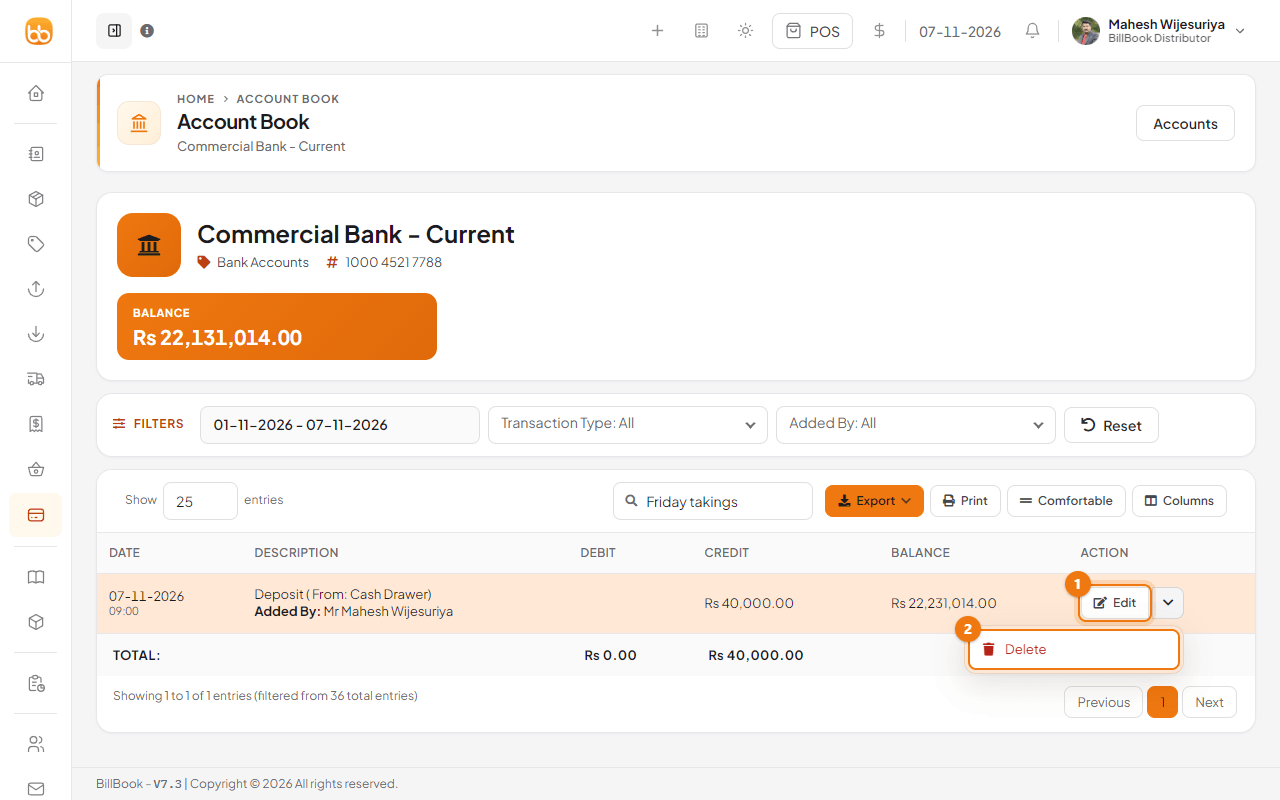
The balance updates straight away. The Opening Balance row has an Edit button only, so you can correct the starting amount but not delete it.
Tip: On a narrow screen the table scrolls sideways. Scroll right to reach the Action column.
Close or reopen an account#
Close an account you no longer use, such as a bank account you have shut. Its history stays, but it leaves your active list.
- On the Accounts list, select the three dots on the account's card.
- Select Close account (1) and confirm. If the account still has a balance, BillBook asks once more before it closes. BillBook then shows Account closed successfully.
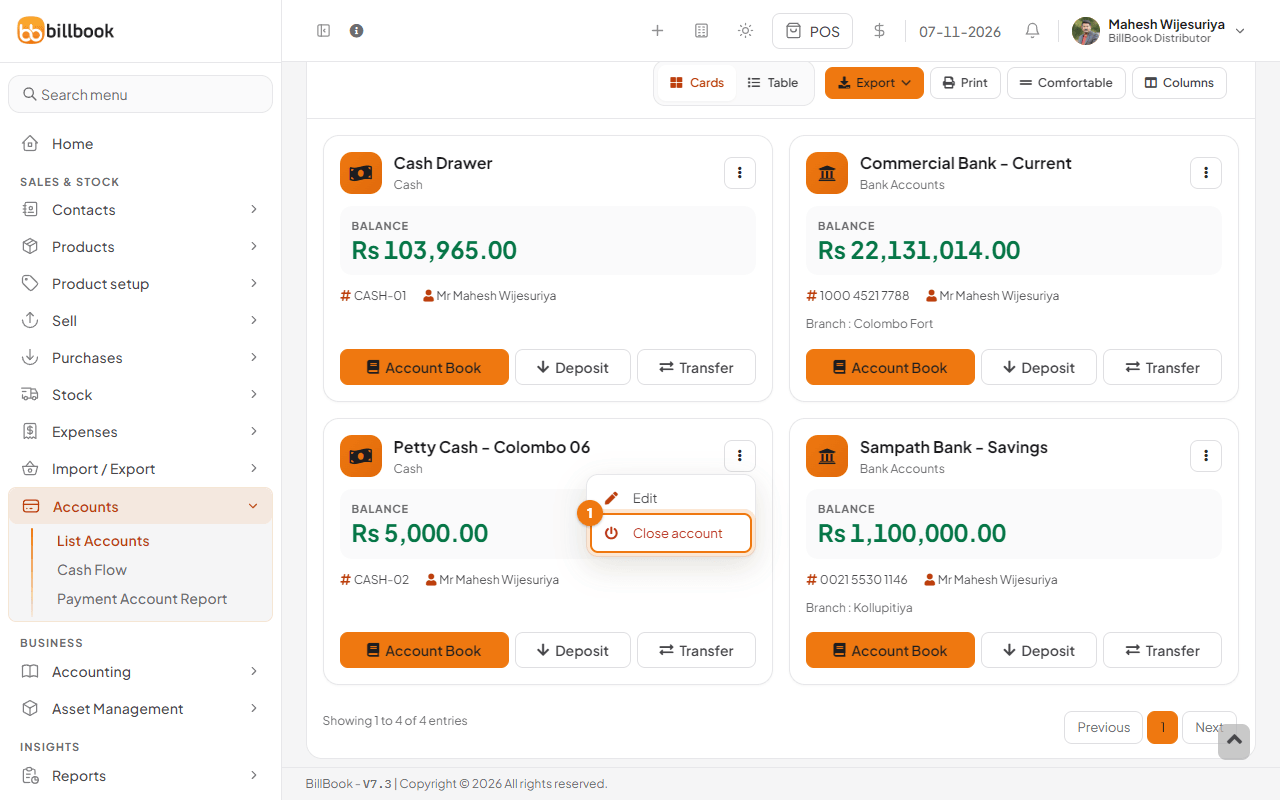
To see or reopen it:
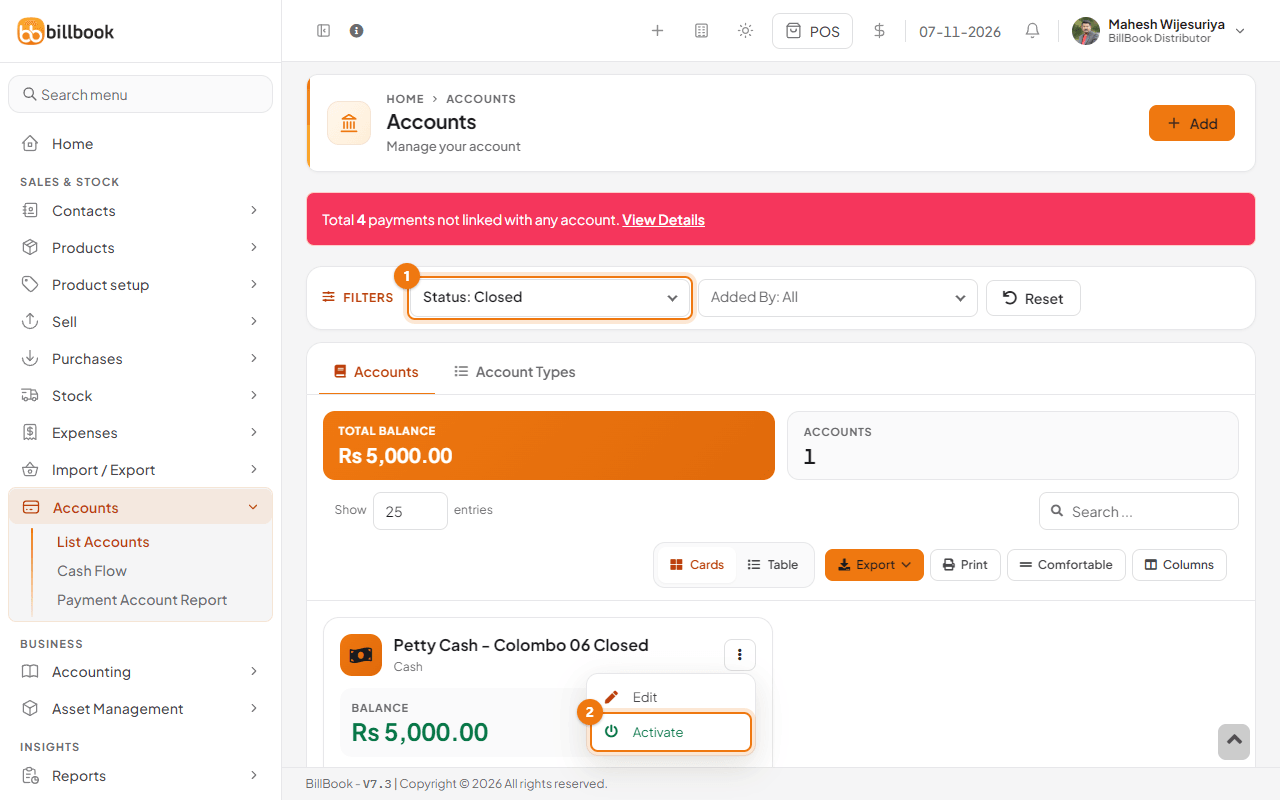
- Set the Status filter (1) to Closed. The card shows a Closed tag.
- Select the three dots on the card and choose Activate (2). The account is back in your active list.