
Reward points
Last updated: 4 November 2026 · 3 min read
Reward points bring customers back. A customer who spends Rs. 9,600 on an angle grinder earns points, and next time they can use those points to take money off a bill. You decide how many points a sale earns, what a point is worth and when points expire.
Before you start: You need permission to open Settings > Business Settings. Points belong to a customer, so choose a named customer on the sale.
Turn on reward points#
- Go to Settings > Business Settings and select Reward Point Settings in the left list.
- Turn on the switch at the top (1).
- Enter a Name (2) for your points, for example Points. This name shows in the POS and on the customer's page.
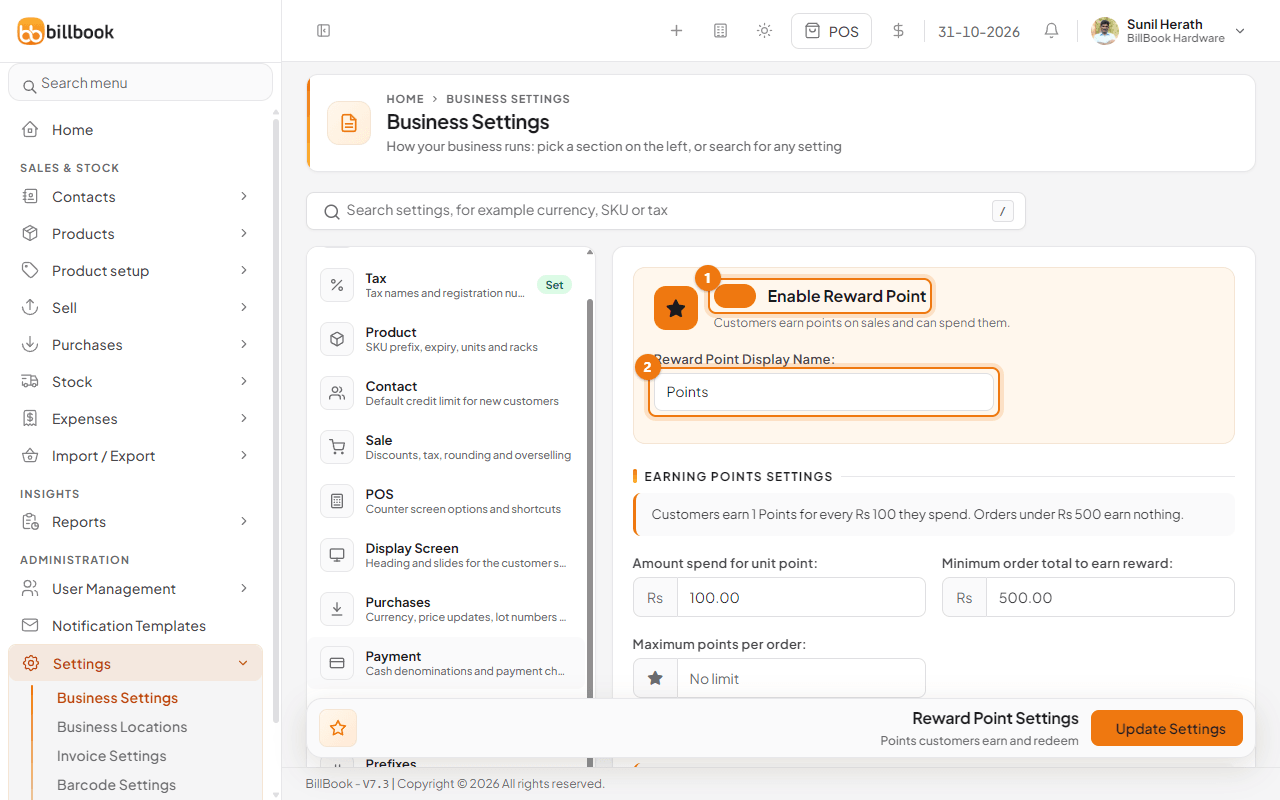
Select Update Settings when you have finished all three sections below.
Earning rules#
- In Amount spend for unit point (1), enter how much a customer spends to earn one point. We used 100, so Rs. 100 earns 1 point and Rs. 9,600 earns 96 points.
- In Minimum order total to earn reward (2), enter the smallest sale that earns points. We used 500.
- In Maximum points per order (3), enter a cap, or leave it empty for No limit.
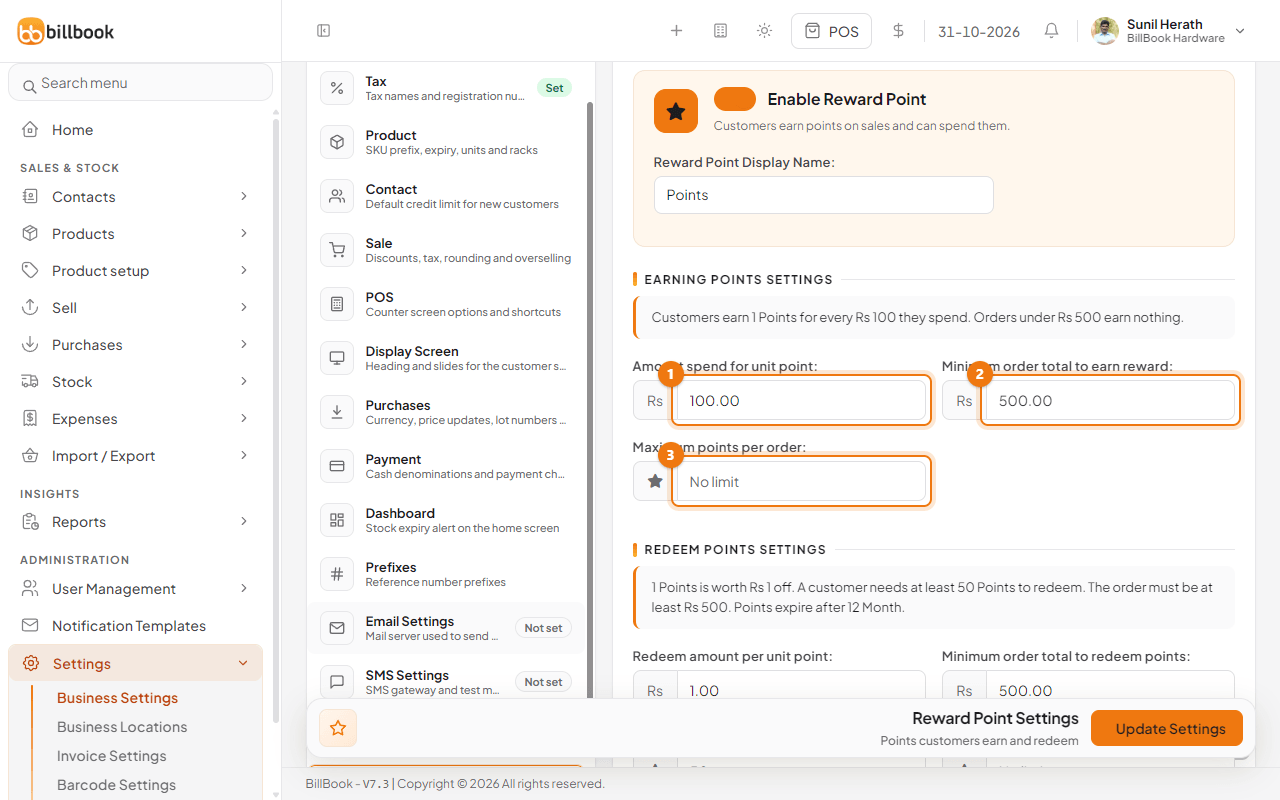
A short line under the heading, and a Try it box at the bottom of the screen, repeat your rules in plain words. Use them to check the numbers before you save.
Redeeming in POS#
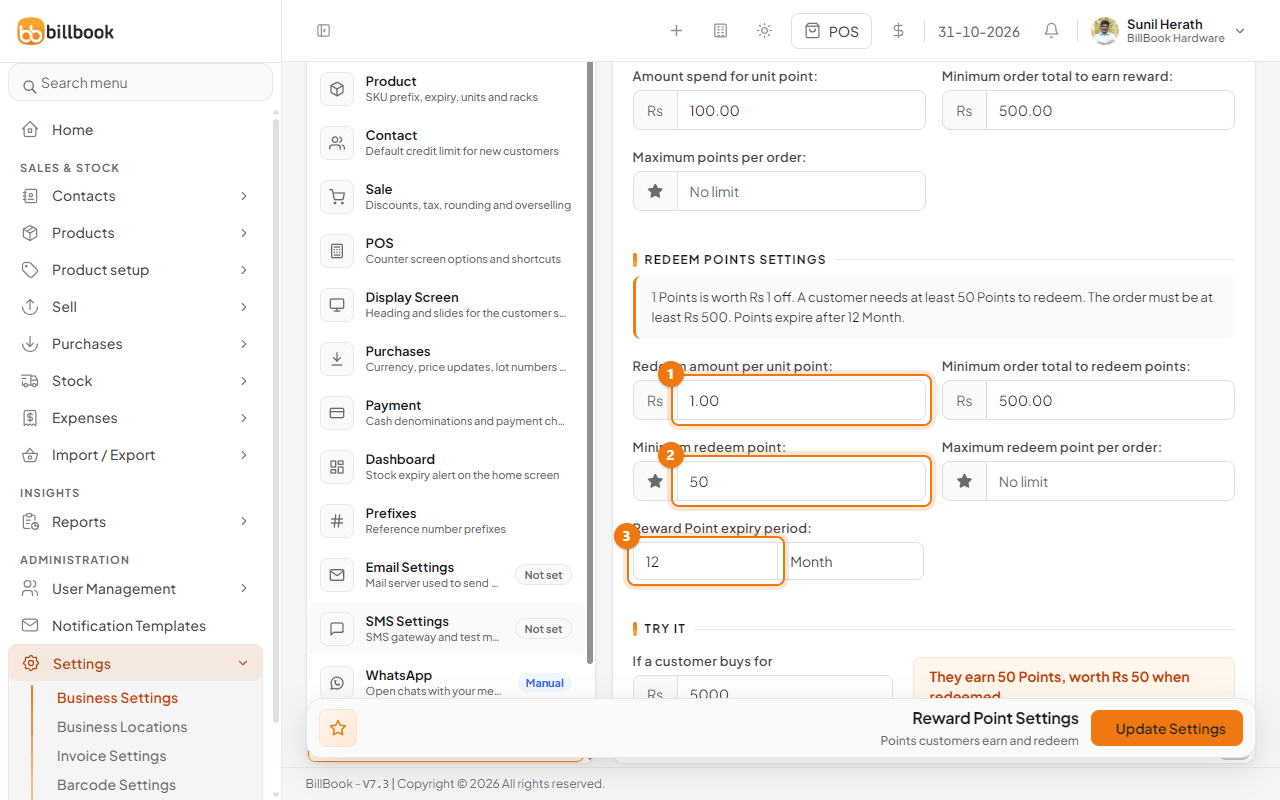
- Under Redeem Points Settings, enter Redeem amount per unit point (1). 1 means each point takes Rs. 1 off. 0.50 means 2 points take Rs. 1 off.
- Enter Minimum order total to redeem points. We used 500.
- Enter Minimum redeem point (2), the fewest points a customer can use at once. We used 50.
- Enter Maximum redeem point per order if you want a cap.
Now sell to a customer who has points.
- In the POS, choose the customer and add the items, for example an Ingco Measuring Tape 5m at Rs. 850.00.
- Select the Discount / Points box above Total Payable. The window is called Discount · Points.
- In the Points box, Available shows how many points the customer has. Enter the points to use in Redeemed (1). The Redeemed Amount shows the rupee value.
- Select Update (2). Total Payable goes down by that amount.
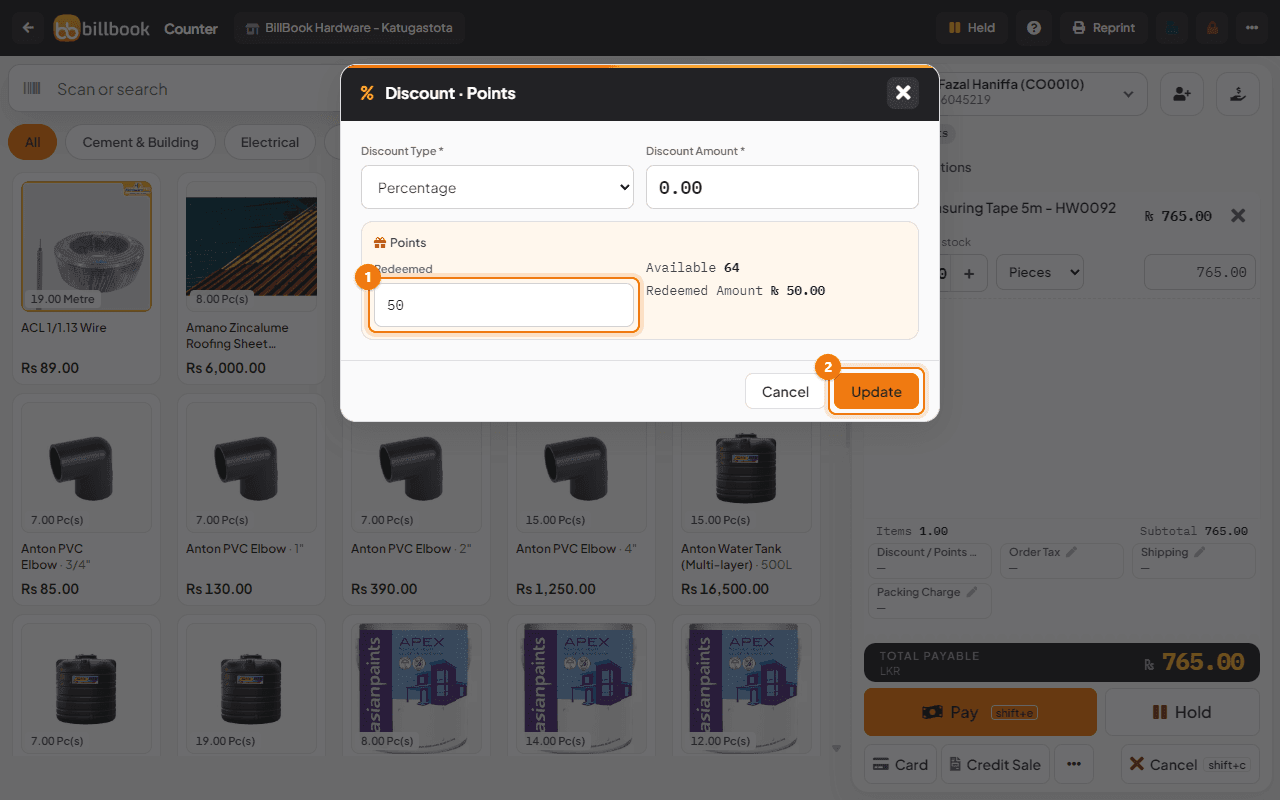
Note: Your minimums, maximums and the customer's balance all limit how many points can be used on a bill. If the POS refuses the points, check them against your rules above.
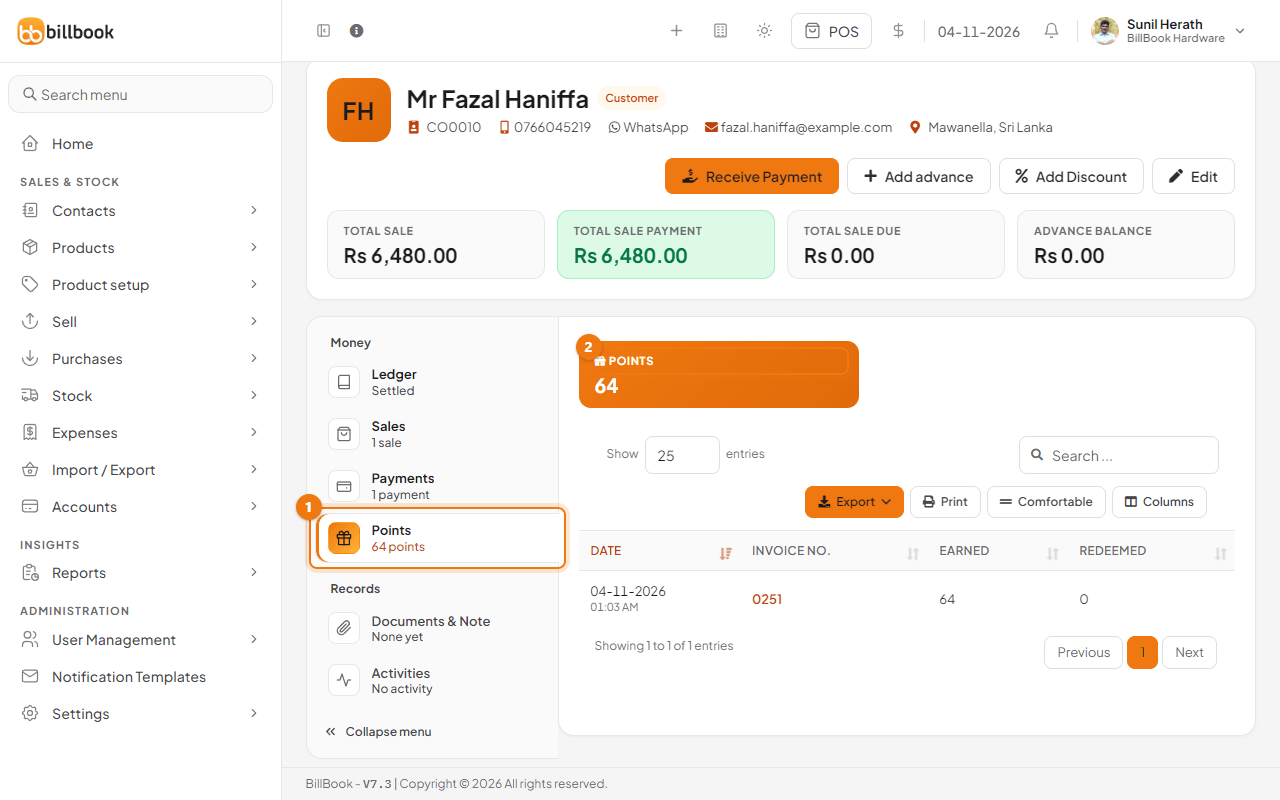
To see a customer's points, go to Contacts > Customers, open the customer and select Points (1) in the left list. The Points total (2) is the balance. The table lists each invoice with the points Earned and Redeemed.
Points expiry#
- Under Reward Point expiry period (3), enter a number, then choose Month or Year. We used 12 months.
- Leave it empty if points should never expire.
- Select Update Settings.
Points a customer earned before the expiry period are taken off their balance automatically.