
Kitchen screen
Last updated: 7 November 2026 · 4 min read
The Kitchen screen is a live list of the orders the cooks still have to prepare. The cashier or waiter sends an order from the POS, it appears as a card in the kitchen, and the cook selects Mark as cooked when the food is ready. The waiter then sees the order as ready to serve.
The Kitchen screen and the printed kitchen order tickets (KOTs) work side by side. The screen shows orders that have Kitchen order ticked. The KOT is the paper slip that Send to kitchen prints for the cooks. See Kitchen order tickets (KOT) and token numbers for the slips.
Turn on the kitchen#
- Go to Settings > Business Settings and open Modules.
- Under Restaurant and service, switch on Kitchen (For restaurants) (1). Switch on Tables and Service staff as well if you want a table and a waiter on each order.
- Select Update Settings.
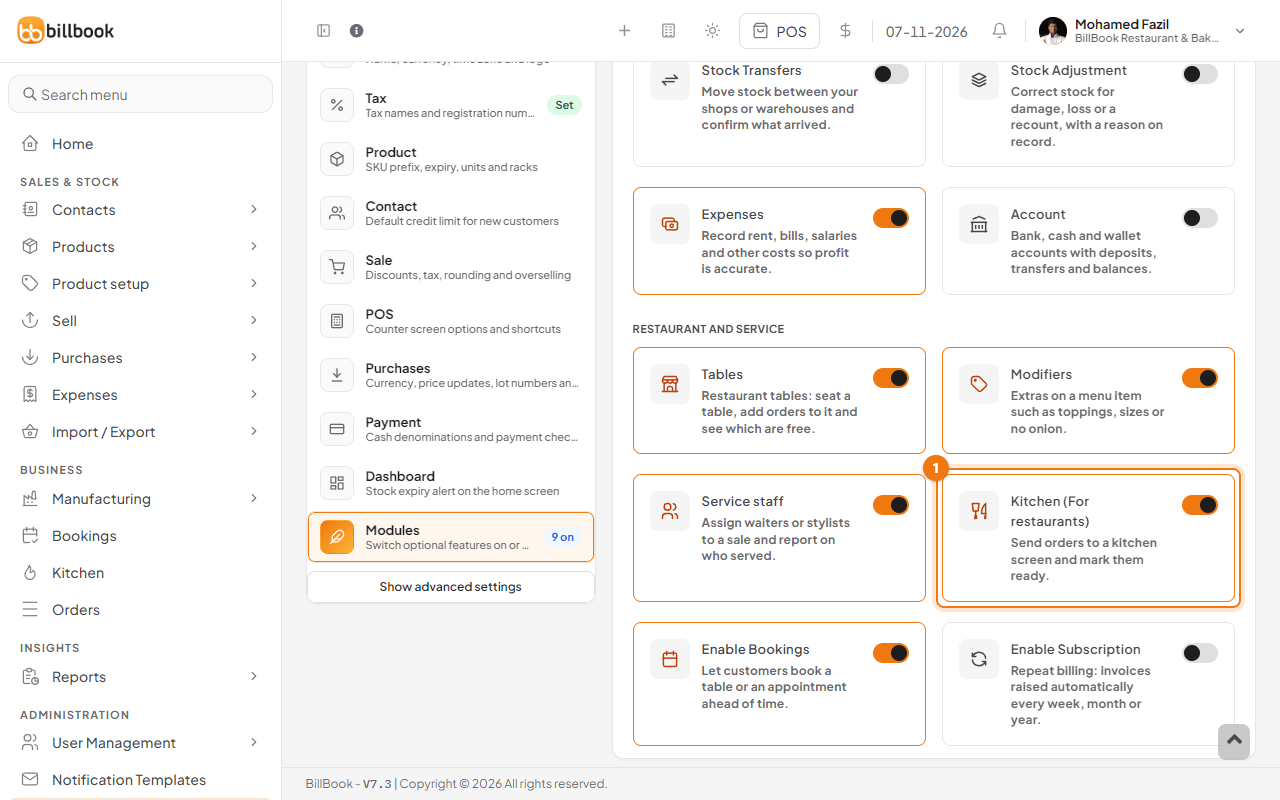
Kitchen and Orders now appear under BUSINESS in the left menu.
How orders reach the kitchen#
Only orders you send on purpose reach the kitchen. Dine-in food usually goes, while a drink or a packed item from the counter does not need to.
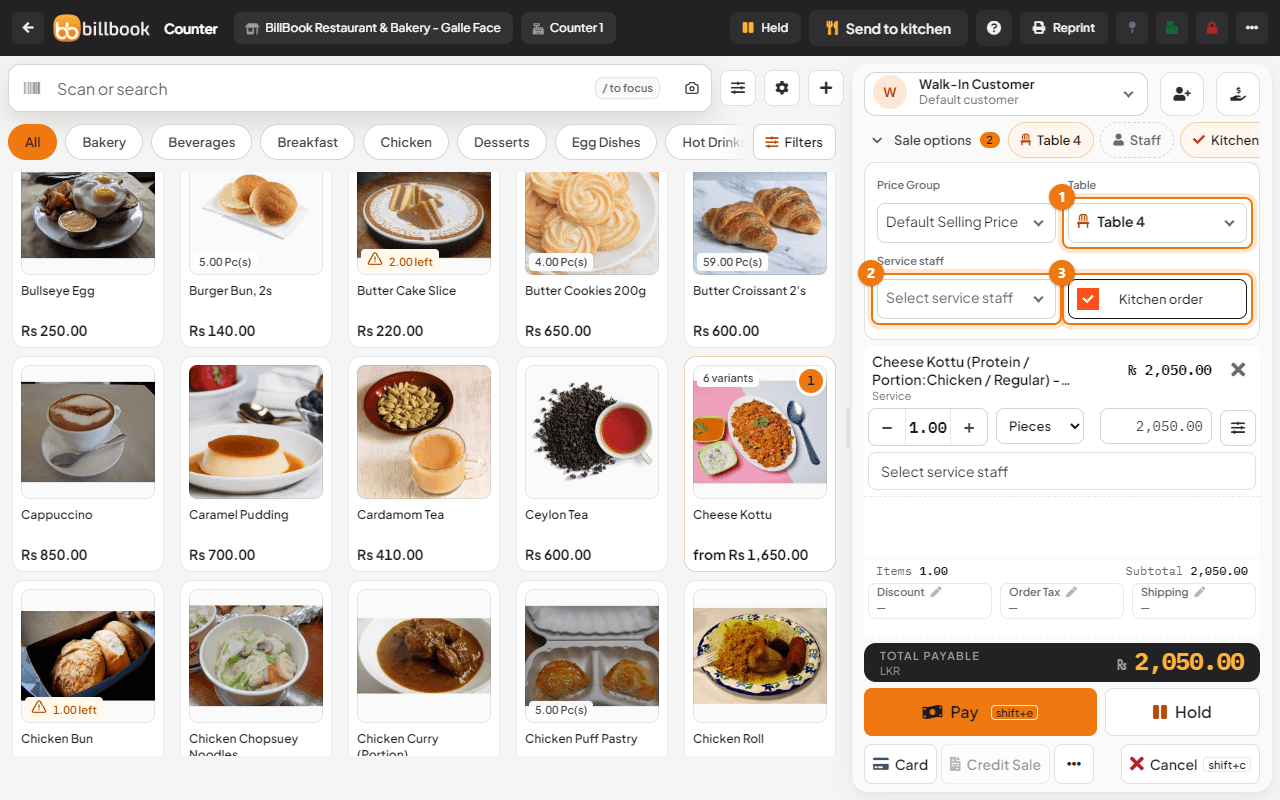
- Select POS at the top of the screen (or Sell > Sales counter) and add the items. For a dish with variants, such as a kottu, choose the variant first.
- Open Sale options if it is closed. Choose the table in Table (1) and the waiter in Service staff (2) if you use them.
- Tick Kitchen order (3). If you leave it unticked, the order is a normal sale and does not show in the kitchen.
- Finish the sale. The order appears on the Kitchen screen at once, or within a few seconds.
Open Kitchen in the left menu to see the cards. The screen has only a small header, so it is easy to leave open on a tablet or a screen in the kitchen. Use Back to BillBook ERP to return to the main app, and the Orders tab at the top for the waiters' screen.
Each card shows:
- the order number, for example #0802, and the minutes it has been waiting;
- the table, the customer and the time it was placed;
- every item with its quantity, and the add-ons chosen under it (for example + No Sugar);
- the buttons Mark as cooked (1), Order details (2) and Reprint KOT (3).
The coloured line on top of a card and the legend under the title show how long it has waited: green for Under 10 min, orange for 10 to 20 min and red for Over 20 min. The boxes at the top show Open orders, Longest wait and Overdue.
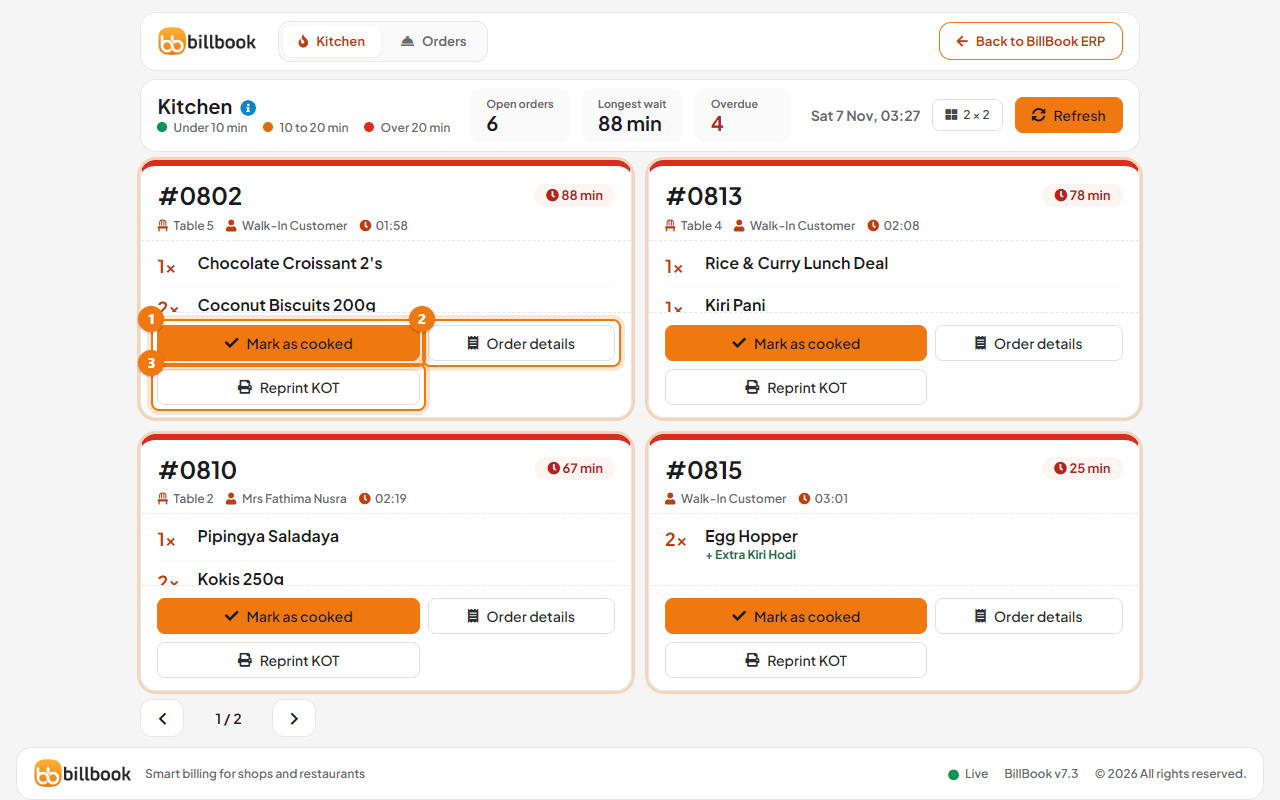
Select Reprint KOT (3) to print the order's kitchen ticket again, for example when the first slip is lost. It prints the KOT only and does not change the order on the screen. The button shows only for people with the Send to kitchen / reprint KOT permission. If the order was sent more than once, BillBook asks which KOT to print again.
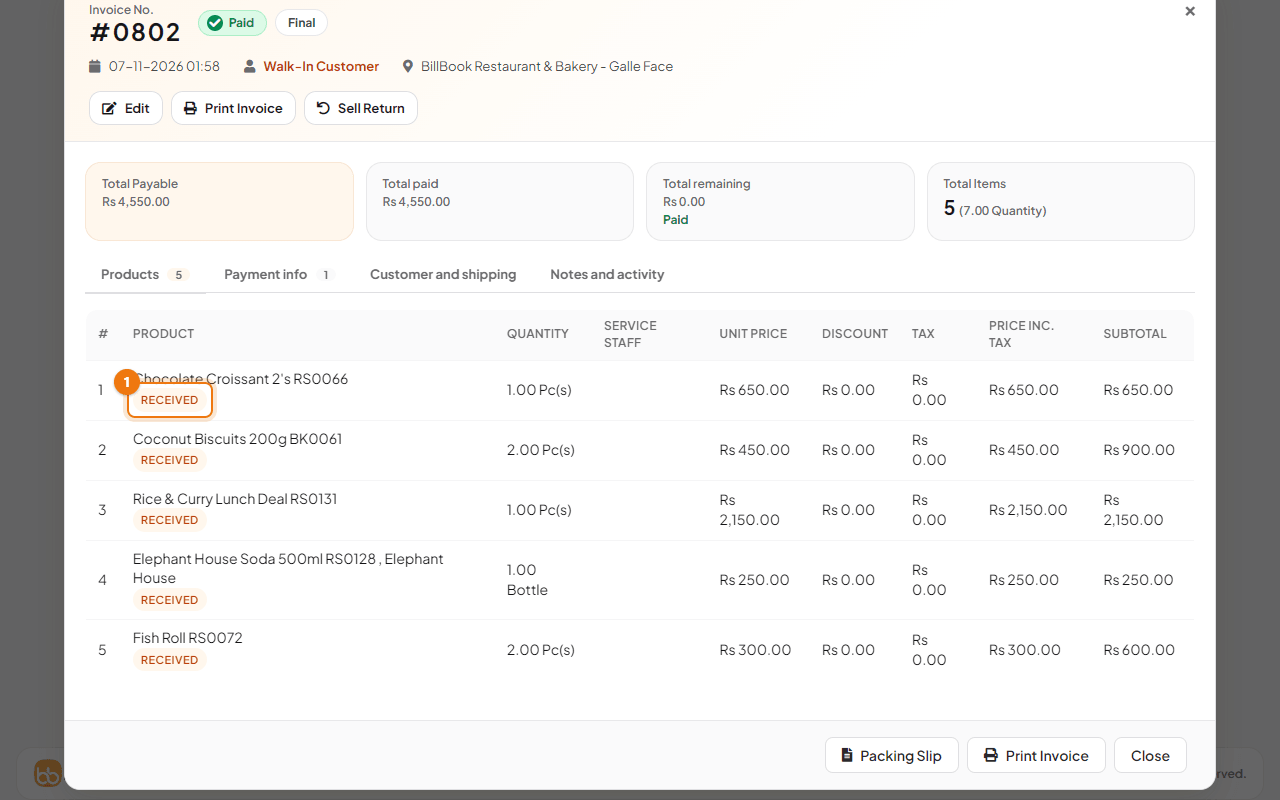
Select Order details to open the full sale, with each item's price and its status, such as Received.
Tip: The button next to Refresh, which shows 2 × 2, sets how many cards fit on the screen (for example 3 × 2 for six cards). Tick Turn pages automatically (15 s) there to rotate through pages when there are more orders than cards.
Mark as cooked#
- On the order's card, select Mark as cooked.
- BillBook asks Are you sure ?. Select OK (1).
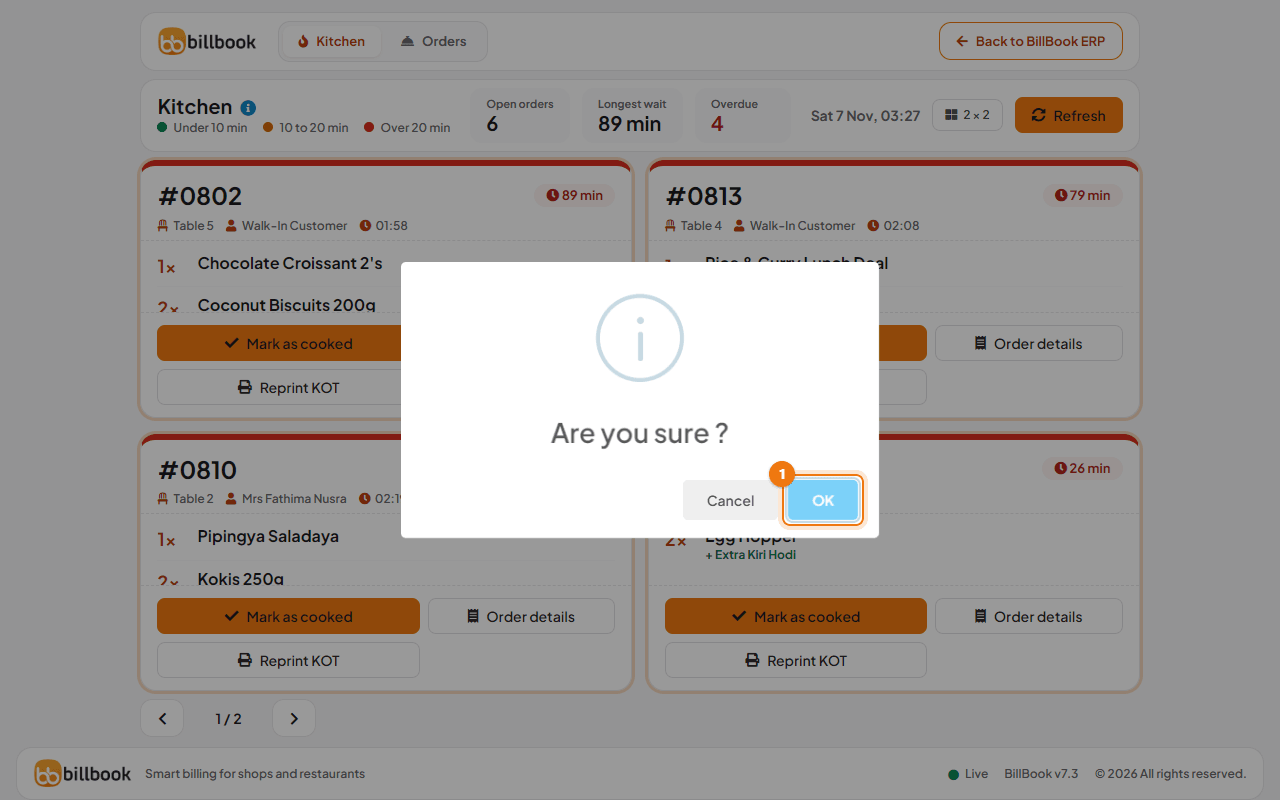
BillBook shows Order successfully marked as cooked and the card leaves the Kitchen screen. The order now shows as ready for the waiter on the Orders screen, where the waiter marks it as served. Orders and line orders explains that part.
The Kitchen screen updates itself every 15 seconds, so new orders show up without you doing anything. Select Refresh to update it straight away. The 15 seconds is fixed by the BillBook server settings for everyone, so ask whoever looks after your BillBook if you need a different time.