
Open the cash drawer automatically
Last updated: 2 November 2026 · 3 min read
A cash drawer that opens by itself saves the cashier a step and keeps the till closed between sales. BillBook does not send a separate "open drawer" command. The drawer plugs into the receipt printer, and the printer opens it when it prints a receipt.
Before you start: You need a receipt printer that has a cash drawer port, and a drawer made to work with it. Set up the printer first: see Thermal receipt printer.
Connect the drawer to the printer#
- Switch off the printer.
- Plug the drawer's cable into the DK or Drawer socket on the back of the printer. It is an RJ11 or RJ12 socket that looks like a phone socket, so do not plug it into the network socket by mistake.
- Switch the printer on and make sure it prints a test page.
The drawer must be a 12 V or 24 V drawer that matches your printer. Check the printer's manual if you are not sure.
Configure the drawer kick#
The drawer opens when a receipt prints, so BillBook must print the receipt automatically at the end of every sale.
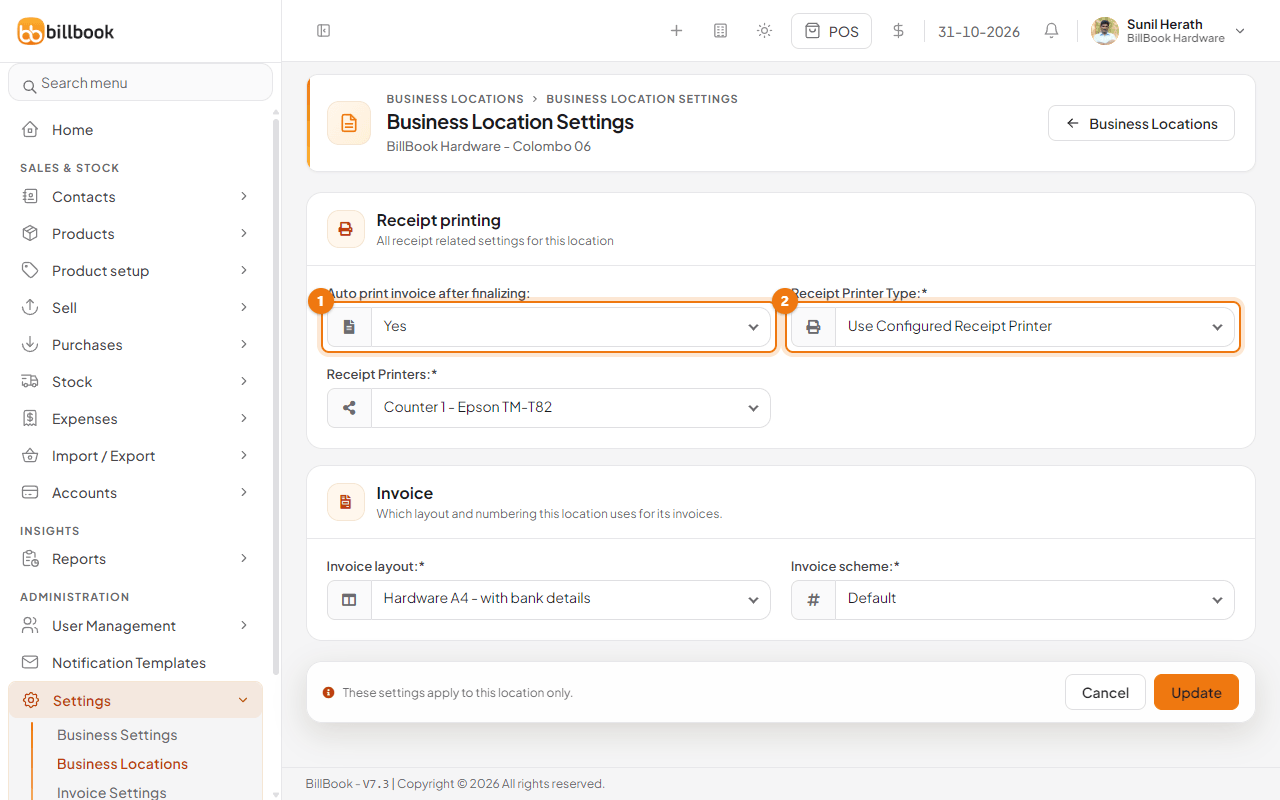
- Go to Settings > Business Locations. On your location's row, select the arrow next to Edit and choose Settings.
- Set Auto print invoice after finalizing (1) to Yes.
- Check Receipt Printer Type (2). Choose Browser Based Printing to print through your computer's printer driver, or Use Configured Receipt Printer if you added the printer under Settings > Receipt Printers.
- Select Update.
If you print through the browser (Windows)#
The drawer kick is set in the printer driver, not in BillBook.
- On the computer, open Windows Settings, then Bluetooth & devices, then Printers & scanners.
- Select your receipt printer, then Printer properties, and open the Device Settings tab.
- Under Installable Options, find Peripheral Unit Type and change it to Cash Drawer.
- Set Peripheral Unit 1 and Peripheral Unit 2:
- Document Bottom to open the drawer after the receipt prints.
- Document Top to open it before the receipt prints.
- Select OK.
The names of these options depend on your printer's driver. If you cannot find them, check the printer maker's driver notes.
If you use a configured printer#
BillBook sends the receipt to the BillBook print server for your printer, which must be running on this computer. Whether the drawer opens depends on that print server and the printer's own drawer setting. Check the print server's notes for a drawer option.
Test it#
- Make a test sale in POS and finalize it.
- The receipt prints and the drawer opens.
If the drawer does not open, check that the printer is selected for the location, that Auto print invoice after finalizing is Yes, and that the cable is in the drawer socket and not the network socket.
Note: BillBook has no button that opens the drawer without printing. Staff who need to open it without a sale can use the drawer's key or manual release.