
Hold, resume and delete held sales
Last updated: 7 November 2026 · 4 min read
A customer steps out to fetch cash, or a contractor wants to add one more item after a phone call. Instead of cancelling the sale, hold it. The sale waits in a list, the cashier serves the next customer, and the held sale is finished later.
Before you start: The Hold button must be switched on. If you cannot see it, the owner may have turned on Disable Suspend Sale on the POS tab in Settings > Business Settings.
Hold a sale#
- Go to Sell > Sales counter and add the items.
- Select Hold beside Pay. The sale is held at once.
To leave a reminder, hold it with a note instead.
- Select the ... button next to Card, then Hold with a note.
- In the Suspend Sale window, type the reminder in Suspend Note (1), for example Customer fetching cash, back in 10 minutes.
- Select Hold (2).
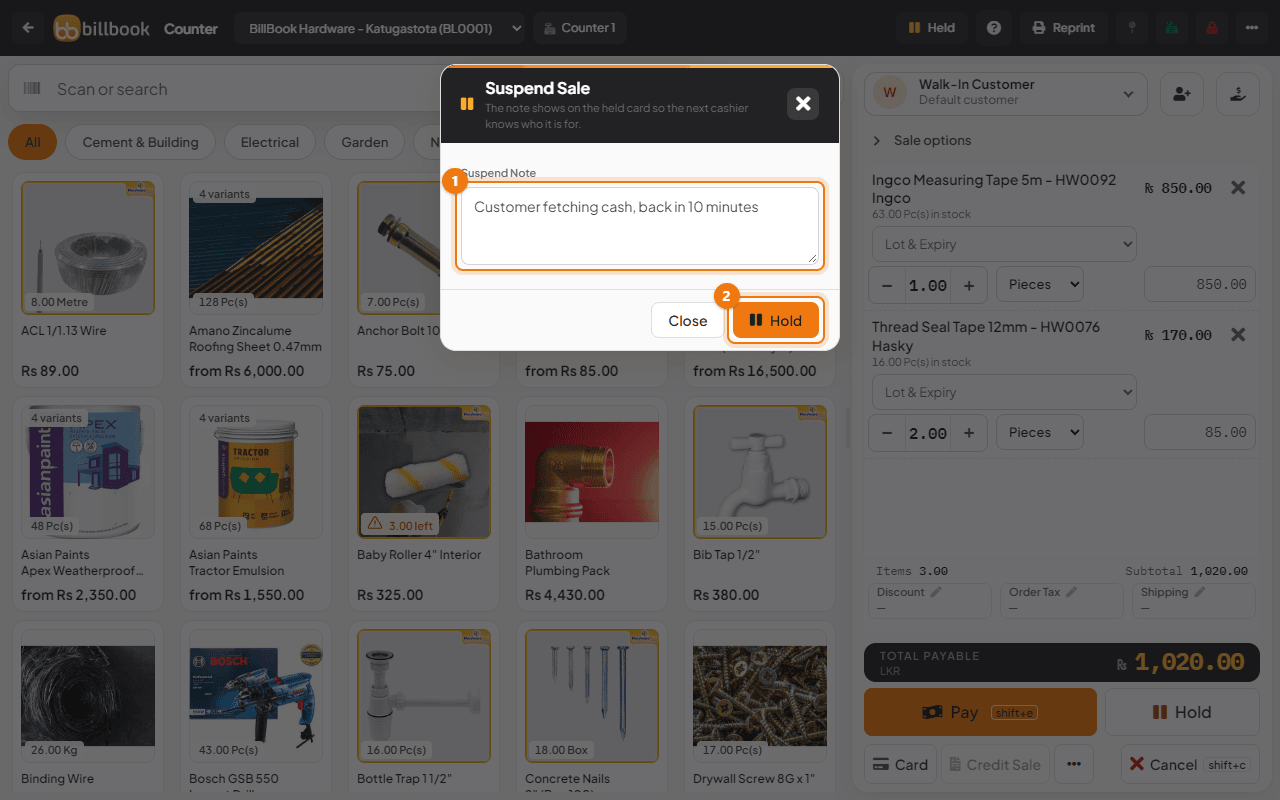
BillBook shows Sale held and clears the screen for the next customer. The Held button in the header now shows how many sales are waiting.
Find a held sale#
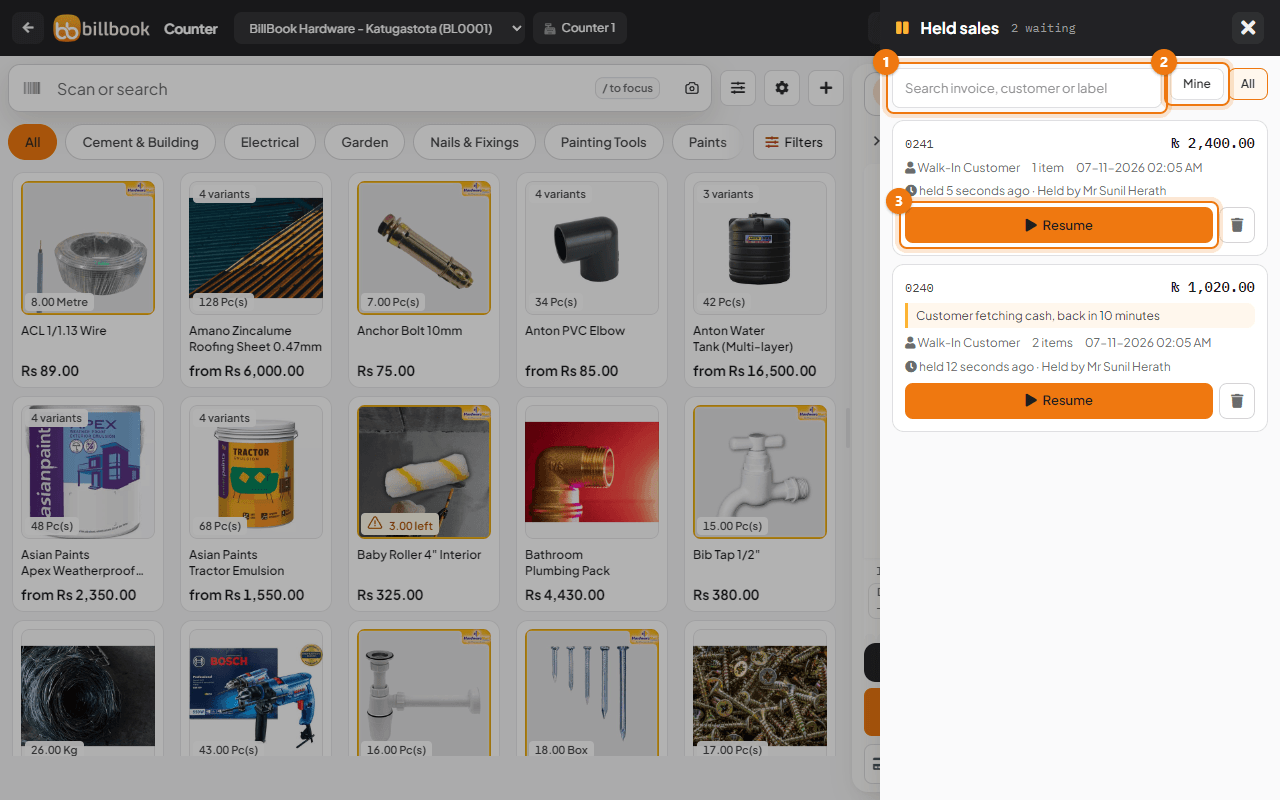
- Select Held in the header. The Held sales panel opens on the right.
- Each card shows the invoice number, the amount, your note, the customer, the number of items, when it was held and who held it, for example held 18 seconds ago.
- To find one, type part of the invoice number, the customer name or the note in the search box (1).
- Select Mine (2) to see only the sales you held, or All to see every cashier's held sales.
- If the list is long, select Load more at the bottom.
Resume and finish a held sale#
- In the Held sales panel, select Resume (3) on the sale.
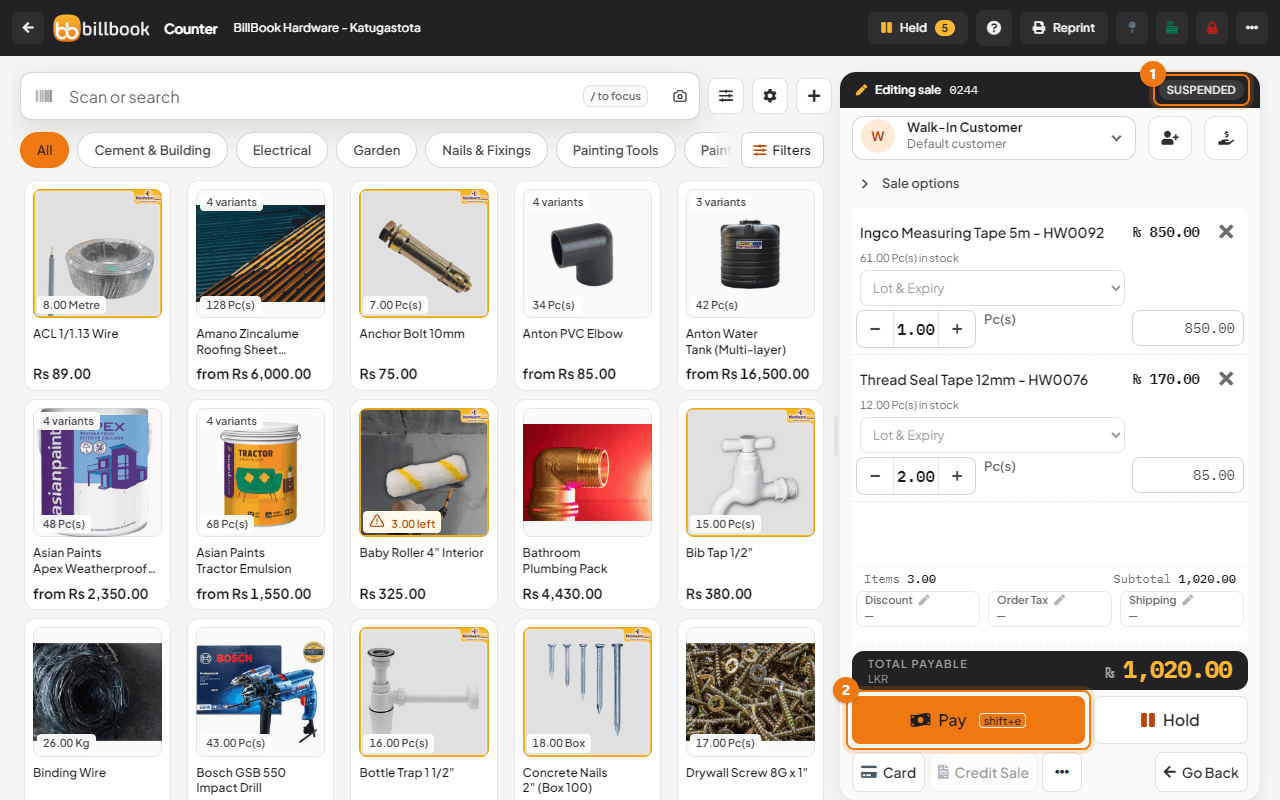
- The sale opens on the full POS screen with the label Suspended (1) and the invoice number.
- Change the items if you need to, then select Pay (2) and finish the sale as usual.
If prices changed since the sale was held, BillBook tells you with Prices changed since this sale was held and lists each item with its old and new price. The held prices are kept. Change a line if you want the new price.
If someone else resumed and changed the same held sale on another till, BillBook stops you with This held sale was changed on another till. Reload it before saving. Open the sale again from the Held list to see the latest version.
Delete a held sale#
- In the Held sales panel, select the bin button on the sale.
- BillBook asks Delete this held sale? and explains that the stock goes back and the sale is removed.
- Type the Reason (required) (1), for example Customer left without buying.
- Select OK (2).
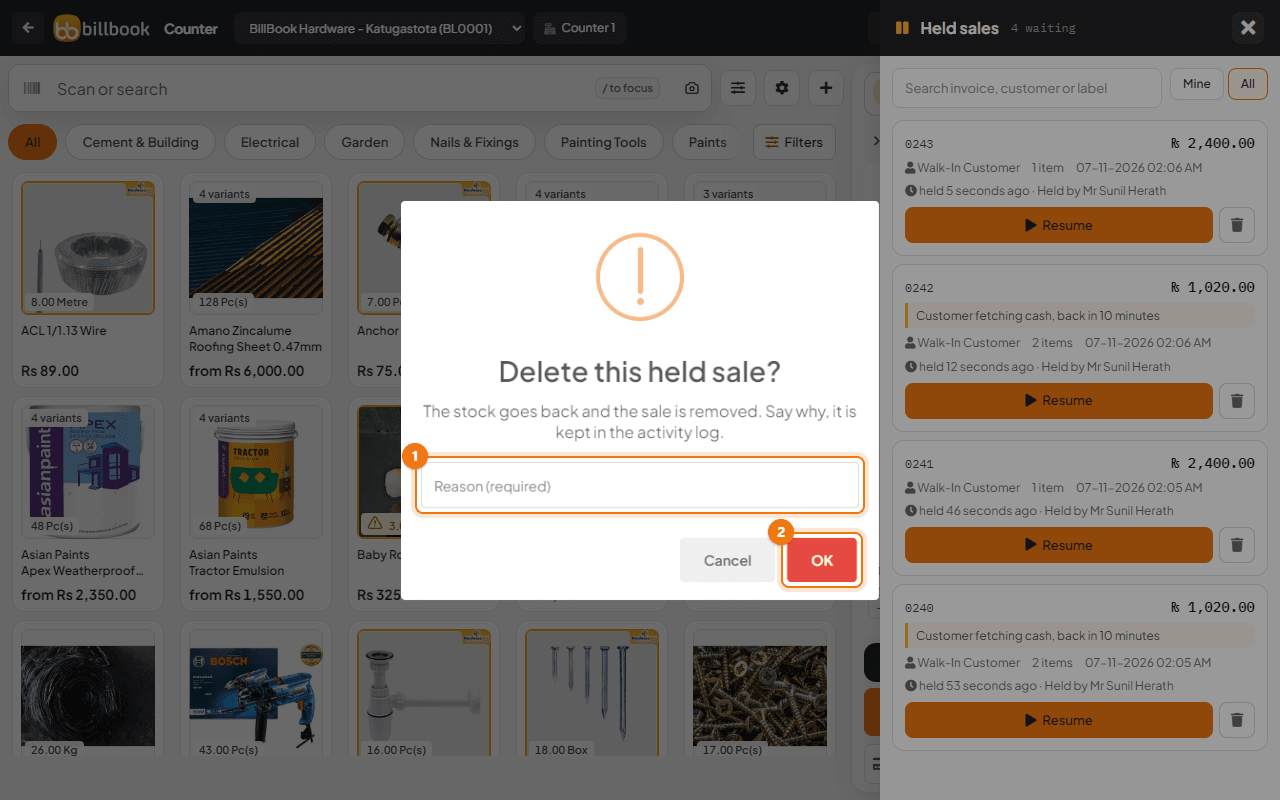
The reason is kept in the activity log, so the owner can see who deleted a held sale and why. The activity log also records Sale held and Held sale resumed each time.
What a held sale is not#
A held sale is not a finished sale, so BillBook treats it differently from an invoice.
- It is not counted in your sales totals or reports.
- It is not money a customer owes, so it does not appear in their due balance.
- It takes no payment. If you try to add a payment to it, BillBook says This sale is held. Finish it on the sale screen to take a payment.
- It cannot be returned. BillBook says This sale is held, so there is nothing to return. Finish or delete the held sale instead.
Only when you finish it from the POS screen does it become a real sale.