
Kitchen stations
Last updated: 7 November 2026 · 3 min read
A kitchen station is a place where food or drink is made, such as the main kitchen, the bar or the bakery. When you send an order to the kitchen, BillBook prints one KOT for each station, so the barista gets the coffees and the cook gets the kottu, and nobody reads a ticket full of dishes that are not theirs.
Before you start: Turn on Kitchen (For restaurants) or Tables in Settings > Business Settings > Modules. You need permission to manage Tables, because the stations sit beside Tables and Modifiers in the menu.
What a station is#
Each station has a name, an optional printer and the categories it prepares. A dish goes to the station of its category. A dish whose category is on no station goes to the default station.
The demo restaurant has three stations: Kitchen (the default), Bar (Beverages and Hot Drinks) and Bakery (Bakery and Desserts). If you set nothing up, BillBook creates one default station called Kitchen with your first order, and every KOT goes there.
See your stations#
- Go to Settings > Kitchen stations. The list shows each Station name, its Printer, its Categories and the Action buttons.
- Select Add station (1) to make a new one, or Edit (2) on a row to change one.
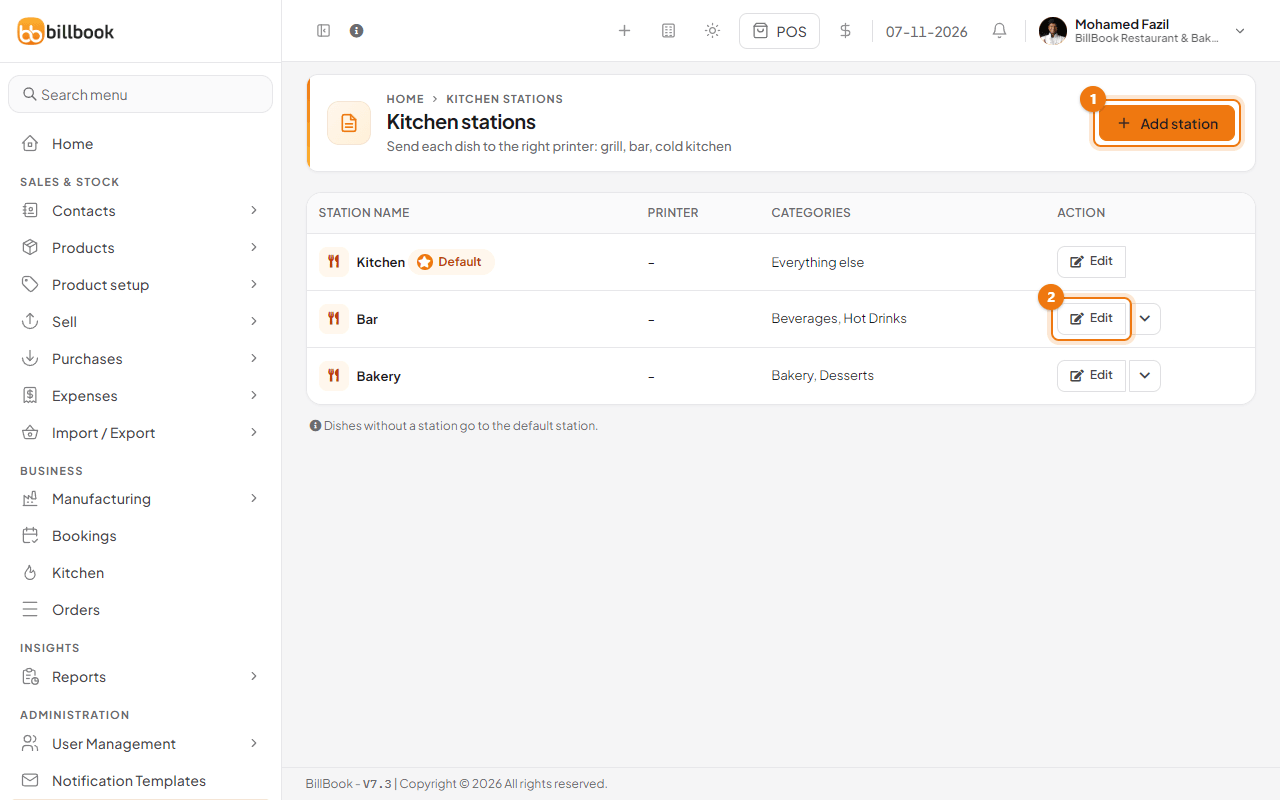
The default station has a Default badge and shows Everything else under Categories.
Add a station#
- Select Add station.
- Enter the Station name, for example Bar.
- Choose the Printer if the station has its own.
- Under Categories, choose the categories this station prepares. See the next section.
- Select Save. BillBook shows Station added.
To change a station later, select Edit, change it and select Update. BillBook shows Station updated.
Choose the categories and the printer#
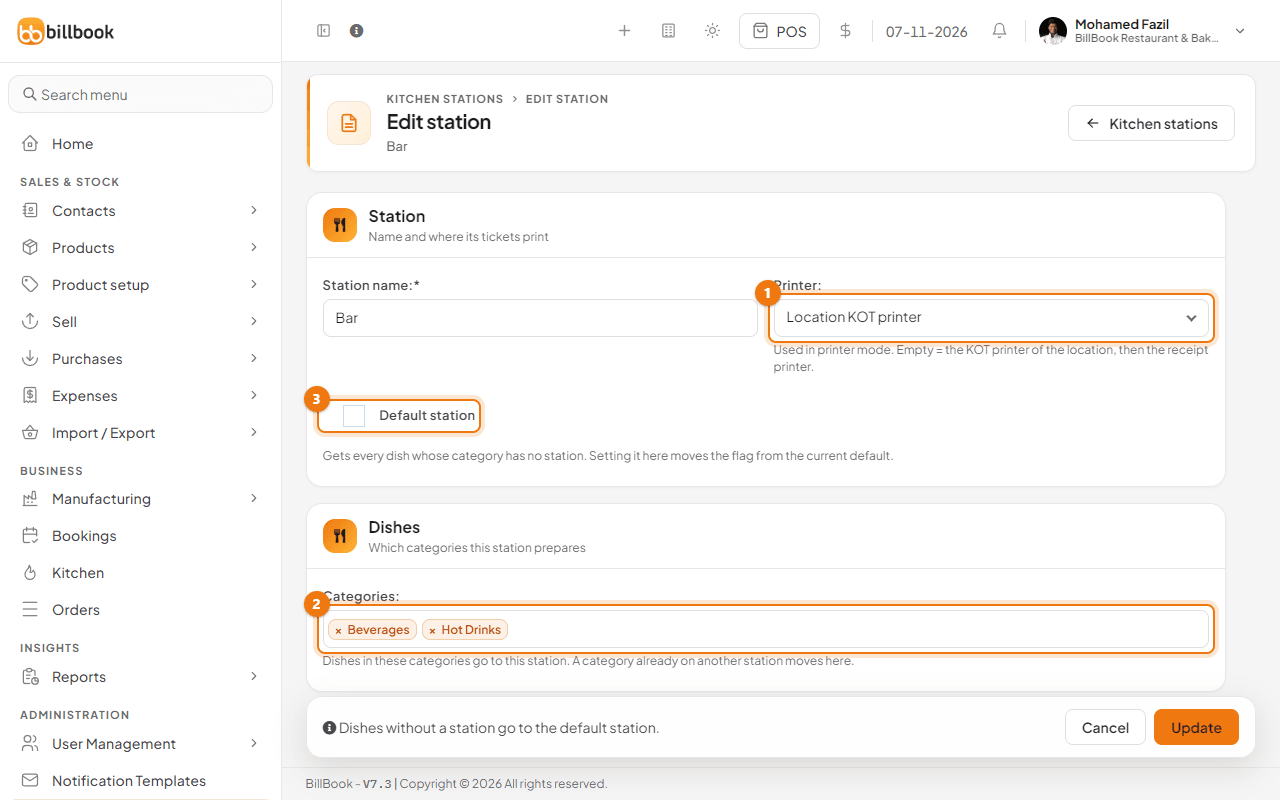
- In Printer (1), leave Location KOT printer to use the printer chosen on the location's settings page, or pick a printer you added under Settings > Receipt Printers. The printer only matters when the location prints through the print server. With browser printing, all the slips of one order open in one print window. See Print invoice, KOT and token on 80 mm and 58 mm printers.
- In Categories (2), select each category the station prepares. A dish goes to the station of its sub-category if that has one, otherwise to the station of its category.
- If you pick a category that already belongs to another station, it moves to this one.
Tip: Give the bar its drink categories and the bakery its bread and cakes. Leave the default station with no categories, so that everything new, such as a dish in a category you add next month, still reaches the kitchen.
The default station#
The default station (3) catches every dish whose category has no station, so no order is lost.
- To make another station the default, tick Default station on it and save. The tick moves from the old default.
- You cannot untick the default station or delete it. BillBook says This is the default station. Make another station the default to change it. Make another station the default first.
- To remove a station that is not the default, open the arrow next to Edit and choose Delete. Its categories go to the default station.