Label weighing scale
Last updated: 4 November 2026 · 3 min read
A label weighing scale prints a barcode that holds the product and the weight. When you scan it in POS, BillBook adds the product with that weight as the quantity and works out the price. It suits goods sold loose by weight, such as nails, rice, dhal or spices.
Before you start: Each loose product needs a number-only SKU (for example
123) and a unit such as Kg. Set the same product number in your scale's own settings.
Turn on weighing scale#
- Go to Settings > Business Settings and select POS.
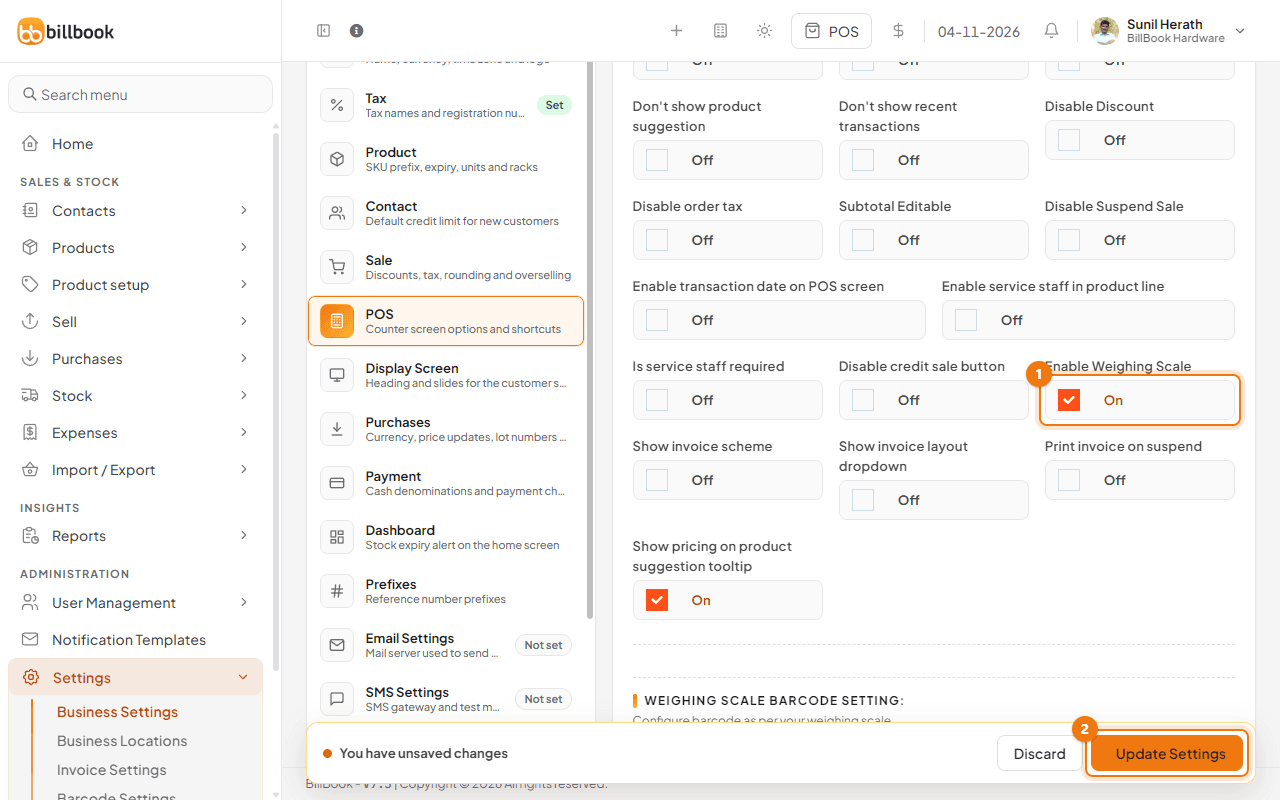
- Tick Enable Weighing Scale (1).
- Select Update Settings (2).
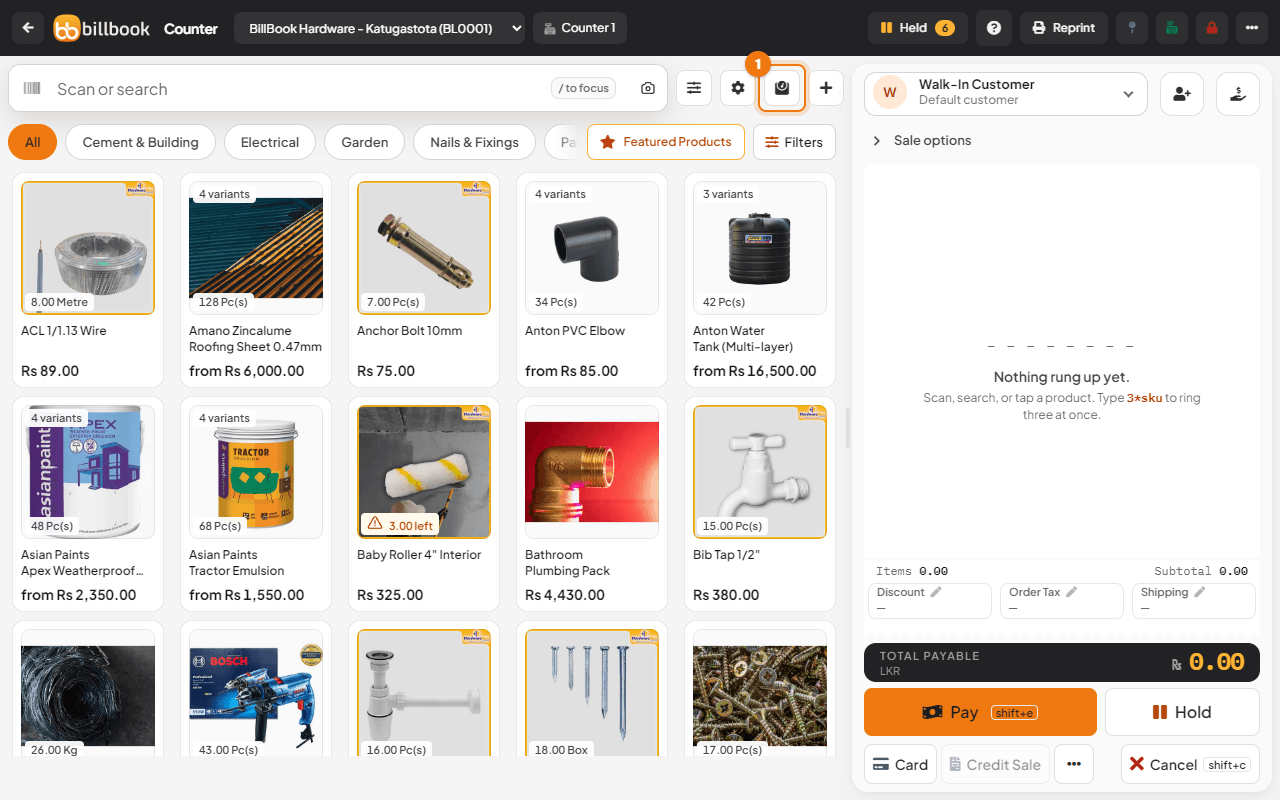
A small scale icon now appears in the search row of the POS screen, between the settings and + icons. Its name, Weighing scale, shows when you hold the pointer over it.
Barcode format settings#
Under Weighing Scale Barcode Setting, tell BillBook how your scale builds its barcode. Check your scale's manual for the format.
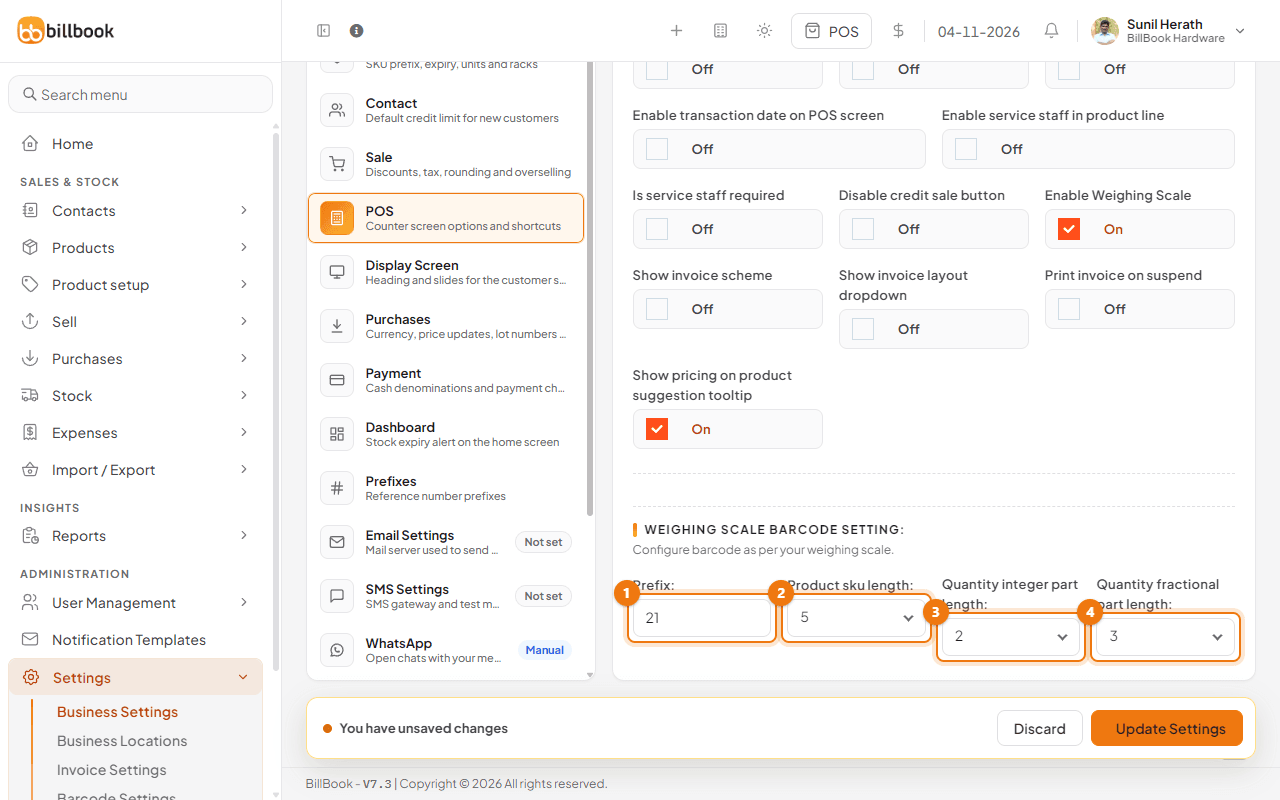
- Enter the Prefix (1), the digits every label starts with, for example
21. Leave it empty if your labels have no prefix. - Choose the Product sku length (2): how many digits the product number takes, for example
5. - Choose the Quantity integer part length (3): how many digits come before the decimal point of the weight, for example
2. - Choose the Quantity fractional part length (4): how many digits come after the decimal point, for example
3. - Select Update Settings.
Example barcode#
With the settings above (prefix 21, SKU length 5, integer part 2, fractional part 3), the barcode 210012302500 reads like this:
| Part | Digits | Meaning |
|---|---|---|
| Prefix | 21 | Matches the Prefix setting |
| Product SKU | 00123 | Product with SKU 123 (leading zeros are ignored) |
| Weight, whole part | 02 | 2 |
| Weight, decimal part | 500 | .500 |
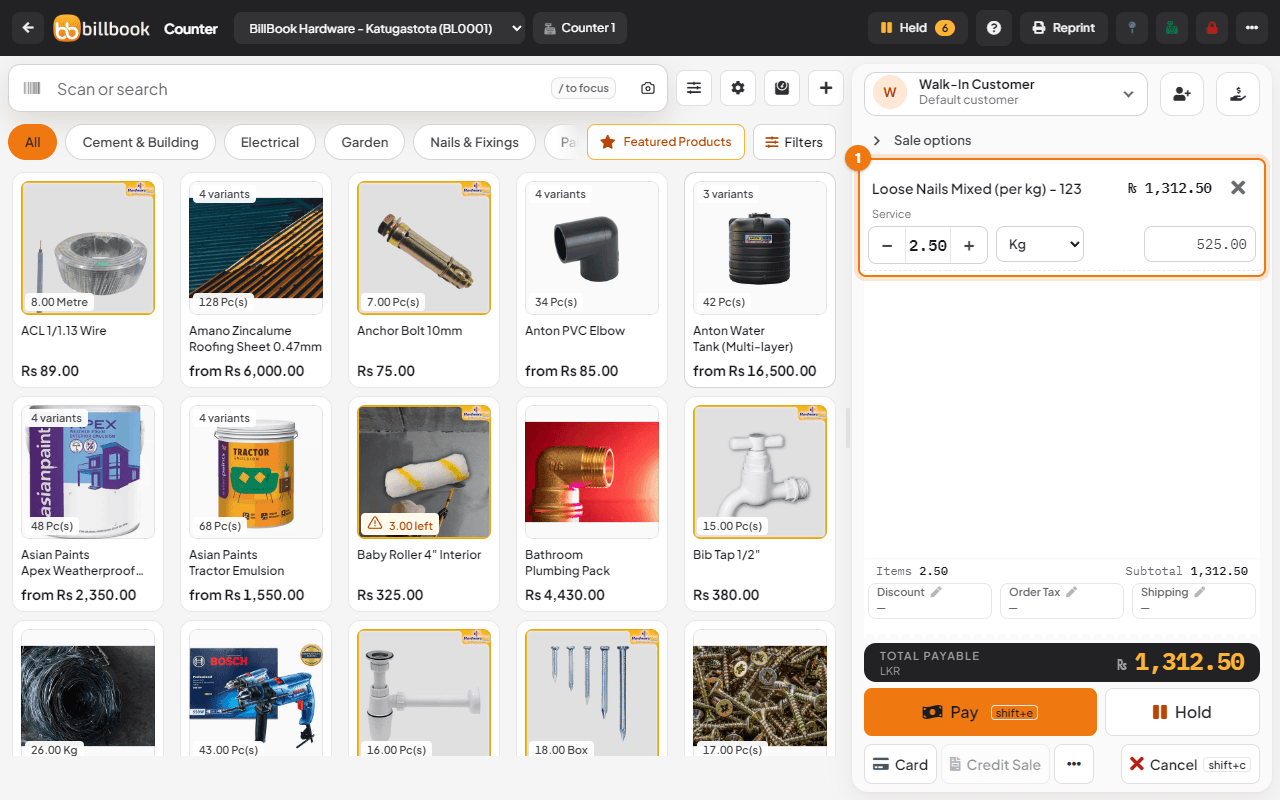
BillBook adds the product with SKU 123 at a quantity of 2.500. In the demo, Loose Nails Mixed (per kg) at Rs. 525.00 a kg comes to Rs. 1,312.50 for 2.5 kg.
Note: The product SKU must match exactly after the leading zeros are removed. If the SKU does not exist, BillBook shows No Product found with sku and the number. If the label does not start with your prefix, BillBook shows Prefix did not match.
Use it in POS#
- Go to Sell > Sales counter and select the Weighing scale icon (1) in the search row.
- Scan the label with your barcode scanner, or type the digits into Weighing scale barcode (1). A scanner enters the digits and presses Enter for you.
- Select Submit (2) if you typed the barcode.
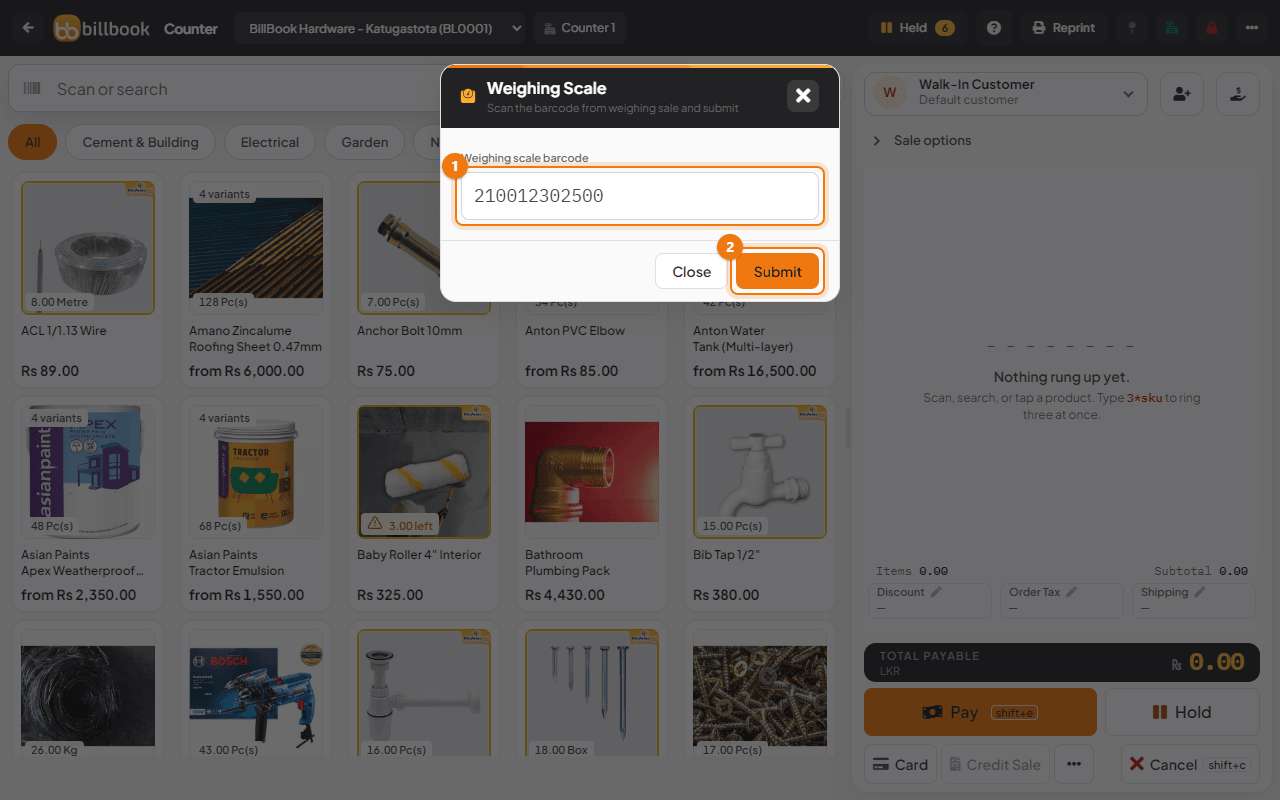
The pop-up closes and the product is added to the bill with the weight as the quantity (1). The price is the quantity times the unit price.