
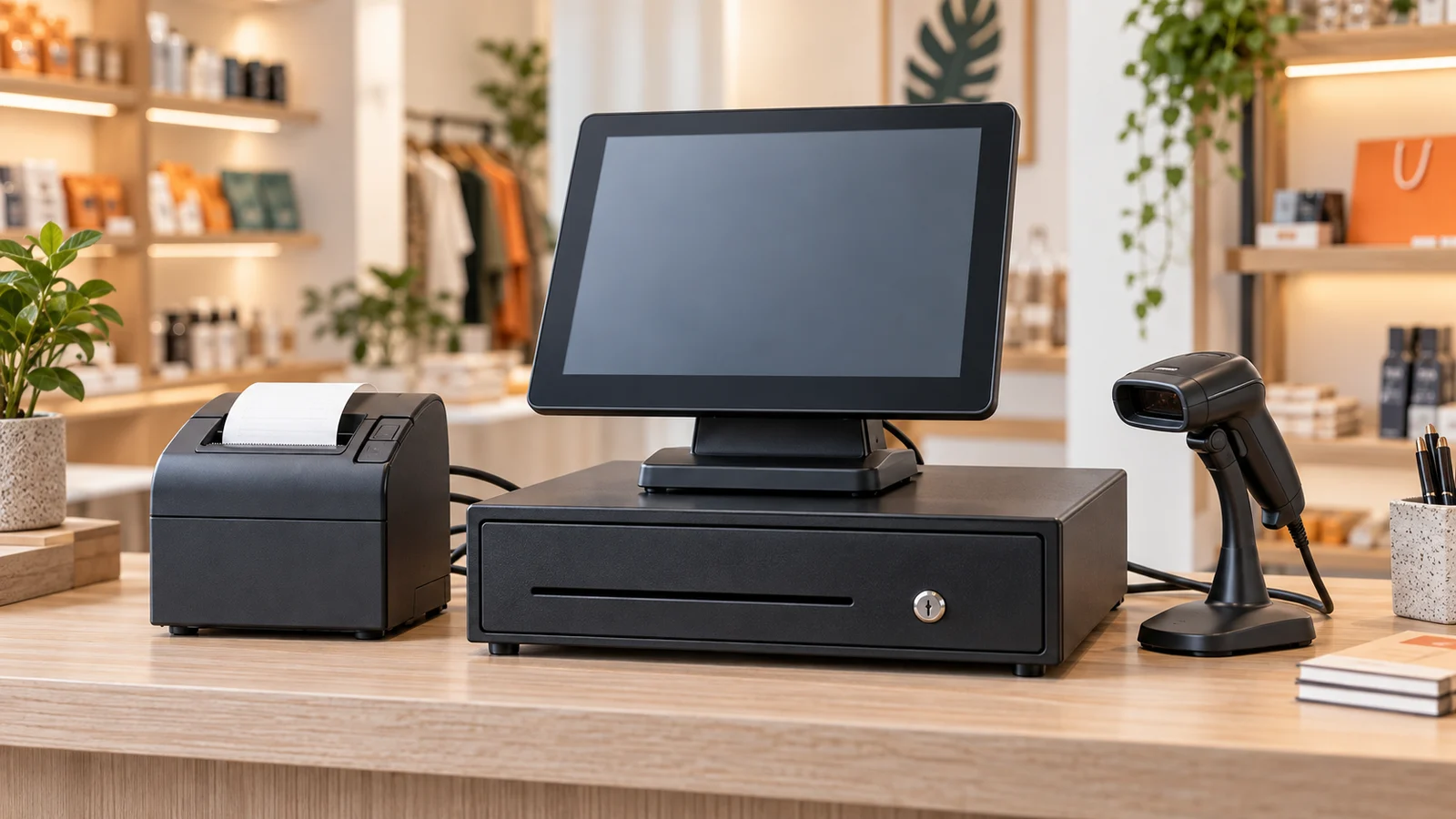
Buy Hardware for the Workflow, Not the Countertop
POS hardware should make daily work faster and more reliable. The best setup for a busy supermarket is different from the setup for a salon, pharmacy, café, or small clothing shop.
Before buying equipment, estimate transaction volume, catalogue size, barcode use, receipt requirements, available counter space, and the devices your team already owns. Then confirm that every component works with your billing software.
1. POS Terminal or Computer
The main device runs the checkout screen. It may be an all-in-one touch terminal, desktop computer, laptop, or compatible tablet depending on the business workflow.
An all-in-one terminal keeps the counter tidy and makes product selection quick. A computer or laptop may be practical when the business already owns suitable equipment or needs more keyboard-based administration.
Check:
- Screen size and readability at the counter
- Touch accuracy or keyboard and mouse comfort
- Available USB ports for scanners and printers
- Network connectivity
- Counter space and cable routing
- Warranty and local support
2. Thermal Receipt Printer
Thermal printers are common because they print quickly without ink cartridges. The two typical receipt widths are 80mm and 57mm.
An 80mm printer produces a wider receipt with more room for item names and business information. A 57mm printer takes less space and may suit low-volume or compact counters. Confirm the receipt layout and printer connection before purchasing.
Follow the thermal printer setup guide after installation.
3. Barcode Scanner
A wired USB scanner is straightforward for a fixed checkout. A Bluetooth scanner offers more movement for stock rooms, large products, or flexible counters.
Test the scanner with the exact devices and barcode types you use. A successful beep is not enough—the correct product and variation must appear in the POS. BillBook's barcode scanner setup guide explains the configuration.
4. Cash Drawer
Many cash drawers connect to the receipt printer through an RJ12-style cable and open automatically when a receipt is printed. Confirm the printer has the correct drawer port and that the drawer is compatible with its opening signal.
The drawer should also have a manual key for controlled access when the system is unavailable. Keep spare keys secure and assign responsibility for each till. See automatic cash-drawer setup.
5. Barcode or Label Printer
A label printer is useful for products without manufacturer barcodes, shelf labels, packaged items, and internal stock codes.
Before choosing one, confirm label dimensions, print volume, roll availability, and whether you need direct thermal labels. Print a small test batch and scan it from the normal working distance before producing labels for the entire catalogue.
Use the barcode printer setup guide and barcode settings guide together.
6. Weighing Scale Integration
Groceries, produce stores, and other weight-based retailers may need a label-printing scale. Compatibility depends on the barcode format and product configuration, so test a real printed label before committing to a model.
Review the label weighing scale integration guide for the BillBook workflow.
Connection Choices
USB
Usually the simplest choice for a fixed counter. It is direct and does not depend on pairing, but cable length and available ports matter.
Bluetooth
Useful for mobile or flexible layouts. Check pairing stability, battery life, charging routine, and how the device reconnects after being turned off.
Network
Network-connected hardware can serve a larger layout, but setup and troubleshooting are more involved. Document addresses and configuration so support does not depend on one staff member's memory.
A Pre-Purchase Checklist
- Confirm compatibility with BillBook and your operating device.
- Measure the counter and plan cable routes.
- Test a real receipt, barcode, and cash-drawer trigger.
- Check warranty terms and replacement availability.
- Buy the correct receipt rolls or labels.
- Plan for power protection and secure cable connections.
- Train staff before the equipment is used with customers.
Avoid These Common Mistakes
- Buying a printer before confirming receipt width and connection type
- Choosing a wireless scanner without a charging routine
- Printing hundreds of labels before testing one complete sale
- Assuming every cash drawer opens from every printer
- Ignoring the number of available ports on the POS device
- Mixing several hardware models without documenting their setup
Browse the current range of BillBook-compatible POS hardware, read the complete setup guide, or contact BillBook to check compatibility before ordering.
Start Free — No Credit Card Required
The Starter plan is free for your entire first year. Set up in minutes, cancel anytime.